10 Best Software to Record Gameplay

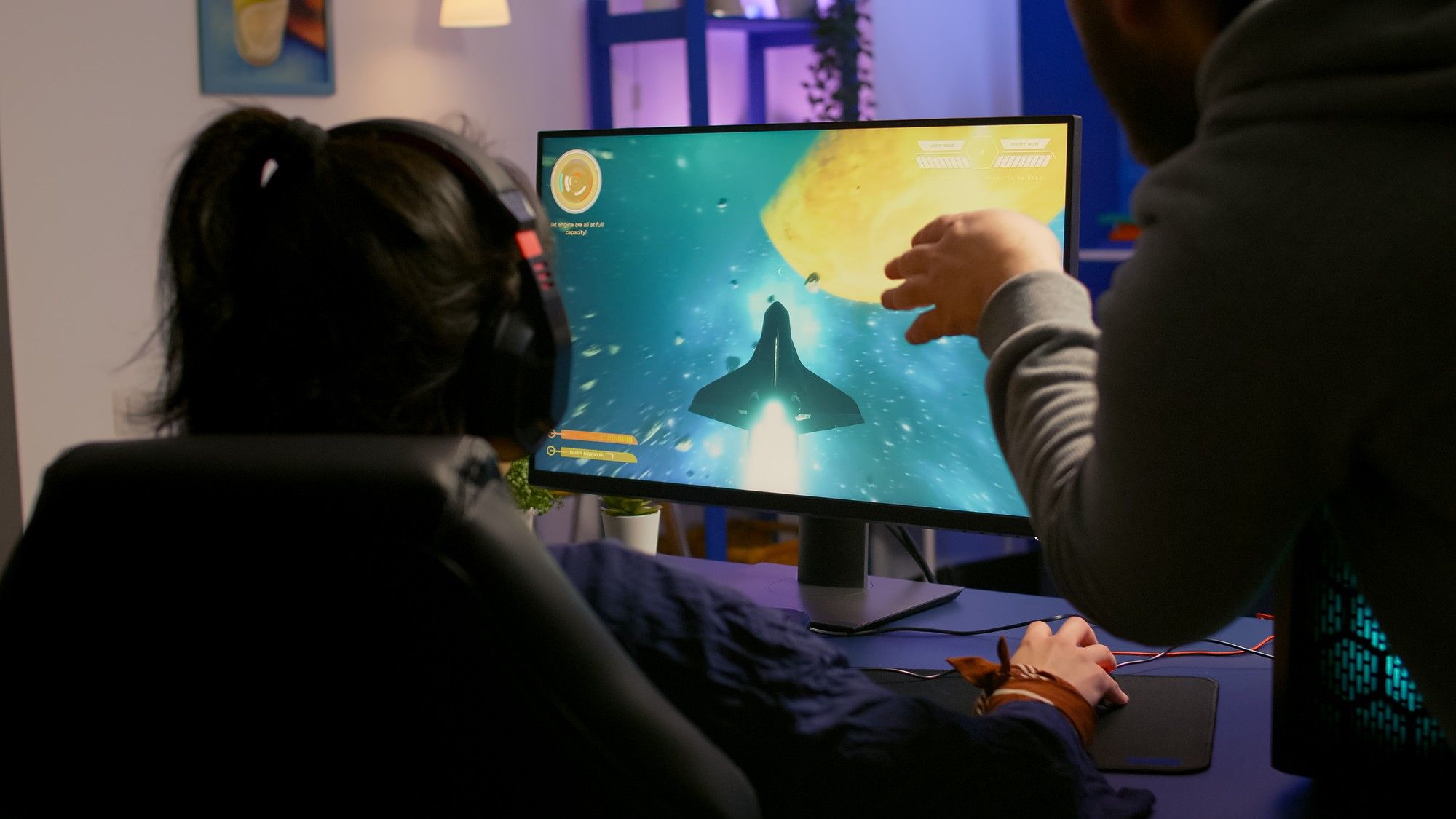
Recording gameplay well means more than hitting a record button. The wrong tool can tank your frame rate mid-match, produce audio that’s out of sync with the video, or eat 40GB of drive space for a ten-minute clip. The right tool captures clean 1080p or 4K footage without you noticing it’s running. Below are ten current options, what each one is actually good at, and a couple of once-popular tools that quietly stopped being a safe recommendation.

What to Look For Before You Install Anything
Every gameplay recorder makes tradeoffs between quality, file size, and system load. Before picking one, know what actually matters for your setup:
- GPU encoding vs. CPU encoding: Software that uses your graphics card’s built-in encoder (NVENC on NVIDIA, AMF on AMD) records with far less performance impact than software that leans on your CPU. If your frame rate drops noticeably while recording, this is usually why.
- Resolution and frame rate ceiling: 1080p at 60fps is the baseline for shareable gameplay footage today; 4K and higher frame rates matter more if you’re recording for a channel where visual fidelity is the selling point.
- Instant replay vs. continuous recording: Instant replay tools buffer the last 20 to 30 seconds and only save when you tell them to, which saves enormous amounts of drive space compared to recording an entire session.
- Built-in editing: Some tools stop at raw capture; others let you trim, add overlays, and export without opening a second program.
- Streaming vs. recording: A few of these double as live-streaming software. If you only need local recordings, a dedicated recorder is usually lighter weight than a full streaming suite.
10 Current Options for Recording Gameplay
1. OBS Studio
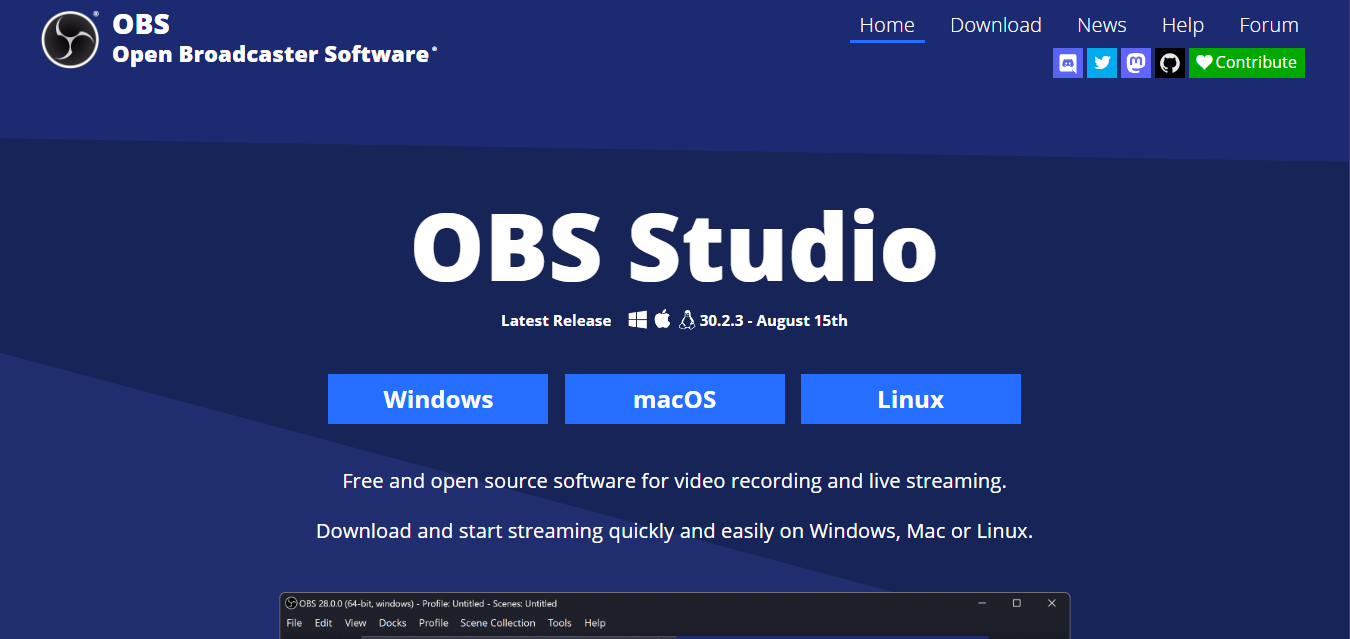
OBS Studio (Open Broadcaster Software) is free, open-source, and remains the tool most streamers and gameplay recorders eventually land on because there’s essentially no ceiling to what it can do once you learn it. It supports scene composition, multiple audio sources, GPU-accelerated encoding, and a plugin ecosystem built by its community over more than a decade of active development.
- Key Features
- Scene-based recording and streaming with unlimited sources
- GPU encoding support (NVENC, AMF, Quick Sync) for low-impact recording
- Real-time audio mixing with per-source filters
- A large plugin library for overlays, chat integration, and automation
- Pros
- Completely free and open-source, with no watermarks or paywalled features
- Works with any GPU or capture card, unlike vendor-locked tools
- Active development and a large community for troubleshooting
- Cons
- The scene and source setup has a real learning curve for first-time users
- No built-in video editor; you’ll need a separate program to trim and cut clips
- Best for: Anyone who wants full control over recording quality and setup and doesn’t mind a short learning curve to get there.
Also Read: 10 Best Software for Cinematic Video Editing
2. NVIDIA ShadowPlay (via the NVIDIA App)
ShadowPlay is the instant-replay and recording feature built into NVIDIA’s GPU software, which NVIDIA has folded into the NVIDIA App, its replacement for the older GeForce Experience. It records using your graphics card’s dedicated encoder, which means recording has almost no measurable effect on your in-game frame rate.
- Key Features
- Instant Replay saves the last 20 to 30 seconds retroactively
- Manual recording up to 8K HDR on supported GPUs
- NVIDIA Highlights automatically captures key in-game moments in supported titles
- One-click clip sharing
- Pros
- Free with any current NVIDIA GPU
- Extremely low performance overhead thanks to hardware encoding
- Simple setup with no configuration required for basic use
- Cons
- Only works with NVIDIA graphics cards
- Fewer customization options than a dedicated recorder like OBS
- Best for: NVIDIA GPU owners who want zero-setup, low-impact instant replay without installing anything extra.
3. Camtasia
Camtasia pairs screen recording with a genuinely capable video editor in one package, which makes it a strong option for anyone turning raw gameplay into a polished, narrated video rather than posting unedited clips. It’s built more for tutorial and commentary-style content than for competitive highlight reels.
- Key Features
- Screen recording and a full timeline-based editor in one application
- Pre-built templates, transitions, and callout animations
- Drag-and-drop editing without a steep learning curve
- Built-in cursor effects and annotation tools
- Pros
- Skip switching between separate recording and editing software
- Approachable editor for people without video editing experience
- Good for tutorial-style or narrated gameplay content
- Cons
- Priced well above most dedicated gameplay recorders
- Not built for fast-paced competitive capture the way OBS or ShadowPlay are
- Best for: Creators making narrated tutorials or Let’s Play-style videos who want recording and editing in a single tool.
4. Bandicam
Bandicam has stayed popular for years because it does one thing well: capture high-quality footage at a small file size without demanding much from your system. It supports both game-specific capture mode and general screen recording, and its compression keeps hour-long sessions from eating your whole drive.
- Key Features
- Dedicated game recording mode using DirectX/OpenGL/Vulkan hooking
- Recording up to 4K UHD at high frame rates
- Real-time drawing tools for live commentary or annotation
- Webcam and microphone overlay support
- Pros
- Strong compression keeps file sizes manageable
- Simple, uncluttered interface
- Reliable game-mode capture across most engines
- Cons
- The free version watermarks recordings and caps clip length
- No real video editing beyond basic trimming
- Best for: Gamers who want small, high-quality recordings without OBS’s setup overhead.
5. XSplit Broadcaster
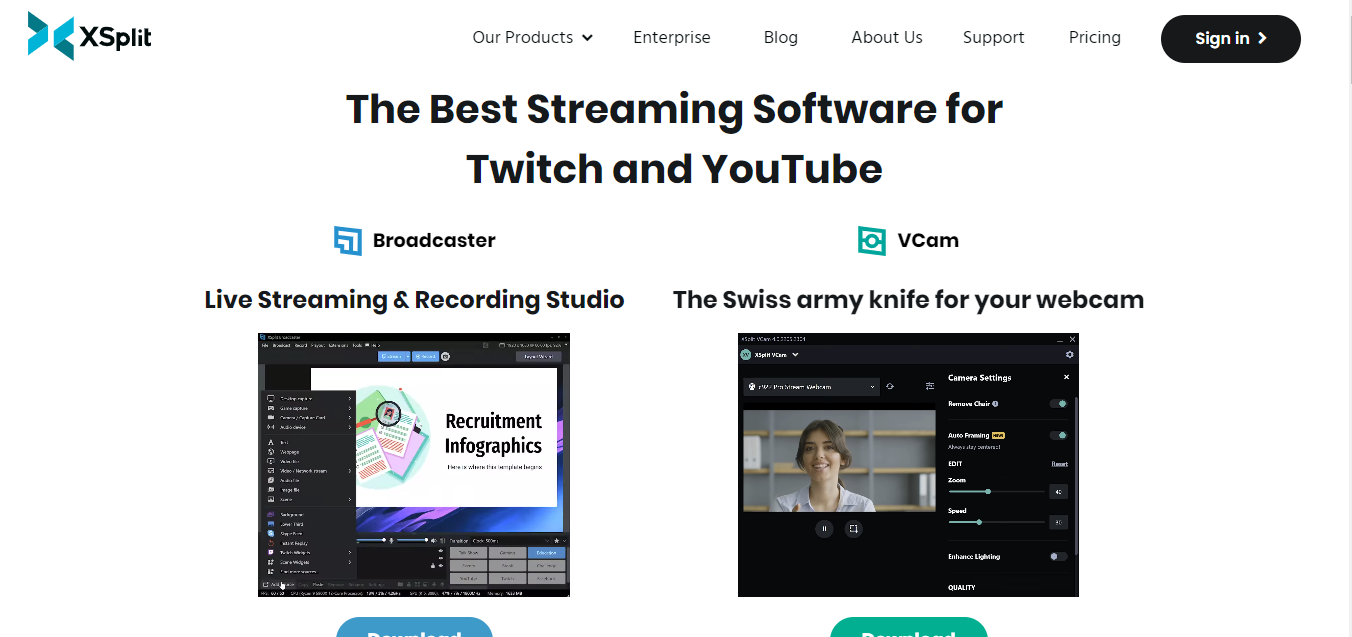
XSplit used to sell Gamecaster as a separate, simplified product aimed at casual streamers, but that product has been folded into XSplit Broadcaster, the company’s main recording and streaming application. Broadcaster now covers the one-click recording and overlay features Gamecaster offered, alongside the deeper scene control XSplit’s flagship tool has always had.
- Key Features
- One-click recording and streaming to Twitch, YouTube, and other platforms
- Customizable overlays, scenes, and transitions
- XSplit Media Manager, a free companion app for trimming and exporting clips
- Multi-source scene switching similar to OBS
- Pros
- Friendlier setup process than OBS for first-time streamers
- Media Manager gives you basic clip editing at no extra cost
- Regularly updated with new platform integrations
- Cons
- Full feature set requires a paid license
- Less flexible than OBS for advanced, custom scene setups
- Best for: Streamers who want an easier setup experience than OBS and don’t mind paying for it.
Also Read: 10 Best Software for Motion Graphics
6. Streamlabs Desktop
Streamlabs Desktop is the current name for what used to be marketed as Streamlabs OBS; the company dropped the “OBS” branding some years ago while keeping the OBS-based recording engine underneath. It’s built for streamers who want interactive overlays, alerts, and chat widgets baked directly into their recording software rather than bolted on separately.
- Key Features
- Built-in alert boxes, donation widgets, and chat overlays
- Multistreaming to several platforms at once on paid tiers
- Cloud-based scene templates and themes
- Recording and streaming from the same interface
- Pros
- Free tier includes most core recording and streaming functionality
- Interactive overlays are far easier to set up than in plain OBS
- Frequent feature updates
- Cons
- Heavier on system resources than OBS Studio or Bandicam
- Some advanced features are locked behind Streamlabs Ultra
- Best for: Streamers who want built-in alerts and widgets without configuring a third-party overlay system.
7. Action!
Mirillis Action! has stayed a reliable, lightweight recorder for years, aimed at gamers who want solid 4K capture without the resource overhead of a full streaming suite. It also doubles as general desktop recording software, useful if you record more than just games.
- Key Features
- 4K recording with hardware-accelerated encoding
- Simultaneous webcam and microphone capture
- Built-in FPS counter and benchmarking overlay
- Live streaming support alongside local recording
- Pros
- Genuinely lightweight, good for lower-spec PCs
- Straightforward interface without a steep setup process
- Reliable video and audio sync
- Cons
- Paid software with a limited trial period
- Minimal built-in editing beyond basic trimming
- Best for: Gamers on modest hardware who want dependable 4K capture without OBS’s configuration overhead.
8. AMD Software: Adrenalin Edition (ReLive)
ReLive is AMD’s answer to NVIDIA ShadowPlay, built directly into AMD’s Adrenalin driver suite and free with any current AMD graphics card. Like ShadowPlay, it uses your GPU’s dedicated encoder, so recording carries a minimal performance cost, and instant replay works the same way, buffering recent gameplay so you can save a clip after something happens rather than recording the entire session.
- Key Features
- Instant Replay buffer, similar to ShadowPlay
- Hardware-accelerated encoding through AMD’s encoder
- In-game overlay for quick access to recording controls and performance metrics
- Built into the driver package, no separate download required
- Pros
- Free and pre-installed alongside your AMD graphics driver
- Very low performance impact thanks to hardware encoding
- No account or extra software needed
- Cons
- Only works with AMD graphics cards
- Limited editing and customization compared to OBS
- Best for: AMD GPU owners who want the same zero-setup instant replay experience ShadowPlay offers NVIDIA users.
9. Medal.tv
Medal.tv is a free, lightweight clip recorder built specifically around sharing highlights fast rather than producing long recordings. It runs a small background buffer, detects notable in-game moments in supported titles automatically, and makes it easy to upload and share a clip within seconds of it happening, which is the main reason it replaced older, heavier tools for gamers who just want quick highlight reels.
- Key Features
- Automatic highlight detection in popular competitive titles
- Instant clip sharing to Discord and social platforms
- Low system resource usage
- Cloud storage for clips so local drive space isn’t a bottleneck
- Pros
- Free with a genuinely lightweight footprint
- Fastest path from in-game moment to shareable clip of any tool here
- Good Discord integration for gaming communities
- Cons
- Not built for long-form recording or full-session capture
- Automatic highlight detection only works with supported games
- Best for: Gamers who mainly want to capture and share short highlight clips rather than full recorded sessions.
Also Read: Best CapCut Alternatives for Video Editing
10. Lightstream Studio
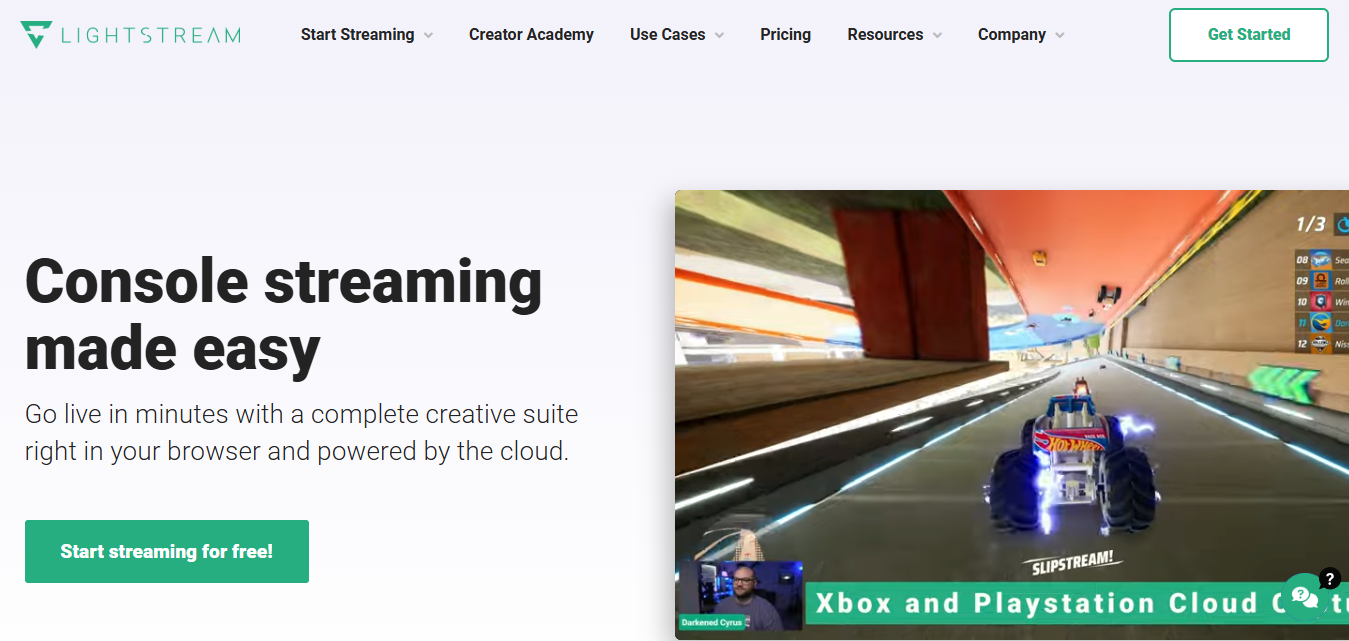
Lightstream Studio, made by Infiniscene, runs entirely in the cloud and in your browser, which means the actual encoding happens on remote servers instead of your PC. That makes it the only tool on this list that doesn’t need a powerful graphics card or CPU to produce clean output, at the cost of depending entirely on a stable internet connection.
- Key Features
- Browser-based, cloud-rendered streaming and recording
- Customizable scenes, transitions, and overlays managed in the cloud
- Multiplayer guest support for co-op or collab streams
- No local software installation required for the core experience
- Pros
- Works on low-powered laptops since your PC isn’t doing the encoding
- Free tier available alongside a paid subscription
- Fast setup with no downloads for the browser-based workflow
- Cons
- Requires a genuinely stable, fast internet connection to avoid dropped frames
- Advanced features sit behind the paid subscription
- Best for: Streamers on laptops or lower-spec PCs who want cloud-based recording without local hardware limitations.
Two Once-Popular Tools You Should Skip Today
The original version of this guide recommended Fraps and Dxtory, and it’s worth explaining why they’re gone now instead of just quietly dropping them. Fraps hasn’t received an update since 2013 and its trademark lapsed in 2017; it predates DirectX 12 entirely and has no reliable support for the rendering paths modern games use, so recordings on current titles are unpredictable at best. Dxtory is in a similar position: development has effectively stopped, and the vendor’s own site is difficult to reach securely today. Neither is a safe recommendation for anyone running a current PC and current games, regardless of how well either one worked a decade ago.
Comparison Table
| Name of Tool | Best For | Standout Feature | Pricing |
|---|---|---|---|
| OBS Studio | Full control over recording and streaming | Free, open-source, GPU-accelerated encoding | Free |
| NVIDIA ShadowPlay | NVIDIA GPU owners | Instant replay with near-zero performance impact | Free with NVIDIA GPU |
| Camtasia | Recording plus full video editing | Timeline editor built into the recorder | Paid |
| Bandicam | Small file sizes at high quality | Strong compression, real-time drawing | Paid (free trial) |
| XSplit Broadcaster | Easier setup than OBS | One-click recording, free Media Manager editor | Paid (free tier limited) |
| Streamlabs Desktop | Interactive overlays and alerts | Built-in widgets without third-party tools | Free (Ultra tier paid) |
| Action! | Lightweight 4K capture | Low system impact, built-in FPS overlay | Paid (free trial) |
| AMD ReLive | AMD GPU owners | Free, driver-integrated instant replay | Free with AMD GPU |
| Medal.tv | Fast highlight sharing | Automatic highlight detection, cloud clip storage | Free |
| Lightstream Studio | Low-powered PCs and laptops | Cloud-based encoding, no local hardware strain | Free tier, paid subscription |
Matching the Tool to Your Setup
If you have an NVIDIA or AMD graphics card and just want quick, low-effort clips, ShadowPlay or ReLive should be your first stop since both are free, already installed with your driver, and barely touch your frame rate. If you want full control over scenes, audio routing, and streaming destinations and don’t mind a setup process, OBS Studio is still the tool the rest of this list gets measured against. Camtasia makes the most sense once your priority shifts from capturing gameplay to producing a finished, narrated video, and Lightstream Studio is worth a look if your PC or laptop genuinely can’t spare the resources for local encoding.
Whatever you pick, test it on a real gaming session before you rely on it for something that matters, a tournament run, a client demo, a video you’ve promised to deliver by a deadline. Frame drops and encoder hiccups show up under real load in ways a quick five-minute test won’t always reveal, and audio sync problems in particular tend to only surface after twenty or thirty minutes of continuous recording, not in a short trial clip.
It’s also worth checking your target platform’s own limits before you settle on a workflow. YouTube and Twitch both cap upload file sizes and, on the streaming side, bitrate, so recording at settings your intended platform can’t actually handle just means re-encoding the footage later anyway. Match your capture resolution and bitrate to where the footage is actually going, not to the highest number your hardware can technically produce.
Storage Planning for Recorded Gameplay
Gameplay footage adds up fast, faster than most people expect the first time they fill a drive mid-session. An hour of 1080p60 footage at typical bitrates runs somewhere around 3 to 6GB depending on the encoder and compression settings; push that to 4K and you can easily double or triple it. If you’re recording full sessions rather than relying on instant replay, budget for it: a dedicated recording drive, ideally a fast SSD so writes don’t stutter during capture, kept separate from your OS and game install drive.
This is also where the instant replay tools genuinely earn their place on this list. ShadowPlay and ReLive only save the buffered window you trigger, which for most gamers means a handful of short clips per session instead of hours of raw, unedited footage that needs to be culled down later. If you mainly want highlight moments rather than complete VODs, leaning on instant replay (or Medal.tv’s automatic detection) will save you far more drive space and editing time than any compression setting in a continuous recorder.
Frequently Asked Questions
Will recording gameplay slow down my game?
It depends on the encoder. Software that uses your GPU’s dedicated encoder (ShadowPlay, ReLive, OBS set to NVENC/AMF) has minimal impact. Software that relies on your CPU to encode video competes directly with your game for processing power and can cause noticeable frame drops, especially on older hardware.
Do I need a capture card to record gameplay from my PC?
No. Capture cards are for recording gameplay from a separate device, like a console, into your PC. For recording gameplay running on the same PC, software-based tools like the ones above handle everything internally.
What’s the difference between instant replay and continuous recording?
Instant replay tools like ShadowPlay and ReLive constantly buffer the last 20 to 30 seconds in memory and only write to disk when you trigger a save, which uses far less storage. Continuous recording captures your entire session from the moment you hit record, which produces larger files but guarantees you don’t miss anything you forgot to trigger a save for.
Is OBS Studio really free with no hidden costs?
Yes. OBS Studio is open-source and free for both personal and commercial use, including monetized streaming and YouTube content, with no watermarks or feature paywalls.
Why did some of the tools in older versions of this guide disappear?
Software in this space changes ownership and branding more often than most categories. NVIDIA folded GeForce Experience into the NVIDIA App, Streamlabs dropped the OBS name from its product after a trademark dispute with the OBS Project, and XSplit absorbed Gamecaster into its main Broadcaster app. Fraps and Dxtory, meanwhile, simply stopped being updated years ago and no longer hold up on modern hardware and modern game engines.
Can I record and stream at the same time without a second PC?
Yes, on a reasonably modern system. OBS Studio, Streamlabs Desktop, and XSplit Broadcaster can all record a local file and stream simultaneously, though doing both at once increases CPU and GPU load, so a two-PC setup (one gaming, one dedicated to encoding) is still common among full-time streamers who need headroom for both tasks at once.

Interesting Reads