10 Best File Sharing Software

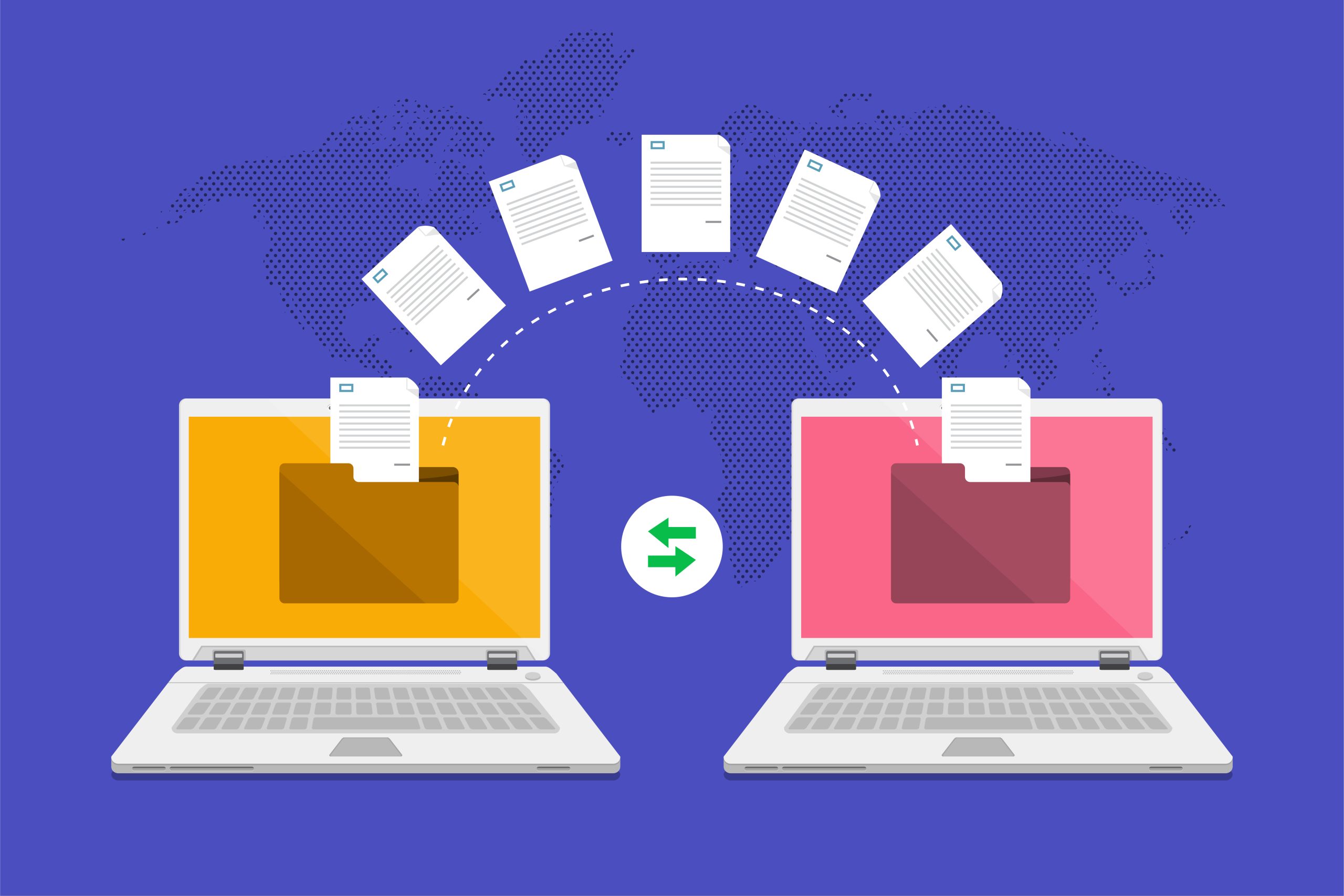
Sending a file used to mean a USB drive changing hands or an email attachment that bounced back because it was two megabytes too large. That problem is mostly solved now, but it has been replaced by a different one: too many good options, each built around a slightly different priority. Some file-sharing tools are optimized for raw simplicity, some for encryption and privacy, and some for running an entire business’s document workflow. This guide walks through ten tools worth knowing in 2026 and which specific situation each one actually fits.

Dropbox
Dropbox helped define what mainstream cloud storage even looks like, and its core pitch has not really changed: drag a file into a synced folder, and it is instantly available on every other device signed into that account. That simplicity is still its biggest strength. You do not need to think about how syncing works; it just happens in the background.
Beyond storage, Dropbox includes file recovery, full version history so you can roll back an accidental overwrite, and native integrations with tools like Slack and Zoom. For teams, shared folders and file requests (a link that lets someone upload directly into your Dropbox without needing an account themselves) make collaborative work genuinely straightforward. The mobile apps are dependable, which matters more than it sounds like it should when you need a file from your phone in a hurry.
Google Drive
If your work already runs through Gmail, Docs, or Sheets, Google Drive removes an entire category of friction, since sharing a file is just a right-click and a link away, with no separate app or account setup required for the recipient. That tight integration is Drive’s real advantage over standalone storage tools.
The free tier includes 15GB shared across Gmail, Drive, and Google Photos, which comfortably covers personal use and small projects, and real-time collaborative editing in Docs, Sheets, and Slides means multiple people can work in the same file simultaneously with comments and live cursors. For students, small businesses, and anyone already living inside the Google ecosystem, Drive remains one of the easiest entry points into cloud file sharing.
OneDrive
OneDrive is built directly into Windows 10 and 11, so for a huge number of PC users it is already running in the background without any separate installation. Its deepest advantage is native integration with Word, Excel, and PowerPoint, letting you edit Office files directly in the cloud without worrying about saving multiple conflicting copies.
Security-conscious features like Personal Vault add an extra authentication layer for sensitive files, and built-in ransomware detection and file versioning provide real protection against both malicious attacks and accidental overwrites. It is not flashy, but for anyone already inside the Microsoft ecosystem, it is a dependable, low-friction default.
WeTransfer
WeTransfer solves one specific problem extremely well: sending a large file to someone quickly, without requiring either party to create an account. Upload, enter a recipient email, hit send, and the transfer link is on its way. There is genuinely nothing to learn.
The free tier allows transfers up to 2GB, with paid plans raising that limit considerably along with adding password protection and download tracking so you know when a recipient actually grabs the file. It is not meant to replace ongoing cloud storage, and it does not try to. For a one-off transfer of a large video, design file, or photo set, it remains one of the fastest options available.
pCloud
pCloud, based in Switzerland, operates under some of the strictest data privacy regulations in the world, which is a real selling point for anyone weighing where their files physically live. Its standout feature, though, is the lifetime storage plan: a one-time payment for permanent storage rather than an ongoing monthly or annual subscription, an option most competitors on this list simply do not offer.
Client-side encryption through its optional Crypto folder means files are encrypted on your device before they ever reach pCloud’s servers, and built-in media streaming lets you play music or video directly from stored files without downloading them first. For photographers, videographers, and anyone who wants to pay once rather than indefinitely, pCloud is a genuinely distinctive option in this category.
Box
Box is built for organizations that need file sharing to double as a real collaboration and compliance platform, not just storage. Beyond basic file access, it supports co-editing, commenting, task assignment, and workflow automation for routine processes like approvals and reviews, all inside the same system.
With integrations spanning more than 1,500 third-party apps, including Microsoft Office, Google Workspace, and Salesforce, Box slots into an existing tool stack rather than forcing a switch. Its access controls and compliance certifications make it a common choice for businesses operating under regulations like HIPAA or GDPR, where knowing exactly who can see a given file matters as much as the sharing itself.
Mega
Mega, based in New Zealand, built its reputation on end-to-end encryption applied by default, not as a paid add-on. Files are encrypted on your own device before upload, meaning Mega itself cannot read their contents even if compelled to, a meaningfully stronger privacy stance than most mainstream storage providers offer out of the box.
The free tier includes 20GB of storage, notably more generous than most competitors’ free plans, plus secure chat and file versioning. For anyone handling sensitive files, or simply uncomfortable with a provider technically able to access their data, Mega remains one of the strongest privacy-first options on this list.
Sync.com
Sync.com takes a similar zero-knowledge encryption approach to Mega, meaning your files are unreadable to Sync.com’s own servers, while wrapping that security in a notably clean, approachable interface. For businesses handling client data, or individuals who simply care about digital privacy without wanting to fight a complicated interface to get it, that combination is the appeal.
Sharing controls go beyond a basic link: password protection, expiration dates, and download limits all let you share a file confidently while retaining real control over who accesses it and for how long. It strikes a genuinely solid balance between strong privacy and everyday usability.
Also Read: 10 Best Document Management Software
ShareFile
ShareFile, now part of Progress Software after its 2024 acquisition from Cloud Software Group, remains a business-focused platform built for professional client interactions rather than casual personal sharing. Custom-branded client portals, built-in electronic signatures, and structured feedback workflows give it a more polished, professional feel than consumer-grade tools.
Its handling of large file transfers is a particular strength, which matters for industries like architecture, design, and media that regularly move oversized project files. Native integration with Microsoft 365 and Outlook makes it a comfortable fit for teams already working inside those tools, and its focus stays consistently on security, reliability, and scale rather than flashy extras.
iCloud
For anyone inside the Apple ecosystem, iCloud is the path of least resistance. Photos, documents, and files sync across iPhone, iPad, and Mac automatically, without any manual step required from the user. That invisibility is exactly the experience Apple designs for.
Family Sharing extends that convenience to shared photos, purchases, and files among household members, and while iCloud does not match Google Drive or Box for deep collaboration tooling, it was never trying to. For Apple users who want file sharing to simply work quietly in the background, iCloud remains a dependable, no-fuss choice.

Privacy-First Versus Convenience-First
It is worth being honest about the real tradeoff running through this whole category. Mega and Sync.com both apply end-to-end or zero-knowledge encryption by default, meaning neither provider can technically read your files even if legally compelled to hand them over. Dropbox, Google Drive, OneDrive, and iCloud all encrypt data in transit and at rest, but the provider itself retains the technical ability to access file contents, which matters for anyone handling genuinely sensitive material like legal documents, medical records, or unreleased creative work.
For most everyday sharing, family photos, work documents, casual collaboration, that distinction rarely matters in practice. For journalists, healthcare providers, legal professionals, or anyone under a strict confidentiality obligation, it is worth choosing a zero-knowledge provider specifically rather than defaulting to whichever tool is already installed.
What These Tools Actually Cost
Google Drive, Dropbox, OneDrive, and iCloud all offer a modest free tier (typically 5 to 15GB) with paid plans scaling by storage size, billed monthly or annually. WeTransfer’s free tier covers occasional large one-off transfers, with a paid plan needed for regular heavy use. Mega’s free 20GB tier is unusually generous, and Sync.com offers a smaller but still usable free allotment. pCloud stands apart with its one-time lifetime payment option alongside standard subscription plans, a structure most of the rest of this list does not offer at all. Box and ShareFile are priced for business use, per user per month, reflecting their deeper compliance and workflow features rather than simple storage.
If you only need to send the occasional large file, WeTransfer’s free tier likely covers it entirely. If you need ongoing storage and light collaboration, the free tiers of Google Drive or Dropbox will carry most individuals and small teams a long way before a paid upgrade becomes necessary.
File Size Limits That Actually Trip People Up
Free-tier size limits vary more than people expect, and finding out about a limit mid-transfer is a common frustration. WeTransfer’s free plan caps at 2GB per transfer, which covers most photo sets and short videos but not a full-length 4K project file. Email attachments, still used by habit more than anything else, typically cap around 25MB across major providers, far too small for most modern media files. Dropbox, Google Drive, and OneDrive individual file limits are generally much higher, often in the tens of gigabytes on paid plans, which matters if you regularly move large video files, design archives, or database backups.
Before committing to a tool for a specific recurring transfer need, check its actual per-file limit against your typical file size rather than assuming any cloud tool handles arbitrarily large uploads without issue. A tool that works fine for documents and photos can stall out entirely on a large video export.
Mobile Access Is Not Optional Anymore
A large share of file sharing now starts or ends on a phone, whether that is approving a document between meetings or sending a photo straight from a camera roll. Dropbox, Google Drive, OneDrive, Box, and iCloud all have mature, reliable mobile apps that handle uploads, sharing, and offline access to marked files without much friction. Mega and Sync.com both offer solid mobile apps too, maintaining their encryption guarantees on mobile the same way they do on desktop, which is not something every privacy-focused tool manages to pull off cleanly.
WeTransfer’s mobile experience is intentionally minimal, matching its desktop simplicity, while ShareFile’s mobile app leans more toward business use cases like approving documents or reviewing client uploads on the go rather than casual personal sharing. If most of your sharing happens from a phone rather than a desktop, it is worth actually testing a tool’s mobile app before committing, since the desktop experience does not always predict how smooth the mobile version will feel.
Frequently Asked Questions
Is a “free” file-sharing plan actually safe to rely on long-term?
For personal use and small projects, yes, provided you understand the storage limit and do not treat it as your only backup for anything irreplaceable. Free tiers from established providers like Google, Dropbox, and Microsoft are genuinely reliable technically; the real risk with any single storage provider, free or paid, is relying on just one copy of something critical rather than keeping a secondary backup somewhere else.
What is the actual difference between “encrypted” and “zero-knowledge encrypted”?
Standard encryption, which most major cloud providers use, protects your files from outside attackers but still allows the provider itself to technically decrypt and access the contents if needed, whether for legal compliance, account recovery, or internal review. Zero-knowledge encryption, used by Mega and Sync.com, encrypts files with a key only you control, meaning the provider genuinely cannot read your files under any circumstance, including a government request, without your specific cooperation.
Which of these tools is best for a small business just starting out?
Google Drive or Dropbox both scale comfortably from a solo freelancer to a growing team without forcing an early jump to enterprise pricing. Box and ShareFile become worth the higher cost once compliance requirements, client-facing branded portals, or complex approval workflows become a genuine operational need rather than a nice-to-have.
Can I use more than one of these tools without conflicts?
Yes, and many people do, often without realizing it counts as “using multiple tools.” A common pattern is Google Drive or Dropbox for ongoing storage and collaboration, paired with WeTransfer specifically for the occasional oversized one-off send that would otherwise clog up a shared folder. There is no technical conflict in running two services side by side for different purposes.
How do I know if a recipient actually received and opened a shared file?
Not every tool tells you this by default. WeTransfer’s paid plans include download tracking that confirms when a recipient grabs a file, and Sync.com offers similar visibility on shared links. Dropbox and Google Drive both show basic activity notifications for shared files and folders, though the detail level varies by plan. If confirming receipt genuinely matters for a specific transfer, like a signed contract or a time-sensitive deliverable, choose a tool with explicit tracking rather than assuming silence means success.
What happens to shared files if I cancel a paid subscription?
This varies by provider and is worth checking before you rely heavily on a paid tier for anything long-term. Most mainstream providers, including Dropbox, Google Drive, and OneDrive, will downgrade your account to free-tier storage limits rather than deleting files outright, though you may lose access if your stored data exceeds the free tier’s cap until you either remove files or resubscribe. Read a provider’s specific cancellation policy before assuming your files are permanently safe regardless of subscription status, particularly with lifetime-plan providers like pCloud where the terms differ from a standard recurring subscription.
Setting Up a File-Sharing Tool the Right Way From Day One
A few habits at the start prevent most of the common problems people run into later. Turn on two-factor authentication immediately, before uploading anything sensitive, since an account without it is a single leaked password away from exposing everything stored in it. Set link-sharing defaults deliberately rather than accepting whatever a tool defaults to out of the box; several providers default new shared links to “anyone with the link” access, which is convenient but not always what you actually want for a file containing anything private.
For any file shared outside your immediate team, set an expiration date on the link where the tool supports it, so a forgotten shared file does not stay accessible indefinitely months after anyone still needs it. And if you are choosing a tool for business use specifically, check whether it supports removing a departed employee’s access centrally, rather than needing to manually track down and revoke every individual link they created.
Choosing the Best File Sharing Software for Your Actual Situation
The right file-sharing tool depends on what you are actually optimizing for. Need speed and simplicity for a one-time send? WeTransfer covers that in under a minute. Prioritizing privacy above everything else? Mega or Sync.com are built specifically for that. Running a business with compliance requirements and client-facing needs? Box and ShareFile were designed for exactly that scenario. Want easy collaboration without much setup? Google Drive and OneDrive both deliver that reliably. And if you live inside Apple’s ecosystem, iCloud stays quietly out of your way while getting the job done.
Most of these tools offer a free tier or a genuinely usable trial, so there is little real cost to testing two or three against your actual daily workflow before committing to one as your default. The right choice is rarely about which tool has the most features; it is about which one matches how you and the people you share files with actually work day to day.
Interesting Reads:
10 Best Document Management Software