10 Best Software for Spreadsheets

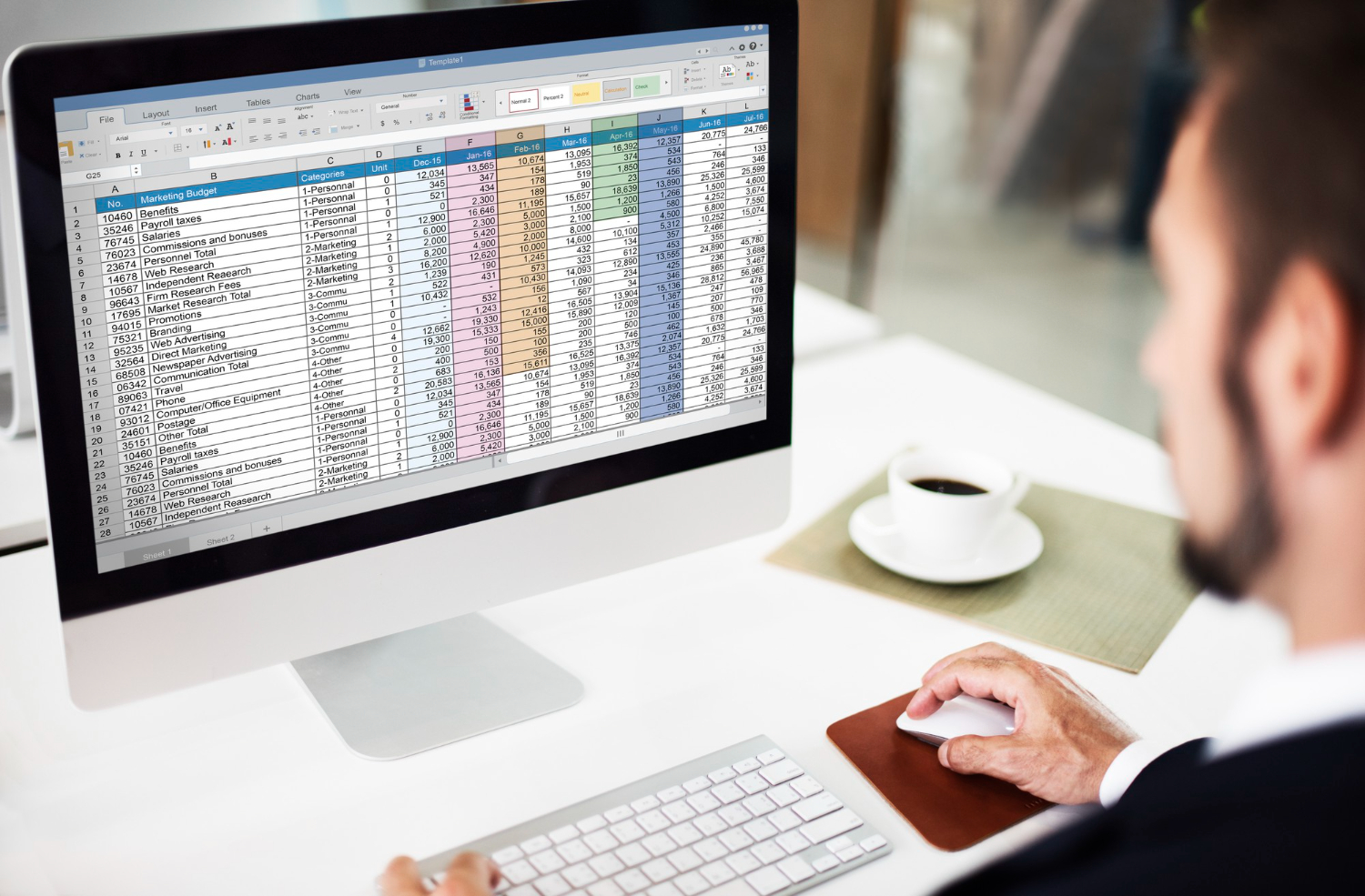
Spreadsheets quietly run more of daily life than most people realize: household budgets, wedding seating charts, small-business invoicing, sales pipelines, and yes, entire financial models that make or break company decisions. The category has also split in interesting directions lately, with some tools staying close to the classic rows-and-columns format and others blending in database logic, project tracking, or AI-assisted analysis. This guide breaks down ten spreadsheet tools worth knowing in 2026, what each one is actually good at, and one important status update on a tool that used to show up on lists like this one.

1. Microsoft Excel
Excel has been the default spreadsheet since the 1980s, and it still earns that position rather than just coasting on it. Formulas, pivot tables, macros through VBA, Power Query for pulling and cleaning external data, and increasingly capable AI features for spotting trends all live under one roof. For financial modeling, large datasets, and anything that eventually needs a macro to automate a repetitive task, Excel remains the most complete option on this list.
It comes bundled with a Microsoft 365 subscription for most users, with real-time co-authoring through OneDrive or SharePoint, plus native mobile and desktop apps that stay in sync. The learning curve is real for advanced features like array formulas or Power Pivot, but for anyone doing serious financial or statistical work, that depth is exactly the point.
2. Google Sheets
Google Sheets is free, lives entirely in the browser, and was built for collaboration rather than having it added on later. Share a link, and a whole team can edit the same file simultaneously, with changes appearing instantly and every version preserved in an accessible history. For remote teams, classrooms, and small businesses that need to move fast without a software budget, that combination is genuinely hard to beat.
It is not as deep as Excel for complex financial modeling or advanced statistical functions, but it covers formulas, pivot tables, conditional formatting, and Apps Script for automation, plus a large library of community templates. Google Forms integration makes it a common choice for anyone collecting survey or registration data that needs to land directly in a spreadsheet.
3. Apple Numbers
Numbers takes a design-first approach that the other tools on this list mostly skip. Instead of one giant grid, it lets you place multiple small tables, charts, and text blocks freely on a canvas, which suits presentations, budgets, and reports where visual clarity matters as much as raw calculation. It comes free on every Mac, iPhone, and iPad, and syncs automatically through iCloud.
It is not the tool for a 50,000-row dataset or an elaborate financial model; Excel and Google Sheets both handle that scale more comfortably. For everyday planning, trip budgets, and anything meant to look polished with minimal effort, Numbers is a strong, free option limited mainly to the Apple ecosystem.
4. LibreOffice Calc
LibreOffice Calc is the free, open-source spreadsheet in The Document Foundation’s LibreOffice suite. It handles formulas, pivot tables, charts, and macros, and it opens and saves Excel’s .xlsx format with generally solid fidelity, which makes it a realistic drop-in replacement for people who do not want an ongoing subscription.
The interface looks a step behind Excel and Google Sheets visually, but the underlying engine is capable of handling large datasets and complex calculations without issue. For budget-conscious users, students, and anyone who prefers to avoid cloud-based tools entirely, Calc remains one of the more complete free options available.
5. Zoho Sheet
Zoho Sheet sits inside the broader Zoho ecosystem, so it connects directly with Zoho CRM, Projects, and Mail for teams already using those tools. Beyond the standard spreadsheet toolkit, it includes AI-assisted data cleaning, version history, and notification rules that alert you when specific cells or ranges change, which is genuinely useful for anyone tracking shared numbers across a team.
The free plan is generous for individuals and small teams, and the interface stays approachable even with the extra automation layered in. For businesses that want spreadsheet functionality tied into a larger operational toolkit rather than standing alone, Zoho Sheet is worth evaluating.
6. Smartsheet
Smartsheet blends spreadsheet mechanics with project management, which puts it in a slightly different category than the pure spreadsheets above. Rows can carry due dates, assigned owners, and status flags, and the same data can be viewed as a grid, a Gantt chart, or a Kanban board depending on what a given meeting needs.
Templates for marketing campaigns, product launches, and event planning give new users a running start, and the automation rules (like auto-notifying an owner when a due date passes) save real time on recurring project work. It costs more than a plain spreadsheet tool and has a steeper learning curve, but for teams managing actual projects rather than just numbers, that extra structure earns its keep.
7. Airtable
Airtable looks like a spreadsheet but behaves more like a lightweight relational database. You can link records across different tables, build multiple views (grid, calendar, kanban, gallery) of the same underlying data, and attach files, images, or long text directly to a row. That makes it a strong fit for content calendars, inventory tracking, and CRMs built without a dedicated CRM platform.
The interface stays approachable despite the added power, and the free plan covers a reasonable number of records for small teams. For anything beyond flat, simple data, Airtable typically handles the job with less friction than forcing a relational structure into a plain spreadsheet.
8. WPS Office Spreadsheets
WPS Spreadsheets mirrors Excel’s interface closely enough that longtime Excel users adapt almost immediately, while running on Windows, macOS, Linux, Android, and iOS. It supports standard formulas, charts, pivot tables, and VBA macros, and the free version covers the vast majority of everyday spreadsheet work.
A paid Premium tier removes ads and adds cloud storage and PDF conversion tools. For anyone on a tight budget who still wants an Excel-like experience without a subscription, WPS is a capable, lightweight alternative that runs comfortably even on older hardware.
Also Read: 10 Best AI Websites to Help Find a Job
9. Airtable Alternative Worth Knowing: EtherCalc
EtherCalc is a minimalist, browser-based, open-source spreadsheet with no accounts and no installation. Open a link, and you are editing immediately, with changes visible to anyone else who has that same link, which makes it genuinely useful for a quick, temporary, throwaway calculation shared with a small group. It is not actively marketed or funded the way commercial tools are, and development has slowed considerably compared to its early years, so it is best treated as a lightweight utility rather than a primary spreadsheet tool for ongoing work. For anything you need to keep and build on long-term, one of the more actively maintained options above is the safer choice.
10. A Note on Quip: Once a Contender, Now Being Retired
Quip, Salesforce’s combined documents-spreadsheets-chat tool, used to be a reasonable pick for teams that wanted spreadsheets and team conversation in the same window instead of juggling email threads and Slack messages separately. That is no longer a safe recommendation. Salesforce announced in March 2026 that Quip is being retired, with existing subscriptions running through March 1, 2027, and no new subscriptions being accepted in the meantime. If you are currently using Quip for anything you care about, start planning a migration now rather than waiting for the shutdown date to force the issue, since exporting spreadsheets and documents in bulk gets more urgent the closer that date gets. For teams that liked Quip’s combination of chat and spreadsheets, Zoho Sheet or Smartsheet are the closer functional replacements from the list above.

Matching the Tool to the Actual Job
Pure number-crunching, financial models, statistical analysis, large datasets, still points toward Excel or Google Sheets first, since both have the deepest formula libraries and the most mature ecosystems of templates and add-ons. If the “spreadsheet” is really tracking a project with owners, deadlines, and status updates, Smartsheet or Airtable will save time that would otherwise go into fighting a plain grid into behaving like a project tracker.
Design-forward output, budgets or reports meant to be shown to someone rather than just calculated, favors Apple Numbers if you are on Apple hardware, since its canvas-based layout produces cleaner-looking documents with less manual formatting effort. And if cost is the primary constraint, LibreOffice Calc and WPS Spreadsheets both deliver serious functionality without a subscription attached.
Formula Compatibility Between Tools
Most everyday formulas, SUM, AVERAGE, VLOOKUP or its modern replacement XLOOKUP, IF statements, work consistently across Excel, Google Sheets, LibreOffice Calc, and WPS Spreadsheets, since all four aim for broad compatibility with the same general formula syntax. Where things diverge is in each platform’s unique extras: Excel’s Power Query and dynamic array functions, Google Sheets’ native integration with Google Apps Script and IMPORTRANGE, and Airtable’s formula fields that reference linked records across tables do not translate directly to the others.
If you regularly move files between two of these tools, or collaborate with people using a different one than you, it is worth testing your specific formulas after an import rather than assuming everything will carry over cleanly, particularly for anything built with a platform-specific function.
What These Tools Actually Cost
Google Sheets, LibreOffice Calc, and Apple Numbers cost nothing regardless of usage, with Numbers limited to Apple hardware. Excel is bundled into a Microsoft 365 subscription for most users, priced per person or per household depending on the plan, though a non-subscription Office license is still available for people who only need the desktop apps without cloud extras. Zoho Sheet, WPS Spreadsheets, and Airtable all offer functional free tiers with paid upgrades unlocking higher storage limits, more automation, or admin controls. Smartsheet is priced per user per month and sits toward the higher end of this list, reflecting its project-management features rather than pure spreadsheet functionality.
If cost is the deciding factor, start free with Google Sheets or LibreOffice Calc and upgrade only once you hit a specific limitation, like needing Smartsheet’s Gantt charts for a real project or Airtable’s linked records for a genuinely relational dataset. Paying for capability you will not use is the most common mistake in this category.
Mobile Access and Offline Work
Google Sheets, Excel, and Zoho Sheet all have mature mobile apps that sync changes the moment a connection returns, so editing a budget on a phone during a commute and then opening the same file on a laptop later works without friction. Apple Numbers extends that same reliability across iPhone, iPad, and Mac through iCloud, though it stays within the Apple ecosystem rather than reaching Android or Windows.
LibreOffice Calc, being a desktop-first open-source project, has a weaker mobile story; there are third-party apps that can open its files on Android, but there is no official, actively maintained mobile app the way Google and Microsoft both offer. If a meaningful portion of your spreadsheet work happens away from a desk, that gap is worth weighing before committing to it as your only tool.
Security and Where Sensitive Data Actually Lives
Cloud-based tools store your spreadsheets on the provider’s servers by default, which is convenient but means trusting that provider’s security practices with whatever data lives in those cells, financial figures, client lists, or anything else you would not want exposed. For most everyday use, that tradeoff is reasonable given the backup and collaboration benefits. For anyone handling regulated financial data, health information, or anything under a strict client confidentiality agreement, it is worth checking a provider’s specific compliance certifications rather than assuming any major cloud tool automatically covers your requirements.
LibreOffice Calc keeps files local to your device by default, giving you full control over where copies exist. If privacy is a genuine priority for a specific project, working locally and sharing exported files manually, rather than through a live cloud link, remains the most straightforward way to limit exposure.
Frequently Asked Questions
Is a free spreadsheet tool good enough for a small business?
For most small businesses, yes. Google Sheets or LibreOffice Calc cover invoicing, basic bookkeeping, inventory tracking, and reporting without any subscription cost. Paid tools earn their price once you need specific capabilities like Smartsheet’s project automation, Airtable’s relational data structure, or Excel’s advanced financial modeling functions.
What happens to my Quip data before the shutdown?
Salesforce has said existing subscriptions continue through March 1, 2027, giving current users time to export documents and spreadsheets before the platform closes. If your team relies on Quip, export your important files now rather than waiting, since bulk exports closer to a shutdown date tend to get more congested and rushed than necessary.
Can I use more than one spreadsheet tool at the same time?
Plenty of people do, often without thinking of it that way. A common pattern is Google Sheets for quick, collaborative day-to-day tracking, and Excel for the one or two heavier financial models that need its deeper formula and macro support. There is no rule requiring a single tool for everything, and mixing tools based on the specific task is often more efficient than forcing every use case into one platform.
Which of these tools handles the largest datasets?
Excel and Google Sheets both handle large datasets reasonably well, though Excel generally has a higher practical ceiling before performance starts to lag, particularly with complex formulas across many rows. For genuinely large datasets, millions of rows or more, none of these consumer spreadsheet tools are the right choice; that scale calls for a proper database or business intelligence tool instead.
Is Airtable really a spreadsheet, or something else entirely?
It sits deliberately between the two categories. The grid view looks and behaves enough like a spreadsheet that most people pick it up immediately, but the underlying structure lets you link records across separate tables the way a relational database would. If your data genuinely has relationships, customers tied to orders, orders tied to products, Airtable handles that far more cleanly than trying to fake it with VLOOKUP formulas across multiple spreadsheet tabs.
Should a growing team move off Google Sheets eventually?
Not automatically. Plenty of teams with dozens of people run entirely on Google Sheets without issue, particularly for straightforward tracking and reporting. The signal to look elsewhere is usually a specific pain point rather than team size alone: formulas getting too slow across too many rows, a genuine need for project-management features like dependencies and Gantt views, or a relational data structure that keeps getting forced awkwardly into flat rows. Move when a real limitation shows up, not on a schedule.
Switching Tools Without Losing Your Formulas
Migrating a working spreadsheet from one tool to another is rarely as clean as opening the file and hoping for the best, especially once macros, pivot tables, or platform-specific functions are involved. Before switching a spreadsheet you actually depend on, export a copy first and test it in the new tool with a duplicate rather than your only working file. Basic formulas, sums, averages, straightforward lookups, tend to survive a move between Excel, Google Sheets, and LibreOffice Calc without much trouble. Conditional formatting rules, macros written in VBA or Apps Script, and any formula referencing an add-on specific to one platform are the pieces most likely to need rebuilding by hand.
If a whole team is migrating together, budget real time for the switch rather than assuming it happens over a weekend. Muscle memory around keyboard shortcuts, menu locations, and even where the sum function lives takes a few weeks to rebuild, and rushing a team migration during a busy reporting period tends to create more errors than it saves in time.
The Spreadsheet Universe Is Yours to Explore
The best software for spreadsheets is the one that fits your workflow, your team, and your budget, not necessarily the one with the longest feature list. Excel remains the powerhouse for serious number work, Google Sheets makes collaboration effortless, Airtable and Smartsheet turn a spreadsheet into something closer to a lightweight database or project tracker, and LibreOffice Calc proves free software can still hold its own against paid competitors. Whether you are running a business, planning a project, or just trying to keep your personal budget under control, there is a genuinely good option in this list, and now you know which ones are still worth trusting going into 2026.
Interesting Reads: