10 Best WordPress Migration Plugins


Moving a WordPress site between hosts used to mean exporting a database, hand-editing config files, and hoping nothing broke on the way over. It still can mean that, if you’re doing it manually. A good migration plugin turns a multi-hour, error-prone process into something closer to a single click, handling files, database, themes, and settings together so the site that lands on the new server actually matches the one that left the old one.
What a Migration Plugin Actually Does
At its core, a migration plugin packages your entire site, files, database, media, and configuration, into a transferable format, then unpacks and reconfigures it on the destination server. The better tools handle the parts that trip up manual migrations automatically: updating hardcoded URLs in the database, resolving file permission differences between hosts, and verifying the transfer completed without silent corruption.
Most tools fall into one of two camps. Full-site tools package everything into a single archive and rebuild it wholesale on the new server, which is the simpler mental model and works well for a one-time host switch. Database-sync tools instead push and pull specific changes between two live environments, which suits developers who need staging and production to stay roughly in step over time rather than migrating once and being done with it. Picking the wrong category for your actual workflow is a common source of frustration with an otherwise capable plugin.
Why Skip the Manual Route
A manual migration is genuinely risky. Database exports fail silently more often than most people expect, serialized data gets mangled by a careless find-and-replace, and file permission mismatches between the old host and the new one cause errors that only show up after the DNS has already switched over. A solid migration plugin isn’t just a convenience; it removes the specific failure points that turn a routine host switch into a multi-day recovery project.
The serialized-data problem deserves a specific callout, since it catches even experienced developers off guard. WordPress stores certain settings, widget configurations and some plugin options among them, as PHP serialized arrays that include an exact character count for each string. A generic find-and-replace tool that swaps the old domain for the new one without accounting for that count corrupts the data structure rather than fixing it, which is exactly the kind of subtle breakage a purpose-built migration plugin is designed to avoid.
What to Look For
- Ease of use: a genuinely simple interface, since a migration is stressful enough without a confusing tool on top of it.
- Reliable backups: a plugin that can also create a full backup before it touches anything gives you a rollback path if something goes wrong mid-transfer.
- Support for large sites: some tools choke on sites over a few gigabytes; check the size limits before committing to one for a large media library or a store with years of order history.
- Clean database handling: serialized data and search-replace across the database need to happen correctly, not approximately.
- Minimal downtime: the best tools migrate in the background without taking the live site offline while the transfer runs.
Ten Migration Plugins Worth Using
1. BlogVault
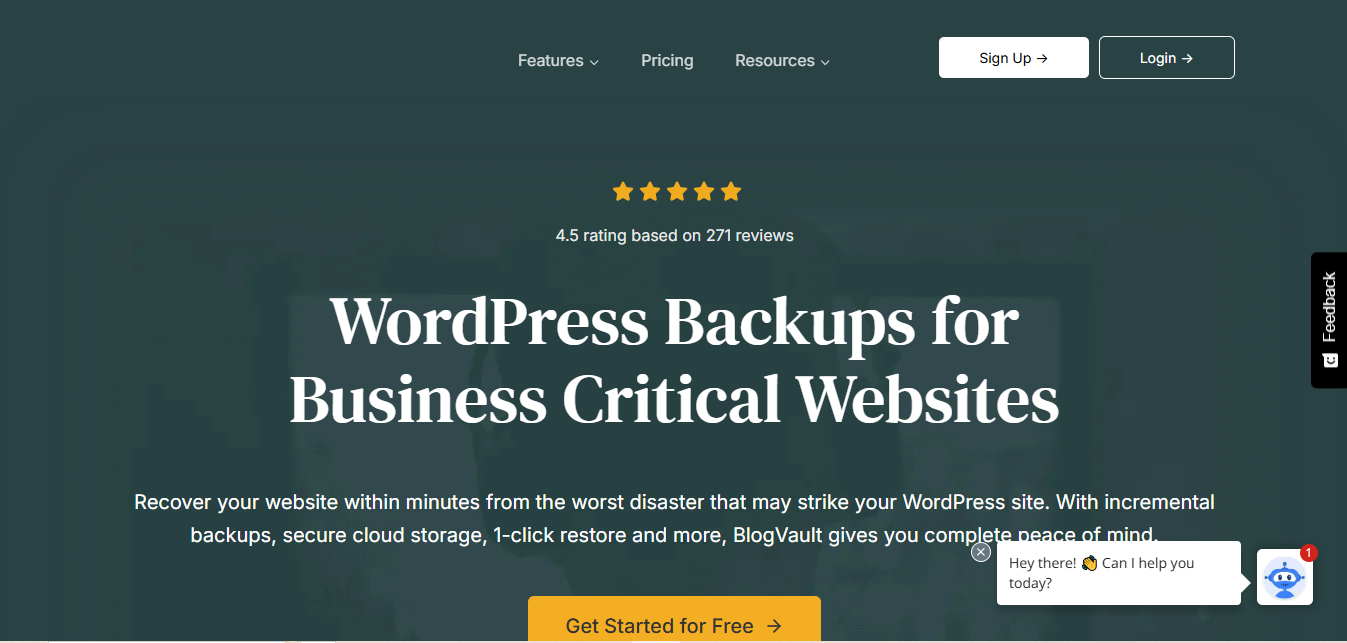
BlogVault pairs migration with genuinely strong backup infrastructure, which makes it a good pick for anyone who wants both handled by the same tool rather than running two separate plugins.
Key features: incremental backups that only transfer what changed, one-click staging site creation, and compatibility across essentially every hosting platform.
Pros: migration speeds hold up well even on larger sites, and the security around the transfer itself is solid.
Cons: it’s subscription-based, and the ongoing cost adds up for anyone who only needs to migrate once.
Best for: site owners who want backup and migration handled by one tool instead of stitching two plugins together.
Related reading: how to have 2 lines of text in a WordPress header.
2. All-in-One WP Migration (Unlimited Extension)
The free version of All-in-One WP Migration caps export size, which is exactly what the Unlimited Extension removes. It’s one of the most straightforward migration tools available, built around a drag-and-drop interface rather than a settings-heavy dashboard.
Key features: unlimited site size once the extension is added, a drag-and-drop migration interface, and broad file type support.
Pros: genuinely beginner-friendly, and migrations run fast with minimal downtime on most hosts.
Cons: advanced configuration options are limited compared to developer-focused tools further down this list.
Best for: anyone who wants a simple, visual migration process without digging into settings.
3. Solid Backups (formerly BackupBuddy)
BackupBuddy was one of the longest-running names in WordPress backup and migration, and it’s still the same tool under the hood, just renamed. iThemes rebranded to SolidWP, and BackupBuddy now ships as Solid Backups as part of that broader product lineup.
Key features: automated backups on a schedule, multisite installation support, and built-in malware scanning alongside the backup and migration tools.
Pros: handles multisite migrations more smoothly than most competitors on this list.
Cons: pricing sits higher than several alternatives here, particularly for single-site use.
Best for: agencies and multisite networks that want backup, malware scanning, and migration in a single product family.
4. WP Migrate (Pro)
Originally built by Delicious Brains as WP Migrate DB Pro, this plugin now ships under WP Engine, which acquired Delicious Brains’ plugin lineup in 2022. The core strength hasn’t changed: it’s built specifically around clean database synchronization, which matters more than file transfer on most real migrations.
Key features: database push/pull synchronization between environments, one-click migrations on large sites, and debugging tools that show exactly what a migration changed.
Pros: handles database-heavy sites, think WooCommerce stores with years of order history, more cleanly than general-purpose migration tools.
Cons: the interface assumes some technical familiarity, so it’s a steeper learning curve for a first-time user.
Best for: developers regularly syncing a site between staging, development, and production environments.
5. Duplicator Pro
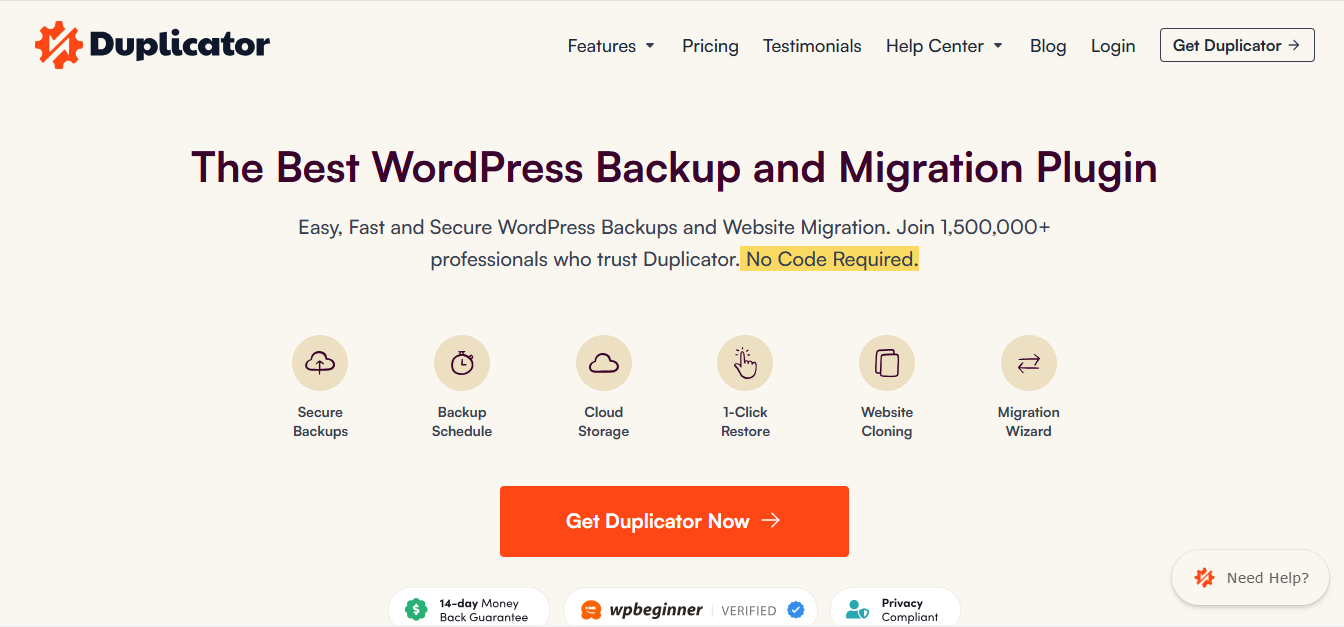
Duplicator has been a WordPress community staple for years, and the Pro version builds on that trust with a genuinely customizable migration flow that works for beginners and developers alike.
Key features: one-click migration packages, multisite support, customizable migration options, and scheduled backups.
Pros: approachable enough for a first-time migration, but with enough depth for anyone managing multiple sites regularly.
Cons: some of the more advanced customization sits behind the paid tier.
Best for: a broad range of users, from someone migrating their first site to a developer handling migrations routinely.
Related reading: 10 best WordPress backup plugins, worth checking before any migration since a fresh backup is the one step nobody should skip.
6. UpdraftPlus Premium
UpdraftPlus built its reputation as a backup plugin first, with migration capability added on top, and that heritage still shows in how thorough the backup side of the tool is.
Key features: integration with major cloud storage providers, multisite support, and incremental backups that don’t re-upload unchanged files.
Pros: one of the most widely trusted names in this category, with pricing that stays reasonable relative to competitors.
Cons: migration-specific tooling is somewhat thinner than dedicated migration plugins like Duplicator or BlogVault.
Best for: anyone who wants a backup-first plugin that can also handle occasional migrations without adding a second tool.
7. Jetpack VaultPress Backup
VaultPress as a standalone product is being phased out. Automattic has stopped onboarding new customers directly to the old VaultPress plugin and has folded the same real-time backup technology into Jetpack VaultPress Backup and the broader Jetpack Security suite instead. Anyone setting up a new site today should start with the Jetpack version rather than the legacy standalone plugin.
Key features: real-time backups rather than scheduled snapshots, one-click restores, and native integration with the rest of the Jetpack toolset.
Pros: the real-time backup approach means a much smaller window of potential data loss compared to nightly-only backup schedules.
Cons: it requires a Jetpack subscription, and the migration tooling specifically is lighter than dedicated migration plugins.
Best for: sites already running Jetpack that want backup and basic migration handled inside the same ecosystem.
8. Migrate Guru
Built by the same team behind BlogVault, Migrate Guru is a free, dedicated migration tool aimed specifically at large sites where downtime during the transfer is unacceptable.
Key features: full site migration that runs without taking the live site down, support across essentially every hosting environment, and a setup process with almost no configuration required.
Pros: free, and genuinely capable with large sites that choke lighter-weight migration tools.
Cons: customization options are minimal, since the tool is built around a single, streamlined migration path.
Best for: large sites that need a straightforward, no-downtime migration without paying for a subscription.
9. SiteGround Migrator
A free plugin built by SiteGround specifically for moving a site onto SiteGround’s own hosting. It’s narrow by design, but excellent at the one thing it does.
Key features: one-click migration built specifically for the SiteGround platform, with fast transfer speeds tuned for their infrastructure.
Pros: free, and about as simple as migration tools get for anyone specifically moving to SiteGround.
Cons: only useful if SiteGround is the destination; it’s not a general-purpose migration tool.
Best for: anyone specifically switching their hosting to SiteGround.
Related reading: can you undelete a WordPress category, a good one to bookmark before any migration in case something gets accidentally removed along the way.
10. WPvivid
An older free entry that used to round out lists like this one, WP Clone by WP Academy, hasn’t kept pace with recent WordPress releases and now carries a compatibility warning on its own WordPress.org listing. WPvivid fills the same free, no-frills niche with active, current development behind it.
Key features: one-click site cloning and migration to a new domain or server, alongside a full free backup system.
Pros: genuinely free with no artificial limits on the migration feature specifically, and it’s updated frequently.
Cons: the interface is more utilitarian than some of the polished paid competitors on this list.
Best for: anyone who wants a free, actively maintained migration tool without hunting for a plugin that’s quietly stopped receiving updates.
Comparison Table
| Plugin | Best For | Standout Feature | Pricing |
|---|---|---|---|
| BlogVault | Combined backup and migration | Incremental backups, one-click staging | Subscription |
| All-in-One WP Migration | Simple migration for large sites | Drag-and-drop interface | Paid extension for unlimited size |
| Solid Backups | Multisite backup and migration | Malware scanning included | Paid subscription |
| WP Migrate (Pro) | Developer database syncing | Push/pull database synchronization | Subscription |
| Duplicator Pro | Beginners through developers | Customizable one-click migrations | Paid subscription |
| UpdraftPlus Premium | Backup-first with migration | Cloud storage integrations | Paid subscription |
| Jetpack VaultPress Backup | Jetpack-integrated sites | Real-time backups | Jetpack subscription |
| Migrate Guru | Large sites, zero downtime | No-downtime full migration | Free |
| SiteGround Migrator | Moving to SiteGround specifically | Platform-tuned one-click migration | Free |
| WPvivid | Free general-purpose migration | Unrestricted free migration feature | Free |
Migration Mistakes That Cause the Most Damage
Even with a good plugin doing the heavy lifting, a handful of avoidable mistakes account for most migration disasters.
Skipping the pre-migration backup. A migration plugin failing partway through is rare but not impossible, and without a separate backup, a failed migration can leave both the old and new sites in a broken state simultaneously.
Not checking PHP and MySQL version compatibility first. A site running on an older PHP version can migrate successfully and then break immediately on a host running a newer, stricter version, particularly with older themes or plugins that use deprecated functions.
Forgetting to update hardcoded URLs outside the database. Most migration plugins handle the database search-and-replace correctly, but a URL hardcoded directly into a theme file or a custom function won’t get caught automatically and needs a manual check afterward.
Migrating during peak traffic hours. Even a “zero downtime” migration tool puts extra load on both servers during the transfer. Running it during a traffic lull, late at night for most audiences, reduces the chance of a slow page load turning into a lost sale or a bounced visitor.
Not testing the destination site before switching DNS. Most migration plugins and hosts support a temporary preview URL that lets you check the migrated site works correctly before pointing the live domain at it. Skipping this step means any problem gets discovered by actual visitors instead of caught in private first.
Common Questions
Can I migrate a WordPress site for free?
Yes. Migrate Guru, SiteGround Migrator (if moving to SiteGround specifically), and WPvivid all handle a standard migration at no cost. The paid tools on this list earn their price through extras like ongoing backups, malware scanning, or database sync tooling built for repeated use, not through the core one-time migration capability itself.
How long does a typical WordPress migration take?
A small site with a modest media library often finishes in under thirty minutes with a good plugin. Larger sites, particularly WooCommerce stores with years of order data or media-heavy sites with tens of thousands of images, can take several hours. DNS propagation afterward, separate from the migration itself, can take anywhere from a few minutes to 48 hours depending on the DNS provider and TTL settings.
Will migrating break my site’s SEO rankings?
Not if it’s done correctly. Rankings are tied to the domain and URL structure, not the hosting server, so a same-domain migration to a new host shouldn’t affect SEO at all. A migration that also changes the domain needs proper 301 redirects set up from every old URL to its new equivalent, which is a separate step from the migration plugin’s job.
What’s the difference between a migration plugin and a backup plugin?
A backup plugin’s job is creating a restorable snapshot of your site, typically stored off-site, for disaster recovery. A migration plugin’s job is moving a live site to a new location while keeping it functional. Several tools on this list do both, but the two jobs solve different problems: one protects against data loss, the other moves a working site somewhere else.
Picking the Right One
Choosing a migration plugin comes down to matching the tool to the actual job. A one-time move to a new host rarely justifies a subscription; Migrate Guru, SiteGround Migrator, or WPvivid cover that case for free. A developer syncing staging and production environments weekly gets far more value from WP Migrate’s database tooling than from a general-purpose drag-and-drop tool. An agency managing several client sites benefits more from a plugin that bundles migration with ongoing backup and security, like Solid Backups or BlogVault, since the migration feature ends up being one part of a tool they’re using constantly anyway.
Whichever plugin you land on, take a full backup before starting, even when the migration tool claims to handle that automatically. A five-minute manual backup is cheap insurance against the rare migration that goes sideways halfway through.
Budget for a maintenance window even when the plugin promises zero downtime. “Zero downtime” typically means the old site keeps serving visitors while the new one gets built in the background, not that literally nothing can go wrong during the DNS cutover. Setting aside an hour where you’re actively watching the site, rather than starting a migration and walking away, catches problems while they’re still small and easy to fix.
It’s also worth testing the destination environment on a staging URL before pointing the live domain at it, even for tools that make the whole process feel instant. Click through the checkout flow if it’s a store, submit a contact form, check that email notifications still fire correctly. A migration that looks visually identical can still have a broken SMTP configuration or a missing environment variable that only surfaces once a real transaction runs through it.
Interesting reads:
How to build a website with WordPress