How to Integrate Email Marketing with EDD for Automated Customer Nurture Sequences

Most digital product sellers treat email marketing as an afterthought. They set up Easy Digital Downloads, launch a product, and only think about email when sales go quiet. That’s a missed opportunity. Buyers of digital products are some of the highest-LTV customers you can get, and a well-built email automation stack turns every EDD purchase into the start of a relationship, not just a transaction.
This guide covers how to connect EDD to the major email platforms, which automations drive the most revenue, and exactly how to set them up, including the WordPress hooks that fire on purchase so you can build custom integrations if the native extensions don’t fit your stack.
Editor’s Pick for Digital Sellers: Moosend
Before diving into the bigger names, one tool worth knowing about for EDD stores is Moosend, now operating as a Constant Contact company following its acquisition. It still hits a spot digital sellers care about: a visual automation builder, e-commerce triggers, and a contact-based pricing calculator that scales gently for small lists rather than jumping straight to enterprise tiers. Setting up post-purchase sequences that bundle license keys, install instructions, and a follow-up upsell takes minutes, not hours, and the revenue-per-email reporting is built right in.
🎯 Try Moosend Free
E-commerce automation built for digital product sellers. 30-day free trial, no credit card required, up to 1,000 contacts. Paid plans scale with list size, so check the current calculator for your exact rate before committing.
Start Free Trial →Why Email + EDD Outperforms Generic E-commerce
Physical product buyers often make one purchase and disappear. Digital product buyers behave differently. A plugin developer who buys one WordPress tool is likely shopping for five more. A designer who downloads one template pack will return for the next collection. A course student who completes one module is primed for an upsell.
The numbers back this up. Returning customers spend an average of 67% more per order than first-time buyers, and acquiring a new customer costs five times more than retaining an existing one. For digital products, where you have zero inventory cost on re-sales, that math is even more favorable.
EDD has a built-in purchase history for every customer. Combined with the right email platform, you can segment by product purchased, days since last purchase, total spend, and license status. That level of targeting is what separates stores doing $2k/month from those doing $20k/month from the same traffic.
Email Platform Options: Moosend, Mailchimp, ConvertKit, and ActiveCampaign
EDD has official extensions for the three platforms most digital sellers have historically used. Moosend joins them as a credible newer option that integrates via Zapier and webhooks. Here’s how they compare and when to pick each one.
EDD + Moosend (Newer Option, Strong Value)
Moosend is the platform we recommend most often to EDD store owners launching email automation in 2026. The drag-and-drop workflow builder is one of the cleanest in this category, the segmentation engine handles behavioural triggers like product viewed, cart abandoned and license expiring, and pricing scales with contact count through Moosend’s calculator rather than a single flat rate, confirm the current number for your list size before budgeting. Integrate via the EDD Zapier extension or directly with the Moosend API on the edd_complete_purchase hook. Try Moosend free →
EDD + Mailchimp
The EDD Mailchimp extension is the most popular starting point. It adds an opt-in checkbox to the EDD checkout and syncs customer data to a Mailchimp audience on purchase. You can map EDD fields to Mailchimp merge tags, push customers to specific groups based on product purchased, and trigger Mailchimp automations from purchase events.
Install path: EDD dashboard > Extensions > Mailchimp. After activation, go to Downloads > Settings > Integrations > Mailchimp. Enter your Mailchimp API key, select the audience, and choose whether to double opt-in or single opt-in.
Best for: Stores just starting with email automation, teams comfortable with Mailchimp’s visual editor.
Limitations: Mailchimp’s automation builder gets expensive as your list grows.
EDD + ConvertKit
The EDD ConvertKit extension connects each EDD product to a ConvertKit sequence or form. When a customer purchases, they get subscribed and tagged automatically. ConvertKit’s tag system is a natural fit for digital product sellers because you can assign different tags to each product.
Install path: EDD dashboard > Extensions > ConvertKit. Enter your ConvertKit API key, then assign Form ID or Sequence ID per product.
Best for: Content creators, course sellers, and indie developers with distinct product lines.
Limitations: Lighter e-commerce reporting than ActiveCampaign or Moosend.
EDD + ActiveCampaign
The EDD ActiveCampaign extension is the most capable option for stores with complex automation needs. It pushes customer data, purchase history, and product tags into ActiveCampaign with deal pipelines, lead scoring, and conditional branching.
Best for: High-volume stores, SaaS-adjacent products with renewal cycles, and any seller who needs lead scoring or CRM-style contact management.
Limitations: Steepest learning curve and the most expensive of the three at scale.
Quick Decision Guide
| Scenario | Best Choice |
|---|---|
| Digital seller, value-conscious | Moosend |
| Just getting started, single product | Mailchimp |
| Multiple products, creator-style content | ConvertKit |
| Complex automations, license renewals | ActiveCampaign |
Purchase-Triggered Automations: The Core Sequences
The most valuable automations in any digital product store fire immediately after purchase. EDD gives you reliable WordPress hooks to build these triggers, and the official extensions surface most of them without custom code.
EDD Purchase Hooks You Need to Know
If you’re using a custom integration, these are the two primary hooks that fire when a purchase completes:
// Fires immediately when a payment reaches "complete" status
add_action( 'edd_complete_purchase', 'your_function_name', 10, 3 );
// Parameters: $payment_id, $payment_data, $customer_id

// Alternative hook - fires on payment status change to "publish" (complete)
add_action( 'edd_payment_complete', 'your_function_name', 10, 1 );
// Parameter: $payment_id
For email integrations, edd_complete_purchase is the safer choice because you can pull product names, customer email, and download IDs directly from the $payment_data array.
If your email platform doesn’t have an official EDD extension, or you need to push purchase events into a tool like Zapier, Make, or a custom internal system, hooking into these events directly is more reliable than polling the EDD REST API on a schedule. This complete guide to EDD webhooks for real-time event automation covers setting up outbound webhooks so a purchase, refund, or license change fires an event the moment it happens instead of waiting for the next sync cycle.
First-Purchase Welcome Sequence
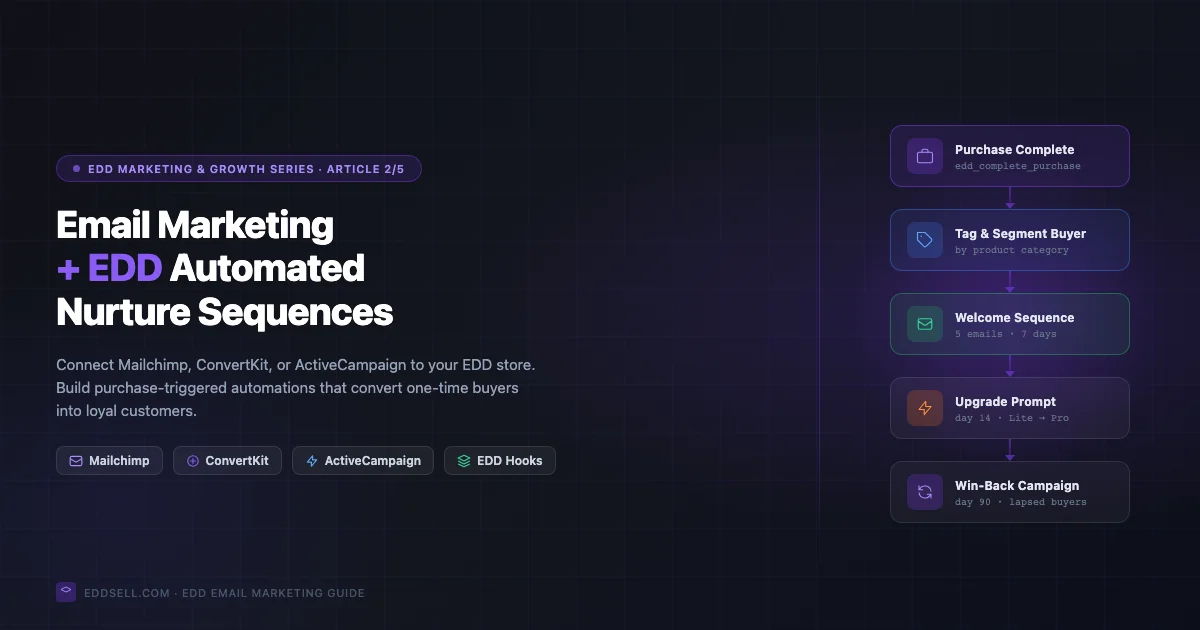
The welcome sequence is your most important automation. A well-structured welcome sequence for digital products typically runs 5 emails over 7 days: instant purchase confirmation, day-1 getting started guide, day-3 check-in, day-5 use case or success story, and day-7 soft upgrade prompt.
Post-Download Follow-Up
EDD logs every download event. Hook into edd_process_download_headers to send a “You just downloaded X, here’s how to get started” email at the moment they actually open the product.
Upgrade Prompt Sequences
If you sell tiered products (Lite, Pro, Agency), the upgrade sequence is where EDD’s purchase data becomes very valuable. Run a targeted sequence to Lite buyers showing them exactly what Pro unlocks: day-14 feature gap email, day-21 social proof from Pro users, day-30 time-limited 20% off.
Segmentation by Product
The biggest mistake EDD store owners make with email is sending everything to everyone. Segmentation by product keeps your list engaged and your unsubscribe rate low. Map your EDD product categories directly to tags in your email platform.
A practical segmentation model that works for most catalogs above five or six products has three layers. The first is product-tag, applied automatically at purchase so every send can be filtered to “bought Product A” or “bought Product A but not Product B” for cross-sell targeting. The second is engagement tier, opened the last three emails, opened one of the last three, or opened none, which matters because sending an upgrade pitch to someone who hasn’t opened an email in two months wastes the send and risks a spam complaint that hurts deliverability for everyone else on the list. The third is recency, grouping customers by days since last purchase, which is what makes win-back timing possible without manually checking purchase dates.
None of this needs to be built manually inside spreadsheets. EDD’s customer records already carry the purchase and product data; the segmentation work is mostly deciding which of those fields your email platform’s tagging system should mirror, then setting the sync up once so every future purchase tags itself.
Win-Back Campaigns for Lapsed Customers
A lapsed customer is your warmest cold lead. Build a 3-email win-back automation at day 90, 97 and 104 after last purchase. Use EDD’s edd_add_discount function to generate single-use customer-specific codes that convert better than shared coupons.
Review Request Sequences
Time review requests by product type: WordPress plugins at 14-21 days, design templates at 7-10 days, courses after milestone completion, software at 30 days. Add a private satisfaction check before public review requests to route unhappy customers to support first.
Product Launch Email Funnels
When you launch a new product, your existing customer list is your fastest path to early sales. Run a 7-14 day pre-launch sequence, a same-day launch sequence with non-opener resends, and a cart-close sequence in the final 48 hours.
License Renewal Automation with EDD Software Licensing
If you sell plugins or software with the EDD Software Licensing extension, hook into edd_sl_pre_license_expiry to push renewal reminders to your email platform. Build a 3-part sequence at 30 days, 7 days and 1 day before expiry, plus reactivation offers at 7 and 30 days after.
Measuring Email Automation Performance
The key metrics for an EDD email automation stack: revenue per email sent, sequence completion rate, purchase attribution window (7 days), and unsubscribe rate per sequence. As a rough benchmark, welcome sequences for digital products commonly land somewhere in the $0.50-$2.00 per email sent range, though this varies a lot by price point and list quality, a $19 template pack and a $499 software license aren’t going to produce comparable numbers. Track your own baseline for the first 90 days before treating any external benchmark as a target.
EDD’s own reporting only shows you the sales side of this picture, revenue, refunds, product performance, not which email drove which sale. Connecting that attribution properly, so a welcome-sequence email and a win-back email don’t get credited the same way, is covered in this guide to building custom EDD reports and conversion tracking dashboards. Without that link between email sends and EDD order data, “measuring performance” usually just means eyeballing open rates, which correlates weakly with actual revenue.
Deliverability: The Automations Don’t Matter If the Emails Don’t Land
A perfectly built five-email welcome sequence is worthless if half of it lands in spam. Deliverability problems are invisible from inside the email platform, the send shows as successful either way, which is exactly why they go unnoticed for months on stores that never check.
Three things cause most of the deliverability damage on EDD stores specifically. First, sending from a domain with no SPF, DKIM, or DMARC records configured, which many EDD stores skip because the transactional receipt email still arrives even with bad authentication, it just arrives with a worse reputation attached. Second, mixing transactional email (receipts, download links) and marketing email (newsletters, promotions) through the same sending domain and IP reputation, so a spammy newsletter send can drag down deliverability for the purchase receipt a customer actually needs. Third, list rot: sending win-back campaigns to addresses that have bounced or gone completely cold for a year, which most spam filters read as a signal the sender doesn’t manage their list. This roundup of email deliverability and warm-up tools covers the domain-authentication and list-hygiene side of this in more depth than fits here.
Consent and Opt-In: Getting the Checkout Checkbox Right
Every EDD email extension adds an opt-in option at checkout, and it’s worth setting up correctly rather than accepting the default, because the default varies by extension and isn’t always compliant everywhere you sell.
- Don’t pre-check the marketing opt-in box. Under GDPR and similar regimes, a pre-checked box isn’t valid consent, and a customer who never intended to opt in generates spam complaints that hurt deliverability for the whole list.
- Separate transactional from marketing consent. A customer always needs the receipt and download-link email regardless of marketing opt-in status, that’s a transactional email tied to the purchase, not a marketing send, and shouldn’t be gated behind the same checkbox.
- Keep a record of when and how consent was captured. Most email platforms log this automatically, but it’s worth confirming your specific EDD extension passes a timestamp, not just a boolean, in case you ever need to demonstrate compliance.
Getting Started: Your First 30 Days
Install your chosen email tool (Moosend, Mailchimp, ConvertKit, or ActiveCampaign) week 1. Build a 5-email welcome sequence week 2. Add product-based tagging across your catalog week 3. Launch a win-back sequence for 90-day lapsed customers week 4.
The stores that get the most from EDD email integration are not the ones with the most complex automations. They’re the ones with the most consistent fundamentals: a solid welcome sequence, clean segmentation by product, and a reliable win-back sequence that runs on autopilot.
Common Mistakes That Quietly Kill Email Revenue
- Building the win-back sequence before the welcome sequence exists. Win-back campaigns matter, but they’re recovering revenue from customers who already had a mediocre first experience. Fix the welcome sequence first; it prevents the churn a win-back campaign is trying to reverse.
- Treating every product the same in the welcome flow. A $19 ebook buyer and a $299 software license buyer need different onboarding content, different urgency, and often a different email cadence. One generic welcome sequence mapped to every product undersells the expensive ones and overwhelms the cheap ones.
- Never testing the automation from a fresh email address. Sequences drift as products get renamed, discount codes expire, or a hook stops firing after a plugin update. A quarterly test purchase from a throwaway address catches breakage that customer complaints would otherwise surface first.
- Ignoring the unsubscribe rate per sequence. An aggregate unsubscribe rate hides which specific sequence is driving people away. A win-back sequence with a 3x higher unsubscribe rate than the welcome sequence is telling you the offer or frequency is wrong, not that email marketing doesn’t work for this store.
FAQ
Do I need a paid email platform to start, or can I use EDD’s built-in tools?
EDD doesn’t include a full email automation system natively, it provides the purchase and customer data, plus the hooks to trigger sends, but the actual sequence builder and deliverability infrastructure comes from the connected email platform. Every option covered here has a free trial or a genuinely usable free tier for a small list, so there’s no need to pay before validating that the automations are working.
How long before a new EDD store should set up email automation?
Ideally before the first sale, not after. The welcome sequence is what turns a one-time buyer into a repeat customer, and every day it’s missing is a customer who bought once and never heard from the store again. If the store is already live without one, treat it as the next priority ahead of adding new products.
Which EDD email integration is easiest for a non-developer to set up?
Mailchimp’s official EDD extension has the most straightforward setup for someone without development experience, enter an API key, pick an audience, done. ConvertKit and ActiveCampaign both require a bit more thought around tag and automation structure, and a custom Moosend or webhook-based integration assumes comfort wiring up Zapier or reading basic hook documentation.
For more, see our guide to the best email automation tools for digital product sellers, our breakdown of deliverability tools, and our deep-dive on EDD discount codes and promotional pricing.