10 Best Free Photoshop Alternatives 2025

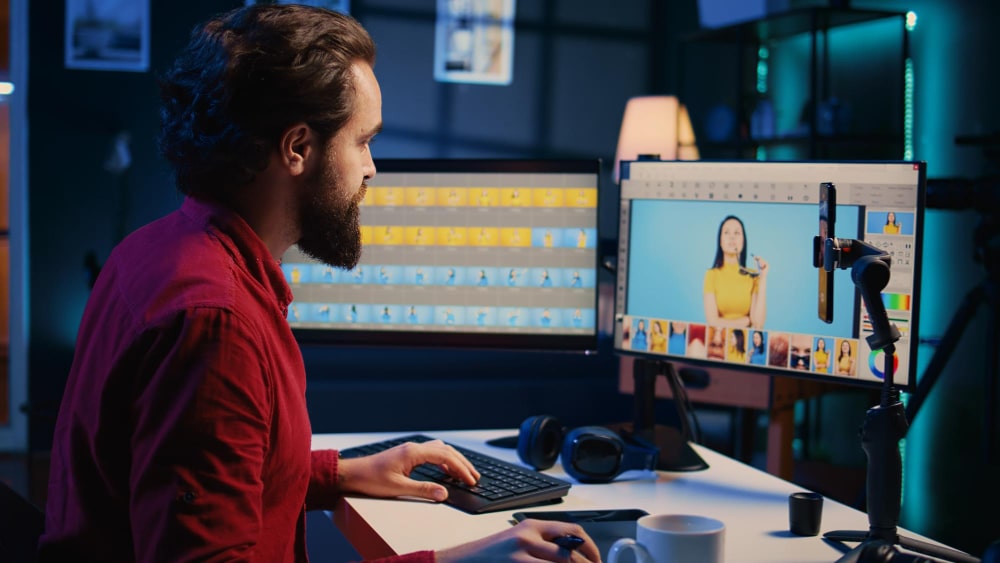
Adobe Photoshop’s subscription runs roughly $20 to $35 a month depending on the plan, which adds up to a few hundred dollars a year for software that a hobbyist, student, or small business owner might only open a handful of times a week. That price gap is exactly why the free alternatives on this list keep growing an audience: they cover most of what a non-professional actually needs, and several of them hold their own against Photoshop even for semi-serious work.
No single free tool replicates everything Photoshop does. Some focus on photo editing and RAW processing, others on digital painting, and a couple are built for vector work that Photoshop was never really meant to handle in the first place. This guide breaks down ten options by what they are actually good at, so the choice comes down to matching a tool to the work rather than hunting for one program that claims to do everything.

Why Look for Free Photoshop Alternatives?
Cost is the obvious reason, but it is not the only one. Photoshop is a large, feature-dense application, and plenty of users only need a fraction of what it offers: basic layer work, some retouching, and export to a couple of common formats. Running a leaner, purpose-built tool instead can mean faster load times and less time spent digging through menus for a feature that is used once a year.
System requirements matter too. Photoshop is not light on RAM or CPU, and someone working on an aging laptop may find that a tool like Paint.NET or Photopea simply runs better on their hardware than Photoshop would even if cost were not a factor. Between fully offline desktop applications and browser-based editors that need no installation at all, there is a real option for nearly every combination of budget, skill level, and hardware.
What to Look for in a Photoshop Alternative
Start with the interface. Some of these tools, like Photopea, deliberately mimic Photoshop’s layout so switching over feels familiar within a few minutes. Others, like Krita, use a completely different workflow built around painting rather than photo manipulation, which means even an experienced Photoshop user will need to relearn a few habits.
Feature depth matters next: does the tool support layers, masks, blending modes, and a real brush engine, or is it limited to basic filters and crops. File format support deserves a specific check if PSD compatibility matters for handing files back and forth with collaborators who use actual Photoshop. And a program that is actively maintained, with a real community producing tutorials and plugins, tends to stay useful for years rather than stalling out after a promising first release.
1. GIMP – The Open-Source Powerhouse
GIMP, short for GNU Image Manipulation Program, is the most direct free counterpart to Photoshop’s general-purpose editing toolkit. Layers, customizable brushes, masks, and an extensive plugin ecosystem cover most of what a Photoshop user would expect, and because it is open source, GIMP has stayed under active development for decades without a subscription fee ever entering the picture.
The interface takes some adjustment even for Photoshop veterans, since GIMP organizes tools and panels differently and its default keyboard shortcuts do not match Photoshop’s. Once past that adjustment period, though, GIMP handles Windows, Mac, and Linux equally well, which makes it a rare cross-platform option among professional-grade editors.
2. Krita – Built for Digital Painters
Krita is not really a Photoshop alternative in the traditional sense; it is a painting program that happens to compete in the same space. Illustrators and concept artists gravitate toward it for its brush engine, stroke stabilizers that smooth out shaky hand movements, and a distraction-free canvas mode that clears away panels while actively painting.
Photo retouching is not Krita’s strength, and it does not pretend otherwise. For anyone whose actual work is digital illustration rather than photo editing, though, Krita frequently outperforms Photoshop’s painting tools despite costing nothing.
Also Read: 10 Best Cinema HD Alternatives for Streaming Movies and TV Shows in 2025
3. Photopea – The Browser-Based Photoshop Clone
Photopea runs entirely in a browser tab and opens PSD files natively, which makes it the closest thing to using actual Photoshop without installing anything. Its interface mirrors Photoshop’s layout closely enough that someone switching over rarely needs a tutorial to find the tools they already know how to use.
Because it needs nothing but a browser, Photopea works identically on a Chromebook, a locked-down work laptop, or a personal desktop, which makes it a practical choice for anyone who needs Photoshop-level editing on a device they do not fully control.
4. Canva – Best for Social Media Graphics
Canva is not a photo editor in the way the rest of this list is; it is a template-driven design tool built for producing social posts, presentations, and marketing graphics quickly. Drag-and-drop layouts, a large stock library, and brand kit features make it the tool marketers and small business owners reach for when the goal is a finished graphic in minutes rather than a heavily edited photo.
Its free tier covers a genuinely large template library, and the paid Canva Pro tier adds background removal and brand consistency tools that are worth it mainly for teams producing graphics regularly rather than occasionally.
5. Pixlr – Quick Editing Online
Pixlr splits into two products: Pixlr X for fast, guided edits and Pixlr E for a more traditional layer-based workflow closer to Photoshop’s. Both run in the browser, and Pixlr X in particular leans on AI-assisted adjustments that handle common fixes, like exposure and color balance, with a single click rather than manual sliders.
For students and casual content creators who want a quick edit without learning curve, Pixlr X covers the basics well. Pixlr E exists for anyone who outgrows the guided version but still wants to stay in the browser rather than downloading GIMP or Photopea.
6. Darktable – Built for Photographers
Darktable is a non-destructive RAW photo editor, closer in spirit to Adobe Lightroom than to Photoshop. Color correction, exposure adjustment, and lens correction tools are built around a photography workflow rather than general image manipulation, which makes it the strongest option on this list specifically for photographers working with RAW files straight off a camera.
Because every edit is non-destructive, the original RAW file stays untouched no matter how many adjustments get layered on top, which matters for anyone who wants the flexibility to revisit an edit months later without starting over.
7. Inkscape – Vector Graphics Done Right
Inkscape covers ground Photoshop was never built for: scalable vector graphics rather than raster images. Logos, icons, and illustrations that need to scale cleanly from a business card to a billboard belong in a vector tool, and Inkscape supports SVG, EPS, PDF, and AI file formats well enough to serve as a genuine free alternative to Adobe Illustrator, not just Photoshop.
Path manipulation and text tools are both strong, and because Inkscape is open source and cross-platform, it fills a gap that neither Photoshop nor most of the raster editors on this list actually address.
Also Read: 10 Best Synergy Alternatives for Multi-Device and Multi-Monitor Control in 2025
8. Paint.NET – Lightweight and Windows-Only
Paint.NET keeps things simple: layer support, a reasonable set of effects, and fast performance even on older Windows machines. It will not compete with GIMP on raw feature depth, but for someone who needs to crop, resize, and make basic adjustments without wading through a complex interface, that simplicity is the point rather than a limitation.
The catch is platform support. Paint.NET is Windows-only, which rules it out immediately for Mac and Linux users who need to look elsewhere on this list.
9. Fotor – AI-Powered Editing for Beginners
Fotor leans heavily on one-click AI enhancements for portrait retouching, effects, and exposure correction, aimed squarely at users who want a better photo without learning what a curves adjustment does. It trades away layer-based editing depth in exchange for speed, which makes sense for its target audience of casual users and social media content creators.
Anyone who eventually needs more granular control than Fotor’s automated tools provide will outgrow it fairly quickly, but as an entry point for someone who has never opened an image editor before, it lowers the barrier about as far as it can go.
10. MediBang Paint – Built for Comic Artists
MediBang Paint targets a specific audience: comic and manga artists who need panel layout tools, a strong brush library, and cloud saving that syncs work across devices. It runs on Windows, Mac, iOS, and Android, which lets an artist start a page on a desktop and continue it on a tablet without exporting and re-importing files manually.
General photo editing is not its focus, and artists working outside comics and manga will likely find Krita a better general-purpose painting tool. For its specific niche, though, MediBang’s panel and speech bubble tools are not something the rest of this list replicates.
How to Choose the Best Free Photoshop Alternative for Your Needs
The decision comes down to what kind of work is actually happening, more than which tool has the longest feature list. A digital artist sketching original illustrations gets more out of Krita’s brush engine than out of Photoshop-style layer tools. A photographer working through a batch of RAW files from a shoot needs Darktable’s non-destructive workflow far more than Canva’s templates. Someone designing a logo needs Inkscape’s vector precision, not a raster editor at all.
For quick, on-the-go edits with nothing to install, Photopea and Fotor both run in a browser and need no setup. For simplicity and speed on Windows specifically, Paint.NET and Pixlr X strip away complexity that a beginner does not need yet. None of these choices is permanent; most creators end up running two or three of these tools for different jobs rather than forcing one program to do everything Photoshop would have handled.

Offline Desktop Tools vs Browser-Based Editors
The split between desktop and browser tools on this list matters more than most people weigh it going in. GIMP, Krita, Darktable, Inkscape, Paint.NET, and MediBang Paint all install locally and run without an internet connection once installed, which means faster performance on capable hardware and no dependency on upload speed for large files. The tradeoff is setup time, storage space, and the occasional software update that needs downloading and installing manually.
Photopea, Canva, Pixlr, and Fotor all run in a browser tab with nothing to install, which makes them the faster starting point for someone who just wants to make one edit and move on. That convenience comes with a dependency on internet connectivity and, for very large image files, potentially slower performance than a well-optimized desktop application running on the same hardware. Neither category is strictly better; a photographer editing hundreds of RAW files from a shoot will almost always prefer Darktable’s offline speed, while someone making a single quick edit to a social media graphic is well served by Canva or Pixlr without installing anything at all.
File Compatibility: What Actually Opens a PSD File
PSD compatibility is worth calling out separately, since it trips people up more than any other feature on this list. Photopea opens and edits native PSD files, including layers, directly in the browser, which makes it the most reliable option when a collaborator sends over an actual Photoshop file. GIMP can open PSD files too, though complex layer effects and certain blend modes sometimes render slightly differently than they would in Photoshop itself.
Canva, Fotor, and MediBang Paint generally do not handle PSD import well, if at all, since none of them were built around Photoshop’s file format as a design goal. If PSD handoffs with clients or collaborators are a regular part of the workflow, narrow the choice to Photopea or GIMP before considering anything else on this list.
Common Questions About Free Photoshop Alternatives
Can a free tool really replace Photoshop for professional work?
For some professionals, yes; for others, not entirely. A freelance photographer doing RAW processing and color grading can run Darktable as a full replacement without missing much. A designer producing complex composite work with advanced blending, smart objects, and Photoshop-specific plugins built by an agency’s design team will likely find GIMP or Photopea close but not identical, and may need Photoshop for specific client deliverables that depend on those exact tools. Most freelancers land somewhere in between, using a free tool for the bulk of routine work and keeping occasional access to Photoshop, through a short-term subscription or a shared license, for the handful of jobs that genuinely need it.
Do any of these tools support plugins like Photoshop does?
GIMP has the most developed plugin ecosystem among the free options, with community-built scripts covering everything from batch processing to specialized filters that mimic well-known Photoshop effects. Inkscape supports extensions for vector-specific tasks. Krita has a smaller but active library focused on brush packs and painting tools. Browser-based tools like Photopea, Canva, and Fotor generally do not support third-party plugins, since their entire architecture runs inside a browser sandbox rather than a locally installed application.
Which of these tools has the gentlest learning curve?
Canva and Fotor are both built for people with no prior editing experience, relying on templates and one-click AI adjustments rather than manual tool selection. Paint.NET sits a step up in complexity but stays far simpler than GIMP or Krita. Photopea and GIMP both assume at least basic familiarity with layers and selection tools, and someone coming from zero editing experience will likely find both more approachable after watching a short tutorial than by exploring the interface cold.
Is it safe to use a browser-based editor for sensitive or private images?
Read the specific tool’s privacy policy before uploading anything sensitive, since browser-based editors vary in how they handle uploaded files. Photopea states on its own site that files never leave the device and that editing runs locally using the device’s CPU and GPU rather than a server, which is worth spot-checking again at the time of use since privacy claims and product architecture can change over time. For anything genuinely sensitive, a fully offline desktop tool like GIMP, Krita, or Paint.NET removes the question entirely, since the file never leaves the local machine.
Making the Right Choice
None of these ten tools is trying to be a perfect Photoshop clone, and treating them that way sets up disappointment before the first edit even happens. Each one solves a narrower problem well: painting, RAW processing, vector work, quick social graphics, or lightweight touch-ups, and picking based on the actual job at hand beats picking based on which tool looks the most like Photoshop in a screenshot.
Try two or three of the options that match your actual workflow before settling on one. Most of these tools cost nothing to test, and an hour spent comparing GIMP’s layer panel against Photopea’s browser-based version will tell you more about which one fits than any feature comparison chart could.
It is also worth revisiting this list periodically rather than assuming today’s pick stays the right one forever. Free software changes: a tool that felt clunky two years ago may have shipped a redesigned interface since, and a program that seemed feature-complete can quietly fall behind if its development slows down. Bookmark two or three alternatives instead of committing to a single tool permanently, and check back in every year or so to confirm the one being used is still the best free option for the work at hand.
Interesting Reads
Best Janitor AI Alternatives for AI Chatbots and Virtual Companions in 2025
10 Best Final Cut Pro Alternatives for Video Editing in 2025
10 Best Wattpad Alternatives for Reading and Writing Stories in 2025