How to Migrate from WooCommerce to Easy Digital Downloads Without Losing Sales Data

Moving a store off WooCommerce is not a weekend task. WooCommerce stores accumulate years of customer records, order history, subscription states, download logs, tax records, and URL patterns that search engines have already indexed. Migrating to Easy Digital Downloads (EDD) done badly means broken links, missing sales data, customers unable to re-download what they bought, and refund requests flooding your inbox for a month.
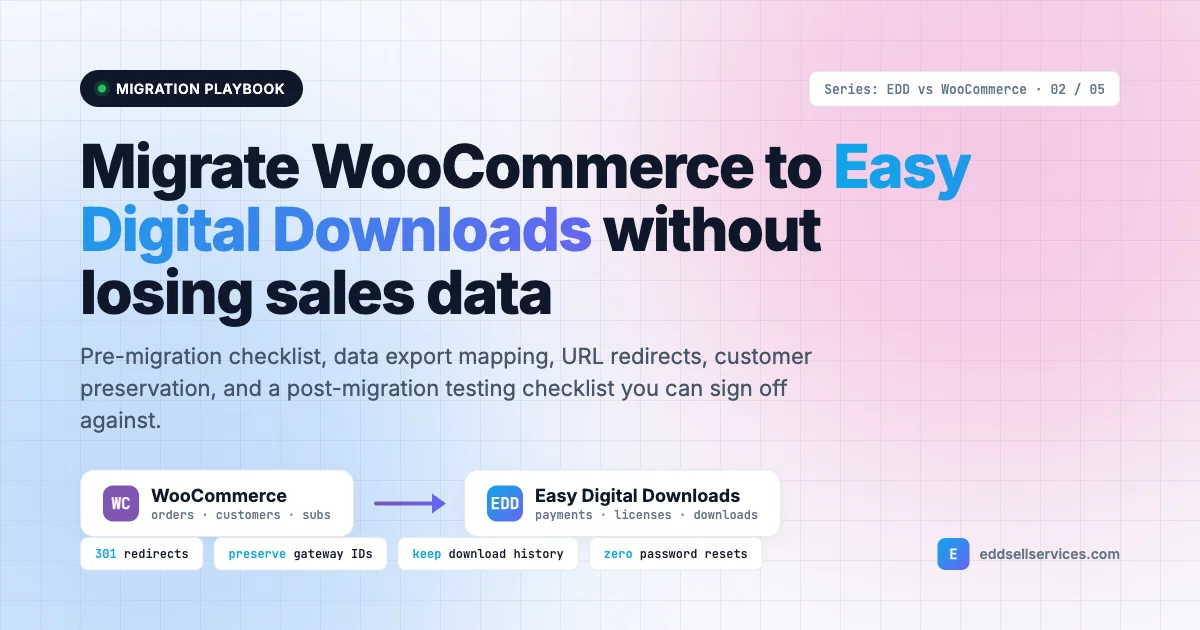
This guide walks through a production-grade migration plan for a real digital store. It covers the pre-migration checklist, a repeatable data export and import process, URL redirect mapping, customer account migration with password preservation, order history and download access rebuild, and a post-migration testing checklist you can actually sign off against.
If you are planning to migrate WooCommerce to EDD and your store sells digital downloads, software licenses, memberships, or courses, this is the playbook.
Why digital-first stores outgrow WooCommerce
WooCommerce was designed as a general-purpose e-commerce platform. It handles physical goods, shipping zones, stock levels, variations, and tax classes. That generality is exactly what starts to hurt a pure digital store. You pay for product attributes you never set, a cart schema tuned for shipping, and a checkout with fields your customers do not need to fill in.
Easy Digital Downloads ships with the opposite defaults. Downloadable files are first-class objects. License keys, download limits, access expiration, file access logs, and refund flows are part of the core object model, not bolted on through a dozen separate addons. For a store selling plugins, themes, PDFs, photo bundles, audio packs, or courses, that means fewer moving parts and a checkout that converts better because it asks for less.
The trade-off is obvious: you have to move the store. The good news is that the data shapes are compatible enough to map cleanly if you plan the migration in the right order.
Pre-migration checklist: do not skip this part
Most failed migrations fail before a single row of data moves. A proper pre-migration audit takes two to five days depending on store size. Rushing it is the single biggest cause of post-launch fire drills.
1. Freeze the WooCommerce site in a staging environment
Clone production to a staging subdomain. Do not work off the live database. Every export, transformation, and test must happen against the frozen copy. This gives you a stable reference you can re-query if you find a data issue three weeks after cutover.
2. Inventory every product type you actually sell
List each SKU and tag it by type: simple downloadable, variable (multiple file versions), subscription, license-gated, bundled, or externally hosted. EDD treats these as variable pricing, bundles, licensed downloads, or recurring products. If you have a product type WooCommerce supported that EDD does not map to natively, decide now whether you rebuild it with an EDD addon or drop it.
3. Audit active subscriptions and license keys
These are the two categories where a bad migration loses you money. Every active WooCommerce Subscription must continue to bill on schedule. Every License Manager or YITH license key must keep validating for the customers using it. Export both to CSV with customer ID, renewal date, next payment amount, status, and gateway subscription ID.
4. Snapshot top traffic and revenue URLs
Pull the last 90 days of Google Search Console and GA4 top landing pages, then cross-reference with top converting product pages from WooCommerce analytics. These are the URLs that must redirect cleanly on cutover day. A 301 map without this list is guesswork.
5. Document every integration that reads WooCommerce data
Zapier zaps, email platforms, CRMs, accounting tools, shipping dashboards, ad pixels, affiliate trackers. List the event each one listens to (order completed, subscription renewed, refund issued) and the WooCommerce webhook or action hook it relies on. These all need to be rewired to EDD equivalents before you cut over.
6. Decide the cutover window and the rollback plan
Pick a low-traffic window, typically a weekend night in your busiest timezone. Write down the exact sequence of steps, the person responsible for each, and the single point where you either commit or roll back. A migration without a documented rollback is a migration that cannot fail safely.
Data export and import: the core mapping
At its heart, a WooCommerce-to-EDD migration is four CSV files and a mapping layer. Customers, products, orders, and download access. Everything else is decoration on top of those four objects.
Export products from WooCommerce
Use WooCommerce’s built-in product exporter (Products > All Products > Export). Include all columns. If you sell digital files, the Downloadable files column is the most important one. Each row ends up mapping to an EDD Download CPT with one or more Download files attached.
Transform the CSV before import. Map Regular price to EDD’s edd_price meta, Sale price to edd_sale_price, and Downloadable files to the edd_download_files serialized array. For variable products, split each variation into an EDD variable pricing row with its own file set.
Export customers and orders
WooCommerce stores customers as WP users with WooCommerce meta. Orders live in wp_posts as shop_order CPTs (or in the HPOS custom table if you enabled it). Export both with a plugin like WP All Export or a direct SQL dump.
The customer CSV needs: user ID, email, first name, last name, username, registration date, billing address, total spent, order count. The order CSV needs: order ID, customer email, order date, status, subtotal, tax, total, currency, gateway, transaction ID, and a JSON array of line items with product ID, quantity, and price.
Import into Easy Digital Downloads
EDD ships with a Tools > Import/Export screen that accepts CSV for products (Downloads) and for past payments. Use it for the first pass. For anything the built-in importer does not cover (subscription state, license keys, download logs), write a WP-CLI migration script that reads the transformed CSV and calls EDD functions directly: edd_insert_payment, edd_set_payment_transaction_id, edd_software_licensing()->insert_license.
Run the import against staging first. Sample 50 random orders, 20 random customers, and every subscription. Compare field-by-field with the WooCommerce source. Only promote to production after this diff is clean.
URL redirect mapping: protect your SEO
WooCommerce and EDD use different permalink structures. WooCommerce defaults to /product/{slug}/ and /product-category/{slug}/. EDD defaults to /downloads/{slug}/ and /downloads/category/{slug}/. If you migrate without a redirect map, every ranked product page returns a 404 on Monday morning.
Build the redirect map during export
When you export WooCommerce products, add a column for the source URL and a second column for the target EDD URL. Because slugs usually match, the transform is a simple string replace: /product/my-widget/ becomes /downloads/my-widget/. Store this as a clean two-column CSV you can feed into your redirect plugin.
Use 301 redirects, not 302
301 tells Google the move is permanent and passes link equity. 302 signals a temporary move and keeps the old URL in the index. Redirection, Rank Math, and server-level .htaccess or nginx rules all support 301 rules from CSV. Pick one layer and keep all rules in it. Mixing plugin rules with server rules is how you get redirect loops at 3am.
Handle category and tag archives
Category archives rank too. Map /product-category/{slug}/ to /downloads/category/{slug}/. Same for tags. If you dropped some WooCommerce categories during cleanup, 301 them to the closest EDD category rather than letting them 404.
Verify the map with a crawler
Run Screaming Frog or Sitebulb against the full list of old URLs before cutover. Every row should return a single 301 landing on a 200. No chains, no loops, no 404s. Fix every outlier before you flip DNS.
Customer account migration without password resets
The fastest way to lose returning customers is to force everyone to reset their password on day one. You do not need to. WooCommerce and EDD both run on WordPress core user accounts. The underlying wp_users row is identical. Only the meta differs.
Keep the users table intact
When you install EDD on the same WordPress database, every existing customer account works immediately. Usernames, emails, password hashes all stay valid. The login form, cookies, and two-factor setup behave exactly as before. No email blast, no support tickets.
Migrate billing meta
WooCommerce stores billing first name, last name, and address in _billing_* meta. EDD uses its own customer table (wp_edd_customers) and the meta is slightly different. Run a one-time script that reads each WC user, creates the matching edd_customer row via EDD_Customer::create, and copies the address fields. Keep the original WC meta in place for the first 30 days in case you need to reconcile anything.
Rebuild the customer My Account experience
WooCommerce gives customers /my-account/ with orders, downloads, addresses, and subscriptions. EDD uses shortcodes: [purchase_history], [download_history], [edd_profile_editor]. Rebuild a single page with those shortcodes and 301 /my-account/ to it. Customers log in and see the same information in the same spot, just with a cleaner UI.
Order history and download access preservation
This is where migrations fail loudly. A customer bought a $79 plugin from you in 2022. They come back in 2025 to download the latest version. If your migration dropped that purchase, they cannot re-download, and now you have a refund request, a support ticket, and a one-star review.
Import every completed order as an EDD payment
Do not filter by date. Every wc-completed order, even one from seven years ago, becomes an edd_payment with status complete. Use edd_insert_payment with the original order date so lifetime customer value and purchase history stay accurate.
Preserve the transaction ID
Every payment row needs the original gateway transaction ID (Stripe pi_, PayPal PAY-, manual reference). This is how refund lookups, accounting reconciliation, and chargeback investigations work. Set it with edd_set_payment_transaction_id during the import.
Rebuild download access
EDD gates file access through the edd_log custom post type and the customer’s purchase history. When you insert a historical payment, also call edd_record_download_in_log zero times but attach the line item to the purchase with edd_update_payment_meta. EDD then generates a valid download URL whenever the customer logs in.
For stores using EDD Software Licensing, the companion step is edd_software_licensing()->insert_license for every active license. Carry the activation count, expiration date, and site URLs across. If you skip this, every customer site using your plugin fails its next license check.
Don’t forget refund history
Accounting teams care about refunds as much as sales. Insert refunded orders as EDD payments with status refunded, matching the refund date, and keep the original gateway refund transaction ID in meta. Your quarterly close matches up cleanly.
Subscriptions and recurring payments
Active subscriptions are the single riskiest part of the migration. A lost subscription is recurring revenue that silently stops billing. Treat this workstream as its own mini-project.
Use EDD Recurring Payments
EDD Recurring Payments mirrors WooCommerce Subscriptions concept-for-concept: plan, billing cycle, trial, initial amount, recurring amount, expiration. Map each WC subscription status to the EDD equivalent: active to active, on-hold to failing, cancelled to cancelled, expired to expired.
Keep the gateway subscription ID
This is the whole game. A WooCommerce Stripe subscription is tied to a Stripe sub_XXXX ID. When you import to EDD, store that same sub_XXXX in the EDD subscription row. Stripe keeps billing on its own schedule. EDD reads the webhook and updates the local record. No customer sees a lapse. PayPal uses a different ID format (I-XXXX), same principle.
Test one subscription end-to-end before the cutover
Pick a live, low-risk subscription. Mirror it to staging. Let it attempt a real (test-card) renewal in EDD. Confirm the payment lands, the license extends, and the customer receives the renewal email. Only after this dry run works end-to-end do you migrate the rest.
If you want to see the full architecture for recurring billing on EDD, our walkthrough on building a SaaS subscription platform with Easy Digital Downloads covers plan setup, dunning, and the customer portal in detail.
Rewiring integrations and webhooks
Your email platform, CRM, ad platform, affiliate tracker, and accounting tool were all hooked into WooCommerce events. On cutover day they need to be listening to EDD events instead, or your automations go dark.
Map WooCommerce hooks to EDD hooks
A starter mapping: woocommerce_order_status_completed becomes edd_complete_purchase. woocommerce_subscription_renewal_payment_complete becomes edd_subscription_post_renew. woocommerce_order_refunded becomes edd_post_refund. Go through your documented integration list from the pre-migration audit and rewire each one.
Use webhooks for third-party services
For Zapier, Make, n8n, and any SaaS platform that listened to WooCommerce webhooks, switch to EDD webhooks. The payload shape differs but the trigger logic is the same. Our EDD webhook automation guide covers the exact setup for Zapier, Make, and n8n with the seven most valuable EDD automations.
Re-verify conversion and ad pixels
Facebook Pixel, Google Ads conversion, and GA4 purchase events all fire on the thank-you page. EDD’s thank-you template is different from WooCommerce’s. Update your tag manager triggers to the new URL and confirm the purchase event fires with the correct transaction ID and value on a test order before you go live.
Tax, invoicing, and accounting continuity
Digital product stores are particularly exposed to tax complexity (VAT MOSS in the EU, state-level sales tax in the US, GST in India and Australia). Your tax records must stay continuous across the cutover or your accountant will not be happy.
Set up EDD’s tax rules to match your WooCommerce configuration exactly: rates per country or state, rounding mode, inclusive or exclusive pricing, invoice number sequence. The invoice number sequence in particular should pick up where WooCommerce left off, not reset to 1. Many auditors flag a reset as a red flag.
Export your last full financial period from WooCommerce as a PDF or CSV archive before cutover. Store it alongside your bookkeeping files. For the first 90 days post-migration, reconcile EDD reports against your payment processor (Stripe, PayPal) and your accounting tool at the end of each week. Catching a mismatch in week two is cheap. Catching it in month six is not.
The cutover: a 90-minute playbook
When staging is clean and every test order behaves correctly, you are ready for production. A typical cutover for a mid-size store takes 60 to 90 minutes if you stick to the script.
- Put the live site in maintenance mode. Display a clear “back in 1 hour” message with a support email.
- Take a fresh full backup: database,
wp-content, and the uploads directory. Store it off-server. - Pause WooCommerce Subscription renewals at the gateway level (Stripe and PayPal both support this). This prevents a renewal from running mid-migration.
- Run the final data export from the frozen WooCommerce staging environment.
- Deactivate WooCommerce and its addons on production. Do not delete them yet.
- Activate EDD and its addons. Import the transformed CSVs in order: customers, products, payments, subscriptions, licenses.
- Run the redirect plugin import with your 301 map.
- Clear every cache layer: object cache, page cache, CDN, opcache.
- Smoke test: load the homepage, a product page, the checkout, a test purchase, a customer login, and the thank-you page.
- Unpause subscriptions at the gateway. Confirm the first scheduled renewal hits EDD cleanly.
- Turn off maintenance mode.
- Monitor error logs, payment gateway dashboards, and customer support channels for the next four hours.
Post-migration testing checklist
The site is live. Before you tell the team you are done, work through this checklist. Each item is a specific thing to verify, not a vague “it works.”
Transactional tests
- Buy a free product as a guest. Confirm the download link works and the account is created.
- Buy a paid product with a real card (then refund it). Confirm the gateway transaction ID lands in EDD and in the processor dashboard.
- Purchase a subscription product. Confirm the initial payment, the subscription record, and the welcome email.
- Apply a discount code. Confirm the discounted total and the usage counter incrementing.
- Request a refund from the admin side. Confirm the refund processes at the gateway and the customer receives the refund email.
Customer account tests
- Log in as three random historical customers. Confirm past orders show up.
- Click a download link from 2022. Confirm the file downloads.
- Edit a profile field. Confirm the change persists.
- Trigger a password reset. Confirm the email arrives with a working link.
SEO and URL tests
- Crawl the top 100 pre-migration URLs. Every one should return a 301 to a 200.
- Submit the new sitemap in Google Search Console.
- Re-request indexing for the top 20 converting pages.
- Check that canonical tags, meta titles, and meta descriptions carried over. If you used Rank Math or Yoast, confirm the plugin is reading product meta correctly.
Integration tests
- Place a test order. Confirm the CRM gets a new contact, the email tool adds them to the right list, and the GA4 purchase event fires.
- Confirm accounting sync (QuickBooks, Xero) records the sale correctly.
- For affiliate programs, confirm a referred order triggers the affiliate commission.
License and file access tests
- If you sell licensed software, run a license check from a live customer site. Confirm it validates and returns the expected activation count.
- Trigger an update check from a plugin or theme that uses your update server. Confirm the correct version and download URL come back.
- Verify EDD file access controls: try to hotlink a download file directly. It should be blocked unless the request comes from a valid purchase.
Week one: what to monitor
The cutover checklist tells you the site works. Week one tells you the business works. Watch five signals daily for the first seven days.
Revenue run-rate. Daily revenue should track within 10% of the same day of the previous week. Bigger gaps usually point to a broken checkout step, a payment method that didn’t carry over, or a pixel that’s not firing.
Support ticket volume. A small spike is normal. Log in problems, re-download requests, invoice reprints. A big spike is a red flag. Track by category so you can find the pattern fast.
Subscription renewal success rate. For any subscriptions that renewed in the first week, count how many succeeded versus failed. A drop versus the pre-migration baseline means a gateway mapping issue you need to fix before the next billing cycle.
Search Console errors. Watch the coverage report. Some 404s will appear for obscure URLs you missed in the redirect map. Add them to the redirect rules within 48 hours so Google does not mark the migration as a quality drop.
Error logs. Enable WP_DEBUG_LOG on production for the first week. Read the log every morning. Fatal errors in the checkout flow are the single biggest revenue killer after a migration.
Common migration mistakes to avoid
Some failure modes come up again and again. Learn from other people’s bad weekends.
Skipping the staging dry run
Every team thinks they can skip staging. None of them can. A full dry run, including test payments and integration triggers, is the cheapest form of insurance you will ever buy. A wasted day on staging beats a wasted weekend on production.
Forgetting to pause subscriptions
If you do not pause gateway renewals during the migration window, Stripe or PayPal will charge a customer while the site is in maintenance mode. The payment lands, but EDD does not know about it yet. You now have a customer who paid and cannot download. Pause first, migrate, unpause.
Doing the redirects as an afterthought
Redirect rules built on launch day are always incomplete. Build the map during export, test it in staging, and deploy it as part of the cutover script. SEO is a compounding asset. A weekend of bad redirects can cost you a quarter of rankings recovery.
Deleting WooCommerce too early
Keep WooCommerce installed but deactivated for at least 30 days. You will occasionally need to query its tables to reconcile an edge case. After 30 clean days, take a final backup and then remove the tables. Rushing this step is how you lose data you thought you had migrated but had not.
Not telling your customers
Send a short email the week before. One paragraph: we are upgrading our store platform on Saturday night, your account will still work, your downloads will still be there, here is the support email if anything looks off. Customers forgive a planned migration. They do not forgive a surprise 404.
When to hire help versus doing it yourself
A store under 500 products, under 2,000 customers, and without active subscriptions can be migrated by a competent WordPress developer in a weekend. Above those thresholds, and especially with active subscriptions or license keys, the migration turns into a data engineering project. Budget a specialist.
The signals you need outside help: more than one currency, active subscription count above 100, custom WooCommerce order statuses, integration with an ERP, or a compliance requirement like SOC 2 that demands a documented migration audit trail. Any one of these is a flag. Two or more means bring in someone who has done this before.
Your 30-day post-migration plan
Launch day is not the finish line. The first month is when the migration proves it actually worked. Plan it in four phases.
Days 1 to 3: stabilization. Fix the small bugs the testing checklist surfaced. Respond to the first wave of customer questions. Keep WooCommerce deactivated but present.
Days 4 to 10: reconciliation. Match EDD revenue to Stripe and PayPal dashboards day by day. Confirm accounting sync. Resolve any subscription renewal anomalies.
Days 11 to 20: SEO recovery. Watch Search Console coverage and positions. Fix any remaining 404s. Resubmit sitemaps. Refresh any product pages that lost rankings. Typically, rankings recover fully by day 30 if the redirect map is clean.
Days 21 to 30: optimization. Now that the store is stable, turn attention to what EDD lets you do that WooCommerce did not. Simplify the checkout, trim fields, enable EDD-native file access logging, tune performance. A good place to start is our guide on EDD store optimization for speed, security, and conversions.
Final thoughts
A WooCommerce to Easy Digital Downloads migration is not a plugin swap. It is a data project with a retail deadline. Treat it that way. Freeze staging, map every field, build the redirects during export, preserve gateway IDs, and keep both systems side by side for 30 days.
When you do that, the payoff is real. A cleaner checkout tuned for digital products. A product object that matches what you actually sell. Native licensing, native recurring billing, native file access control. Less plugin surface area. Faster page loads. And a store where the next three years of growth do not require patching around a framework that was never built for digital goods.
Plan twice. Migrate once. Sleep well on launch night.