
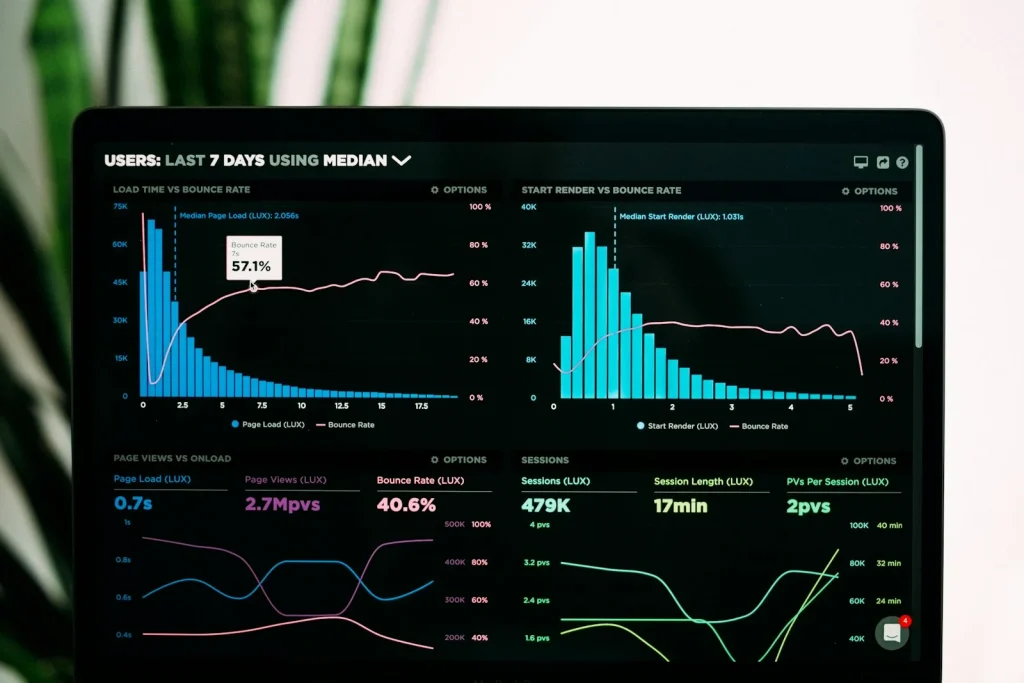
Easy Digital Downloads ships with a solid built-in reports screen, but every store eventually outgrows it. You want to track customer lifetime value, visualize revenue trends with interactive charts, schedule weekly summaries to land in your inbox, and let your team export raw data in one click. None of that exists out of the box, but EDD’s reporting API gives you every hook you need to build it yourself. This guide walks through the complete custom analytics stack: registering report endpoints, calculating CLV from the orders table, wiring up Chart.js, adding CSV export, and delivering automated email digests via WP-Cron.
Why EDD’s Default Reports Are Not Enough
The built-in Reports screen covers the essentials: gross revenue, refunds, sales by download, earnings per gateway. For a store doing its first hundred transactions those numbers tell a coherent story. Once you scale, the gaps become obvious:
- There is no per-customer view. You cannot see which buyers drive the most revenue over their lifetime.
- Charts are static server-rendered images. Drilling down into a specific week means reloading the page with new query parameters.
- There is no export workflow. Getting raw data out requires either a third-party plugin or direct database access.
- No scheduling. Nobody checks a dashboard every Monday morning, they want a summary in their inbox.
- No product mix analysis. You cannot see what percentage of revenue comes from each download without adding a spreadsheet step.
EDD 3.x introduced a proper Reports API with first-class support for custom endpoints, date filters, and reusable tile/chart/table views. The architecture is clean enough that a moderately complex custom report stays under 200 lines of PHP. Add a REST endpoint for live data and a handful of Chart.js calls and you have a fully interactive dashboard that refreshes without a page reload.
Understanding EDD’s Reports API Architecture
Before writing a line of code it helps to understand how EDD structures its reporting layer. The system has three moving parts:
Reports
A report is a named view registered via EDD\Reports\add_report(). It appears as a tab in the Reports screen. Each report declares which endpoints it owns and whether it supports date filtering. Think of a report as a container, it groups related data views under a single URL.
Endpoints
Endpoints are the actual data units inside a report. They can be rendered as a tile (a single KPI number), a chart (a full-width graph), or a table (a sortable data grid). Each endpoint has a display callback that receives the current date filter and returns a value. Registered with EDD\Reports\add_endpoint().
Filters
Filters are shared UI controls, most commonly a date range picker, that propagate to all endpoints in the report simultaneously. When you call EDD\Reports\get_filter_value( 'dates' ) inside a display callback you get the start and end timestamps the user selected. You do not need to read $_GET or write any UI code.
The Reports API handles all the page layout, date pickers, and permission checks. Your job is to register an endpoint and write one callback that computes and returns data.
Step 1: Register a Custom Report and Tile Endpoints
The code below registers a “Customer Lifetime Value” report with three tiles and one chart. Everything hooks into edd_reports_init, which EDD fires after the Reports API classes are loaded. The full snippet, including the average order value tile callback and the underlying SQL query against edd_orders, is in the Gist below.
A few things worth noting about this registration pattern:
- The
iconkey accepts any WordPress Dashicon slug, which controls the icon shown in the report tab navigation. - The
prioritykey determines where your report tab appears relative to the built-in ones. Lower numbers appear first. - Tiles, charts, and tables are registered as separate arrays under
endpoints. You can mix and match all three in a single report. - The
filters => dates => trueflag tells EDD to render the global date range picker above your report and pass the selected range to all your endpoint callbacks automatically.
Once this code is active, a new “Customer Lifetime Value” tab appears in Downloads → Reports. The tiles render empty until the display callbacks have data to show. The SQL query in the snippet reads directly from the wp_edd_orders table, which EDD 3.x uses for all order records, no post meta involved.
Step 2: Calculate Customer Lifetime Value
Customer lifetime value is the total revenue a single customer has generated across all of their orders, plus a predictive projection of what they will spend in the next twelve months based on their purchase frequency. The calculation has three parts: aggregate spend, measure order frequency, and project forward.
| Metric | How It Is Calculated | Source Table |
|---|---|---|
| Total Spend | SUM of all completed order totals | wp_edd_orders |
| Average Order Value | Total Spend / Order Count | wp_edd_orders |
| Avg. Days Between Orders | Mean interval between consecutive order dates | wp_edd_orders |
| Predicted Annual Value | (365 / Avg. Days Between) × Average Order Value | Derived |
The full PHP implementation, including the edd_custom_get_top_customers_by_clv() function that powers both the tile callbacks and the export feature, is in the Gist:
The edd_custom_get_customer_lifetime_value() function returns a structured array for a single customer. The companion edd_custom_get_top_customers_by_clv() function returns a sorted result set for the tile and export features.
A few implementation decisions worth explaining:
- Status filter. Both
completeandrevokedare included. A revoked order is a completed sale where the license key was later revoked (not a refund), the revenue was still collected and should count toward CLV. - DateTimeImmutable. Using
DateTimeImmutableinstead ofDateTimeavoids the mutation pitfalls when iterating over dates in a loop. - Minimum two orders for frequency. The function returns
avg_days_between_orders = 0for single-order customers. That signals to callers that no frequency projection is possible without guessing. - No caching here. This function is called from tile display callbacks which EDD already caches at the report level. Adding a second caching layer creates invalidation complexity with no benefit.
Step 3: Build an Interactive Dashboard with Chart.js
EDD’s built-in chart rendering is server-side. For an interactive dashboard that updates without a page reload you need client-side rendering. Chart.js 4.x is the most pragmatic choice: it is small (60 KB gzipped), has zero dependencies, and its declarative configuration maps cleanly to how EDD passes data through localized script variables.
Enqueuing Scripts and Passing Data
Register Chart.js as a WordPress script and localize your data before the page renders. You register Chart.js itself as a dependency of your dashboard script so WordPress loads it in the right order automatically. Your PHP collects the initial chart data for the default 30-day range and passes it through wp_localize_script() as the eddDashboardData global. The restUrl and nonce values are also passed here so your JavaScript can make authenticated REST requests when the date range selector changes.
Rendering the Charts
The dashboard renders two charts side by side: a line chart for daily revenue and a doughnut chart for product revenue mix. The JavaScript is wrapped in a self-executing function to avoid polluting the global scope. The code listens to a date range <select> element, fires a REST request on change, and calls chart.update() when new data arrives, no page reload required.
Key Chart.js configuration decisions in this snippet:
tension: 0.3gives the revenue line a slight curve. Completely straight lines look harsh on financial data. Avoid values above 0.4 or the curve overshoots visually between data points.interaction.mode: 'index'makes the tooltip show all datasets at the hovered X position simultaneously, useful when you add a second dataset (e.g., previous period comparison).- The tooltip callback prepends the currency symbol from the localized data rather than hardcoding a dollar sign. This ensures the chart works for any EDD store regardless of configured currency.
- The doughnut chart’s legend is positioned to the right. On narrow screens you will want to move it below, add a responsive breakpoint in your CSS or use Chart.js’s built-in
responsivecallbacks to adjust the position at small viewports.
Step 4: Add CSV Export and Scheduled Report Emails
Two features make a reporting system genuinely useful for non-technical store owners: the ability to download raw data as a spreadsheet, and automatic delivery of summaries on a schedule. Both are straightforward to implement in EDD, the former via an AJAX handler, the latter via WP-Cron.
On-Demand CSV Export
The export flow is a standard WordPress admin AJAX action. The handler verifies a nonce, checks the manage_shop_reports capability, reads optional date range parameters from the query string, calls edd_custom_get_top_customers_by_clv(), and streams the result as a CSV download using PHP’s fputcsv(). The file is never written to disk, it streams directly to the browser via php://output.
Weekly Email Digest via WP-Cron
The scheduled email registers a custom edd_weekly_monday cron interval (one week), schedules itself on plugin activation to fire the following Monday at 8:00 AM in the site’s configured timezone, and sends a plain-text email containing the previous week’s average order value and the top five customers by spend. The email includes a direct admin link to the CLV report for one-click access.
Two implementation notes about the cron scheduling:
- Always check before scheduling. The activation hook can fire multiple times during updates. Wrapping the
wp_schedule_event()call inside awp_next_scheduled()check prevents duplicate cron jobs from stacking up. - Always unschedule on deactivation. If you do not call
wp_unschedule_event()in the deactivation hook, the cron job continues to fire after the plugin is deactivated. WordPress will log a “doing_it_wrong” notice and eventually the orphaned event will fail silently, but it is still overhead you do not want.
For stores with high email volumes consider using a transactional email service (Postmark, SendGrid, Mailgun) via an SMTP plugin rather than relying on wp_mail() directly. The weekly report email will be delivered reliably either way but transactional email services provide open tracking and delivery receipts that wp_mail() alone cannot. You can also customise the report email template itself using the same techniques covered in our guide to customizing EDD email templates.
Step 5: The REST API Endpoint That Powers Live Chart Updates
The Chart.js dashboard needs a data source it can query without a full page reload. A dedicated REST endpoint is the right solution: it is cached by the browser, easy to test with curl or Postman, and versioned independently of your PHP report registration code.
The endpoint at GET /wp-json/edd-custom/v1/dashboard-data accepts a range parameter (7days, 30days, 90days, this_month, last_month, this_year) and returns three data sets: daily revenue for the line chart, per-product revenue for the doughnut chart, and summary totals. All date math goes through edd_custom_resolve_date_range() which converts a preset string into a precise [start, end] datetime pair accounting for the site’s configured timezone.
The permission callback uses manage_shop_reports, the same capability EDD’s built-in reports use. Any user with Shop Manager or Administrator role can call the endpoint; subscribers cannot. The validate_callback on the range parameter enforces a whitelist, which means the SQL query never receives an arbitrary string from the client.
Never pass a user-supplied range string directly into a SQL
BETWEENclause. Always resolve it to a validated datetime pair on the server.
Putting It All Together: Plugin File Structure
All five snippets belong in a single small plugin rather than in your theme’s functions.php. Reports, REST endpoints, and cron jobs are store functionality, they should survive a theme switch. The recommended structure:
| File | Responsibility |
|---|---|
edd-custom-reports.php |
Plugin header, require all includes, activation/deactivation hooks |
includes/reports.php |
Report & endpoint registration (Gist file 01) |
includes/clv.php |
CLV calculation functions (Gist file 02) |
includes/rest.php |
REST API endpoint (Gist file 05) |
includes/export.php |
CSV export handler (Gist file 04) |
includes/cron.php |
Scheduled email functions (Gist file 04) |
assets/js/dashboard.js |
Chart.js dashboard (Gist file 03) |
assets/css/dashboard.css |
Admin page styles and responsive breakpoints |
Keep the main plugin file thin, just a header comment, the autoload or require chain, and the activation/deactivation hooks. All the logic lives in the includes directory and is loaded conditionally. The REST endpoint file only loads when rest_api_init fires; the cron file only loads when your scheduled hook runs. This keeps memory usage low on every standard page request.
Performance Considerations for High-Volume Stores
The SQL queries in this guide scan the wp_edd_orders table with a BETWEEN filter on date_created. For stores with tens of thousands of orders that query will be fast because EDD already creates an index on that column. Above ~500k rows you should consider two additional optimizations:
- Transient caching. Wrap the database queries in
get_transient()/set_transient()with a cache key that includes the date range. Bust the transient onedd_complete_purchase. Report data does not need to be real-time, a 15-minute cache is indistinguishable to any store owner. - Summary tables. For stores processing thousands of orders per day, aggregate daily totals into a dedicated summary table (e.g.,
wp_edd_daily_revenue) via a background job. Your chart query then reads from a pre-aggregated table with one row per day instead of scanning raw order records.
The CLV calculation function is more expensive than the revenue aggregation because it processes every order for every customer. Run it only when explicitly requested, not on every admin page load. The top-N query is fine for on-demand requests but should never run on a hook that fires on every admin page.
Extending the Dashboard: Ideas for Your Next Iteration
The foundation built here supports a number of powerful extensions. Each one adds a distinct layer of insight that EDD’s built-in reports do not provide:
- Cohort analysis. Group customers by their first purchase month and track how their spending evolves over subsequent months. A cohort retention chart (a heat map grid of months vs. cohort) is one of the most effective tools for understanding whether product improvements are actually increasing customer loyalty.
- Churn prediction. Flag customers whose average days between orders have been exceeded by a configurable multiplier (e.g., 3×). Trigger a re-engagement email campaign via your CRM or EDD webhook automation when a customer enters the at-risk cohort.
- Revenue attribution. Join the
edd_order_itemstable with theedd_discountstable to understand which coupon codes drive the most revenue, not just the most orders. A 50%-off coupon that brings in $5,000 of revenue may be more valuable than a 10%-off code that generates 200 transactions at $8 each. - Download-level funnel. Track how many customers buy a single download versus two versus three and identify which downloads most frequently appear in multi-product orders. This reveals natural upsell pairs you can use to configure programmatic product recommendations via the REST API.
- Refund rate by product. Calculate the refund rate (refunded orders / total orders) per download over a rolling 30-day window. A rising refund rate on a specific product is an early signal of quality issues, misleading copy, or a compatibility problem with a recent update.
Testing Your Custom Reports
Custom reporting code is often undertested because developers assume the queries are “just SELECT statements.” In practice, three categories of bugs show up repeatedly in EDD reporting extensions:
Timezone Off-By-One Errors
EDD stores order dates in UTC in the database. When you query WHERE date_created BETWEEN '2026-04-01' AND '2026-04-30' you are filtering by UTC, not by the site’s local timezone. For a store in UTC-5, an order placed at 11 PM on April 30th local time is stored as May 1st UTC and will not appear in the April report. Always convert your date range boundaries to UTC before querying, or use WordPress’s wp_timezone() and DateTimeImmutable to resolve the correct boundaries, exactly as edd_custom_resolve_date_range() does in Gist file 05.
Status Mismatch
EDD 3.x uses a different set of order statuses than EDD 2.x. publish no longer means completed, the canonical completed status is complete. If you query WHERE status = 'publish' your report will return zero results on an EDD 3.x store. Always use complete (and optionally revoked) as the filter.
Empty States
Every query should gracefully handle an empty result. The tile callback should render a zero or N/A rather than throwing a PHP division-by-zero warning when order_count is 0. The REST endpoint should return empty arrays for labels and data, never null, so Chart.js does not throw a JavaScript error when trying to iterate over the datasets.
Where This Series Goes Next
This is Article 5 in the EDD Custom Development series. Here is what the series covers:
- How to Build a Custom Payment Gateway for Easy Digital Downloads
- How to Use the EDD REST API to Build Custom Integrations and Mobile Apps
- How to Create Custom Download Delivery Methods in EDD for Unique Product Types
- Complete Guide: Implement EDD Webhooks for Real-Time Event-Driven Automation
- How to Build Custom Reports and Analytics Dashboards in EDD (this article)
- How to Extend the EDD Checkout Experience with Custom Fields and Conditional Logic (coming next)
The next and final article in the series covers the EDD Checkout API, how to add conditional custom fields that appear or hide based on what a customer has in their cart, how to validate those fields before purchase, and how to store field data alongside the order record for downstream use in reporting and fulfillment workflows.
Summary
EDD’s built-in reports tell you what happened. A custom analytics dashboard tells you why it happened and what is likely to happen next. With the five code snippets above you have a working foundation that:
- Registers a named report with tile, chart, and table endpoints in the EDD Reports screen.
- Calculates customer lifetime value including spend, order frequency, and predicted annual value.
- Renders an interactive Chart.js dashboard with a revenue line chart and product mix doughnut chart that update live when the date range changes.
- Exports any result set as a CSV file via a single authenticated AJAX request.
- Delivers an automated weekly email digest to the store administrator every Monday morning.
- Provides a REST endpoint with validated parameters and timezone-aware date resolution that powers the client-side chart updates.
Everything is structured as a standalone plugin, respects EDD’s capability model (manage_shop_reports), and uses the wp_edd_orders table directly, no legacy post meta, no deprecated EDD 2.x patterns.
Need Help Building a Custom EDD Analytics Plugin?
EDD’s reporting API opens up a wide range of possibilities, from simple KPI tiles to full multi-tenant analytics platforms. If you need a custom reporting or dashboard solution built on top of Easy Digital Downloads, the team at EDD Sell Services specializes in exactly this kind of deep EDD customization. Get in touch to discuss your project.