10 Best Software for Photo Organizing and Editing Features

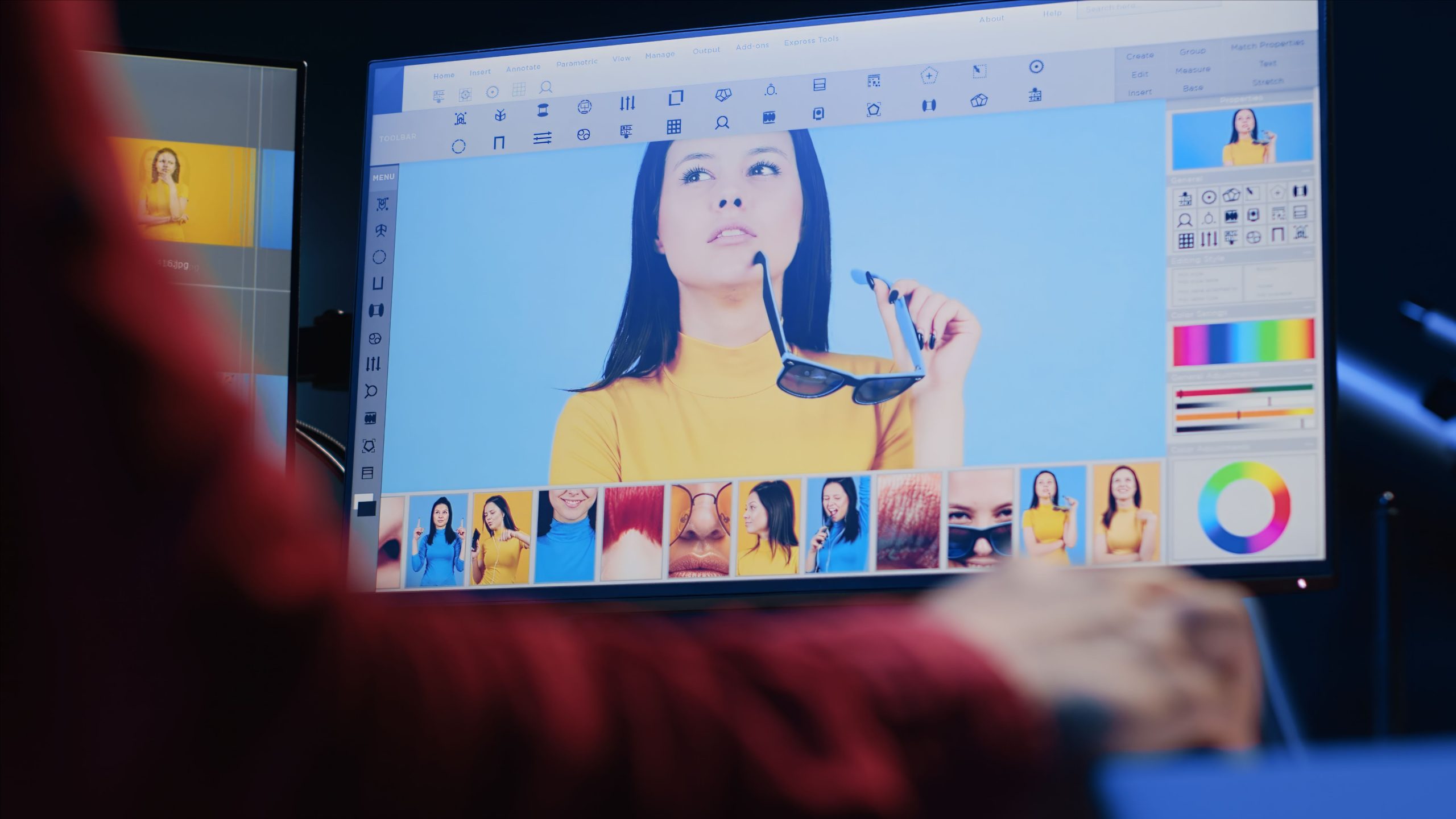
A photo library that grows past a few thousand images stops being a folder problem and becomes a workflow problem. You need software that can find a specific shot from three years ago in seconds, apply a consistent edit across two hundred frames from the same shoot, and hand off a finished file in whatever format the client asked for. Below are ten programs that handle both halves of that job: organizing what you already shot and editing it into something worth publishing.

What Actually Separates a Good Photo Manager From a Good Photo Editor
Most people shopping for photo software conflate two different jobs. Organizing is about retrieval: keywording, star ratings, folder structures, and search that works even when you can’t remember the filename. Editing is about transformation: exposure, color, retouching, and the creative decisions that turn a raw capture into a finished image. A handful of programs on this list do both well. Others specialize, and pairing a strong organizer with a strong editor is a completely reasonable setup if no single tool covers everything you need.
Before you commit money or time to any of these, it helps to know what you’re actually going to use day to day. A wedding photographer delivering 800 images per shoot needs batch tools and fast culling more than she needs pixel-level retouching. A product photographer shooting for an online store cares about color accuracy and background consistency. A hobbyist organizing a decade of family photos mostly needs search that doesn’t choke on 40,000 files and a library that won’t corrupt itself.
What to Check Before You Buy
- Catalog vs. folder-based organization: Catalog-based tools (Lightroom Classic, ACDSee) build a searchable database; folder-based tools work directly against your file system. Catalogs are faster to search but can get out of sync if you move files outside the app.
- RAW support for your specific camera: New camera bodies ship RAW formats that editors need explicit support for. Check the vendor’s supported-camera list before buying if you shoot with recent gear.
- Non-destructive editing: Your original file should stay untouched, with edits stored as instructions you can revert at any time. All ten programs below do this, but the depth of the edit history varies.
- Batch processing: If you shoot events, weddings, or product catalogs, the ability to apply one edit to hundreds of images is not optional.
- Export and file format flexibility: Confirm the software exports to the formats your printer, client, or stock agency actually requires.
- Ongoing cost: Subscription software keeps getting updates but stops working (or loses cloud sync) if you cancel. Perpetual licenses cost more upfront but keep functioning indefinitely, usually minus the newest features.
The 10 Best Photo Organizing and Editing Programs
1. Adobe Lightroom Classic
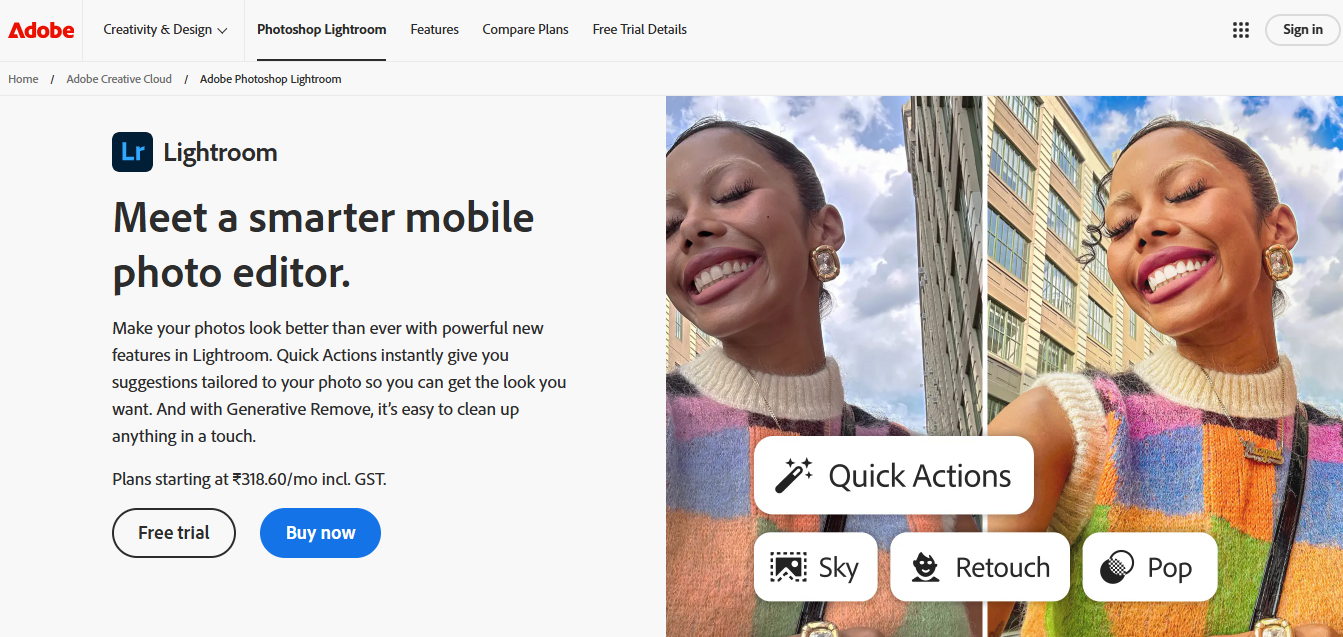
Lightroom Classic remains the default answer for a reason. It stores your whole library in a local catalog file, which makes searching, filtering, and applying batch edits across tens of thousands of images fast even on modest hardware. The editing side covers everything from basic exposure correction to masking tools that let you select a sky, a subject, or a specific color range and adjust it independently.
- Key Features
- Non-destructive editing with full history
- Collections, smart collections, ratings, and keyword hierarchies
- Batch processing and sync settings across images
- AI-assisted subject, sky, and background masking
- Deep RAW support updated with nearly every camera release
- Pros
- The largest plugin and tutorial ecosystem of any photo tool on this list
- Tight integration with Photoshop for pixel-level work Lightroom can’t do
- Reliable batch editing across huge libraries
- Cons
- Subscription-only; there is no perpetual license anymore
- Local catalog can get large and slow if it isn’t maintained
- Best for: Photographers who need one tool to organize and edit a large, growing library, and who don’t mind paying monthly for it.
Also Read: 10 Best Final Cut Pro Alternatives for Video Editing in 2025
2. Capture One Pro
Capture One built its reputation in studio and commercial photography, where color accuracy has to be exact and repeatable. Its tethered shooting mode, which pulls images straight from the camera onto the screen as you shoot, is still considered the industry benchmark by working studio photographers, and its RAW processing engine consistently produces cleaner results on high-ISO files than most competitors.
- Key Features
- Color grading tools with per-channel HSL control
- Tethered shooting with live view for studio setups
- Session-based organization for shoot-by-shoot work, alongside catalog mode
- Layer-based local adjustments with masking
- Pros
- Best-in-class color accuracy for skin tones and product shots
- Both perpetual license and subscription pricing are available
- Excellent for tethered studio work
- Cons
- More expensive than most alternatives on this list
- The interface takes real time to learn; it is not built for quick point-and-click edits
- Best for: Studio, product, and fashion photographers who need precise, repeatable color and don’t want to depend on Adobe’s ecosystem.
3. DxO PhotoLab
DxO built its name on optical science rather than interface design. The company tests individual lens and camera body combinations in a lab and bakes those corrections into the software, so distortion, vignetting, and chromatic aberration get fixed automatically based on exactly what gear you used. Its DeepPRIME noise reduction, which uses a trained model rather than a simple algorithm, is genuinely one of the better noise reduction tools available for high-ISO and low-light RAW files.
- Key Features
- Automatic, camera-and-lens-specific corrections
- DeepPRIME and DeepPRIME XD noise reduction
- U-Point local adjustment technology for masking without hand-drawn selections
- Full RAW support across major camera brands
- Pros
- The strongest noise reduction of any tool in this list, useful for anyone shooting events or low light
- One-time purchase available, no forced subscription
- Automatic lens corrections save real editing time
- Cons
- Cataloging and library management are noticeably weaker than Lightroom or ACDSee
- No built-in cloud sync
- Best for: Photographers who shoot a lot of low-light or high-ISO work and want the cleanest possible noise reduction without a subscription.
4. Skylum Luminar Neo
Skylum discontinued Luminar AI as a standalone product after folding its features into Luminar Neo, which is now the company’s current flagship editor. Neo kept the AI-driven, one-click tools that made Luminar AI popular (sky replacement, portrait enhancement, relighting) and added generative AI features for object removal and scene extension. It’s built for photographers who want strong results fast rather than manual, layer-by-layer control.
- Key Features
- AI sky replacement, relighting, and portrait retouching
- Generative AI tools for object removal and background extension
- Structure and atmosphere adjustments built around presets
- RAW file support and a plugin mode for Lightroom and Photoshop
- Pros
- Fast, dramatic results with minimal manual work
- Perpetual license option alongside the subscription tier
- Can run as a plugin inside Lightroom or Photoshop instead of standalone
- Cons
- Library and cataloging tools are thin compared to dedicated organizers
- Heavy AI processing can be slow on older hardware
- Best for: Photographers and content creators who want quick, AI-assisted edits without learning a manual masking workflow, and who no longer have access to the discontinued Luminar AI.
5. Corel PaintShop Pro
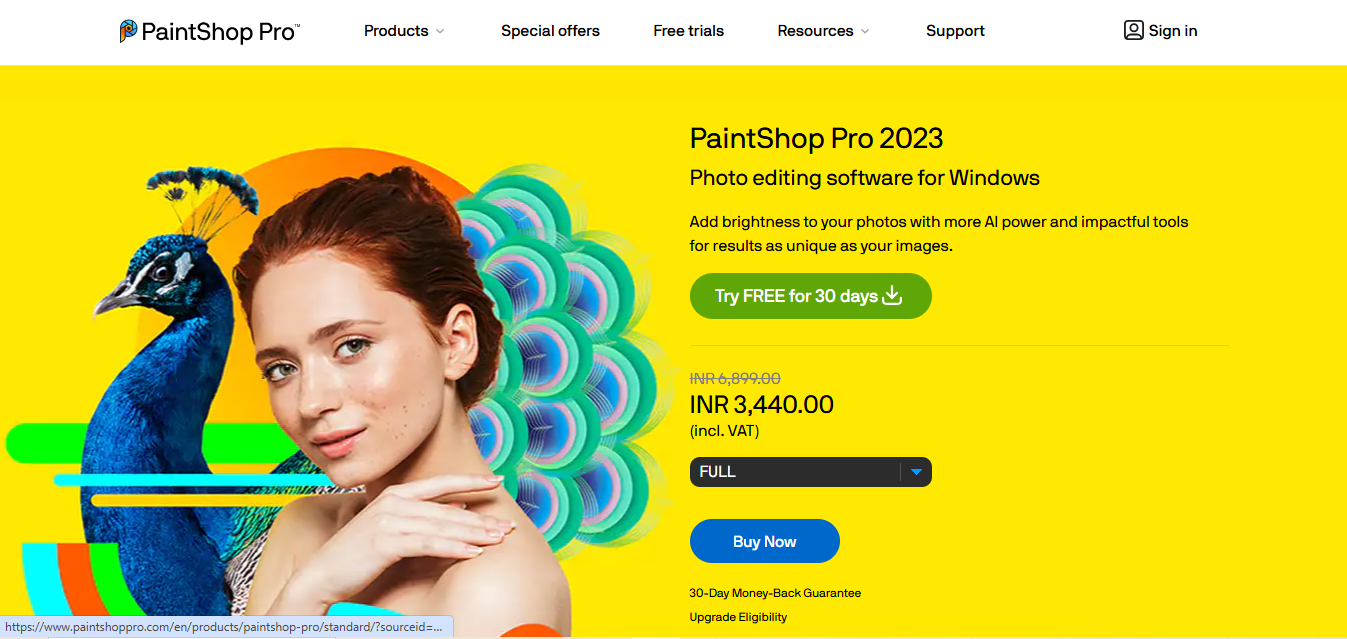
PaintShop Pro sits between a basic editor and a full Photoshop-style tool. Corel still sells it as a one-time purchase (Standard and Ultimate tiers), with an optional yearly upgrade plan for anyone who wants continuous updates rather than buying a new version every year or two. It covers layer-based editing, content-aware fill, and organizational features like albums and tags, all in one package.
- Key Features
- Layer-based editing with content-aware fill and clone tools
- Folder and album-based organization with tagging
- RAW image support
- Batch processing for renaming, resizing, and format conversion
- Pros
- One-time purchase option still exists, unlike most competitors
- Covers both quick edits and more advanced layer work
- Reasonable price for the feature set
- Cons
- Cloud integration is minimal
- Performance drops noticeably on very large batch jobs
- Best for: Users who want a one-time purchase that covers both organizing and layer-based editing without committing to a subscription.
Also Read: 10 Best Software for Cinematic Video Editing
6. Adobe Bridge
Bridge isn’t an editor in the traditional sense. It’s a free file browser Adobe ships alongside Creative Cloud, built to organize and preview assets before you open them in Photoshop, Lightroom, or Illustrator. If you already pay for Creative Cloud, Bridge is a zero-cost way to add serious asset management on top of whatever editor you’re using.
- Key Features
- Centralized browsing across local drives and network storage
- Deep integration with Photoshop, Lightroom, and Illustrator
- Keyword tagging, star ratings, color labels, and metadata templates
- Batch renaming and automated file operations
- Pros
- Included free with any Creative Cloud subscription
- Handles file types beyond photos, including PDFs and design files
- Fast previews even on large folders
- Cons
- No real editing tools of its own; it’s a browser, not an editor
- Requires a Creative Cloud subscription to unlock, so it’s not truly standalone
- Best for: Anyone already inside the Adobe ecosystem who needs a faster, more powerful file browser than Lightroom’s own library module.
7. ON1 Photo RAW
ON1 Photo RAW is one of the few remaining programs that combines a full library module with a full editor and still offers a genuine perpetual license, no subscription trap involved (though a subscription tier exists for people who want continuous updates). Recent versions added AI-based masking and a Restore AI tool for repairing and upscaling old or damaged photos.
- Key Features
- RAW editing plus a full browsable photo library, similar in scope to Lightroom
- Layer and mask-based local adjustments
- AI-assisted subject and sky selection
- Restore AI for repairing and upscaling old photos
- Pros
- Perpetual license with no forced subscription
- Can run standalone or as a Lightroom/Photoshop plugin
- Frequent feature updates for the price
- Cons
- Interface feels busier than Lightroom’s for new users
- Can slow down on very large batch exports
- Best for: Photographers who want Lightroom-style organization and editing in one app without an ongoing subscription.
8. Zoner Studio
Zoner rebranded its longtime Photo Studio X application as Zoner Studio and moved it to a subscription-only model, dropping the perpetual license that used to be one of its selling points. The software itself is still a capable all-in-one option, covering RAW editing, retouching, and library organization with albums, keywords, and metadata, and it now bundles basic video editing as well.
- Key Features
- RAW file editing and retouching tools
- Photo organization through albums, keywords, and metadata
- Basic video editing bundled into the same app
- Batch editing and export
- Pros
- Simple interface, easy for beginners to pick up quickly
- Combines photo and light video editing in one subscription
- Reasonably priced relative to Adobe’s subscription tiers
- Cons
- No more one-time purchase option since the rebrand to a subscription model
- Advanced masking and color tools lag behind Lightroom or Capture One
- Best for: Beginners who want an affordable, easy-to-learn all-in-one photo and light-video editor and are comfortable with a subscription.
9. ACDSee Photo Studio Ultimate
ACDSee has been in the photo cataloging business longer than most of its competitors, and it shows in how fast the library module searches and filters even very large collections. Photo Studio Ultimate adds layer-based editing, masking, and RAW processing on top of that catalog engine, positioning it as a genuine Lightroom alternative for photographers who want strong organization and strong editing in one license, with a perpetual-license option available alongside the subscription.
- Key Features
- Fast, database-driven cataloging and search
- Non-destructive RAW editing with layers and masking
- Face detection and advanced keyword/tag management
- Both perpetual license and subscription pricing available
- Pros
- Very fast search across large libraries
- Full editing suite, not just organization
- Perpetual license keeps working after you stop paying
- Cons
- Interface has a learning curve for people coming from simpler apps
- Some advanced tools are only in the Ultimate tier, not the base Photo Studio
- Best for: Photographers with very large libraries who want fast search and a genuine perpetual-license alternative to Lightroom.
Also Read: 10 Best AI Tools to Create Vector Art
10. CyberLink PhotoDirector
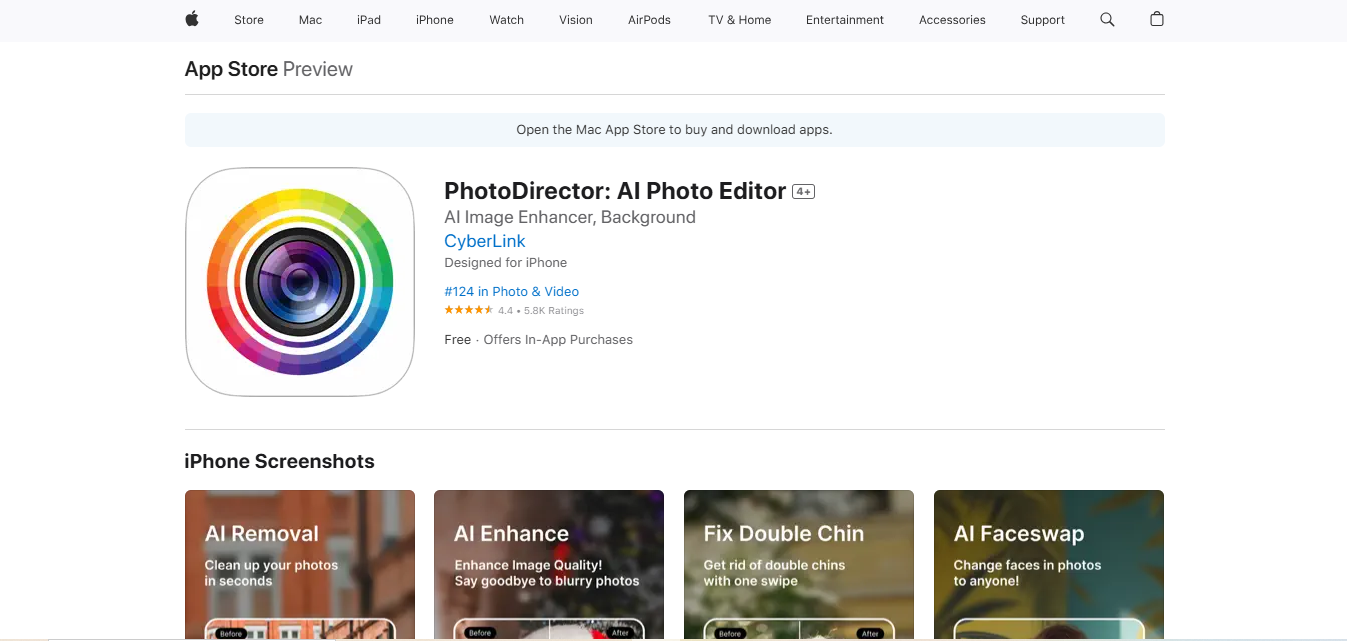
CyberLink built PhotoDirector as a bridge between casual photo apps and professional editors, and it shows in the pricing and the interface, both of which are friendlier than Lightroom or Capture One. It leans on AI for the tools that used to require manual masking, sky replacement and style transfer among them, while still offering layer-based editing for people who want more control.
- Key Features
- AI-powered sky replacement, style transfer, and object removal
- Layer-based editing for composites and advanced retouching
- Album and keyword-based organization
- Direct integration with CyberLink’s video editor, PowerDirector
- Pros
- Approachable for beginners without giving up layer-based editing
- Both perpetual license and subscription options exist
- Useful if you also edit video, since it pairs directly with PowerDirector
- Cons
- Not as deep as Lightroom or Capture One for professional-grade color work
- Some AI features need a reasonably modern GPU to run smoothly
- Best for: Hobbyists and content creators who want AI-assisted editing at a lower price point than Adobe or Capture One.
Quick Comparison
| Software | Pricing Model | Strongest At | Weakest At |
|---|---|---|---|
| Adobe Lightroom Classic | Subscription only | All-around organizing and editing | No perpetual license |
| Capture One Pro | Perpetual or subscription | Color accuracy, tethered shooting | Price, learning curve |
| DxO PhotoLab | Perpetual | Noise reduction, lens correction | Cataloging tools |
| Skylum Luminar Neo | Perpetual or subscription | Fast AI-driven edits | Library management |
| Corel PaintShop Pro | Perpetual (plan optional) | Value, layer-based editing | Cloud sync, large batches |
| Adobe Bridge | Free with Creative Cloud | Asset browsing | No editing tools |
| ON1 Photo RAW | Perpetual or subscription | All-in-one, no forced subscription | Interface density |
| Zoner Studio | Subscription only | Beginner-friendly, bundles video | Advanced color tools |
| ACDSee Photo Studio Ultimate | Perpetual or subscription | Fast cataloging, large libraries | Learning curve |
| CyberLink PhotoDirector | Perpetual or subscription | AI tools at lower price | Professional color grading |
How to Actually Choose
If you shoot professionally and need one tool that does organizing and editing at a high level, Lightroom Classic or Capture One Pro are the two realistic options, and the choice mostly comes down to whether you want Adobe’s ecosystem and subscription model or Capture One’s color accuracy and one-time purchase path. If a subscription is a dealbreaker, ON1 Photo RAW and ACDSee Photo Studio Ultimate both offer a genuine perpetual license while still covering organization and editing in one package.
If your priority is image quality on difficult files, specifically noisy, high-ISO shots, DxO PhotoLab’s noise reduction is worth the weaker cataloging tools; you can always pair it with a separate organizer. If you want fast, dramatic results without learning masking by hand, Luminar Neo and PhotoDirector both lean on AI to get you there quickly. And if you’re already paying for Creative Cloud, don’t overlook Adobe Bridge as a free upgrade to how you browse and tag files before you ever open an editor.
None of these choices are permanent. Most vendors offer free trials, and it is common for working photographers to run two tools side by side, an organizer for the library and a specialist editor for the images that need extra work. Test the free trial on a real folder of your own images before paying for a year of anything.
Storage and Hardware Realities
Software choice matters less than most buying guides admit once your library crosses a few thousand RAW files. A 45-megapixel RAW file from a modern mirrorless body runs 60 to 90 megabytes; multiply that by a wedding season and you’re looking at terabytes, not gigabytes. Whatever program you pick, plan storage before you plan software: an external SSD for active projects, a larger spinning drive or NAS for the archive, and a backup copy somewhere physically separate from both. None of the ten tools above will protect you from a dead drive.
Hardware also affects which of these programs feels fast versus sluggish. Catalog-heavy tools like Lightroom Classic and ACDSee benefit most from a fast SSD housing the catalog file itself, not just the photos. AI-driven tools, Luminar Neo and PhotoDirector especially, lean on the GPU for sky replacement, generative fill, and noise reduction, so a mid-range dedicated graphics card makes a bigger difference there than extra RAM. If you’re running any of these on a laptop from more than four or five years ago, expect the AI features specifically to lag even if basic editing feels fine.
Frequently Asked Questions
Do I need separate organizing software and editing software?
Not necessarily. Lightroom Classic, Capture One, ON1 Photo RAW, and ACDSee Photo Studio Ultimate all combine a searchable library with a full editor. Adobe Bridge is the exception on this list; it’s organization only and needs a separate editor alongside it.
Which of these is the best free option?
None of the ten are fully free, but Adobe Bridge is included at no extra cost if you already pay for any Creative Cloud plan. Most of the paid tools above offer a free trial between seven and thirty days.
Is a subscription always worse than a one-time purchase?
Not always. Subscriptions guarantee ongoing updates, new camera RAW support, and cloud features. A perpetual license costs more upfront but keeps working indefinitely, usually without the newest features added after your purchase. Which one makes sense depends on how often you upgrade cameras and how much you value continuous updates.
Can I switch between these tools without losing my edits?
Most non-destructive edits are stored in a proprietary catalog or sidecar file specific to that software, so switching tools generally means starting your edit history over on that platform, even though your original RAW files stay untouched.

Interesting Reads
10 Best AI Software for Cover Letter Editing