10 Best WordPress Plugins for Adding Code


Editing theme files by hand is how a lot of WordPress sites end up broken. One missing semicolon in functions.php and the whole front end goes white. Anyone who has ever opened an FTP client at midnight to undo a typo knows why plugins built specifically for inserting code exist in the first place: they let you drop in tracking scripts, custom CSS, PHP snippets, or third-party embeds without touching a single core file, and most of them wrap that code in a try/catch style safety net so a bad snippet gets disabled automatically instead of taking the site down.
This list covers ten plugins that are still active, still updated, and still doing exactly what they claim on wordpress.org today. A few names from older “best of” roundups on the web have quietly changed identity since they were written, and at least one commonly recommended pick turns out to be a browser extension rather than a WordPress plugin at all, so we checked each entry against its live wordpress.org listing before including it here.
What Counts as a Code Plugin?
Broadly, these tools fall into three categories. Snippet managers (Code Snippets, Post Snippets) let you write and toggle PHP, and sometimes CSS or JS, from inside wp-admin, with each snippet stored as a database entry rather than a file edit. Header/footer injectors (WPCode, Header Footer Code Manager) are built for pasting third-party scripts, such as a Google Analytics tag or a Meta Pixel, into specific locations on the page. CSS/JS editors (Simple Custom CSS and JS, Custom CSS Pro, WP Add Custom CSS) are narrower tools meant purely for styling and small scripting tweaks, usually with live preview.
Picking the right category matters more than picking the “best” plugin on a list. A store owner who only needs to paste a Facebook Pixel script into the header doesn’t need a full PHP snippet manager, and a developer maintaining custom post logic across dozens of snippets shouldn’t be limited to a header/footer box.
Why Not Just Edit the Theme Files?
Two reasons come up constantly in WordPress support forums. First, a theme update wipes out any change made directly to a parent theme’s files, so anything added that way vanishes the next time the theme is updated, unless a child theme is set up correctly. Second, a single syntax error in a directly edited PHP file can trigger a fatal error that takes the entire site down, with no admin dashboard to fix it from. Plugin-based code managers sidestep both problems: the code lives independently of the theme, and most of the snippet-manager tools in this list run a basic syntax check, or isolate the snippet so one bad block doesn’t crash the whole install.
Key Features to Look For
- Scope control: can the code be limited to specific pages, post types, or user roles, or does it apply everywhere by default?
- Language support: PHP, CSS, JavaScript, and HTML are not interchangeable, some tools handle only one or two.
- Safe mode or error recovery: does the plugin catch a PHP error and disable the offending snippet instead of white-screening the site?
- Conditional logic: device targeting, logged-in status, and date ranges are useful for anything beyond a static tracking script.
- Update history: a plugin that hasn’t shipped an update in two or three years is a real risk on a modern WordPress install, check the “last updated” line on its wordpress.org page before installing anything.
10 WordPress Plugins for Adding Code (Verified Active)
1. WPCode (formerly Insert Headers and Footers by WPBeginner)
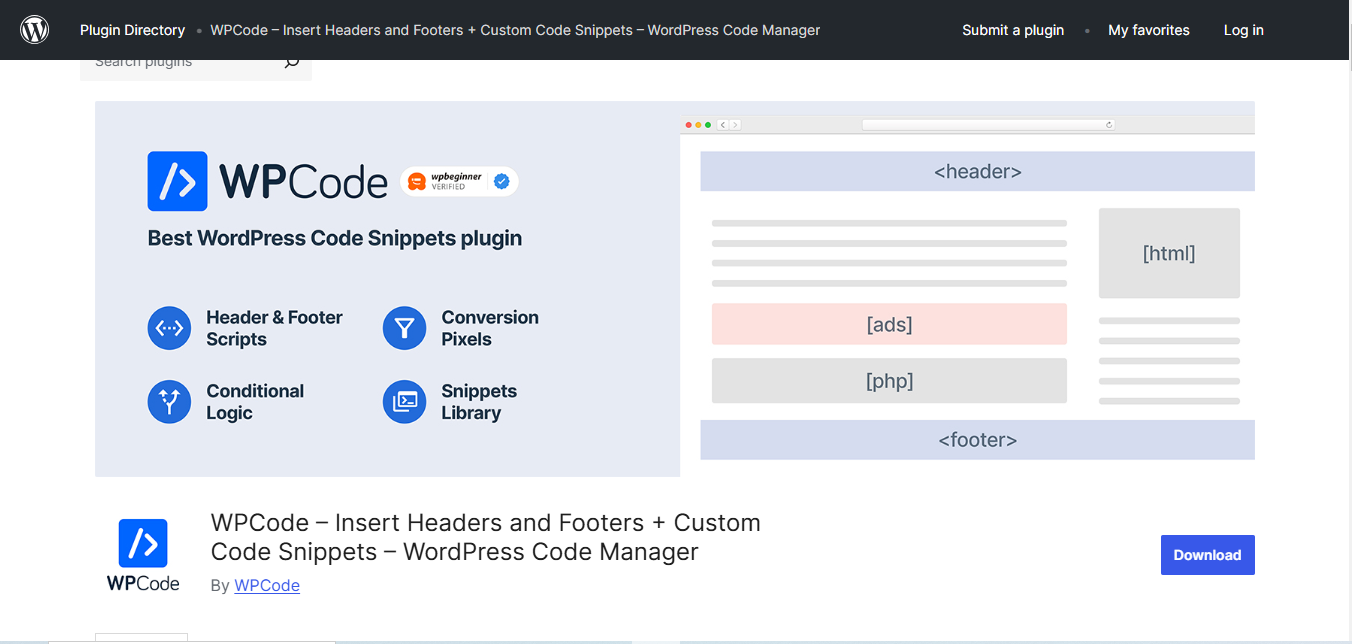
Syed Balkhi’s team rebranded “Insert Headers and Footers by WPBeginner” into WPCode a few years back, folding in a full snippet library, conditional logic, and ad management on top of the original header/footer injector. If an older article still links to the plugin under its old name, wordpress.org now redirects that slug straight to WPCode, so it’s worth knowing they’re the same product line before assuming a broken link.
Key Features
- Header, footer, and body-tag code injection with one click.
- A built-in library of pre-tested snippets for Google Analytics, Meta Pixel, and similar tools.
- PHP snippet support with conditional logic (device, page type, user role).
Pros
- Free tier covers most small-site use cases.
- Over 3 million active installs, so compatibility issues get reported and patched quickly.
- Auto-disables a snippet that throws a fatal error.
Cons
- Some of the more advanced conditional rules sit behind the paid tier.
Why It Stands Out: WPCode is the natural upgrade path for anyone who bookmarked the plugin under its old name. It still does the simple header/footer job it was built for, but it doesn’t stop there.
Also Read: Should I Remove Polyfill from WordPress?
2. Code Snippets
Code Snippets remains one of the cleanest ways to manage PHP on a WordPress site without opening an FTP client. Every snippet lives as a database row, gets its own on/off toggle, and can be tagged for organization once the list grows past a handful of entries.
Key Features
- Centralized snippet library with per-snippet activation toggles.
- Import/export support for moving snippets between sites.
- A recently redesigned admin interface (version 3.10, released August 2026) for faster snippet management.
Pros
- Over a million active installs and frequent updates.
- Doesn’t require any theme file edits.
- Works well for developers who want version control over small PHP functions.
Cons
- Focused on PHP; CSS and JS need a separate tool from this list.
Why It Stands Out: For anyone who just needs a safe place to keep custom PHP functions organized, Code Snippets is still the reference plugin the rest of the category gets compared to.
3. Simple Custom CSS and JS
Simple Custom CSS and JS is built specifically for front-end styling and scripting tweaks. It ships with a syntax-highlighting editor and lets code run globally or scoped to specific pages, and as of its most recent release it’s tested against WordPress 7.1.
Key Features
- Separate CSS and JS panels with syntax highlighting.
- Inline or external file output, useful for keeping page load lean.
- Global or page-specific targeting.
Pros
- 600,000+ active installs and a 4.4-star rating.
- Lightweight, it doesn’t add meaningful overhead to page load.
- Updated regularly, including WordPress core compatibility patches.
Cons
- No PHP support, so it can’t replace a snippet manager for backend logic.
Why It Stands Out: When the job is strictly design tweaks, Simple Custom CSS and JS avoids the overhead of a full snippet manager while still giving the code its own editor instead of the cramped Customizer box.
4. Ultimate Addons for Elementor (formerly Header, Footer & Blocks for Elementor)
Brainstorm Force renamed “Header, Footer & Blocks for Elementor” to Ultimate Addons for Elementor as they expanded it well past header/footer templates into a full widget library. Elementor users can still drop an HTML widget into any template built with the plugin to inject custom code without leaving the visual builder.
Key Features
- Custom HTML widget for embedding code directly inside Elementor templates.
- Dedicated header and footer template builder.
- 18+ free widgets, with 50+ more in the pro version.
Pros
- 2 million+ active installs and a 4.9-star rating.
- Frequent updates tied to Elementor’s own release cycle.
- No theme file edits needed.
Cons
- Only useful if the site already runs on Elementor.
Why It Stands Out: Elementor-built sites benefit from keeping code insertion inside the same builder interface instead of bouncing between the page editor and a separate plugin screen.
5. Custom CSS Pro
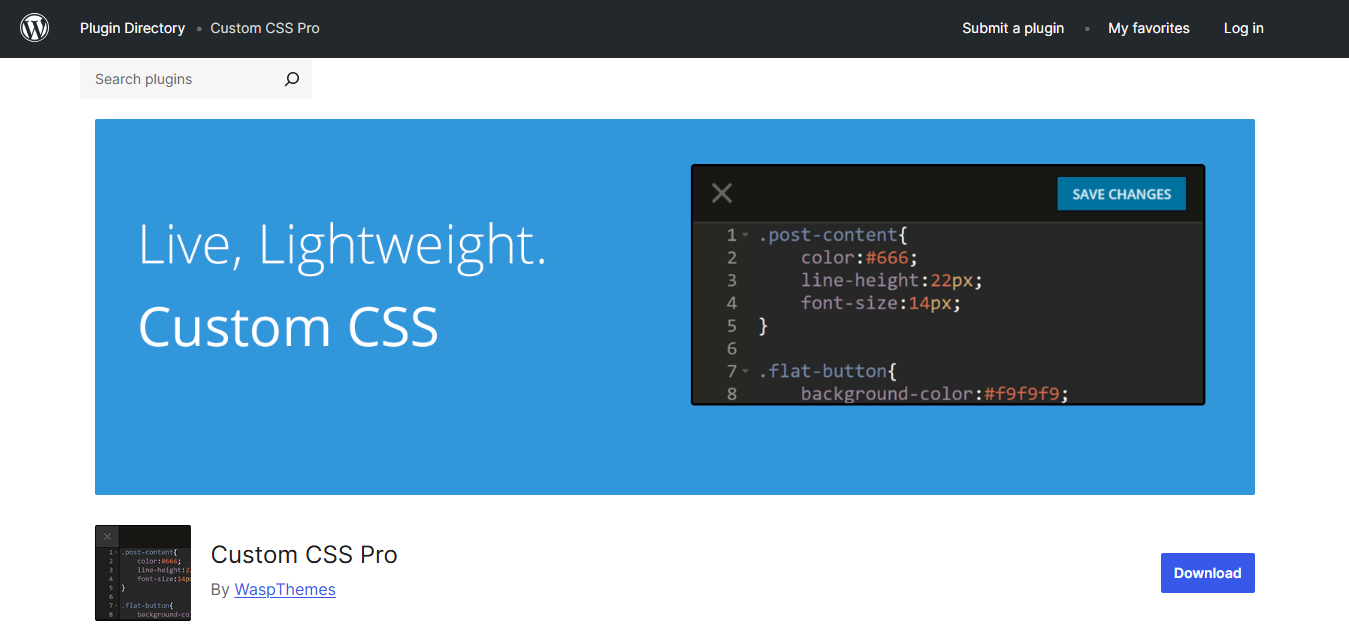
Custom CSS Pro, despite the name, is a free, open-source plugin from the YellowPencil team. It’s a lightweight, real-time CSS editor with live preview and basic error flagging, and it has held a perfect five-star rating on wordpress.org for years.
Key Features
- Real-time live preview while writing CSS.
- Simple, distraction-free editor interface.
- CSS error highlighting.
Pros
- Completely free despite the “Pro” name.
- Small footprint, minimal impact on load time.
- Been actively maintained since 2016.
Cons
- CSS only, no JS or PHP support.
Why It Stands Out: For a pure CSS use case where live preview matters more than feature breadth, Custom CSS Pro is a smaller, faster alternative to the heavier all-in-one tools.
Also Read: Where is Footer in WordPress?
6. Ad Inserter
Ad Inserter handles HTML, CSS, JavaScript, and PHP, but it’s built around one specific job: precise placement of ads and tracking scripts. That focus is what makes it useful even outside advertising, since the same placement rules (before/after post, between paragraphs, by device or geography) work equally well for any script that needs to appear in a specific spot.
Key Features
- Code editor with syntax highlighting for HTML, CSS, JS, and PHP.
- Placement rules by device, geography, and page type.
- Built-in support for Google AdSense and Ad Manager formats.
Pros
- 300,000+ active installs, updated monthly.
- Very granular placement control compared to most snippet managers.
- Free tier covers most ad and script insertion needs.
Cons
- The interface is built around ad slots first, general-purpose code second, which makes it feel more complex than plugins built purely for snippets.
Why It Stands Out: Ad Inserter is the strongest option on this list for anyone whose main use case actually is monetization, with code insertion as a secondary benefit.
7. WP Add Custom CSS
WP Add Custom CSS by Daniele De Santis is a smaller, more recent plugin (60,000+ active installs) that adds custom CSS site-wide or to individual posts, pages, and custom post types, including WooCommerce products, and it plays well with both Gutenberg and Elementor.
Key Features
- Site-wide or per-post/page CSS targeting.
- Works with WooCommerce product pages.
- Compatible with both the block editor and Elementor.
Pros
- 4.8-star rating, actively updated as recently as August 2025.
- Simple enough for non-developers to use immediately.
- No performance overhead for a site running only a handful of custom rules.
Cons
- CSS only, smaller install base means a smaller support community than the bigger names on this list.
Why It Stands Out: WP Add Custom CSS is the right pick for someone who wants per-page CSS control without wading through a feature set built for JavaScript and PHP they’ll never use.
8. Header Footer Code Manager
An earlier version of this article recommended a plugin called “Simplicity Custom Code,” but no plugin under that name exists on wordpress.org; the link actually pointed to Simple Custom CSS and JS, already covered above. Header Footer Code Manager is the real, actively maintained plugin that fills the gap: 600,000+ active installs, a 4.9-star rating, and support for inserting snippets above or below content, not just in the header and footer.
Key Features
- Snippet placement in header, footer, above content, or below content.
- Device-specific display rules.
- Targeting by specific post, page, or post type.
Pros
- One of the highest-rated plugins in this category.
- Frequent updates, most recently for WordPress 7.0.1 compatibility.
- Free, with no feature-gated paywall for basic use.
Cons
- Interface is more utilitarian than some of the newer, more polished competitors.
Why It Stands Out: It covers the same core job as WPCode with a smaller footprint, useful for sites that want the flexibility without the extra library and dashboard widgets.
9. Post Snippets
The earlier version of this list also included a plugin called “Scriptless Custom Fields,” whose link actually led to an ACF table-editing add-on that has nothing to do with inserting code, a mismatch worth flagging directly. Post Snippets is the real plugin for the job it was supposed to describe: building a reusable library of HTML, PHP, or text snippets that insert into posts and pages through editor buttons, with support for custom variables so the same snippet can be reused with different values.
Key Features
- Reusable snippet library with custom variables.
- Editor button insertion for quick access while writing.
- Import/export for moving a snippet library between sites.
Pros
- Actively updated, version 4.2.4 shipped in August 2026.
- Useful for content teams who reuse the same formatted blocks across many posts.
- Free tier covers the core snippet-insertion workflow.
Cons
- Smaller install base (20,000+) than the bigger names on this list.
Why It Stands Out: Post Snippets is aimed less at developers and more at writers and editors who need to drop the same block of formatted HTML into post after post without retyping it.
Also Read: Important things you should know about the on-demand service marketplace
10. Code Embed
The last slot in the original version of this article, “Custom JavaScript Injector,” linked out to a Chrome Web Store browser extension rather than a WordPress plugin. A browser extension only affects the person who installed it in their own browser, it does nothing for the actual visitors to a site, so it never belonged on a list like this. Code Embed by David Artiss is a genuine WordPress plugin built for exactly the job that entry was supposed to cover: embedding JavaScript, CSS, and HTML directly into individual posts and pages.
Key Features
- Shortcode-based embedding of JS, CSS, or HTML per post or page.
- Simple, minimal settings screen.
- Tested against current WordPress releases.
Pros
- Actually a WordPress plugin, unlike the browser extension it replaces on this list.
- 10,000+ active installs from a single, responsive developer.
- Lightweight, no dashboard clutter.
Cons
- Smaller feature set than the multi-purpose snippet managers higher on this list.
Why It Stands Out: Code Embed does one job cleanly: getting a block of code into a specific post without extra configuration screens to learn first.
Comparison Table
| Plugin | Best For | Languages Supported | Active Installs | Pricing |
|---|---|---|---|---|
| WPCode | All-in-one header/footer + snippet library | PHP, HTML, CSS, JS | 3,000,000+ | Free, paid tier available |
| Code Snippets | Managing PHP functions safely | PHP | 1,000,000+ | Free |
| Simple Custom CSS and JS | Front-end styling and small scripts | CSS, JS | 600,000+ | Free |
| Ultimate Addons for Elementor | Code inside Elementor templates | HTML (via widget) | 2,000,000+ | Free, paid tier available |
| Custom CSS Pro | Lightweight live-preview CSS editing | CSS | 7,000+ | Free |
| Ad Inserter | Precise ad and script placement | HTML, CSS, JS, PHP | 300,000+ | Free, paid tier available |
| WP Add Custom CSS | Per-page CSS, including WooCommerce | CSS | 60,000+ | Free |
| Header Footer Code Manager | Snippet placement beyond header/footer | HTML, CSS, JS, PHP | 600,000+ | Free |
| Post Snippets | Reusable content blocks for writers | HTML, PHP, text | 20,000+ | Free, paid tier available |
| Code Embed | Quick per-post code embedding | JS, CSS, HTML | 10,000+ | Free |
Frequently Asked Questions
Is it safe to add custom code through a plugin instead of a child theme?
Yes, for most use cases. A child theme is still the right approach for structural template changes, but for scripts, tracking tags, and small CSS or JS tweaks, a dedicated plugin is simpler to maintain and doesn’t require touching template files at all.
Will adding a code plugin slow down my site?
The plugins in this list are lightweight on their own, but the code you add through them behaves exactly like code added any other way: an unoptimized script or unminified CSS file will still cost load time whether it’s pasted into a theme file or inserted through a plugin.
What happens if a snippet has an error?
WPCode, Code Snippets, and Header Footer Code Manager all include some form of safe-mode recovery that disables a broken snippet rather than letting a PHP fatal error take the whole site down. It’s worth testing new snippets on a staging site regardless, since not every plugin catches every kind of error.
Do I need more than one of these plugins?
Running two snippet managers side by side isn’t necessary and can create confusion about where a given piece of code actually lives. Pick one all-in-one tool (WPCode or Header Footer Code Manager) for scripts and header/footer needs, and pair it with a narrower CSS-only tool only if the built-in CSS editor feels limiting.
How was this list checked?
Every plugin here was cross-referenced against its live wordpress.org listing for current version number, last-updated date, and active install count before being included. Two entries from an earlier version of this article turned out not to be real WordPress plugins under the names given, one linked to an unrelated ACF table add-on and one linked to a browser extension, so both were replaced with the actual plugins that do the job described.
Choosing the Right Plugin for Your Site
Start with what actually needs to be inserted. A tracking pixel or analytics script only needs a header/footer injector, WPCode or Header Footer Code Manager both handle that with almost no learning curve. Custom PHP functions call for a proper snippet manager like Code Snippets, where each function gets its own toggle and doesn’t risk breaking unrelated code. Pure design tweaks are better served by a focused CSS tool like Simple Custom CSS and JS, Custom CSS Pro, or WP Add Custom CSS, rather than dragging a full-featured snippet manager into a job that’s really just styling.
Whichever plugin gets chosen, test new code on a staging copy first, or at minimum keep a backup plugin active before pasting anything untested into a production site. None of the tools on this list can fully protect against bad code, they just make it far easier to recover from when something does go wrong.
Interesting Reads
Should I Remove Polyfill from WordPress?
10 Best Plugins for WordPress Security
15+ Must Have WordPress Plugins for a High-Performance Website