10 Best Software for Live Streaming

What Is Live Streaming Software and Why It Matters
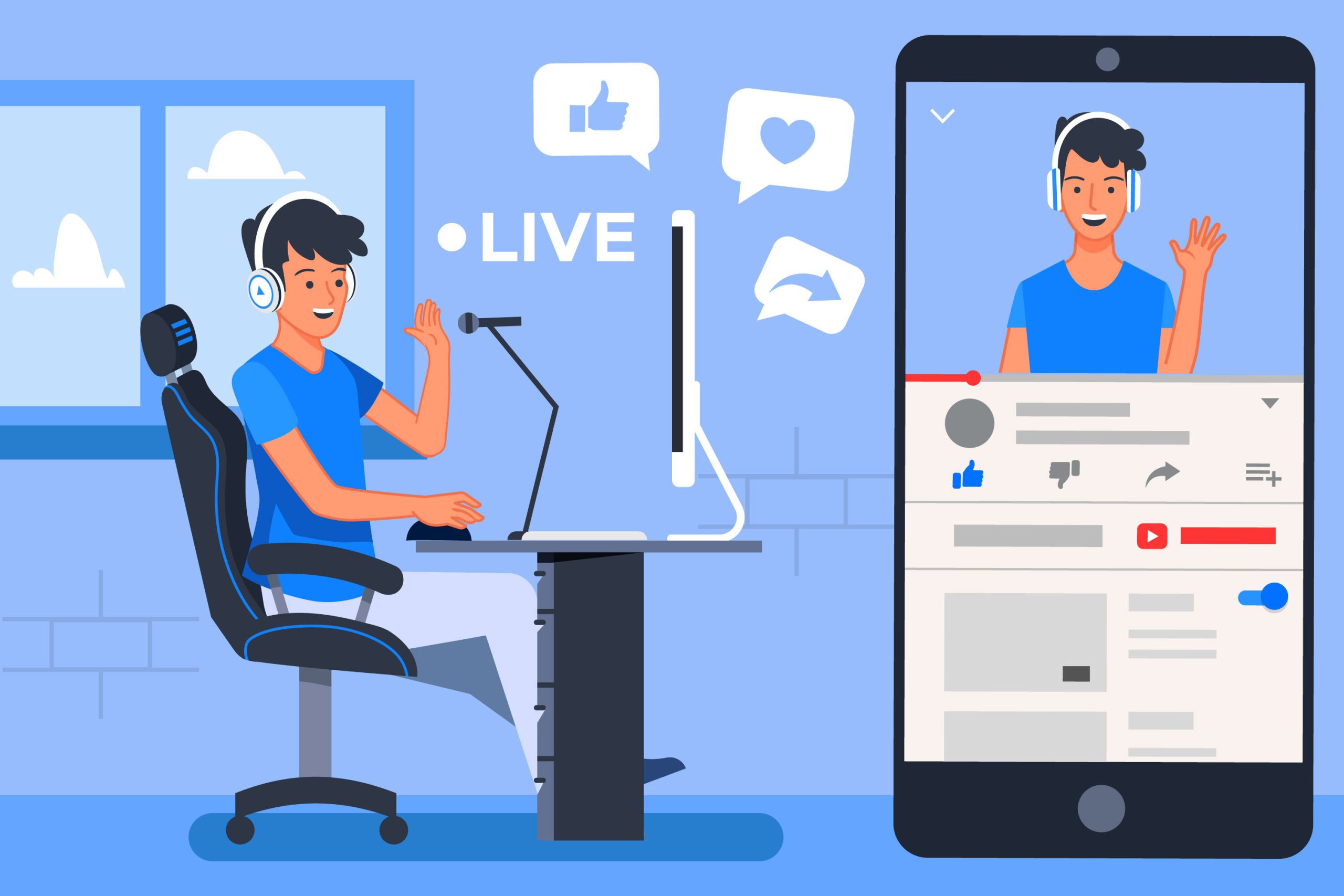
A live stream lives or dies on the software running behind it, not just the camera pointed at the host. The right tool switches between camera angles, pulls in a screen share, layers a logo overlay on top of the feed, and pushes all of it out to YouTube, Twitch, or Facebook at once, all while the broadcast is still running. Get that software wrong, and even a great guest and a solid internet connection cannot save a stream that looks amateur or keeps dropping frames.
Live streaming software generally falls into two categories: desktop encoders that give deep control over scenes and sources, and browser-based studios that trade some of that control for a setup that takes minutes instead of hours. Neither category is universally better; a solo Twitch streamer running a multi-hour gaming session has different needs than a marketing team hosting a monthly panel discussion with four remote guests.

How to Choose the Right Software for Live Streaming
Start with what the stream actually needs to do, not which tool has the longest feature list. A teacher hosting a weekly virtual class needs reliable screen sharing and simple guest controls far more than chroma keying or multi-camera switching. A product marketer running a launch event needs polished overlays and branding more than deep audio mixing. Matching the tool to the actual use case saves both setup time and, in some cases, a monthly subscription fee for features that would go unused.
Hardware compatibility deserves attention before subscribing to anything. Desktop encoders like OBS Studio and vMix lean on the host computer’s CPU and GPU, and an older laptop can choke on a multi-source scene that a newer machine handles without effort. Browser-based tools shift more of that processing to the cloud, which is gentler on local hardware but depends more heavily on a stable internet connection to avoid dropped frames.
Budget plays a real role too, and it splits along the same lines as hardware. Free, open-source options exist at the serious end of the spectrum, not just the beginner end. Premium tools generally earn their price through customer support, cloud rendering, or production features that would take significant configuration time to replicate manually. Below are ten options worth evaluating, from completely free desktop software to premium production suites.
OBS Studio
Open Broadcaster Software, almost universally shortened to OBS Studio, is free, open source, and still the default recommendation for anyone serious about streaming without a subscription. It gives full control over scenes, sources, transitions, and audio filters, and its plugin ecosystem, maintained largely by its user community, extends it well past what the base install offers.
The learning curve is real. Someone opening OBS for the first time will need to spend an evening configuring scenes and sources before a stream looks polished, and that upfront investment is the main reason newer, more guided tools exist. Once configured, though, OBS supports simultaneous multi-platform streaming and gets frequent updates, and there is no premium tier hiding better performance behind a paywall.
Streamlabs
Streamlabs is built on OBS’s open-source foundation but wraps it in a friendlier interface, with built-in alert boxes, donation tracking, and chat widgets that would otherwise require separate plugins in plain OBS. That combination has made it a default choice for Twitch streamers who want OBS-level power without OBS-level setup time.
Cloud-based backups and prebuilt themes round out the package, and multistreaming is supported on its higher tiers. The tradeoff for that convenience is a slightly heavier resource footprint than vanilla OBS, which matters more on older hardware than newer machines.
XSplit Broadcaster
XSplit Broadcaster targets creators who want studio-level production without a steep technical learning curve. Its drag-and-drop scene editor and real-time source editing make it approachable for webinars, professional online events, and game streaming alike, without requiring the manual configuration OBS demands upfront.
The free tier covers the basics, but scene limits and a persistent watermark push serious users toward a paid plan fairly quickly. Built-in Skype integration and local recording round out the feature set, and for creators who value a polished interface over raw open-source flexibility, the subscription tends to earn its cost.
vMix
vMix is built for high-end, multi-camera productions rather than a single webcam feed. Live mixing, switching, recording, and streaming all run through one interface, with support for multiple simultaneous camera inputs, 4K resolution, and virtual sets that would require several separate tools to replicate elsewhere.
Its edition structure scales with need: a production can start on a basic tier and move up as camera count and feature requirements grow. NDI support, a protocol for streaming uncompressed video over a local network, lets multiple machines contribute feeds to a single production without extra capture hardware. The learning curve and price both climb with the feature set, which makes vMix better suited to teams with a dedicated broadcast operator than to a solo creator streaming from a bedroom setup.
Wirecast
Wirecast, developed by Telestream, is aimed at organizations running production-quality broadcasts rather than casual streams, and it shows up frequently in sports broadcasting, corporate events, and houses of worship. Multi-camera switching, built-in graphics, instant replay, and direct social media integration all ship as standard features rather than paid add-ons.
ISO recording, which saves each individual camera feed as a separate file alongside the final switched broadcast, is a genuine advantage for anyone who plans to re-edit footage after the live event ends. Wirecast is priced for organizations rather than hobbyists, but for teams producing regular, high-stakes broadcasts, the feature set generally justifies the cost.
Also Read: Best software for 360-degree video editing
Lightstream
Lightstream runs entirely in the browser and pushes the heavy processing to the cloud rather than the local machine, which makes it a strong pick for console streamers on Xbox or PlayStation who cannot run a desktop encoder alongside their game. Overlays, alerts, and guest co-hosting are all available through drag-and-drop controls without a download.
Because the broadcast itself is handled server-side, a streamer can adjust scenes and settings from a phone or tablet mid-stream, which is not something a desktop-only encoder like OBS or vMix can offer. The convenience comes with less granular control than a full desktop encoder provides, a fair tradeoff for the audience Lightstream targets.
Restream
Restream’s core feature is multistreaming: broadcasting the same live feed to dozens of platforms simultaneously, including Facebook, YouTube, LinkedIn, and Twitch, from a single source. For a creator or marketer trying to reach audiences on multiple platforms without running separate encoders for each one, that alone can justify the subscription.
Beyond multistreaming, Restream Studio adds browser-based production tools, chat consolidation across platforms, and analytics that track performance per destination. Interview-style formats with custom branding are supported without additional software, which makes it a reasonable all-in-one option for anyone whose priority is reach over deep production control.
StreamYard
StreamYard runs entirely in the browser and focuses on interviews, panel discussions, and live events where getting multiple guests on screen quickly matters more than deep customization. There is nothing to download and very little to configure; a host sends a link, a guest clicks it, and both are live within a couple of minutes.
Multistreaming, green screen effects without a physical green screen, and screen sharing are all included, and the interface stays approachable enough that a non-technical host can run a broadcast without a dry run beforehand. That accessibility, more than any single feature, is what has kept it a common recommendation for anyone new to live production.
Zoom for Live Events
Zoom is best known for meetings, but its ability to stream a webinar or meeting directly to Facebook or YouTube makes it a practical option for virtual conferences, lectures, and panel discussions that do not need dedicated broadcast software. The main advantage is familiarity: most guests already know how to join a Zoom call, which removes a barrier that a less common platform would introduce.
Breakout rooms, screen sharing, and participant management give it more versatility than its reputation as “just a meeting tool” suggests, and for corporate and academic settings where the audience is already comfortable with Zoom, that familiarity often outweighs the more polished production values of a dedicated streaming tool.
Be.Live
Be.Live targets entrepreneurs, coaches, and small business owners who want a clean, professional stream without a technical team behind it. Scheduling, guest invitations, lower-third graphics, and on-screen audience comments are all handled through a straightforward interface that does not require prior streaming experience.
It will not compete with vMix or Wirecast on production depth, and it is not trying to. For a business owner running a weekly Q&A or a product demo, that narrower scope is a feature, not a limitation, since it means less time spent configuring and more time spent actually talking to an audience.

Desktop Encoder or Browser-Based Studio?
The split between desktop encoders and browser-based studios is the single biggest decision most people evaluating live streaming software actually need to make, and it determines which half of this list is even worth trialing. Desktop tools like OBS Studio, vMix, and Wirecast offer more control, better performance on capable hardware, and no dependency on upload bandwidth beyond the stream itself. They also require more setup time and a machine powerful enough to encode video while running whatever else the stream involves, whether that is a game or a screen share.
Browser-based studios like StreamYard, Restream, and Lightstream trade some of that control for accessibility. A host with a mid-range laptop and a stable internet connection can be live within minutes, and guests need nothing more than a browser and a link. The dependency shifts from local hardware to internet reliability, which matters more for anyone streaming from a location with inconsistent connectivity.
How These Tools Compare on Price
Price tiers across this list fall into roughly three groups, and knowing which group a stream’s budget falls into narrows the ten options down fast. OBS Studio sits alone in the fully free, no-upsell category; there is no premium tier hiding better performance, which is unusual in software generally and especially unusual in production tools. Streamlabs, XSplit, StreamYard, Restream, and Lightstream all follow a freemium model, where the free tier is genuinely usable but caps resolution, removes multistreaming, or leaves a watermark, and a monthly subscription in the range of ten to fifty dollars removes those limits.
vMix and Wirecast occupy the top tier, priced for organizations rather than individual creators, often running several hundred dollars for a one-time license or an annual subscription depending on the edition. That price reflects the production complexity they are built to handle, multi-camera switching, ISO recording, and broadcast-grade output, rather than padding for features a casual streamer would never touch. Paying for that tier without a genuine need for multi-camera production is the most common overspend in this category.
Testing a Stream Before Going Live
Every tool on this list supports some form of private test mode, and skipping that step is one of the most common mistakes first-time streamers make. Run a full test broadcast, ideally to an unlisted YouTube stream or a private test channel, at least once before a real audience is watching. Check audio levels, confirm overlays render correctly at the resolution the audience will actually see, and verify that any guest co-hosting features work with the same internet connection and hardware the actual guests will use.
Bandwidth deserves particular attention. A stable upload speed of at least 5 Mbps is a reasonable floor for a single 1080p stream, and that number climbs quickly with multistreaming or higher resolutions. Testing on the same network and at the same time of day the real broadcast will run catches bandwidth contention issues, like a household or office network getting saturated during peak hours, that a quick daytime test might miss entirely.
Audio deserves at least as much attention as video, and it is the part first-time streamers most often skip during testing. A viewer will tolerate a slightly soft picture far more readily than crackling or inconsistent audio levels, since choppy sound makes a stream physically uncomfortable to watch for more than a minute or two. Test with the actual microphone, headset, or audio interface that will be used on the day, not a laptop’s built-in microphone during a quick check, since the two rarely behave the same way once other applications and background noise enter the picture.
Common Questions About Live Streaming Software
Do I need a capture card to stream?
Not for most setups. A capture card becomes necessary when a video signal needs to come from an external source that is not natively recognized by the computer, such as a console, a standalone camera with an HDMI output, or a separate mixing board. For a standard webcam-and-screen-share stream, software like OBS Studio or StreamYard reads the camera and screen directly without any additional hardware.
Can I use more than one of these tools at the same time?
Generally no, at least not for the same broadcast. Most of these tools capture the display and audio devices exclusively while running, and trying to run two encoders simultaneously usually causes conflicts over camera or microphone access. Some creators do run a desktop encoder like OBS for the main broadcast while using a separate tool for scheduling or analytics, but that is a workflow choice rather than a technical requirement.
Is a free plan usually enough to get started?
For most first-time streamers, yes. OBS Studio has no paid tier at all and covers the vast majority of what a new streamer needs. Free tiers on tools like Streamlabs, XSplit, and StreamYard typically cap resolution, add a watermark, or limit stream duration, which is enough to test whether streaming is a habit worth continuing before committing to a paid plan.
What internet speed does live streaming actually require?
Upload speed matters far more than download speed for streaming, since the software is continuously pushing video data outward rather than pulling it in. A single 1080p stream at a reasonable bitrate needs roughly 5 to 6 Mbps of stable upload bandwidth, and that requirement roughly doubles for 4K or when multistreaming to several platforms simultaneously. Running a speed test at the exact time of day the stream will happen gives a more honest answer than checking speed once in the morning and assuming it holds all evening.
Elevate Your Streams with the Right Tools
Every option on this list solves the same basic problem in a different way, and none of them is universally correct. Creators on a tight budget get real, professional-grade capability out of OBS Studio without spending anything. Teams producing high-stakes broadcasts get the control they need from vMix or Wirecast. Anyone prioritizing reach across platforms or wanting to skip setup entirely finds a better fit in Restream, StreamYard, or Lightstream.
Match the tool to the actual stream, not to whichever option has the most features on paper. Run a real test broadcast before the day that matters, confirm the internet connection can support what the software is asking of it, and the technical side of live streaming stops being the thing to worry about.
Most streamers end up settling into one primary tool after a few months of trial and error rather than switching for every broadcast, and that consistency tends to matter more than the specific software chosen. A host who knows one tool’s quirks well produces a smoother stream than one juggling three unfamiliar interfaces, even if the second host’s software has a longer feature list on paper. Pick one of the options above, spend a few sessions learning its quirks before an audience is watching, and let familiarity do more of the work than any single feature ever will.
Interesting Reads:
Best Software for Slideshow Creation