10 Best Software for Digital Art

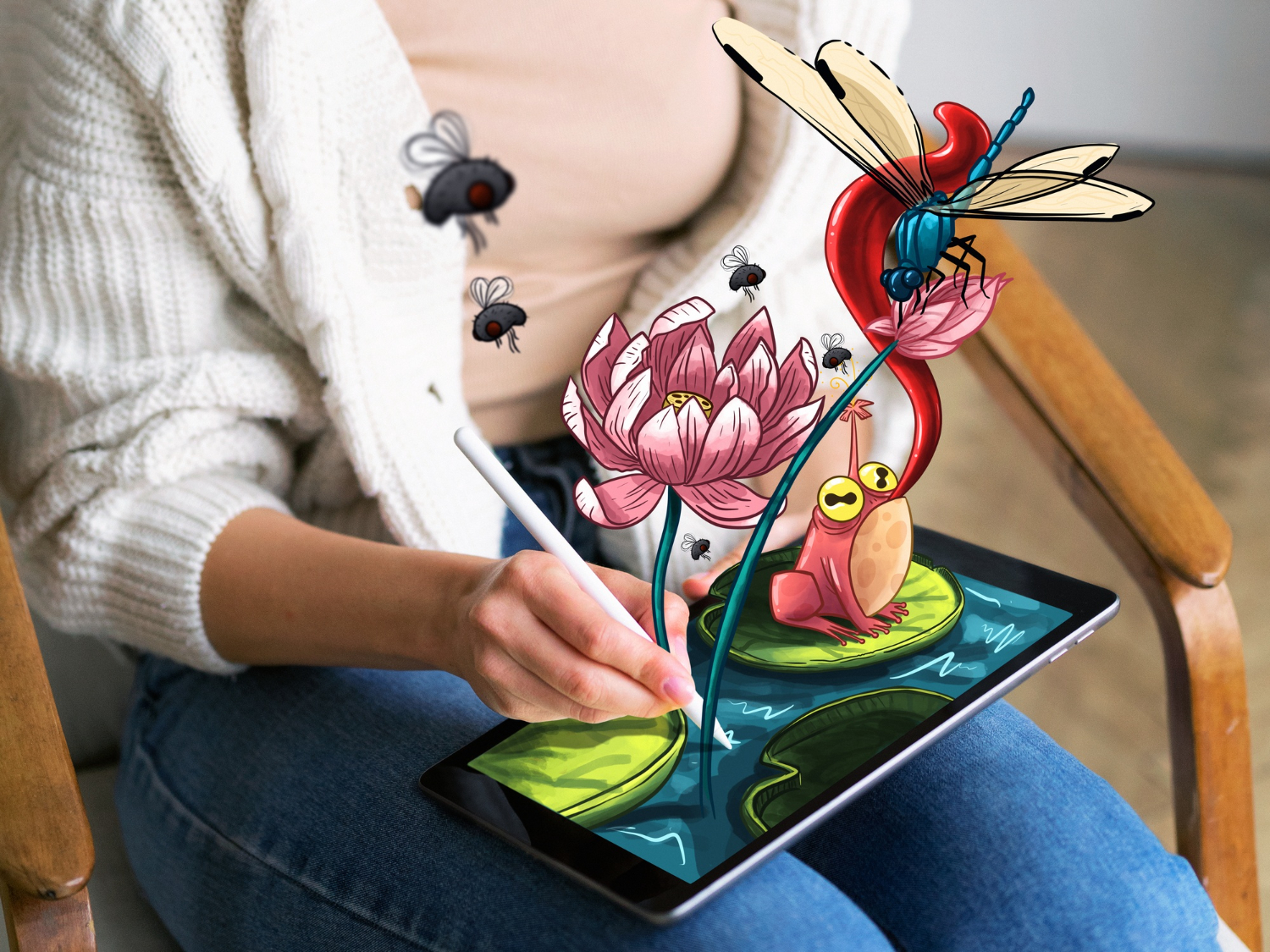
Starting out in digital art means facing a genuinely confusing number of software options, most of which claim to be the best choice for everyone. Picking the right one early saves months of relearning muscle memory later, since brush behavior, shortcut layouts, and layer workflows don’t transfer cleanly between programs. Here’s what actually matters when choosing digital art software, followed by ten tools worth considering depending on what you’re trying to make.

Why the Software Choice Actually Matters
Picking digital art software is closer to choosing a workshop than picking a single tool. The program shapes your creative process, your speed, and often the visual quality ceiling of what you can produce. A well-suited program streamlines the parts of the process that shouldn’t require thought, like switching brushes or managing layers, so more of your attention stays on the actual drawing.
The right software also shapes how much you keep learning. Programs with active communities and abundant tutorials make it easier to pick up new techniques, troubleshoot problems, and see how other artists solve the same visual problems you’re running into. That support ecosystem ends up mattering almost as much as the feature list itself once you’re a few months in.
Features Worth Checking Before You Commit
A few features separate genuinely useful digital art software from something that looks impressive in a feature comparison chart but frustrates you in daily use:
- User interface: A clean, uncluttered interface keeps the learning curve manageable, especially in the first few weeks when everything feels unfamiliar.
- Brush customization: The ability to tune brush behavior, texture, and pressure sensitivity response makes a real difference once you develop a personal style that stock brushes don’t quite capture.
- Layer management: Efficient, non-destructive layer handling matters enormously for anything beyond a quick sketch, since complex pieces can involve dozens of layers and groups.
- File compatibility: Support for common formats like PSD, PNG, and layered exports keeps your work portable across other tools and collaborators.
- Performance: Lag during brush strokes on high-resolution canvases ruins the feel of drawing fast, so performance under real working conditions matters more than benchmark numbers.
- Community and support: An active user base means faster answers when something breaks and a steadier stream of tutorials as you grow.
Matching the Tool to Your Actual Work
Your choice should reflect the kind of art you’re actually making, not just which software has the biggest reputation. Comic and manga artists benefit from tools with dedicated paneling, inking, and speech bubble features. Painters benefit more from realistic brush engines that mimic traditional media. Vector illustrators need precision path tools that raster-focused painting programs don’t prioritize.
Budget matters too, and it’s worth being deliberate here rather than defaulting to whatever software shows up first in a search. Some genuinely capable tools are free or a one-time purchase, while others run on ongoing subscriptions that only make financial sense once the work is paying for itself. Match the spend to where you actually are, not where you hope to be in a year.
1. Krita
Krita is a free, open-source painting program built specifically with digital artists in mind rather than adapted from general image editing software. It’s known for a genuinely strong brush engine, deep customization options, and features like HDR painting, perspective tools, and basic animation support that punch well above its price of zero dollars.
Its active community keeps development moving and produces a steady stream of tutorials. Cross-platform support across Windows, macOS, and Linux keeps it accessible regardless of what machine you’re working from, which is part of why it’s become a default recommendation for illustrators and concept artists starting out.
2. Procreate
Procreate is built exclusively for iPad, and that focus shows in how tightly it’s optimized for Apple Pencil input and touch gestures. Its brush library, layer support, and tools like QuickShape for clean geometric forms make it a favorite among both professionals and hobbyists working on tablets.
Time-lapse recording is a standout feature, letting artists capture and share their process without extra software. A one-time purchase instead of a subscription, paired with regular free updates, makes Procreate’s value proposition hard to beat for anyone already working on an iPad.
3. Clip Studio Paint
Clip Studio Paint has become the default choice for comic artists, manga illustrators, and animators, largely because of specialized tools most general-purpose art software doesn’t bother building: panel layout tools, speech bubble placement, and 3D model integration for reference posing.
Its brush feel is genuinely natural, and the asset library saves real time on backgrounds and screentones common in manga-style work. Available on Windows, macOS, and iPad, it covers a wide range of working setups without sacrificing its specialized feature set.
4. Corel Painter
Corel Painter is built around replicating traditional media convincingly, with brush behavior modeled on oils, watercolors, and charcoal that feels noticeably closer to the real thing than most digital brush engines attempt. Its brush library is one of the deepest available anywhere in this category.
Advanced features like realistic color mixing, paper texture simulation, and clone painting add real depth for serious painters. It carries a higher price tag than most competitors on this list, but for artists specifically chasing traditional-media realism, that depth is often worth paying for.
5. Adobe Photoshop
Photoshop remains a genuine powerhouse for digital art, not just photo editing, with an extensive toolset spanning advanced brush settings, layer styles, and compositing tools that few competitors match in breadth. Its integration with the rest of Adobe’s Creative Cloud apps extends its usefulness beyond standalone artwork.
The subscription model is a real downside for artists on a tight budget, but Photoshop’s status as an industry standard and its constant stream of updates justify the cost for professionals working across photo manipulation, matte painting, and intricate digital illustration alike.
Also Read: 10 Best Remote Work Software
6. Affinity Designer
Affinity Designer has built a strong following among digital artists working in vector graphics, valued for its speed, precision, and ability to handle both vector and raster work inside one application. Its grid and snapping system, along with strong typography tools, make it well suited for detailed illustrations, icons, and UI design work.
It’s noticeably more affordable than most of its direct competitors, and its one-time purchase model rather than a subscription makes it appealing for artists watching their budget closely without wanting to sacrifice serious capability.
7. Autodesk SketchBook
SketchBook prioritizes a natural, uncluttered drawing experience over a dense feature list, and that focus makes it approachable for artists at any skill level. A streamlined interface paired with a genuinely responsive drawing engine, extensive brush library, and customizable palettes covers most sketching and illustration needs without overwhelming a newcomer.
PSD file support means it integrates cleanly with Photoshop-based workflows, and its free tier includes enough functionality that many artists never feel pressured to upgrade, which is unusual generosity in this category.
8. MediBang Paint
MediBang Paint is a free, lightweight tool aimed squarely at comic, manga, and illustration work, available across Windows, Mac, and mobile devices. Cloud saving, pre-made backgrounds, and a solid brush selection cater directly to the needs of comic artists working on tight deadlines.
Its interface stays approachable for beginners, and built-in collaborative features make it a reasonable pick for small teams working on a shared comic project without needing to invest in more expensive collaborative software.
9. Inkscape
Inkscape is a free, open-source vector graphics editor suited for web, print, and digital art work that needs scalable, resolution-independent output. Its Pen, Node, and Path tools cover the core vector workflow well, and a sizable library of clip art and brushes rounds out the package.
It runs on Windows, Mac, and Linux, and its open-source development model has kept it reliably maintained for years. For artists focused specifically on vector illustration rather than raster painting, it remains one of the strongest free options available.
10. GIMP
GIMP is often described as the free counterpart to Photoshop, and while its core strength is photo manipulation, its drawing capabilities are genuinely solid for artists who don’t need Photoshop’s full commercial feature set. An active development community keeps expanding what it can do through plugins.
Its interface is fully customizable, which helps once you’ve settled into a workflow and want tools arranged to match it. Selection tools, filters, and effects give artists real room to manipulate and refine their work well beyond basic brush strokes.

Free vs. Paid: What You Actually Give Up
Free tools like Krita, GIMP, Inkscape, MediBang Paint, and SketchBook’s free tier have closed most of the gap that used to separate free software from paid alternatives, and plenty of professional work gets produced entirely inside them. What paid tools like Photoshop, Corel Painter, and Clip Studio Paint tend to offer instead is deeper specialization: Photoshop’s compositing depth, Painter’s traditional-media realism, and Clip Studio’s manga-specific tooling aren’t fully replicated anywhere free.
The practical advice is to start free, build real skills, and only pay for a specialized tool once you’ve hit a specific limitation that a free program genuinely can’t solve. Buying an expensive subscription before you know what you actually need from it is one of the more common ways beginners waste money in this hobby.
Hardware Matters as Much as the Software
Even the best digital art software feels frustrating on the wrong hardware. Drawing tablets fall into two broad categories: screenless tablets like a Wacom Intuos, where you draw on a flat surface while watching the cursor move on a separate monitor, and display tablets like an iPad or a Wacom Cintiq, where you draw directly on the screen. Screenless tablets are cheaper and take some adjustment; display tablets feel more natural immediately but cost significantly more.
Pressure sensitivity levels and tilt recognition vary between devices, and higher-end tablets generally translate hand pressure into brush weight more smoothly, which matters for anyone doing expressive line work or painting. It’s worth testing a tablet in person or reading detailed reviews focused on pressure curve behavior before committing to an expensive display tablet, since the difference between a good and mediocre pressure curve is hard to judge from spec sheets alone.
Screen size and canvas resolution also affect workflow more than beginners expect. A small tablet screen makes detailed work cramped, while working at too low a canvas resolution creates problems later if the art needs to be printed or resized for a portfolio piece. Starting at a reasonably high resolution, even for digital-only work, avoids having to redo a piece from scratch after outgrowing the original file.
Building a Practice, Not Just Collecting Software
None of the ten tools above will make someone a better artist on their own. Fundamentals like proportion, value, color theory, and composition transfer across every piece of software on this list, and time spent studying those fundamentals tends to move a portfolio forward faster than time spent comparing brush engines between programs.
A consistent practice routine, even twenty or thirty minutes most days, compounds faster than sporadic long sessions once a month. Following along with structured courses or studying other artists’ work critically (not just admiring it) builds skill in a way that passively switching between software never will. The software is the workshop; the actual craft still has to be built by hand, one drawing at a time.
Common Beginner Mistakes With Digital Art Software
A handful of habits slow down new digital artists regardless of which program they choose. Working at low canvas resolution to save file size often backfires when a piece needs to be printed or resized later. Ignoring keyboard shortcuts and relying entirely on menus makes every action slower than it needs to be once muscle memory could take over. Skipping layer organization on anything beyond a quick sketch turns editing into a search-and-guess exercise later in the process.
Perhaps the most common mistake is switching software every time a new tool gets hyped online, which resets the learning curve each time instead of letting skills compound inside one familiar environment. Pick a tool from this list, commit to it for a few months of real practice, and only consider switching once you’ve hit a specific, well-understood limitation.
A related trap is spending more time customizing brushes, hunting for the “perfect” preset pack, or reorganizing workspace layouts than actually drawing. Brush customization is genuinely useful once you know what you’re missing from the defaults, but chasing it before you’ve put in enough hours to know what you need is a well-disguised form of procrastination. The defaults in Krita, Procreate, and Clip Studio Paint are all strong enough to produce finished work without touching a single setting.
Frequently Asked Questions
What’s the best free digital art software for beginners?
Krita is the strongest overall starting point thanks to its dedicated painting-focused feature set and active tutorial community. MediBang Paint or Inkscape are better fits if your primary interest is comics or vector work specifically.
Do I need a drawing tablet to use this software effectively?
Not strictly, but pressure-sensitive input makes a meaningful difference in brush control and line variation compared to a mouse. A budget tablet or an iPad with Procreate will produce noticeably better results than mouse-based drawing in any of these programs.
Is Procreate worth it if I don’t own an iPad?
No, since it’s exclusive to iPad and unavailable on other platforms. Krita or Clip Studio Paint are the closest equivalents in feel and capability for artists on Windows, Mac, or Android tablets.
Can I use more than one of these programs at the same time?
Plenty of professionals do, and it’s often the most practical setup rather than a compromise. A common pairing is Clip Studio Paint or Procreate for sketching and inking, then Photoshop for final color correction and compositing. As long as your file format supports layers on export (PSD generally works best across programs), moving a piece between two tools mid-project is straightforward.
How much should a beginner expect to spend to get started?
Realistically, close to nothing. A budget screenless tablet paired with Krita or GIMP covers everything a beginner needs to learn fundamentals for well under a hundred dollars total, and often less. Spending more only becomes worthwhile once you’ve outgrown a specific, identifiable limitation in the free setup.
The Right Tool Makes All the Difference
Choosing the right software for digital art is a genuinely pivotal step in your creative development, not just a technical detail to sort out quickly. Each program covered here brings different strengths tailored to different artistic needs, and there’s no single universal answer that fits every artist equally well.
Spend real time exploring your options against your actual art style, budget, and the devices you already own. The best tool is the one that matches your creative goals and stays out of your way while you work. Keep experimenting, keep learning from the community around whichever tool you pick, and let the software support your growth instead of becoming a project in itself.
If you’re still undecided after reading through all ten, download Krita or GIMP tonight and start with something small. Both are free, both are capable enough to carry you through your first year of serious practice, and neither will lock you into a purchase before you’ve figured out what you actually need from a digital art tool.
Interesting Reads:
10 Best AI Websites to Help Find a Job
10 Best Software for UI/UX Design