10 Best Software for Logo Design

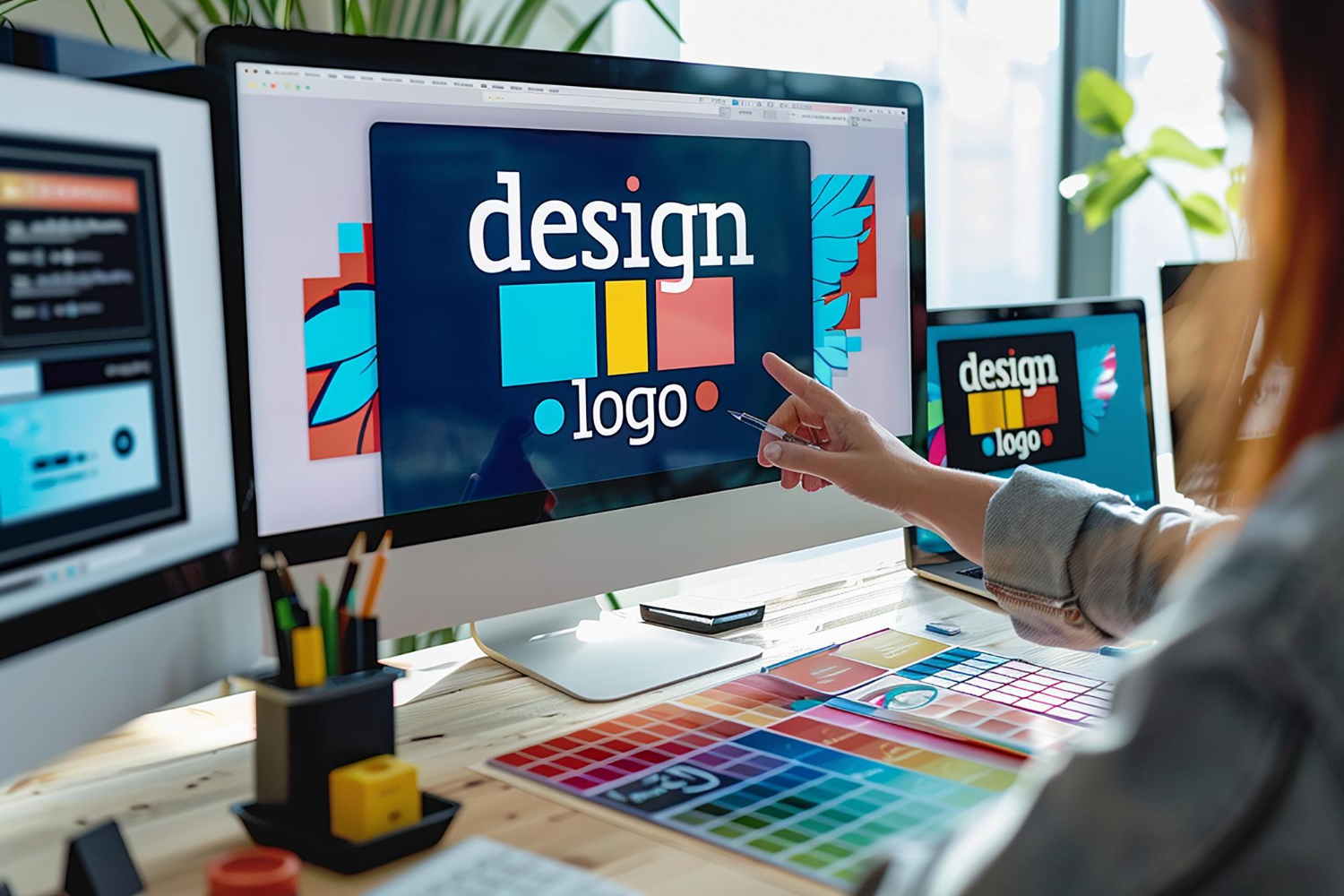
Designing a logo is more than arranging a few shapes and colors. It is crafting the visual heartbeat of a brand, the one graphic a customer will see thousands of times across a website, an invoice, a storefront sign, and a social media avatar before they ever read a word of copy. Whether you are a beginner trying your hand at graphic design or an entrepreneur branding your first product, having the right tool shapes how far that design can go. Before we get into the list, it helps to understand what actually separates a logo tool worth your time from one that will leave you stuck at the export screen.

Why the Right Software Matters in Logo Design
Think of a logo as a brand’s handshake. It is the first impression and the visual symbol customers keep associating with a business long after the interaction ends. The right software ensures that impression stays crisp at every size, from a favicon to a trade show banner. A quick mock-up tool might work for a placeholder, but a logo meant to appear on a business card and a billboard needs vector editing, scalable exports, and clean file formats that a print shop or app store submission will actually accept.
Good logo software also comes stocked with fonts, color systems, and graphic primitives that speed up the process without flattening your creativity. Beginners benefit most from an interface that does not require a manual to operate and from tutorials that explain not just which button to click, but why a particular design choice works.
What to Look For in Logo Design Software
Vector editing is non-negotiable. Vectors let a logo scale to any size without pixelation, which matters the moment your design leaves a screen and goes on paper, fabric, or a vehicle wrap. Raster-only tools are fine for social graphics but will eventually box you in.
Ease of use matters just as much for anyone who is not a full-time designer. Drag-and-drop layouts, pre-built templates, and a clean interface shorten the distance between an idea and a finished file. Beyond that, look for cloud storage and collaboration if you work with clients or a team, and confirm the export options actually include the formats you need: SVG for the web, PDF or EPS for print, and PNG with a transparent background for everything in between.
How to Choose the Right Tool for Your Situation
The right choice depends on your goals and skill level more than on which tool has the longest feature list. A founder who needs a professional-looking mark for a launch next week is better served by a template-based generator than by a six-month crash course in Illustrator. Someone building a career in graphic design gets more long-term value from learning an industry-standard vector tool, even if the learning curve is steeper up front.
Budget is the other deciding factor. Excellent free tools exist, and a premium subscription is not automatically the better answer. Decide whether you want a desktop application or a browser-based platform, and whether the tool needs to fit into an existing workflow (say, a Creative Cloud subscription you already pay for) or can stand entirely on its own.
1. Adobe Illustrator
Adobe Illustrator remains the reference point professionals measure other vector tools against. Its pen tool, shape builder, and gradient controls give you precise command over every curve and node, which is exactly what a logo needs when it has to hold up at both business-card and billboard scale. Integration with the rest of Creative Cloud, including Photoshop for raster touch-ups and After Effects for animated brand assets, makes it the natural hub for anyone already working across Adobe’s ecosystem.
The learning curve is real. New users often spend their first sessions fighting the pen tool before it clicks, but the volume of tutorials and the size of the user community make that curve manageable for anyone willing to put in the hours. Illustrator runs on a subscription, either as a standalone plan or bundled into the full Creative Cloud suite.
2. Canva
Canva remains the fastest way for a beginner to produce a polished-looking logo with zero design training. The drag-and-drop interface, enormous template library, and built-in icon and font sets mean you can go from a blank canvas to a usable mark in under an hour. It works entirely in the browser, so there is nothing to install and no learning curve beyond dragging elements around a page.
The free plan covers more than enough for a first logo, and the Pro tier unlocks additional templates, premium elements, and transparent-background exports, which matter the moment you need the logo to sit on top of a colored header or product photo rather than a white square. Since Canva acquired the Affinity apps, it has also started bridging the gap between quick template editing and true vector precision for users who eventually outgrow the basics.
3. CorelDRAW
CorelDRAW is the other heavyweight in professional vector graphics, especially popular among Windows users and print shops that have relied on it for decades. It handles logo design alongside broader illustration and page-layout work, and it supports an extensive range of file formats along with detailed color management tools that matter when a logo needs to match exact Pantone values for print production.
What sets CorelDRAW apart is how much of the workspace and workflow you can automate and customize. Once mastered, macros and customizable toolbars let repeat tasks happen in a fraction of the time. The learning curve sits somewhere between Canva and Illustrator, and the software is sold as a subscription or a perpetual license depending on the plan.
4. Looka
Looka pairs an AI-driven generator with a simple editing layer to produce professional-looking logo concepts in minutes. You enter your brand name, pick an industry, and choose a few style preferences, and the software returns a set of options you can then customize with different fonts, colors, and layouts.
It will not give you the depth of control Illustrator or CorelDRAW offer, but that is not the point. Looka is built for speed, and it works well for founders who need a polished logo without hiring a designer or learning a new tool. The brand kits it sells alongside the logo, covering business cards and social media templates, round out the offering for anyone launching a full brand identity at once.
5. CorelDRAW Go (formerly Gravit Designer)
If you have seen Gravit Designer recommended elsewhere, it is worth knowing what actually happened to it. Corel acquired Gravit Designer in 2018, and the standalone free vector editor at designer.io has since been folded into Corel’s browser-based product line; the old site now redirects straight to CorelDRAW Go, Corel’s current online vector design tool. The free-forever version of Gravit Designer that many beginners relied on no longer exists in its original form.
CorelDRAW Go itself is a capable browser tool with a 15-day free trial and a subscription after that, and it keeps the cross-platform, cloud-synced spirit that made Gravit Designer popular. If a completely free browser-based vector editor is what you are after instead, Inkscape (below) or a free-tier tool like Vectr will get you there without a subscription.
6. Inkscape
Inkscape is a free, open-source vector editor that punches well above its price tag. It supports bezier curves, node editing, and path operations at a level that rivals paid software, and its native SVG format keeps your logo crisp and web-ready without any conversion step. Because it is open source, there is no subscription, no trial expiration, and no feature paywall.
The interface looks dated next to Illustrator or Canva, and the learning curve is closer to a professional tool than a beginner one. For students, hobbyists, and anyone who wants a permanently free option without hidden limitations, Inkscape remains one of the most reliable choices available, backed by a large and active support community.
7. Affinity by Canva
This is the biggest change in the logo design software market in the past year. Affinity Designer, Affinity Photo, and Affinity Publisher used to be sold as separate one-time-purchase apps and marketed as a lower-cost alternative to Creative Cloud. After Canva’s acquisition of Serif (the company behind Affinity), the three apps were merged into a single unified application, now branded Affinity by Canva, and made entirely free to use. Every tool in the Pixel, Vector, and Layout studios is available at no cost, with no subscription and no feature restrictions for individual use.
For logo design specifically, the Vector studio gives you the same precision as Illustrator’s core toolset, node editing, boolean operations, and full vector export, wrapped in an interface that many designers find faster to learn. Canva Pro subscribers get optional AI features layered on top, like generative fill, but none of that is required to design and export a finished logo. If you were holding off on Affinity because of the old price tag, that reason no longer applies.
8. DesignEvo
DesignEvo is a cloud-based logo maker built around a library of more than 10,000 templates, with tools that let you adjust text, icons, and shapes without touching a vector pen tool. You can also start from a blank canvas if you want more creative control, which makes it flexible enough for both a five-minute logo and a more deliberate design session.
The free version gives you a usable resolution for web use, while paid plans unlock vector file downloads and more advanced editing. It is a solid middle ground for anyone who wants more flexibility than a pure AI generator but does not want the complexity of a full vector suite.
9. Shopify Logo Maker (formerly Hatchful)
Shopify’s free logo tool used to be branded Hatchful; it has since been folded into Shopify’s broader free business tools and now goes by Shopify Logo Maker, alongside the company’s business name generator and slogan maker. The workflow is unchanged: enter your business name, pick an industry, choose a visual style, and the tool generates a set of logo options you can tweak and download, typically in well under ten minutes.
It is not a full design suite, and you will not get the granular control of Illustrator or Affinity, but for a founder who needs something polished to launch a store or a landing page today, it remains one of the fastest free options available.
10. Kittl
Kittl has become one of the fastest-growing logo and graphic design platforms for creators who want a template-driven start with genuine design depth underneath. It combines a large library of editable templates with a real vector engine, AI-assisted text-to-graphic generation, and a strong library of type treatments built for logotypes and wordmarks specifically, rather than generic templates repurposed from social media graphics.
It runs entirely in the browser on a freemium model, with a free tier for basic exports and a paid tier that unlocks higher-resolution downloads, more fonts, and commercial licensing for print-on-demand and merchandise use. For anyone designing logos alongside apparel or sticker mockups, that combination is hard to find in one tool.

Free vs. Paid: What You Actually Get at Each Price Point
Free tools like Inkscape, Affinity by Canva, and the free tiers of Canva, DesignEvo, and Shopify Logo Maker now cover most of what a small business or solo creator needs, including scalable vector exports in several cases. What paid tools like Illustrator and CorelDRAW still offer that free tools generally do not is deeper production-grade features: advanced color management for exact print matching, tighter integration with a broader creative suite, and workflow automation that pays off once you are designing logos or brand assets regularly rather than once.
If you are designing a single logo for your own business, a free tool is very likely enough. If you are building a design practice around client work, the subscription cost of a professional suite tends to pay for itself in time saved on repeat tasks and in client expectations around file formats and revisions.
Common Mistakes to Avoid When Designing a Logo
- Designing only in raster format. A logo saved only as a PNG will look fine on a website and terrible on a banner. Always keep a vector master file, even if you started in a template tool.
- Skipping the single-color test. A strong logo should still be legible in pure black. If it only works with a specific gradient or color combination, it will fail the moment it needs to go on an invoice, a stamp, or a black-and-white print job.
- Overcomplicating the mark. Fine detail that looks great at full size often disappears at favicon size. Test your logo at 32×32 pixels before calling it finished.
- Using a font without checking the license. Many free fonts are not licensed for commercial logo use. Confirm the license before you build a brand around a typeface you found in a random download.
- Not exporting the file formats you will actually need. Save an SVG for the web, a high-resolution PNG with a transparent background, and a PDF or EPS for any print vendor, so you are not scrambling for the right format later.
Working With a Designer vs. Doing It Yourself
Template and AI-driven tools like Looka, DesignEvo, and Shopify Logo Maker have closed a lot of the gap between a do-it-yourself logo and a professionally designed one, but they have not closed it entirely. What they are good at is producing a clean, competent mark quickly, which is exactly what a new business needs to launch without stalling on branding for weeks. What they are not built for is deep strategic thinking about how a mark should behave across a full identity system: packaging, signage, merchandise, motion graphics, and every context a growing brand eventually needs.
A practical middle path many founders use is to start with a generator or a template tool to get a working logo live now, then commission a professional redesign once the business has traction and a clearer sense of its own identity. That sequencing avoids paying agency rates for a brand that might pivot in its first year, while still leaving room to invest properly once the direction is proven. If you plan to offer logo design as a service yourself rather than just buying one, our guide on how to sell logo design services online walks through pricing, client workflows, and delivery formats clients expect.
Frequently Asked Questions
Is Affinity really free now, or is there a catch?
It is genuinely free for individual use across the Pixel, Vector, and Layout studios, with no time limit and no feature-locked trial. The only paid layer is an optional set of AI tools available to Canva Pro subscribers; none of the core design and export functionality requires payment.
What happened to Gravit Designer?
Corel acquired it in 2018, and the product has since been absorbed into Corel’s browser-based CorelDRAW Go offering. The original free-forever Gravit Designer product page no longer exists as a separate download; visiting its old site now redirects to CorelDRAW Go’s subscription product page.
Do I need Adobe Illustrator to design a professional logo?
No. Illustrator remains an industry standard, especially in agency environments that expect native AI files, but Affinity by Canva and Inkscape now offer comparable vector precision at no cost. The right choice depends more on file-format expectations from your printer or client than on raw capability.
What file format should I deliver a finished logo in?
Deliver a layered source file (AI, SVG, or the native format of whatever tool you used), a clean SVG for web use, a high-resolution PNG with transparency, and a PDF or EPS for print. Handing over only a JPEG or PNG leaves the client unable to resize or edit the mark later.
The Right Software Makes All the Difference
Logo design is not just a task, it is the first real decision a brand makes about how it wants to be seen. Each tool on this list serves a different stage of that decision: Illustrator and CorelDRAW for precision and production work, Affinity by Canva and Inkscape for professional-grade results at zero cost, and Looka, DesignEvo, Kittl, and Shopify Logo Maker for speed when a founder needs something polished today rather than after a semester of tutorials.
Whichever tool you pick, remember that software only executes a decision, it does not make one. Sketch the concept on paper first if that helps you think, test the result in black and white and at favicon size, and confirm your font license before you build a business around it. The tool is not the story. The mark you create with it is.
Interesting Reads