10 Best Software to Make Slideshow Look Good


Creating a visually appealing slideshow is not just about dropping a few photos into a template and clicking play. Whether you are presenting in a business meeting, putting together a family memory reel, or building content for social media, the software you choose makes a real difference in how the final result looks and feels.

This guide covers ten genuinely useful options, from beginner-friendly tools you can pick up in minutes to more advanced software built for detailed editing, so you can match the tool to your actual skill level and project instead of guessing.
What Makes Slideshow Software Actually Good?
The best slideshow software balances usability, features, and customization, and the right balance depends heavily on what you are actually making. A quick photo reel for a family event has very different requirements than a detailed multimedia presentation for work, so “best” here means best for your specific use case, not a single universal winner.
Why the Right Software Matters
Basic transitions and static images used to be the norm; they are not anymore. Modern slideshow tools let you add dynamic effects, layer in multimedia, and build something that actually holds an audience’s attention rather than something they scroll past. Picking the right tool is what lets you spend your time on the creative decisions instead of fighting the software.
Key Features Worth Checking Before You Commit
- Ease of use: an intuitive interface matters a lot if you are not editing video or slides regularly.
- Customizable templates: a wider range of templates gives you more starting points that still feel like your own work rather than a generic default.
- Multimedia integration: the ability to drop in photos, video clips, and music without fighting file format issues.
- Transitions and effects: smooth, varied transitions keep a slideshow feeling intentional rather than choppy.
- Export options: confirm the software actually exports to the format you need, whether that is a video file, a GIF, or a PDF.
With those criteria in mind, here are ten options worth considering.
1. Microsoft PowerPoint

Microsoft PowerPoint has been the default choice for slideshows for decades, and it has earned that position. It is powerful, flexible, and universally recognized in professional settings, which matters when you are sharing a file with people outside your own team.
Key features:
- Ready-to-use templates across a wide range of industries
- Advanced animation and transition effects
- Tight integration with the rest of Microsoft Office for easy editing
- Support for video, audio, and image content in the same slide
Pros:
- A familiar interface most people already know
- Works equally well for professional and personal projects
- Deep feature set for detailed, polished slideshows
Cons:
- Full functionality requires an Office 365 subscription
- The sheer depth of features can overwhelm a first-time user
Why it stands out: PowerPoint fits anyone who needs a robust, well-supported slideshow tool for work, school, or client-facing presentations, with customization and integration few competitors match.
Also read: Where is Footer in WordPress?
2. Adobe Express (formerly Adobe Spark)
Adobe rebranded Spark into Adobe Express in 2023, folding it into the same product alongside what was previously Creative Cloud Express. If you are searching for “Adobe Spark” today, Adobe Express is the current product you will actually land on, and it carries forward the same strength: fast, visually dynamic slideshows built for creative storytelling rather than corporate presentations.
Key features:
- A wide range of templates and design themes
- Customizable fonts, colors, and text animations
- Built-in audio tracks and sound effects
- Direct sharing to social media and other platforms
Pros:
- Quick to learn and quick to produce results in
- Well suited to social media and general web content
- High-quality templates that look polished with minimal effort
Cons:
- Lighter feature set for anyone doing genuinely advanced editing
- Several premium templates and features require a paid plan
Why it stands out: Adobe Express is a strong fit for creators who want a beautiful, multimedia-rich slideshow without a steep learning curve or complex editing tools.
3. Animoto
Animoto is built for producing a polished slideshow quickly, with a drag-and-drop interface that keeps the process simple from start to finish.
Key features:
- A wide range of customizable templates
- A built-in music library to score your slideshow
- Direct social sharing and export options
- Fast video processing and rendering
Pros:
- Genuinely easy for beginners to pick up
- Fast results with minimal manual effort
- A solid fit for short marketing or social media slideshows
Cons:
- Less customization depth than more advanced software
- The free tier adds a watermark to exports
Why it stands out: Animoto suits anyone who needs a professional-looking slideshow fast, which makes it a natural fit for content creators, small businesses, and marketers on a deadline.
4. Filmora
Filmora is a genuinely capable video editor that happens to excel at slideshow creation too, offering more editing depth than most dedicated slideshow tools while staying approachable.
Key features:
- Multi-layer editing across images, video, and text
- Advanced transitions, animations, and visual effects
- Audio editing and voiceover recording built in
- High-quality export up to 4K
Pros:
- Flexible editing tools for real customization
- More affordable than high-end professional editing software
- Approachable interface despite the depth of features
Cons:
- Some advanced tools sit behind a paid plan
- A somewhat steeper learning curve than a basic slideshow app
Why it stands out: Filmora fits users who want real control over their slideshow’s design without jumping to a full professional-grade video editor.
5. Icecream Slideshow Maker
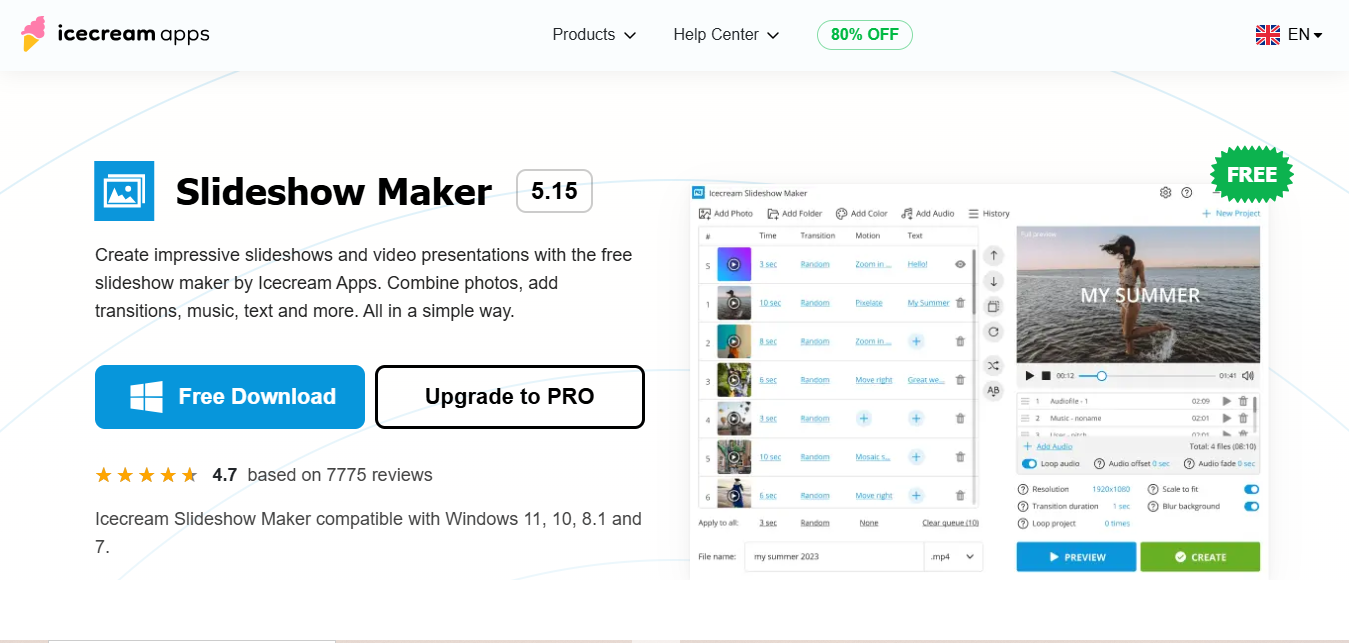
Icecream Slideshow Maker keeps things simple, aiming squarely at beginners and casual users who want a professional-looking result without a steep learning curve.
Key features:
- Drag-and-drop functionality for quick slideshow creation
- Support for common image formats, including JPEG, PNG, and BMP
- Multiple transition effects for visual variety
- Background music with fade-in and fade-out control
Pros:
- Genuinely easy to use, even with no prior editing experience
- Exports in HD and Full HD
- Lightweight software that processes quickly
Cons:
- Limited advanced customization options
- The free version adds a watermark to your output
Why it stands out: Icecream Slideshow Maker suits anyone who values simplicity and speed over deep customization, making it a solid choice for personal projects and quick social posts.
Also read: Important Things You Should Know About the On-Demand Service Marketplace
6. Google Slides
For a genuinely free option, Google Slides covers the basics well and remains one of the most widely used presentation tools precisely because it costs nothing and works entirely in the browser.
Key features:
- Cloud-based, so it is accessible and shareable from anywhere
- A simple, intuitive interface
- Direct integration with Google Drive for storage
- Basic templates and transition effects
Pros:
- Completely free to use
- Real-time collaborative editing for team projects
- Easy to share and present directly from a browser
Cons:
- Fewer features than paid, dedicated software
- Templates and design options stay fairly basic
Why it stands out: Google Slides is ideal for straightforward, collaborative slideshow projects where cost and ease of sharing matter more than advanced visual effects.
7. Canva
Canva makes visually appealing slideshows accessible to people with no design background, which is a large part of why it has become as popular as it has.
Key features:
- Drag-and-drop editing for ease of use
- Thousands of free and premium templates
- Customizable text, imagery, and color palettes
- Cloud-based with simple sharing options
Pros:
- Extremely approachable, even for first-time users
- A huge range of templates and design elements
- The free tier already offers real, usable functionality
Cons:
- Limited depth for genuinely advanced editing needs
- Some features require a paid Canva Pro subscription
Why it stands out: Canva is a strong pick for beginners who want a professional-looking slideshow without climbing a real learning curve first.
8. Kizoa
Kizoa offers a simple, approachable way to build slideshows from photos and video, whether the project is a family memory reel or a quick social media post.
Key features:
- Slideshow creation combining photos and video clips
- A wide library of effects and transitions
- Customizable slideshows with text overlays and music
- Cloud storage for easy access and sharing
Pros:
- A simple, intuitive interface
- Free to use, with paid tiers for additional features
- Well suited to personal projects and social content
Cons:
- Fewer advanced features than professional-grade software
- The free version includes watermarks
Why it stands out: Kizoa fits casual users who want a quick, visually appealing slideshow for a personal event or social post without a lot of setup.
9. Magix Photostory
Magix Photostory is built for users who want a genuinely extensive feature set for crafting dynamic, polished presentations, suited to both personal and professional projects.
Key features:
- Advanced editing for photos, video clips, and music
- A large library of templates and effects for real customization
- 4K and HD export for high-quality output
- Built-in stabilization for shaky video and photo content
Pros:
- An extensive library of effects and transitions
- Professional-grade editing tools with high-quality output
- Approachable for both beginners and more experienced editors
Cons:
- Needs a reasonably capable system to run smoothly
- Priced at a premium relative to simpler software
Why it stands out: Magix Photostory blends real depth with an approachable interface, which makes it a strong choice for anyone who wants detailed customization without a professional video editor’s full complexity.
Also read: Different Types of Logo Design
10. Slidely

Slidely is an online slideshow tool aimed squarely at social media content, designed to help you produce attention-grabbing slideshows quickly for platforms where scroll speed is the enemy.
Key features:
- Templates designed specifically for social media formats
- An approachable interface for beginners
- Built-in sharing to platforms like Instagram, Facebook, and YouTube
- Music and text overlay options
Pros:
- Fast and simple slideshow creation
- Well suited to social media content creators specifically
- A usable free version
Cons:
- The free version’s features are fairly limited
- Premium features require a subscription
Why it stands out: Slidely is one of the fastest tools here specifically for social-ready slideshows, with options tailored to how those platforms actually display content.
Comparison Table
| Tool | Best for | Standout feature | Pricing |
|---|---|---|---|
| Microsoft PowerPoint | Professionals | Deep customization and Office integration | Subscription via Office 365 |
| Adobe Express | Creative visual storytelling | High-quality templates and multimedia tools | Free and paid plans |
| Animoto | Quick, polished results | Drag-and-drop with a built-in music library | Free with watermark; paid plans available |
| Filmora | Detailed, dynamic edits | Multi-layer editing and advanced transitions | Affordable, with a free trial |
| Icecream Slideshow Maker | Simplicity | Easy interface with HD export | Free with watermark; paid version available |
| Google Slides | Free, simple presentations | Cloud-based with real-time collaboration | Completely free |
| Canva | Non-designers | Thousands of drag-and-drop templates | Free and paid plans |
| Kizoa | Personal and family use | Customizable slideshows with text and music | Free with watermark; paid options available |
| Magix Photostory | Advanced features | Extensive effects and transitions library | Premium pricing |
| Slidely | Social media content | Templates built for social platforms | Free tier; subscription for premium features |
Matching the Tool to the Project
A quick way to narrow this list down: think about who is actually going to see the finished slideshow, then work backward.
- Client or executive presentation: PowerPoint remains the safest choice, since almost everyone can open and edit the file without a compatibility headache.
- Social media content: Slidely and Adobe Express are both built specifically for the aspect ratios and pacing that perform on social platforms.
- Family or personal memories: Kizoa and Icecream Slideshow Maker keep the process simple enough that you are not fighting the software during an emotional project.
- Marketing content on a deadline: Animoto’s speed is hard to beat when you need something polished within the hour.
- Detailed, highly customized output: Filmora and Magix Photostory both offer the layering and effects control that simpler tools do not.
None of these tools are strictly better than the others in the abstract. The right one is the one that matches your actual audience and deadline, not the one with the longest feature list.
Common Mistakes That Make a Slideshow Look Amateur
Software choice only gets you part of the way there. A few habits separate a slideshow that looks intentional from one that looks like a default template nobody customized:
- Too many transition styles in one slideshow. Mixing a dozen different transition types reads as indecisive rather than creative. Pick one or two and use them consistently throughout.
- Music that overpowers the content. Background music should support the images or message, not compete with a voiceover or on-screen text for attention. Most tools on this list let you duck the music volume during narration; use that feature.
- Inconsistent aspect ratios. Mixing portrait and landscape images without cropping or framing them consistently creates a visually jarring result, especially on tools like Canva or Adobe Express where templates assume a fixed ratio.
- Overcrowded slides. A slide with five photos, three text blocks, and a logo competes with itself. Give each slide room to breathe, especially for a slideshow meant to be watched rather than read.
- Ignoring pacing. A slideshow where every slide displays for exactly the same duration regardless of content feels mechanical. Give text-heavy slides more time and simple image slides less.
None of the ten tools above will fix these habits automatically. They give you the technical capability; the pacing and restraint still come from you.
How Much Should You Expect to Pay?
Budget varies a lot across this list, and it is worth knowing roughly what to expect before you commit time to learning a specific tool.
- Free, genuinely usable: Google Slides costs nothing and has no watermark, making it the most reliable zero-cost option here.
- Free with a watermark, paid to remove it: Animoto, Icecream Slideshow Maker, and Kizoa all follow this model, which is fine for testing the tool but adds up if you are producing content regularly.
- Subscription-based: PowerPoint (via Microsoft 365) and Adobe Express both operate on a subscription model, which makes more sense if you are already paying for the broader suite of tools around them.
- One-time or tiered purchase: Filmora and Magix Photostory both offer purchase options outside a pure subscription model, which can work out cheaper for infrequent use.
If you are only making one or two slideshows a year, lean toward the free options and accept a watermark rather than committing to a subscription you will barely use. If slideshow or short video creation is a regular part of your work, the subscription tools generally pay for themselves in saved time.
Making Your Slideshow Stand Out
Choosing the right software depends entirely on your needs. Professionals who need advanced editing tools, casual users who want something quick and simple, and everyone in between will find a genuine fit somewhere on this list. Tools like Microsoft PowerPoint, Adobe Express, and Animoto offer solid versatility for most users, while Filmora and Magix Photostory suit anyone chasing more detailed, custom editing. Pick the one that matches your skill level and your project’s actual requirements, and start building something that leaves an impression instead of a scroll-past.
Interesting Reads
10 Best Software for Scheduling Squarespace
Should I Remove Polyfill from WordPress?
10 Best Software for iPhone Tutorial Screen Recording
Frequently asked questions
What happened to Adobe Spark?
Adobe folded Spark into Adobe Express in 2023. If a guide still lists “Adobe Spark” as a separate current product, that is outdated; Adobe Express is the tool you will actually find today, carrying forward the same core template-driven, easy-to-use design.
What is the best free slideshow software with no watermark?
Google Slides is the most reliable genuinely free option with no watermark on output. Canva’s free tier is also usable without a watermark, though some templates and elements are reserved for Canva Pro.
Which tool is best for a slideshow that needs to look professional in a client meeting?
Microsoft PowerPoint remains the safest choice for professional settings specifically because of how universally it is supported; almost anyone you send a file to can open and edit it without a conversion step.
Do I need video editing experience to use any of these tools?
No, most of the list is built specifically for people without editing experience. Canva, Google Slides, Kizoa, and Icecream Slideshow Maker are all designed around drag-and-drop simplicity. Filmora and Magix Photostory are the two that reward some prior editing familiarity, though both are still approachable for a motivated beginner willing to spend an hour or two learning the interface.
Can I switch between free and paid tiers as my needs change?
Yes, and it is a reasonable way to test a tool before committing money to it. Start on the free tier of whichever option fits your project, and only upgrade once you hit an actual limitation, like a watermark you need removed for a client-facing project or a template you specifically need. Most of the paid tiers on this list are month-to-month, so there is little risk in trying before you commit to an annual plan.
Final takeaway
The best slideshow software is the one that fits your actual project, audience, and comfort level with editing tools, not the one with the most features on paper. Start with the tool that matches where the slideshow is actually going, whether that is a boardroom, a social feed, or a family reunion, and let that decision guide the rest.