10 Best Software to Edit YouTube Videos

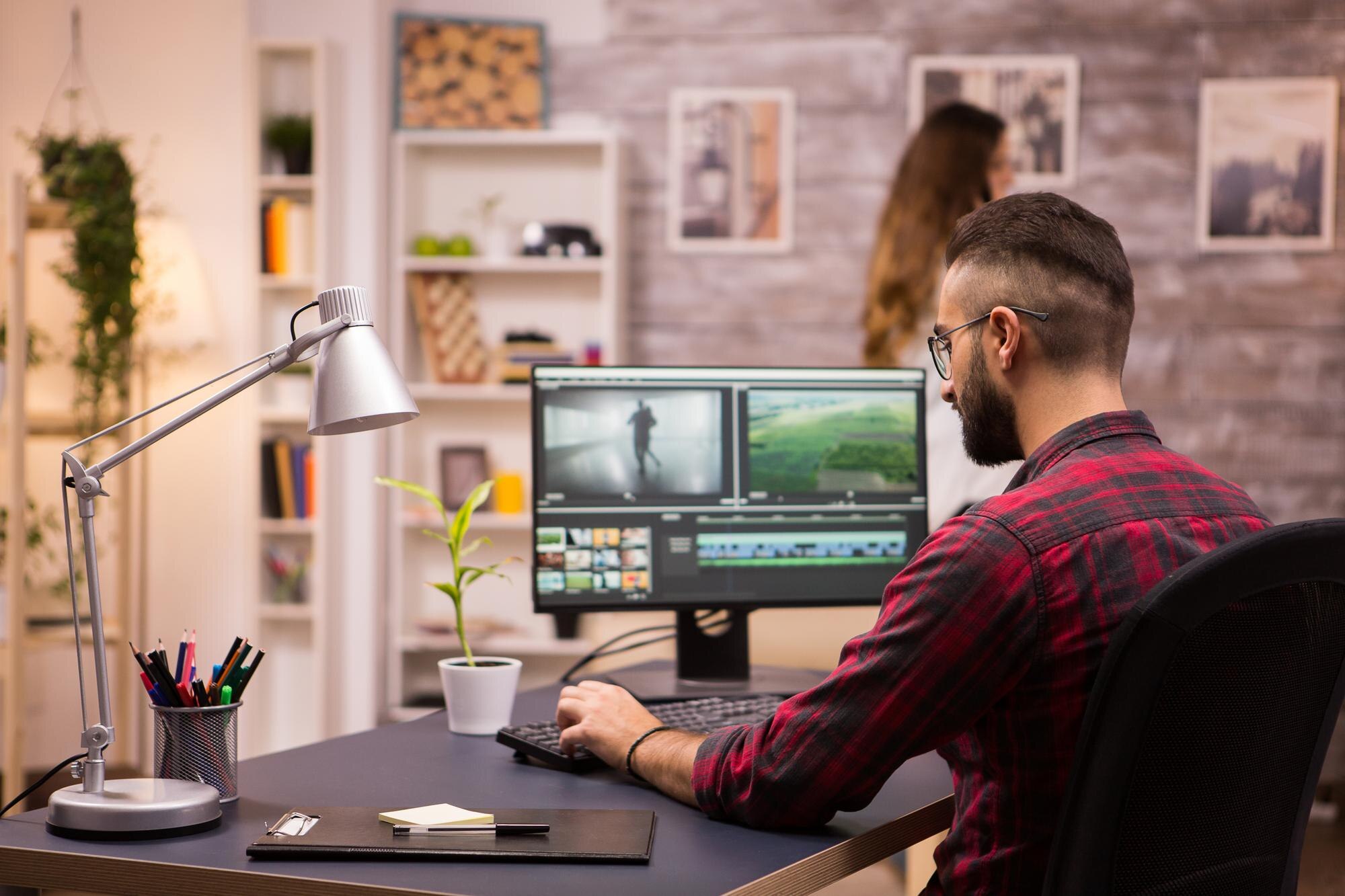
Creating a good YouTube video is one thing. Editing it into something people actually finish watching is a separate skill, and the software you pick shapes how fast you can do it. A beginner armed with the wrong tool spends three hours fighting an interface instead of cutting footage. A seasoned creator stuck with underpowered software hits a ceiling on what their channel can look like. This guide walks through ten editing programs that consistently show up in working YouTubers’ toolkits in 2026, what each one is actually good at, and where each one falls short.

What makes editing software right for YouTube specifically
YouTube editing has its own quirks that separate it from film or broadcast work. Videos need to hold attention in the first fifteen seconds or the algorithm buries them. Thumbnails and title cards matter as much as the cut itself. Export settings need to hit YouTube’s preferred codecs and resolutions without murdering quality through re-compression. And most creators are editing solo, on a deadline, without a post-production team backing them up. That combination pushes different priorities than, say, editing a wedding video or a corporate training film: speed, a forgiving learning curve, and built-in tools for captions, thumbnails, and social-cut exports end up mattering more than raw cinematic power for a lot of channels.
Why the right editor changes channel growth, not just video quality
Production value is a competitive factor on YouTube now in a way it wasn’t a decade ago. Viewers compare your channel against professionally produced content whether that is fair or not, and a video with muddy audio, jarring cuts, or flat color grading loses viewers to something better made, even if the underlying idea is stronger. Good editing software gives you color correction, layered audio, motion graphics, and clean transitions without requiring a film degree to access them. That directly affects watch time, and watch time is the single biggest lever YouTube’s algorithm uses to decide who sees your next upload.
Key features worth checking before you commit to a tool
Every editor on this list handles basic cuts and trims. The differences that actually matter show up in the details:
- Learning curve versus ceiling: some tools are easy on day one and stay easy forever, which is fine until you outgrow them; others are harder up front but keep giving you more control as your skills grow.
- Export quality: confirm the software exports cleanly at 1080p and 4K without visible banding or excessive re-compression artifacts, since YouTube re-compresses everything on upload and a weak source export gets worse.
- Multi-track editing: layering b-roll, music, voiceover, and sound effects on separate tracks is non-negotiable past a beginner skill level.
- Built-in effects and transitions: a solid stock library saves hours versus building every transition from scratch.
- Audio tools: noise reduction, EQ, and ducking (automatically lowering music under dialogue) separate amateur-sounding audio from professional audio, and audio quality affects retention more than most creators expect.
- Cost model: subscription versus one-time purchase changes the total cost significantly over a two or three year horizon, and it is worth doing that math before signing up for a monthly plan out of habit.
The 10 best video editors for YouTube creators in 2026
1. Adobe Premiere Pro
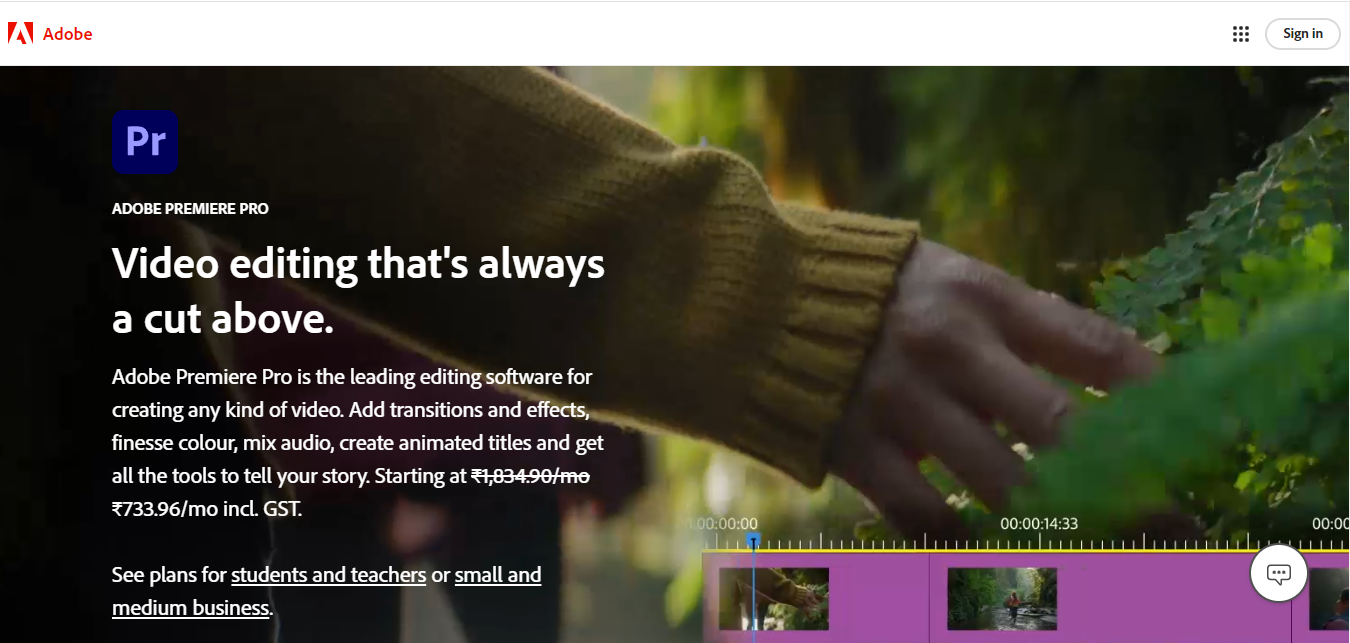
Adobe Premiere Pro remains the industry default for professional YouTubers, and it earns that position through breadth rather than any single standout feature. It handles nearly any codec you throw at it, integrates directly with After Effects for motion graphics and Photoshop for thumbnail work, and its Essential Sound panel makes decent audio mixing accessible without a sound engineering background. Adobe has also pushed AI-assisted tools into the timeline in recent years, including automatic scene-edit detection and text-based editing that lets you cut footage by editing a transcript.
Key Features
- Multi-track timeline with essentially unlimited tracks
- Direct integration with After Effects, Photoshop, and Audition
- Advanced color grading via Lumetri
- Text-based and AI-assisted editing tools
Pros
- Industry-standard software with the widest tutorial and plugin ecosystem
- Highly customizable workspace
- Handles 4K and 8K footage well on adequate hardware
Cons
- Subscription-only pricing, which adds up over years of use
- Steep learning curve for someone editing their first video ever
Why It Stands Out: Premiere Pro is the tool most editing tutorials, plugins, and freelance editors are built around, which matters if you plan to hire help or outsource editing later. That ecosystem effect is often a bigger factor than any specific feature.
2. Final Cut Pro
Final Cut Pro by Apple remains the strongest option for Mac-based creators, built around a magnetic timeline that automatically ripples clips instead of leaving gaps when you trim something in the middle of a sequence. It is genuinely fast, both to learn and to render on, thanks to tight optimization for Apple Silicon chips.
Key Features
- Magnetic timeline that avoids gap-filling busywork
- Multi-cam editing for podcast and interview-style content
- Deep optimization for Apple Silicon Macs
- Built-in captions and object tracking
Pros
- Genuinely fast rendering on modern Macs
- One-time purchase rather than a subscription
- Clean export presets tuned for YouTube
Cons
- Mac only, with no Windows version at all
- Collaboration with Windows-based editors requires extra steps
Why It Stands Out: The one-time purchase price stands out against a market that has moved heavily toward subscriptions, and the speed difference on Apple Silicon is noticeable the first time you render a long timeline.
3. DaVinci Resolve
DaVinci Resolve is the standout pick for anyone serious about color grading and audio post-production, and its free version is unusually capable rather than a crippled trial. Blackmagic Design built Resolve around a node-based color page that professional colorists use on feature films, then bundled it with Fairlight, a full digital audio workstation, inside the same application.
Key Features
- Node-based color grading used on professional film productions
- Fairlight audio suite built into the same application
- Multi-user collaboration on shared projects
- 4K and higher-resolution editing support
Pros
- Free version genuinely covers most YouTuber needs
- Cross-platform on Windows, Mac, and Linux
- Color grading depth that rivals dedicated grading software
Cons
- Steeper learning curve than consumer-focused tools
- Resource-intensive on older or budget hardware
Why It Stands Out: No other tool on this list gives away this much professional-grade capability for free. Creators who want their videos to actually look graded, not just color-corrected, tend to land here eventually.
4. Camtasia
Camtasia, from TechSmith, targets a narrower job than the other tools here: screen recording plus straightforward editing for tutorials, courses, and explainer content. If your channel is built on software walkthroughs, coding tutorials, or how-to content recorded from a screen, Camtasia’s built-in recorder and drag-and-drop editing remove a whole separate app from your workflow.
Key Features
- Built-in screen recorder with system audio capture
- Simple drag-and-drop editing timeline
- Callouts, cursor effects, and zoom-and-pan tools built for tutorials
- Green screen support
Pros
- One of the easiest editors to learn on this whole list
- Purpose-built for tutorial and educational content
- One-time purchase option available
Cons
- Not built for cinematic or heavily narrative editing
- Struggles with effects-heavy or multi-camera projects
Why It Stands Out: For tutorial-format YouTubers specifically, Camtasia’s combined recorder and editor cuts real time out of every upload compared to juggling separate recording and editing software.
5. Filmora

Filmora has grown well beyond the entry-level tool it started as. Wondershare has consolidated its whole video editing lineup around Filmora rather than splitting features across separate Pro and standard products, so the current version includes keyframe animation, multi-track audio, and an expanding set of AI features like automatic background removal and text-to-speech, alongside the drag-and-drop simplicity it built its reputation on.
Key Features
- Drag-and-drop editing with a genuinely short learning curve
- Large library of pre-built templates and effects
- AI tools including background removal and auto captioning
- Keyframe animation, once a Pro-only feature, now built in
Pros
- Affordable relative to Adobe and Blackmagic’s ecosystems
- Fast to learn for someone editing their first ten videos
- No watermark once you’re on a paid plan
Cons
- Still lacks some of the fine-grained control professional editors want
- Watermark present on exports from the free version
Why It Stands Out: Filmora strikes a real balance between ease of use and genuine capability, which is why it remains a default recommendation for creators past the absolute beginner stage but not ready for Premiere Pro’s complexity.
6. Shotcut
Shotcut is a free, open-source editor that has quietly become one of the more reliable no-cost options on the market, with regular releases roughly every two months from its maintainer. It supports native editing across a wide range of formats without forcing you to convert or import footage first, which saves time on longer projects, and it runs on Windows, Mac, and Linux from the same codebase.
Key Features
- Native timeline editing across most common formats
- Support for resolutions up to 4K
- Wide range of video and audio filters
- Cross-platform, fully open source
Pros
- Completely free with no watermark or feature paywall
- Actively maintained with a predictable update cadence
- Runs on modest hardware better than some paid alternatives
Cons
- Interface feels utilitarian compared to polished commercial tools
- Smaller plugin and tutorial ecosystem than Premiere or DaVinci
Why It Stands Out: Shotcut is the rare free tool that doesn’t feel like a stripped-down demo. For creators who need zero-budget software with no strings attached, it’s one of the most dependable options available.
7. Corel VideoStudio
Corel VideoStudio remains a solid entry-level option, aimed squarely at creators who want real editing tools without the intimidation factor of a professional suite. Corel keeps it consumer-friendly with guided workflows and templates while still including motion tracking and multi-camera editing for people who want to grow into more advanced techniques.
Key Features
- Multi-camera editing for interview and reaction-style content
- 4K video support
- Motion tracking for adding graphics that follow moving objects
- Color grading tools with guided presets
Pros
- Easy to pick up for a first-time editor
- Affordable one-time purchase pricing
- Wide range of editing tools for the price
Cons
- Occasional performance issues on longer, effects-heavy timelines
- Lacks the depth professional editors eventually need
Why It Stands Out: Corel VideoStudio is a genuinely good starting point for beginner YouTubers who want more than a phone app but aren’t ready for the complexity of Premiere Pro or DaVinci Resolve.
8. Lightworks
Lightworks has an unusual pedigree: it is the editor behind several Oscar-winning films, and it still runs a genuinely usable free tier alongside its paid Create and Pro plans. The free version is capped in some export options but gives you the same core editing engine professional editors use on feature productions, which is a rare combination of pedigree and accessibility.
Key Features
- Professional-grade trim and multi-track editing tools
- Real-time collaboration features on paid tiers
- Built-in stock media and sound library on higher plans
- Cross-platform support on Windows, Mac, and Linux
Pros
- Free tier is free permanently, not a time-limited trial
- Professional editing engine with a real film-industry track record
- Tiered pricing lets you upgrade only the features you actually need
Cons
- Interface conventions differ from Premiere and Final Cut, adding a small relearning curve if you’re switching
- Some export formats and features are gated behind paid tiers
Why It Stands Out: Lightworks offers real professional editing power at a price point, including free, that few competitors match, making it worth a serious look for creators who outgrow Filmora but don’t want Premiere’s subscription cost.
9. VSDC Video Editor
VSDC remains one of the more capable free tools on Windows specifically, offering non-linear editing and a genuinely deep effects library without a price tag attached. It won’t win any design awards for its interface, but the feature set underneath punches well above what you’d expect from free software.
Key Features
- 4K video editing support
- Large library of video effects and filters
- Non-linear editing across multiple tracks
- Green screen and chroma key functionality
Pros
- Free with a genuinely deep, capable feature set
- Non-linear editing rare in free software at this level
- Wide variety of built-in effects
Cons
- Interface feels dated and can be clunky to navigate
- Windows-focused, with weaker Mac support
Why It Stands Out: VSDC is a strong pick for Windows creators who want non-linear editing and real effects depth without spending anything, as long as you can tolerate an interface that prioritizes function over polish.
10. MAGIX Video deluxe
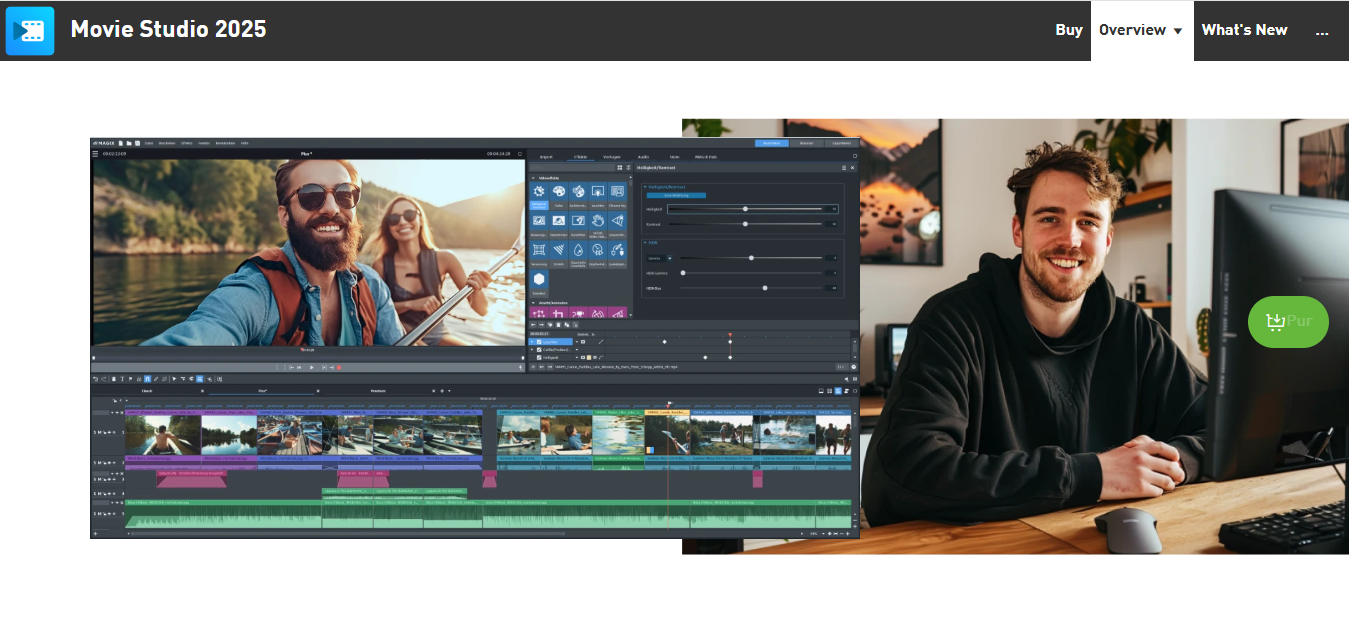
MAGIX renamed its long-running Movie Edit Pro line to Video deluxe, and the current release still targets the same audience: creators who want an approachable interface with automated editing tools that handle color balancing and audio leveling without much manual fiddling. A separate product, Video Pro X, sits above it for creators who want a more advanced, precision-focused workflow from the same company.
Key Features
- Multi-camera editing
- 4K video support
- Chroma keying for green screen work
- Automated color and audio balancing tools
Pros
- Intuitive interface for newer editors
- Fast rendering speed on typical hardware
- Tiered editions (Plus, Premium, Ultimate) let you pay only for what you need
Cons
- Lacks some high-end professional features found in Video Pro X or Resolve
- Can slow down on longer, more complex projects
Why It Stands Out: MAGIX Video deluxe blends approachability with genuinely useful automation, making it a fair pick for beginner and intermediate creators who want good results without learning every setting manually.
Comparison Table
| Name of Tool | Best For | Standout Feature | Pricing |
|---|---|---|---|
| Adobe Premiere Pro | Professional YouTubers | Industry-standard features and the widest ecosystem | Subscription-based |
| Final Cut Pro | Mac users | Magnetic timeline and fast Apple Silicon rendering | One-time purchase |
| DaVinci Resolve | Advanced editing, color grading | Professional-grade color grading and Fairlight audio, free | Free version available, paid Studio version for extras |
| Camtasia | Tutorial and educational creators | Built-in screen recording plus simple editing | One-time purchase |
| Filmora | Budget-friendly creators wanting real features | Consolidated toolset with growing AI features | Free version with watermark, paid plan removes it |
| Shotcut | Zero-budget, open-source editing | Native multi-format editing, actively maintained | Completely free |
| Corel VideoStudio | Beginner YouTubers | Guided workflows with room to grow into advanced tools | One-time purchase |
| Lightworks | Creators wanting a professional engine on a budget | Film-industry editing engine with a permanent free tier | Free, plus paid Create and Pro tiers |
| VSDC Video Editor | Free non-linear editing on Windows | Deep effects library with no price tag | Free, with an optional paid Pro version |
| MAGIX Video deluxe | Beginner to intermediate YouTubers | Automated color and audio balancing | Tiered one-time purchase editions |

Export settings that actually matter for YouTube
Whichever tool you land on, the export step is where a lot of quality gets lost unnecessarily. YouTube re-encodes every upload on its own servers, and it does that re-encoding more gently when your source file already meets its preferred specs. A safe baseline for most channels is H.264 at a high bitrate, 1080p or 4K depending on your source footage, and a frame rate that matches what you actually shot at rather than converting 30fps footage to 60fps or vice versa, which introduces stutter or unnecessary interpolation artifacts. Audio should export at 48kHz, which is YouTube’s expected sample rate; anything else gets resampled automatically and occasionally introduces subtle sync drift on longer videos.
Bitrate is the setting most beginners get wrong, usually by going too low to save render time or file size. A low bitrate export looks fine on your own monitor immediately after rendering, then falls apart once YouTube compresses it a second time, especially in scenes with fast motion, film grain, or fine detail like text overlays. When in doubt, export at a higher bitrate than you think you need. Storage and upload time are cheap. A blurry, blocky-looking video that viewers click away from because it looks unprofessional is not.
How to actually choose between these
Start with your operating system, since it eliminates half the list immediately. Final Cut Pro is Mac-only, full stop. Everything else here runs on Windows, and most run on Mac too, with Shotcut and Lightworks also covering Linux. Next, be honest about your content format. Tutorial and screen-recording channels get more value from Camtasia’s built-in recorder than from a general editor’s timeline features. Cinematic vloggers and narrative creators get more value from DaVinci Resolve’s color tools or Lightworks’ professional engine than from Camtasia’s simplicity.
Budget matters more over a longer time horizon than most new creators initially plan for. A subscription that feels reasonable at fifteen or twenty dollars a month adds up to hundreds of dollars over a few years, while a one-time purchase from Final Cut Pro, Camtasia, or Corel VideoStudio costs more upfront but nothing again until you choose to upgrade. If your channel isn’t generating revenue yet, DaVinci Resolve, Shotcut, VSDC, and Lightworks all offer genuinely usable free tiers worth starting with before spending anything.
Choosing the right editor for your channel
When selecting software to edit YouTube videos, weigh your actual skill level, your content format, and your budget against each other rather than picking whatever a popular creator mentioned in a sponsored segment. Beginners recording tutorials do well with Camtasia. Beginners recording general content do well with Filmora or Corel VideoStudio. Anyone chasing a cinematic look benefits from DaVinci Resolve’s free color tools even before paying for anything. And established creators with revenue to reinvest usually end up on Premiere Pro or Final Cut Pro because of the ecosystem and speed those tools provide once the learning curve is behind them. There’s no universally correct answer here, only the tool that fits how you actually work.
Interesting Reads
10 Best Final Cut Pro Alternatives for Video Editing
10 Best Software for Cinematic Video Editing