10 Best AI Tools to Create Vector Art

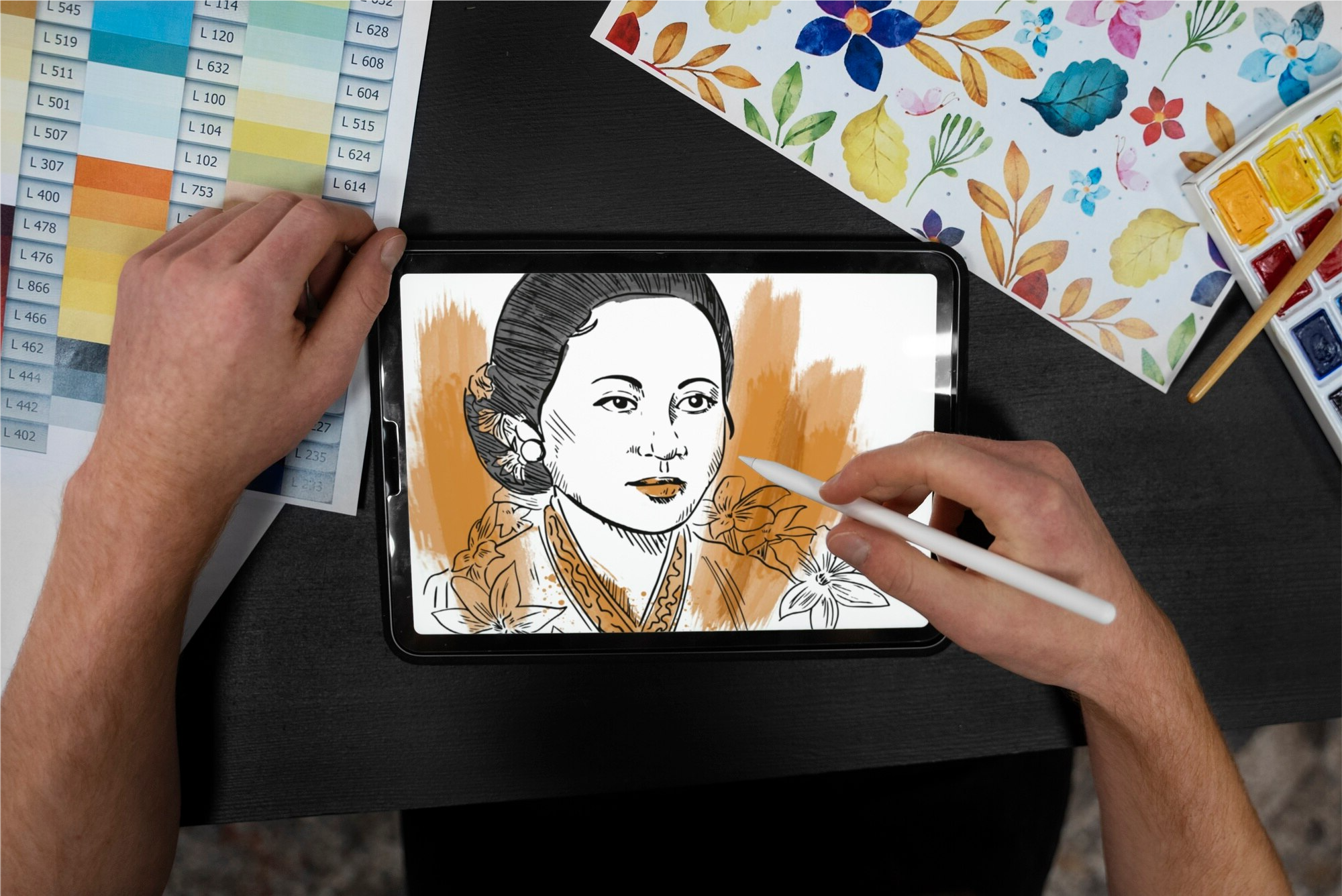
Vector art stays sharp at any size, from a favicon to a billboard, which is exactly why logos, icons, and illustrations get built as vectors instead of pixels in the first place. AI has changed how much of that work you can offload: tracing a raster image into clean paths, generating original vector-style artwork from a text prompt, or auto-adjusting colors and shapes as you edit. The ten tools below cover both approaches, established design software with AI features bolted on, and newer tools built around AI generation from the start.

Two Different Jobs AI Handles in Vector Art
It’s worth separating what “AI vector tool” actually means before comparing options, because vendors use the phrase loosely and the category genuinely covers two different workflows under one marketing umbrella. The first is auto-tracing: converting an existing raster image, a photo, a scanned sketch, a logo screenshot, into clean vector paths automatically, which used to require manually tracing every curve by hand. The second is generative creation: describing what you want in text and having the AI produce original vector-style artwork from nothing, no source image required. Some tools on this list do one job well, a few do both, and knowing which job you actually need saves you from paying for features you won’t use.
What to Look For
- Trace accuracy: How cleanly the AI converts raster detail into smooth, editable paths without over-simplifying or leaving jagged artifacts.
- True vector output: Confirm the export is an actual scalable format (SVG, AI, EPS), not just a high-resolution raster dressed up as one.
- Editability after generation: Generated or traced artwork should let you adjust individual paths and anchor points afterward, not lock you into the AI’s first output.
- Platform support: Several strong vector tools are Mac or iOS only; confirm cross-platform availability if your team is on Windows.
- Commercial licensing: If you’re generating original artwork with AI, check the tool’s terms on commercial use before shipping client work built on it.
10 AI Tools for Vector Art
1. Adobe Illustrator
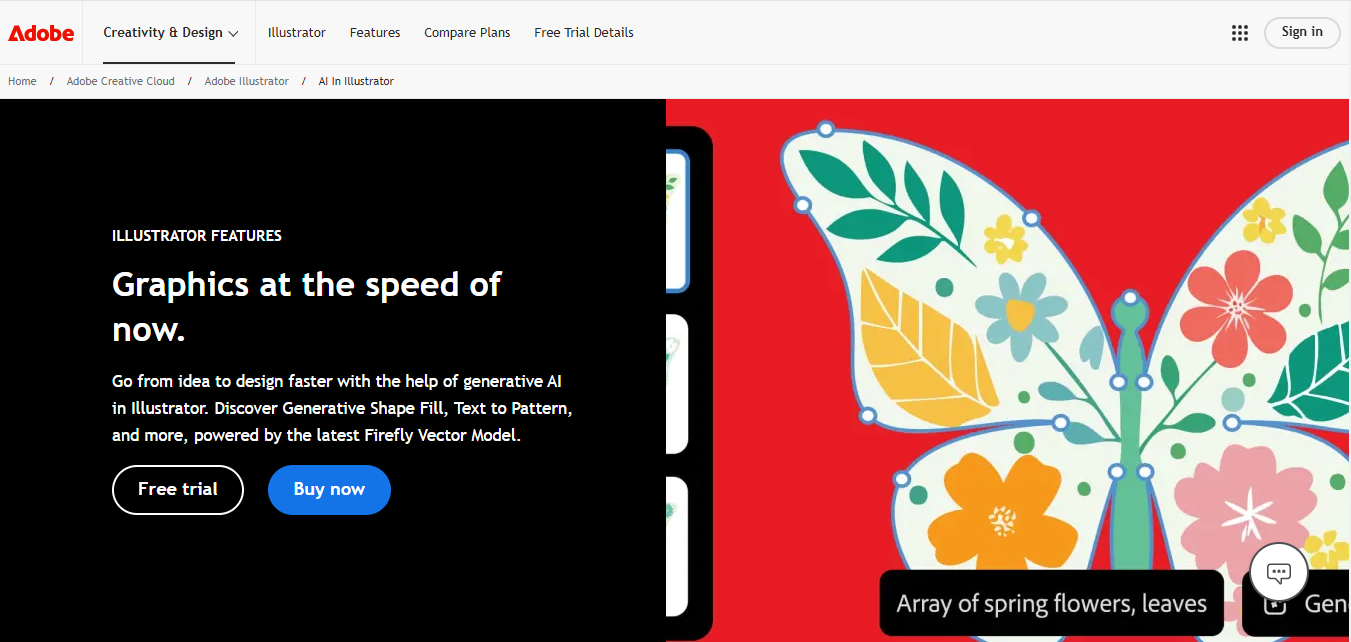
Illustrator remains the industry standard, and its AI features now run on Adobe Firefly rather than the older Sensei branding some guides still reference. Text to Vector Graphic generates original vector artwork directly from a written prompt inside the app, and Generative Recolor lets you try different color palettes across a whole illustration in seconds instead of manually reselecting every path.
- Key Features
- Firefly-powered Text to Vector Graphic generation
- Generative Recolor for fast palette exploration
- Industry-standard manual vector editing tools
- Deep integration with Photoshop and the rest of Creative Cloud
- Pros
- The deepest, most precise manual vector control of any tool here
- Generative features are built for commercial use, with licensing Adobe stands behind
- Regular updates and a massive tutorial ecosystem
- Cons
- Subscription-only, and one of the pricier options on this list
- The full feature set has a real learning curve for newcomers
- Best for: Professionals who need both AI-assisted generation and precise manual control in one application.
Also Read: 10 Best Software for Logo Design
2. CorelDRAW Graphics Suite
CorelDRAW pairs AI-assisted tracing with a mature, full-featured vector editor that’s been refined over decades. Its PowerTRACE engine handles bitmap-to-vector conversion with strong accuracy on both photographs and line art, and recent versions have layered AI-driven color and object suggestions on top of that established base.
- Key Features
- PowerTRACE AI-assisted bitmap-to-vector conversion
- Color harmony suggestions and automatic adjustments
- Real-time preview of design changes
- Pros
- Excellent trace accuracy on both photos and line art
- Available as both a subscription and a one-time perpetual license
- Strong customer support and documentation
- Cons
- Windows-first; macOS support lags behind
- Advanced features require real time investment to learn
- Best for: Windows-based designers who want strong tracing accuracy without committing to a subscription-only tool.
3. Linearity Curve (formerly Vectornator)
Vectornator rebranded to Linearity Curve as part of a broader push under the Linearity name, which now also includes Linearity Move for motion graphics and a web-based editor. The core product is unchanged in spirit: a genuinely capable, AI-assisted vector design tool that stayed free for individual creators for years and remains one of the more approachable options for people coming from Illustrator or Affinity Designer.
- Key Features
- AI-assisted auto-tracing and shape recognition
- Cross-platform availability, no longer limited to Mac and iOS
- Collaborative workspaces and shared design assets for teams
- Pros
- Genuinely capable free tier for individual use
- Clean, modern interface that’s fast to learn
- Now available beyond Apple’s ecosystem
- Cons
- Fewer advanced features than Illustrator or CorelDRAW
- Team and collaboration features sit behind a paid plan
- Best for: Individual designers and small teams who want a modern, approachable vector tool without Illustrator’s price tag.
4. Vectr
Vectr is a free, browser-based vector editor built around simplicity and real-time collaboration rather than deep feature sets. It’s a reasonable entry point for beginners who want to understand vector editing fundamentals before investing time in a heavier application.
- Key Features
- Real-time collaborative editing in the browser
- Simple, uncluttered interface
- No installation required
- Pros
- Completely free
- Genuinely easy for first-time vector editors to pick up
- Works across any device with a browser
- Cons
- Limited compared to any dedicated desktop tool on this list
- Requires a stable internet connection to use at all
- Best for: Beginners and casual users who want basic vector editing without installing or paying for anything.
5. Inkscape (with tracing extensions)
Inkscape is free, open-source, and has been the default choice for anyone who wants professional vector editing without a subscription for close to two decades. Its built-in Trace Bitmap tool, extended by community-built plugins, handles image-to-vector conversion competently, though it’s a more manual, hands-on process than the AI-driven one-click tracing in commercial tools.
- Key Features
- Trace Bitmap tool with adjustable threshold and detail settings
- Fully open-source and cross-platform (Windows, macOS, Linux)
- A large library of community-built extensions
- Pros
- Completely free with no feature restrictions
- Highly customizable through extensions
- Strong, active community for troubleshooting
- Cons
- Steeper learning curve than most commercial alternatives
- Tracing tools are less automated than dedicated AI-driven options
- Best for: Budget-conscious designers willing to trade some automation for a completely free, capable tool.
6. Canva
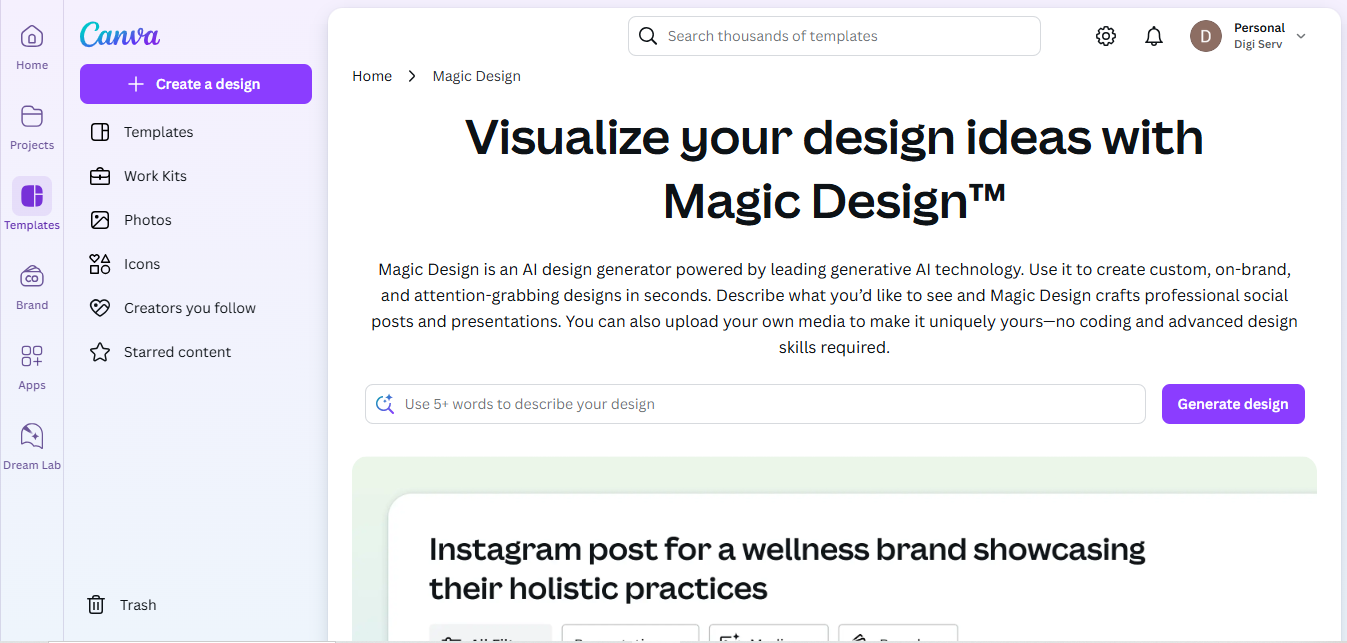
Canva isn’t a dedicated vector editor, but its library of editable vector graphics, icons, and shapes, combined with AI-driven Magic Design suggestions, makes it a practical choice for non-designers who need vector-based assets fast without learning a full illustration tool. Elements you drag in stay editable as vectors, not flattened images.
- Key Features
- Magic Design AI layout and content suggestions
- Massive library of pre-built, editable vector elements
- Real-time team collaboration
- Pros
- Extremely approachable for non-designers
- Fast to produce a finished, polished result
- Cloud-based and accessible from any device
- Cons
- Limited custom path editing compared to a real vector application
- Premium elements and AI features sit behind Canva Pro
- Best for: Marketers and small business owners who need vector-based graphics without learning dedicated design software.
Also Read: 10 Best Software for Motion Graphics
7. Figma
Figma’s core audience is UI and product design, but its vector tools are genuinely strong, and its real-time multiplayer editing means a whole team can work on the same vector artwork simultaneously without version-control headaches. AI-assisted features for layout suggestions and asset generation have expanded steadily inside the platform.
- Key Features
- Real-time multiplayer vector editing
- Vector networks that handle complex path editing cleanly
- Browser-based with no local installation required
- Pros
- Best-in-class collaboration for teams working together in real time
- Strong free tier for individuals and small teams
- Accessible from any device with a browser
- Cons
- Requires an internet connection for full functionality
- Built primarily for interface design, not illustration-heavy work
- Best for: Teams collaborating on vector-based interface and icon design in real time.
8. Recraft
Recraft is one of the few genuinely AI-native tools on this list, meaning generation, not tracing, is the core feature rather than an add-on bolted onto an existing editor built for a different purpose. Describe what you want and Recraft produces original vector graphics as editable, complex paths, not a raster image dressed up as a vector, with the ability to define a custom style from reference images and reuse it across a whole project for visual consistency.
- Key Features
- Text-to-vector generation producing genuinely editable SVG output
- Custom, reusable style creation from reference images
- API access for developers building generation into their own tools
- Pros
- True vector output from a text prompt, not just a raster generator
- Fast way to produce a consistent icon or illustration set
- Actively developed with frequent feature updates
- Cons
- Generated output still often needs manual cleanup for production use
- Newer platform with a smaller community than established design tools
- Best for: Designers who want to generate original vector artwork and icon sets from text prompts rather than trace existing images, and who value having a whole icon set share one visual language without hand-matching every piece.
9. Autodesk Sketchbook
Sketchbook is built for drawing and sketching first, with AI-assisted line smoothing that cleans up freehand strokes into more consistent, polished lines. It’s not a vectorization tool in the traditional sense, but it’s a genuinely useful first step for artists who want to sketch an idea and then bring it into a dedicated vector tool for final tracing and cleanup.
- Key Features
- AI-assisted line smoothing and predictive stroke correction
- Real-time drawing feedback
- Cross-platform support for mobile, tablet, and desktop
- Pros
- Genuinely good for beginners learning digital illustration
- Free version covers most core functionality
- Works well with a stylus on tablets
- Cons
- Not a substitute for a real vectorization workflow
- Some advanced brush and export features require a paid tier
- Best for: Illustrators who want to sketch digitally before tracing their work into vectors elsewhere.
10. Deep Dream Generator
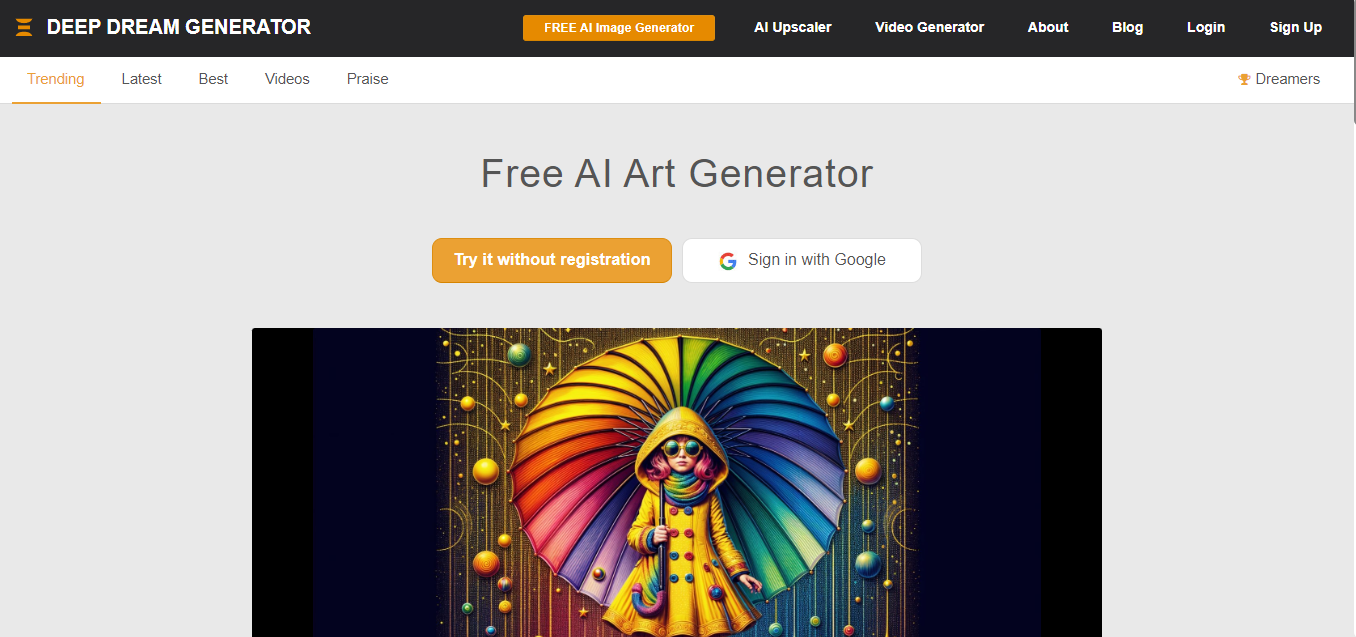
Deep Dream Generator is a longstanding AI art platform with a large community and a wide range of image generation models, but it’s worth being upfront that it produces raster images, not vectors. It earns a spot here as a source of source material: generate a distinctive, unusual piece of AI art here, then run it through a dedicated tracing tool like Illustrator or CorelDRAW to get a genuine vector file out the other end.
- Key Features
- 30-plus AI image generation models
- Active community galleries and shared style presets
- AI video generation alongside still images
- Pros
- Distinctive, unusual visual styles not available elsewhere
- Free tier available alongside paid subscriptions
- Large, active user community
- Cons
- Output is raster, not vector; you’ll need a second tool to trace it
- Not built for production-ready, brand-consistent design work
- Best for: Artists looking for unusual source imagery to trace into vector form elsewhere, rather than a direct vector output.
Comparison Table
| Name of Tool | Best For | Standout Feature | Pricing |
|---|---|---|---|
| Adobe Illustrator | Professional AI generation plus manual control | Firefly-powered Text to Vector Graphic | Subscription-based |
| CorelDRAW Graphics Suite | Windows-based tracing accuracy | PowerTRACE AI-assisted conversion | Subscription or perpetual license |
| Linearity Curve | Approachable, modern vector design | AI-assisted tracing, cross-platform | Free tier plus paid plans |
| Vectr | Beginners, browser-based editing | Real-time collaborative editing | Free |
| Inkscape | Free, open-source vector design | Trace Bitmap with extensions | Free |
| Canva | Non-designers needing fast results | Magic Design AI suggestions | Free with paid Pro tier |
| Figma | Real-time team collaboration | Multiplayer vector editing | Free tier plus paid plans |
| Recraft | Text-to-vector AI generation | Editable SVG output from prompts | Free tier plus paid plans |
| Autodesk Sketchbook | Digital sketching before tracing | AI-assisted line smoothing | Free with paid tier |
| Deep Dream Generator | Unusual AI source imagery | 30+ generation models | Free with paid tiers |

Commercial Use and Licensing Questions Worth Asking First
Generative AI vector tools raise a licensing question that traditional tracing tools don’t: who owns the output, and can you actually sell work built on it? Adobe backs Firefly-generated content with commercial usage terms and indemnification for Creative Cloud subscribers, which is one reason agencies have been comfortable adopting it for client work. Newer, smaller platforms vary considerably, some grant full commercial rights outright, others restrict use on paid plans only, and a few remain vague enough that it’s worth reading the actual terms of service rather than assuming standard practice applies. This matters more for vector art specifically than for casual raster generation, since a logo or icon set is exactly the kind of asset that ends up in long-term commercial use, sometimes trademarked, long after the tool that generated it has been forgotten.
There’s a separate, practical question worth asking regardless of licensing: was the AI model trained on copyrighted artwork without the original artists’ consent? This is genuinely unresolved territory legally in most jurisdictions as of 2026, with ongoing lawsuits against several major AI image generators. Tools like Adobe Firefly have marketed themselves specifically around training on licensed and public-domain content as a response to that controversy, which is worth factoring in if provenance matters to your client or your own conscience, separate from the pure legal question of what you’re allowed to do with the output.
Matching the Tool to the Job
If you’re starting from an existing image, a logo screenshot, a scanned sketch, or a photo you want turned into a clean icon, prioritize trace accuracy over generation features: Illustrator and CorelDRAW both lead here, with Inkscape as the free alternative if you’re willing to do more manual adjustment. If you’re starting from nothing but an idea, a genuinely generative tool like Recraft or Illustrator’s Text to Vector Graphic feature will get you further faster than trying to describe an image to a raster generator and then trace the result afterward.
Teams collaborating in real time should lean toward Figma or Linearity Curve’s shared workspaces, while solo creators on a tight budget have genuinely good free options in Inkscape and Vectr. Whatever you land on, always confirm the actual export format before you commit real project time. A tool that produces a beautiful-looking result but only exports raster formats hasn’t actually given you vector art, no matter how the marketing describes it.
It’s also worth testing any new tool against a real project before standardizing your workflow around it. Generate or trace something you’d actually ship, a logo variant, an icon set, a specific illustration style you use regularly, and open the exported file in whatever software your downstream process actually depends on: your print vendor’s RIP software, your web team’s SVG optimizer, or a client’s own Illustrator file. Export compatibility problems tend to surface exactly there, not in the tool’s own preview window, and catching them on a test file costs far less than catching them after a deadline.
Frequently Asked Questions
What’s the difference between a vector file and a high-resolution raster image?
A vector file stores your artwork as mathematical paths, lines, curves, and shapes defined by coordinates, so it scales to any size with zero quality loss. A raster image, no matter how high its resolution, is made of a fixed grid of pixels that will eventually blur or pixelate if you scale it up far enough. Formats like SVG, AI, and EPS are vector; JPEG, PNG, and even high-res TIFF files are raster.
Can AI tracing tools handle complex photographs, or just simple logos?
Modern AI tracing handles both, but the results differ. Simple logos and line art trace cleanly into a handful of smooth paths. Complex photographs trace technically, but the result is often hundreds or thousands of small paths approximating gradients and detail, which looks fine at the size you generated it but can become unwieldy to edit manually afterward.
Do I need design experience to use these tools effectively?
Not for the AI-assisted parts. Auto-tracing and text-to-vector generation both work without any vector editing knowledge. Where experience helps is in cleaning up the output afterward, simplifying an overly complex trace, adjusting anchor points, or fixing a generated shape that’s almost but not quite right, which is where a basic understanding of paths and anchor points becomes genuinely useful.
Is a free tool ever good enough for professional client work?
Yes, in plenty of cases. Inkscape and Linearity Curve’s free tier both produce genuinely professional-grade output; what you’re paying for in the premium tools is usually speed, automation, and collaboration features rather than a ceiling on output quality. The exception is generative AI tools, where free tiers often cap the number of generations or restrict commercial licensing, which is worth checking before you build client deliverables on a free plan.
Why did some of these tools get renamed or rebranded?
Vectornator’s rebrand to Linearity Curve reflects a broader company shift toward a suite of products under one brand name, including a motion graphics tool and a web editor, rather than a discontinuation of the original app. It’s a pattern worth watching for generally in this space: design tools change names and ownership often enough that an older guide’s product names can go stale within a year or two, even when the underlying product is still actively maintained.
Interesting Reads
10 Best Free Photoshop Alternatives