Stop Download-Link Sharing and Licence-Key Abuse on EDD
How to limit download-link sharing and licence-key abuse on Easy Digital Downloads: download limits, link expiry, logs, activation limits and a polite email. Checked on 25 November 2026.

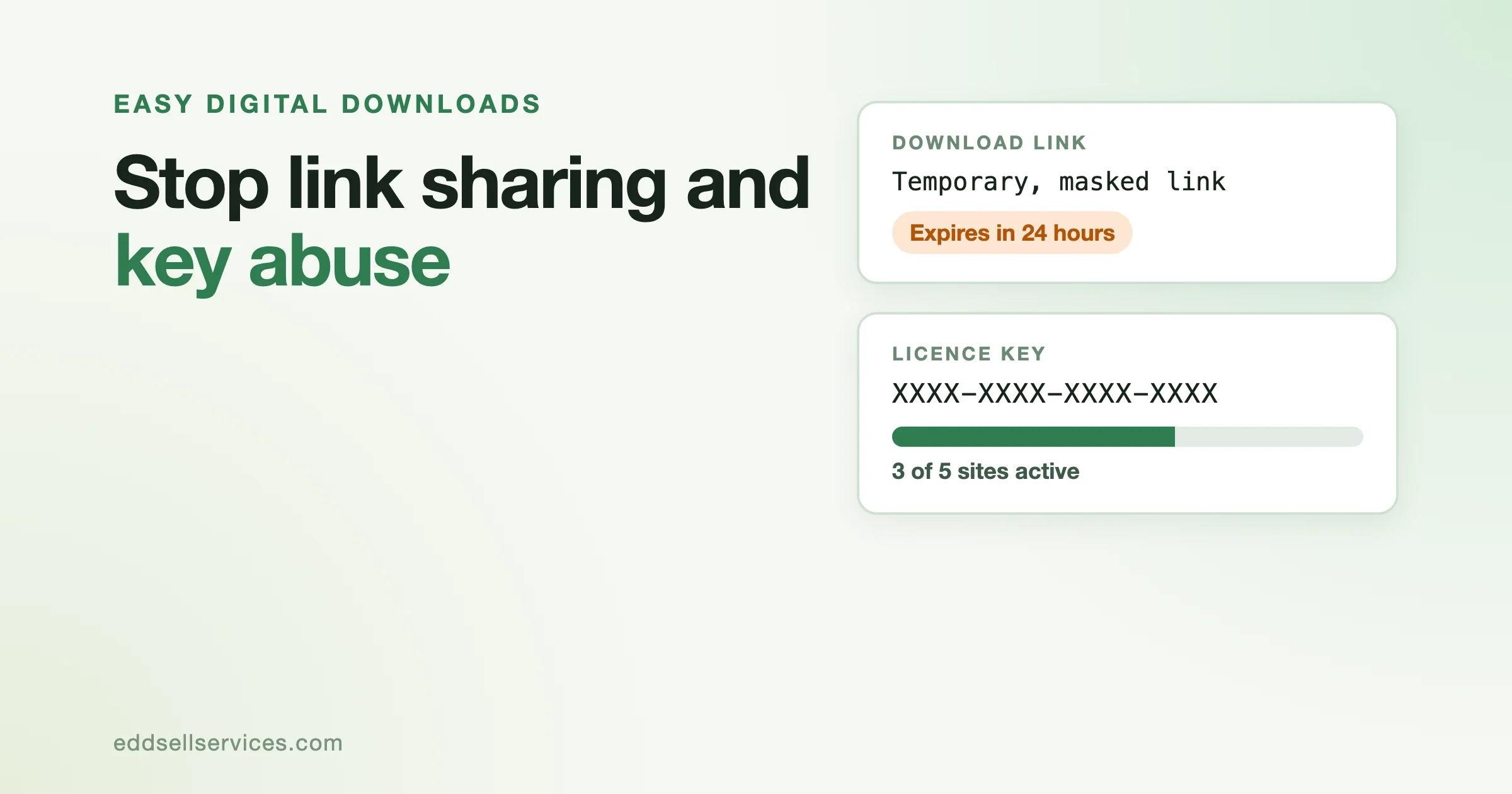
If a buyer passes your download link or licence key to friends, that is download link sharing, and Easy Digital Downloads gives you five controls to limit it: a file download limit, a link expiry time, a “limit file access” switch, a download log you can read, and (with the Software Licensing extension) an activation limit on every key. None of them stops a determined person who has already downloaded the file, but together they make casual sharing hard and give you evidence when someone crosses the line.
This guide is for sellers of digital products on Easy Digital Downloads: ebooks, templates, plugins, themes, courses and software. We go from the settings that prevent sharing, to the signs that someone is sharing anyway, to a polite email that fixes most cases without a fight. Every setting name and default below comes from the official EDD documentation, which we read on 25 November 2026. EDD changes its screens from time to time, so open your own store and compare as you go.
First, what you can and cannot stop
A fair expectation saves you money and stress. Once a customer has a file on their disk, you cannot take it back. What you can control is how many times your store serves the file, how long a link keeps working, who can reach the link, and how many sites or devices a licence key can cover.
Control | What it limits | Where it lives |
|---|---|---|
File Download Limit | How many times a purchase can download the files | Downloads, Settings, Misc, File Downloads (store-wide); each product’s Settings tab (override) |
Download Link Expiration | How many hours a generated link stays valid | Downloads, Settings, Misc, File Downloads |
Limit File Access | Download links only available right after purchase | Downloads, Settings, Misc, File Downloads |
Require Login | Only logged-in users can download | Downloads, Settings, Misc, File Downloads |
File download log | Nothing: it records who downloaded what, from where | Downloads, Tools, Event Logging |
Activation Limit | How many sites a licence key can be active on | Software Licensing, each product’s Licensing Settings |
The first four belong to EDD itself. The activation limit belongs to the Software Licensing extension, which the EDD documentation says requires a Professional Pass or higher. If you sell ebooks or templates with no licence keys, the first five rows are your whole toolkit.
How EDD protects files by default
Before you tune limits, understand the baseline. The EDD documentation on the Misc settings says that, assuming your files are stored in the protected /edd directory, EDD prevents direct access to them. Customers are given “a temporary, unique, masked download link” to reach the file they bought.
That sentence has two consequences for sharing:
- A buyer cannot hand out a permanent file URL, because the real address is never shown.
- The link they do see is temporary, so a link pasted into a forum stops working on its own.
The word “assuming” matters. If your server does not honour the protection rules, the files can sit reachable. EDD has a dedicated page for one common case: download files not protected on Nginx. On Nginx the protection rules that Apache reads from an .htaccess file do not apply, so ask your host to confirm the /edd folder cannot be opened directly. A quick test is to copy the real file path of a test product and try it in a private browser window while logged out.
Where you keep files also matters. EDD recommends Amazon S3 or Dropbox for very large files, and it explains in the same settings page that the “Redirect” delivery method suits third-party storage. Use that setting as the docs describe, and keep the storage bucket private so that only EDD’s temporary links reach the files.
The settings that prevent sharing, one by one
All four store-wide settings live in one place: Downloads, Settings, Misc, in the “File Downloads” section. Change them one at a time and note what you changed.
File Download Limit
EDD describes it as “the maximum number of times files can be downloaded per purchase”. If you leave it blank, a customer who buys an item can download it as many times as they like. You can override it for each product on that product’s Settings tab, in the Download Settings area.
How to choose a number: think about honest behaviour first. A buyer might download once on a laptop, once on a phone, once after a hard drive failure, and once more because they lost the email. Three to five downloads covers most honest customers. A limit of one will generate support tickets from people whose download was interrupted.
Product type | A sensible starting limit | Why |
|---|---|---|
Small ebook or template pack | 5 | Re-downloads are common and the files are small |
Large course or video bundle | 3 to 5, higher if downloads often fail | Interrupted downloads count against the limit |
Software with updates through Software Licensing | Leave generous or blank, and rely on activation limits | Updates are served through the licensing API, so a low download limit adds confusion |
A product you expect to be shared in a team | Blank, and sell team licences | A fair price for the real use beats a limit people resent |
The table is our advice, not an EDD rule. The EDD docs only tell you what the setting does, so pick the number that suits your product and watch your support inbox for a month.
The creating-products documentation adds one more detail: the product-level limit exists to “override your system-wide setting for this particular product”. Use that to give a large product a different limit from a small one.
Download Link Expiration
This sets how long a generated download link stays valid, in hours. EDD’s default is 24 hours from the time the link is generated. The documentation says the purpose is to stop someone sharing a download link in a public forum: anyone could use it, but only until it expires, which “prevents long-term piracy” while keeping things simple for normal customers.
Two details from the docs prevent confusion:
- An expired link does not lock the customer out of the product. If the customer logs in and tries to download again, a fresh link is generated, and that fresh link also lasts for the set period.
- A new link is generated each time a receipt email is re-sent or the customer visits their account page.
So expiry does not remove access. It removes the value of a link that has been posted somewhere public. For most stores the default 24 hours is fine. Shorten it if you have seen links appear on forums or coupon sites; lengthen it only if your customers have slow connections and large files.
The documentation page is short and worth bookmarking: Do download links expire?
Limit File Access
This switch makes EDD give customers access to download links only “right after they make a purchase”. It is the strictest of the four and the most likely to cause a support request, because it changes the experience of coming back later. Think about whether your customers expect an account area where they can return to files. If they do, leave it off and rely on the download limit and expiry. If your product is a one-time delivery, turning it on is reasonable.
Require Login
This restricts file downloads to logged-in users. EDD adds a warning: it “may affect links from purchase receipts and customers if you have guest checkout enabled”. A guest who clicks the link in a receipt email will meet a login screen they cannot pass, because they never created an account. Before you turn it on, check whether guest checkout is on. If it is, either make buyers create accounts or leave this setting off.
The delivery method setting
The same section lets you choose the download method. The “Forced” method, which is the default, breaks the file into smaller pieces and delivers it “without redirecting the customer to the actual file”, so it “offers better file protection”. The “Redirect” method sends the browser to the file’s location and suits large files and third-party storage. Because it uses PHP, Forced can hit the server’s maximum execution time on very large files, which can cause 404 or 403 errors; in that case the docs say to try Redirect.
The trade-off is plain: Forced protects better, Redirect copes better with very large files. Start with the default and switch only when you see failed downloads on big files.
The full list of options is on EDD’s Misc settings page. For a broader tour of file handling in a new store, see our guide on how to sell digital products with Easy Digital Downloads.
Licence keys: activation limits that match how people really work
If you sell software, plugins or themes, the download is only half the story. The key is what gives access to updates and support. The Software Licensing extension gives each key an activation limit, and the documentation describes the setting precisely.
Activation Limit
On each product with licensing turned on (“Create licenses for this product”), the Licensing Settings box has a General section with Activation Limit. The documentation says it is “the number of sites each key can be activated on”. To limit a key to 10 sites, enter 10. For unlimited activations, leave it empty or enter 0.
This is where you decide what a “licence” means for your product:
Licence type | Activation Limit |
|---|---|
Single site | 1 |
Small agency or freelancer | 3 to 5 |
Larger agency | 25 or more |
Unlimited | 0 (or empty) |
The numbers in the table are examples, not recommendations from EDD. Tie them to your pricing page, so the limit is something the buyer agreed to when they paid.
The store-wide Software Licensing settings that affect abuse
Under Downloads, Settings, Extensions, Software Licensing there are three settings that change how activations count:
- Disable Unique Activations. Per the docs, turning it on means every activation counts against the limit and deactivating does not give the slot back. The docs advise leaving it off, so a customer can deactivate one site and activate another without using up an extra activation. Turning it on also removes the Manage Sites option from customers’ order history. Leave it off unless you have a reason, because it makes honest customers run out of activations.
- Ignore Local Host URLs. Turning it on means local development sites and IP addresses do not count toward the activation limit, although the URL is still logged. Developers test on local copies all the time, and counting those is a common cause of “my key stopped working” tickets. There is a dedicated page: how can I ignore local host URLs for activation.
- Track Inactive Installations. Turning it on lets you see where your software is installed without an active licence. When an installation without a valid licence checks for updates, it is added to your Activations list with an inactive status. The documentation says this “can help you spot incomplete activations or misuse”.
Our suggestion for most stores: leave unique activations enabled (that is, leave Disable Unique Activations off), turn on Ignore Local Host URLs, and turn on Track Inactive Installations. That gives honest customers room and gives you a view of the people who are not honest.
Deactivating a site is not the same as disabling a licence
The documentation draws a line that is worth learning before you act on a complaint:
- Deactivating a site frees up one activation on the key. The key keeps working.
- Disabling a licence turns off the whole key. A licence is also disabled when its order is refunded or revoked.
When a customer shares a key, the gentle first step is to deactivate the extra sites, not to disable the key. Disable only when you have decided to end the relationship, or after a refund. For how refunds interact with licences, see the licence statuses in the Software Licensing setup and usage guide, and our own guide to EDD payments, gateways, fees and refunds.
How to spot download link sharing and abuse
Settings stop casual sharing. Reading your logs tells you whether it is happening. EDD gives you two places to look, and neither needs a technical background.
The file download log
Go to Downloads, Tools, Event Logging. The File Downloads sub-tab, per the Tools documentation, is “a log of files downloaded by customers” with these columns: Log ID, Download, Customer, Order Number, File, IP Address, User Agent and Date. You can filter it by date range or by a specific download.
What to look for:
- One order, many IP addresses. A single purchase downloaded from five unrelated networks in a day is unusual. A buyer who downloads at home and from the office is normal, so look for a spread that does not make sense.
- Bursts that match a public post. A product downloaded a dozen times from different places within an hour of a link appearing somewhere.
- Many downloads against the limit. A customer who hits the limit again and again, and keeps asking for resets, is a conversation worth having.
- User agents that look like download tools rather than browsers, if you see hundreds of requests in a short run.
The EDD documentation notes that these logs include the customer, product, file, IP address and timestamp, and that they can serve as evidence in payment disputes and chargebacks by proving a customer successfully downloaded the files.
Mind the retention period
Logs do not live forever. The Log Retention Settings page says file download logs have a default retention of 90 days, and that automatic pruning removes older entries when it is enabled. If you want evidence for a dispute after three months, or you use extensions that read download history, raise the retention period. The range the docs give is 1 to 3,650 days. You find the controls under Downloads, Tools, Event Logging, in the Settings sub-tab.
Longer retention has a cost. IP addresses are personal data in many places, so keep logs only as long as you can justify, and mention them in your privacy policy. If you are unsure about your obligations, ask a lawyer who knows your jurisdiction. We do not give legal advice.
The licence logs and activations list
In Software Licensing, every key has a Manage screen. The documentation says its Logs tab “shows every activation request for the key”, the Downloads tab lists file downloads made through the licensing API such as updates, and the Activations tab lists every site where the key is active. You can add or deactivate a site by hand there.
Signs worth a closer look:
- A key sitting at its activation limit, with domains that clearly belong to different, unrelated businesses.
- Many sites that look like a marketplace for reselling, such as dozens of near-identical staging domains.
- Entries on the inactive list from the Track Inactive Installations setting, meaning copies that ask for updates without holding a valid licence.
Also check the licence reports. The docs list an Activation Data report under Downloads, Reports that shows new activations, active licences and recent API requests, and you can export all keys to CSV from the Export tab for a closer look in a spreadsheet.
A fair response ladder
Most sharing is careless, not criminal. A calm ladder protects your reputation and your refund rate.
- Do nothing yet. One extra IP address or one extra activation is normal. Set a threshold before you act, for example “more than twice the limit” or “more than five unrelated domains”.
- Send the polite email below. Ask, do not accuse.
- Offer a path. A team licence, an upgrade to a higher tier, or the option to move an activation.
- Deactivate the extra sites if there is no reply after a reasonable time, which frees the slots without ending the licence.
- Disable the key and refund the order only for clear, repeated abuse, such as a key published openly or resold. Remember that refunding an order also disables its licence.
You can also stop repeat offenders from buying again. EDD has a Banned Emails feature that lets you block individual addresses or a whole domain, entering one address per line and starting a domain entry with an at sign. Read the Banned Emails documentation before you use it, and keep it for serious cases.
A polite enforcement email you can copy
Subject: A quick question about your licence for [Product name]
Hi [First name],
Thanks for buying [Product name]. While checking our records, we noticed that your licence key is active on [number] sites, and your licence covers [limit].
It is very possible this is a simple mix-up, for example a staging copy or a site you have since retired. If so, you can free up an activation yourself from your account, using the Manage Sites option in your order history.
If you need the product on more sites, we have [team or agency licence] for [price], and we are happy to credit what you paid. Just reply and we will sort it out.
If you could let us know by [date], that would be great.
Thanks,
[Your name]
A few rules make this email work. Keep the tone neutral and assume a mistake. Name the facts (the number of sites and the licence limit) without quoting private details such as IP addresses unless you must. Give a clear next step and a deadline. Offer a better-fitting licence, because a person who needs ten sites is a customer, not a thief.
Make the rule visible before you need it
The best enforcement is a clear promise at checkout. Put the limit on the product page (“one site”, “up to five sites”), in the receipt notes, and in your terms of sale. EDD’s product Notes tab is “a place to add some download instructions on the receipt for the customer”, shown only to the customer on their receipt. A line there such as “This licence covers five sites. Manage them from your account page” saves a lot of awkward emails.
Black Friday and renewals: a short note
A sale brings in many new buyers who do not know your rules, and refund requests follow. Our guide on running a Black Friday sale on an EDD store covers discount limits and renewal pricing. Pair it with this guide: set the download and activation limits before the sale, so a spike of new customers meets rules you have already tested.
If you are moving a store from another platform, the activation and key questions come up in migration too. Our post on moving digital products, licence keys and subscriptions from Lemon Squeezy to Easy Digital Downloads covers that side, so we do not repeat it here.
A setup checklist you can finish in an hour
- Open Downloads, Settings, Misc. Set File Download Limit to a number you can defend. Keep Download Link Expiration at 24 hours unless you have a reason to change it.
- Decide on Limit File Access and Require Login. Check whether guest checkout is on before you enable login.
- Confirm your files are protected. Open a private window and test a product file URL while logged out. On Nginx, read the protection page and ask your host.
- On your biggest product, open its Settings tab and set a product-level download limit if it differs from the store-wide one.
- If you sell licence keys, set the Activation Limit on every product and check it matches your pricing page.
- Under Downloads, Settings, Extensions, Software Licensing, review Disable Unique Activations (leave off), Ignore Local Host URLs (on) and Track Inactive Installations (on).
- Under Downloads, Tools, Event Logging, open File Downloads and look at last week. Set a retention period that fits your needs.
- Write your threshold for “worth an email” and save the email above as a template.
- Add the licence terms to your product pages and receipt notes.
- Run a test purchase in test mode and check that the receipt, the limit and the activation behave as you expect.
Frequently asked questions
How do I stop customers sharing my download links in Easy Digital Downloads?
Set a file download limit and a short link expiration under Downloads, Settings, Misc. By default EDD links expire after 24 hours, so a shared link stops working quickly, and EDD hands out temporary, masked links rather than the real file address.
Does an expired link lock the customer out?
No. EDD’s documentation says an expired link does not remove the ability to download. The customer can log in to their account, or you can re-send the receipt, and a fresh link is generated.
Is the file download limit per product or per store?
Both. The store-wide setting is in Misc, File Downloads, and each product has a File Download Limit on its Settings tab that overrides the store-wide value for that product.
Where can I see who downloaded a file?
Under Downloads, Tools, Event Logging, the File Downloads sub-tab. It lists the log ID, download, customer, order number, file, IP address, user agent and date, and can be filtered by date or download. The default retention is 90 days.
What is a good activation limit for licence keys?
It depends on your pricing. A single-site licence is 1, a small agency tier often 3 to 5, and larger tiers more. Leave it empty or enter 0 for unlimited. Match the number to what you promise on the product page.
Do local development sites use up activations?
Not if you turn on Ignore Local Host URLs in the Software Licensing settings. Local domains and IP addresses can then activate a key without counting toward its limit, and the URL is still logged.
What is the difference between deactivating a site and disabling a licence?
Deactivating frees one activation and the key keeps working. Disabling turns off the whole key, and EDD also disables a licence when its order is refunded or revoked.
Can I block someone from buying again?
Yes. EDD has a Banned Emails feature for single addresses or whole domains. Use it for serious, repeated abuse, not for a first mix-up.
Do I need Software Licensing for any of this?
No. Download limits, link expiry, limit file access, require login and the download log are part of EDD. Activation limits come from the Software Licensing extension, which the EDD docs say needs a Professional Pass or higher.
Sources
- EDD documentation: Misc settings, Do download links expire, Creating products, Tools, Log retention settings, Banned emails, and Software Licensing setup and usage, all read on 25 November 2026.
Related Posts
Lemon Squeezy Is Shutting Down: Moving Digital Products, Licence Keys and Subscriptions to Easy Digital Downloads
Running a Black Friday Sale on an Easy Digital Downloads Store: Discount Codes, Limits and Renewal Pricing