Running a Black Friday Sale on an Easy Digital Downloads Store: Discount Codes, Limits and Renewal Pricing
How to run a Black Friday sale on Easy Digital Downloads: discount codes, dates, max uses, once per customer, and what happens to subscription and license renewals. Checked on 16 November 2026.

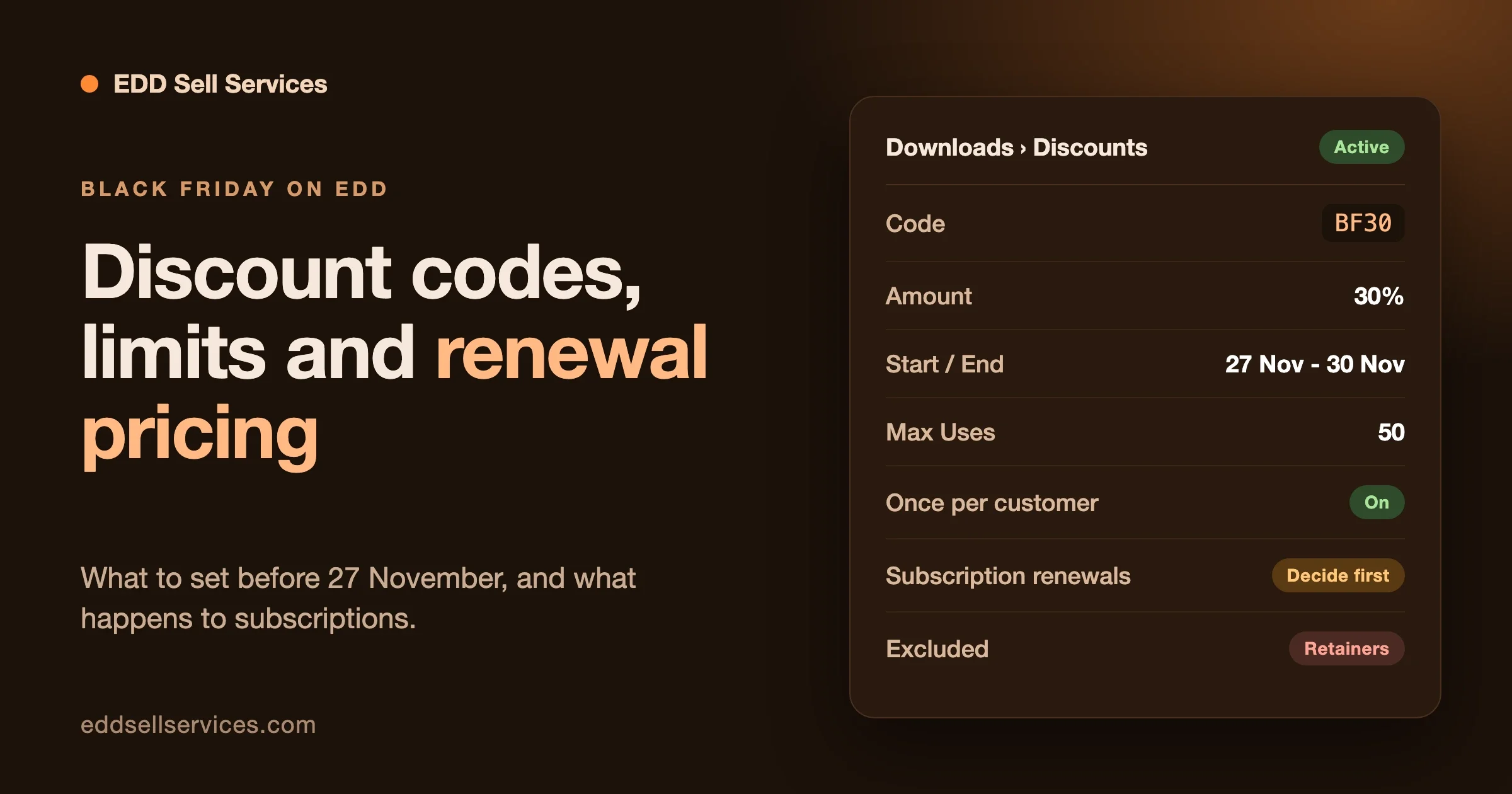
To run a Black Friday sale on Easy Digital Downloads, create a discount code under Downloads, then Discounts. Give it a start and expiration date, a Max Uses limit, the Use Once Per Customer switch if you want it, and restrict it to the products you are discounting. If you sell subscriptions or licenses, decide before you publish the code whether it should apply to the first payment only or to every renewal, because EDD treats those as separate settings.
Black Friday 2026 falls on Friday 27 November, and Cyber Monday on 30 November. This guide covers each discount feature in EDD, how discounts behave with Recurring Payments and Software Licensing, what changed in the 3.7.x releases that matters for a sale, and the mistakes store owners keep reporting. We wrote it with service sellers in mind, since our team builds EDD Sell Services, but nothing here depends on it.
Checked on 16 November 2026 against the EDD documentation, the EDD changelog on WordPress.org and the public support forum. Current plugin version on WordPress.org: 3.7.3, last updated 2 November 2026.
What should you set up before Black Friday?
Do the dull work first. Most sale-day problems come from something that was never tested, not from a missing feature.
- Decide the offer in one sentence: “30% off all templates, code BF30, 27 to 30 November, once per customer.”
- Choose between a code the customer types and a discount that applies by itself (more on that below).
- Write down your site timezone and confirm what EDD does with it for start and end times.
- Decide what happens to subscriptions and licenses bought in the sale: first payment only, or every renewal.
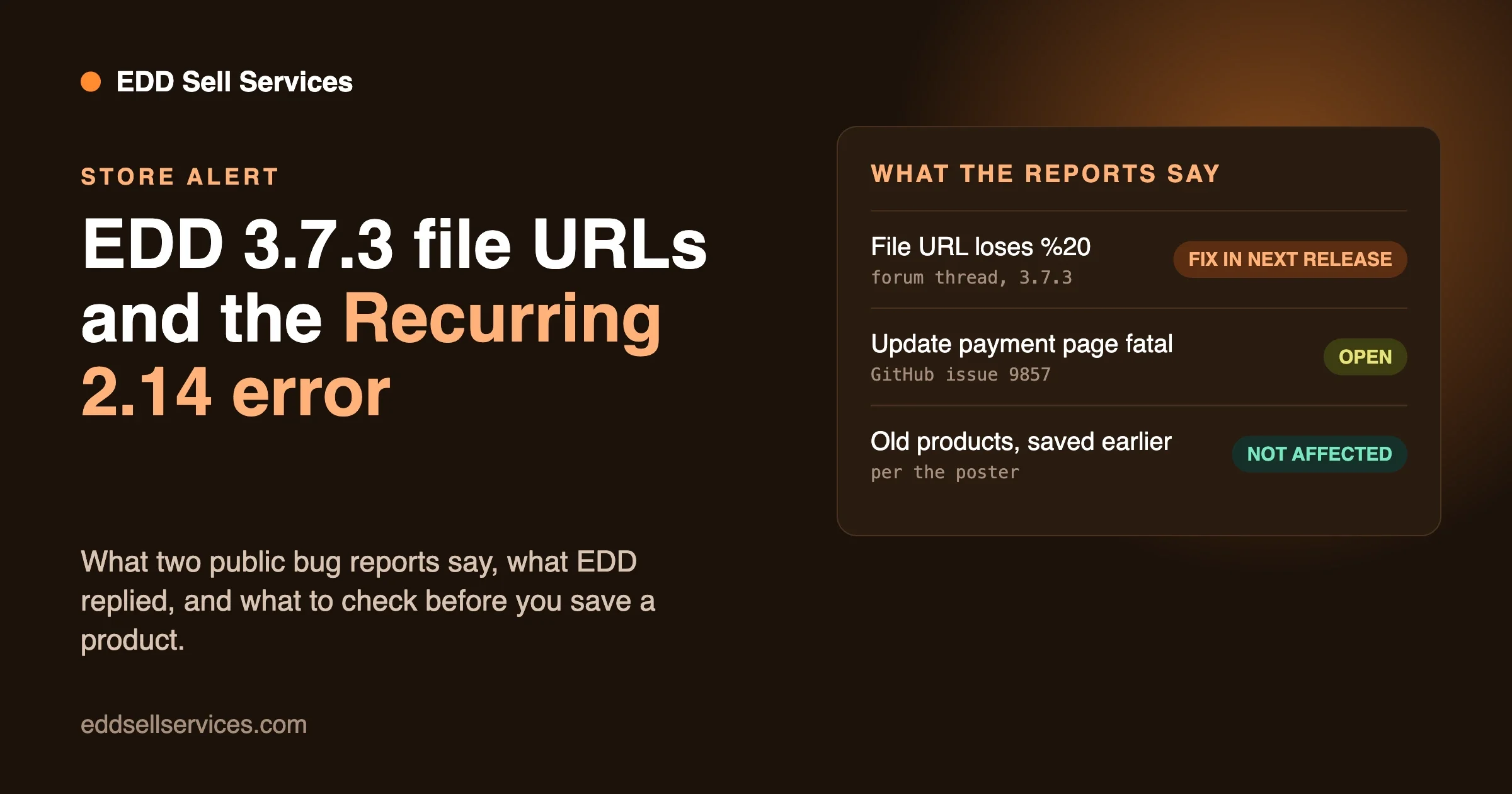
- Update EDD and your payment gateway on a staging copy this week, not on Thursday night. Our 3.7.2 update notes for service stores have a short staging checklist, and the 3.7.3 file URL report shows why a Monday update beats a sale-day one.
- Place a real test order in test mode with the exact code you plan to publish.
How do you create a discount code in Easy Digital Downloads?
Go to Downloads, then Discounts, and click Add Discount. A discount needs at minimum a Name, a Code and an Amount, according to EDD’s discount code documentation (page last updated 29 June 2026). EDD supports flat-rate and percentage discounts, start and expiration dates, and restrictions by product or category. If you add no requirements or exclusions, the code applies to every product.
These are the fields on the form, as the documentation describes them:
Field | What it does | Black Friday note |
|---|---|---|
Name | Shown to customers at checkout | Use a name a buyer understands, such as “Black Friday 30% off” |
Status | Active, Inactive or Archived | Keep the code Inactive until the dates are checked |
Code | What the customer types. Alphanumeric characters only | No dashes or underscores. BF30 works, BF-30 does not |
Amount | A percentage or a flat rate. 100% makes the item free | Cannot be left blank |
Download Requirements | Products the code can apply to | Leave blank to allow any product |
Downloads Excluded | Products the code cannot apply to | Use it to keep a flagship product or a retainer out of the sale |
Categories | Include or exclude by category | Faster than picking products one by one |
Start date and Expiration date | Date and time, labelled UTC on this form | Check the timezone note below |
Minimum Amount | Cart subtotal needed before the code works | A simple way to push a bigger basket |
Max Uses | Total number of redemptions | See the section on limits below |
Use Once Per Customer | Stops repeat use by the same customer | Turn it on for any launch-style offer |
The form can also generate a code for you. Click Generate Code, then set a prefix, a length and whether the code uses letters and numbers. That is handy for unique codes, though a public sale usually wants a code people remember.
One easy-to-miss detail from the documentation: the field where customers enter a code only appears at checkout if you have at least one active discount. If you have none, customers do not see the field. That matters if you keep the code Inactive until launch and then wonder why a tester cannot find the box.
Should you use a discount code or an automatic discount?
For most stores, a code is the right answer. A code gives you a campaign name to share in emails and social posts, and a number you can read in your reports afterwards. An automatic discount is better when the offer is a rule, such as “buy three, get one free”, and you do not want customers to hunt for a code.
EDD’s automatic discounts come from the Discounts Pro extension. Its documentation says it requires an Extended Pass or higher, and that discounts apply on their own when a cart meets the rules, with no code to enter. It has seven types:
Type | What it does |
|---|---|
Fixed Price | Takes a set amount off each product in the cart |
Percentage Price | Takes a percentage off each product. With no products picked, it works as a store-wide sale |
Product Quantity | Discounts several copies of the same product |
Each X products | Discounts the lowest-priced product in every group of X |
From X products | Discounts every product after the first X, with the highest-priced items staying at full price |
Products in cart | Applies when the cart holds at least a set number of items |
Cart threshold | Applies when the cart subtotal reaches an amount |
Two rules from the same documentation are worth knowing before you stack offers. When more than one automatic discount qualifies, only the one that saves the customer the most applies. And a discount never takes more than a product’s price, so a percentage above 100 is saved as 100.
Discounts Pro can also limit a discount by users, roles, categories and tags, and has an “Apply for previous customers only” box, off by default. A guest is matched to past orders by the email typed at checkout.
How do start and end dates work, and which timezone applies?
It depends on which tool you use. On the standard discount form, the documentation labels the start and expiration fields as date and time in UTC, and says to leave them blank for no start or no expiry. In Discounts Pro, the documentation says dates and times follow your site’s timezone from Settings, then General in WordPress, and that empty times mean the discount starts at 00:00 on the start date and ends at 23:59 on the end date.
If your store is in India and you want the sale to start at midnight on 27 November, a UTC field means the code goes live at 05:30 local time, or ends at 05:30 the next day. A US store sees the opposite problem. We did not run a timezone test on a live store for this guide, so take the label at its word and test it: set a code to start five minutes from now, try it before and after, and write down what you see.
There is a second way a code appears to “expire” early, and it has nothing to do with dates. A contributor on the EDD support forum answered an “the discount is expired” report in September 2023 by asking the owner to check caching plugins and to exclude the Checkout page from caching. A cached checkout page can show stale discount results. Add the checkout and account pages to your cache exclusion list before the sale, not during it.
How do Max Uses and Use Once Per Customer work?
Max Uses caps the total number of times a code can be redeemed. Use Once Per Customer stops one customer from using it twice. Together they are the two limits most Black Friday offers need, and both got attention in the recent 3.7.x releases.
The changelog on WordPress.org shows this sequence:
- 3.7.1: “Strengthened the enforcement of discount usage limits.”
- 3.7.2: discount codes with a maximum number of uses are reserved when checkout starts, so customers checking out at the same time can no longer redeem a code past its limit.
- 3.7.2: uses held by unpaid pending orders are given back sooner, so abandoned checkouts no longer block other customers from a limited code.
- 3.7.2: a paid order whose code has no uses left is placed On Hold for review instead of completing.
In plain terms: on 3.7.2 and later, a limited code is held for a customer the moment they start checkout. If that customer walks away, the use returns to the pool after a while. If a payment lands for a code that has run out, the order waits in On Hold for you to look at. That last status is new behavior, so tell whoever handles your orders to check On Hold during the sale. If you are still on an older version, a code limited to 50 uses can go past 50 when many people check out together.
Can Max Uses double as a capacity limit for services?
Sort of, and only as a rough guide. Say you offer 10 discounted audit slots with a code limited to 10 uses. After 10 redemptions the code stops working, which caps the discounted slots. It does not cap full-price orders, so if every order uses the same calendar, the code is a price control and not a capacity control. For a real capacity limit, close the product (or switch it to a waitlist page) when the week is full.
Can you limit the sale to certain products?
Yes. On the standard form, Download Requirements restricts the code to the products you pick, Downloads Excluded blocks products, and Categories includes or excludes whole groups. The documentation notes that when you select a product in Download Requirements, additional options appear. We did not test each of those options for this guide, so open the form in your own store and read them before launch.
For a service store, the exclusion list is usually the most useful field. Keep monthly retainers, custom quotes and any item with thin margins out of a store-wide code. A 30% code on a $500 productized service costs you $150 on every sale, while the same code on a $20 template costs $6. Our post on productized services on EDD covers tiers and add-ons, which is where a sale on only the entry tier often makes sense.
How do customers redeem the code, and can you pre-apply it?
There are four ways to get a code in front of a buyer, all described in EDD’s documentation or changelog.
- Type it at checkout. The customer enters the code, clicks apply, and the cart total updates immediately.
- A link with the code in it. Any URL on your site with
?discount=CODEstores the code in a session, so it applies when the customer reaches checkout. - A buy button with a code. EDD 3.6.7 added the ability to put a discount code on the Purchase Link (buy button) block.
- A public list of active codes. The
[download_discounts]shortcode prints an unordered list of all active discounts with the code and amount. Use it with care, because it shows every active code, including ones you meant for one customer.
For a custom add-to-cart link, the documentation says to use the ampersand instead of the question mark when the discount is the last item in the URL:
https://yoursite.com/?discount=BF30

https://yoursite.com/?edd_action=add_to_cart&download_id=123&discount=BF30
Replace 123 with your product’s ID. EDD’s page on custom add-to-cart links explains the rest. The 3.7.0 changelog also fixed preset discount links losing the coupon when a cart hook removed items during add-to-cart, so if you add items to carts with custom code, test the link after the update.
Can customers stack more than one code?
By default, no. EDD’s cart accepts one code. A contributor answering a “discount code stacking” thread on the support forum in August 2026 said the same: by default the cart accepts one code, and the Multiple Discounts setting under Downloads, Settings, Marketing lets several codes be used on the same checkout. EDD has a short page on multiple discount codes per purchase.
Leave it off for Black Friday unless you have worked out the worst case. If you turn it on, a customer with BF30 and a 20% welcome code can combine both. Do the arithmetic on your lowest-margin product first. The documentation also says Discounts Pro applies only the single best automatic discount, so the two features behave differently, and that difference deserves a line in your internal notes.
What happens to a Black Friday discount on a subscription?
This is the part most guides skip, and the one most likely to cost you money. If a service is sold as a monthly or yearly subscription through EDD Recurring Payments, a discount code can reach beyond the first payment.
EDD’s documentation states the rules like this:
- Recurring Payments has a One-Time Discounts setting. When it is checked, a discount code applies only to the initial payment and every renewal is charged at the normal price. When it is unchecked, a discount used on the first payment continues on every automatic renewal.
- A discount cannot apply to the renewal payment only. In the Recurring Payments FAQ, the answer to that question is no, with one exception: Software Licensing renewal discounts.
- Discounts on the initial payment, and one-time discounts, do not apply to a free trial. EDD counts the $0 trial as the initial payment, so only discounts that apply to all payments work on a trial order.
- Discounts Pro discounts apply to both the first payment and renewals, whatever the Recurring Payments discount settings say. Those settings only affect discount codes.
So the question “does the Black Friday price carry into renewals?” has this answer. With a code and One-Time Discounts checked, it does not. With a code and the setting unchecked, it does, for as long as the subscription renews. With a Discounts Pro automatic discount, it does regardless of that setting. Choose on purpose, then say so on the sale page: “Your first year is 30% off” and “30% off while you stay subscribed” are two very different promises.
The documentation does not give a one-line answer to a related case: you lower a product’s own price for the weekend instead of using a code. We did not test this, and the behavior depends on how the gateway creates the subscription. Run it in Stripe test mode before relying on it, and look at the amount of the second payment, not only the first.
What if you already sold subscriptions at a price you regret?
EDD’s page on adjusting subscription pricing says that once a subscription is created, the payment gateway manages it, so EDD is limited in what it can change. Subscription pricing can only be adjusted per customer, not for everyone at once. For Stripe, you can create a coupon with a duration of Once, Forever or a number of months and attach it to the customer’s subscription from the Stripe dashboard. For PayPal, you can change the amount due on the subscription. The same page says pausing a subscription is not currently possible through EDD or directly through the gateway.
So a sale that creates 300 discounted subscriptions leaves 300 gateway records you cannot reprice in one click. Weigh that before you uncheck One-Time Discounts.
How do Software Licensing renewals interact with a sale?
If you sell licensed software, themes or plugins, there are two separate discount ideas, and mixing them up is a common error.
A discount code is the thing you create under Downloads, Discounts. A renewal discount is a Software Licensing setting, found under Settings, Extensions, Software Licensing. According to EDD’s Recurring Payments and Software Licensing integration page, renewal discounts apply to renewals only, not the initial payment. Its example: a $100 product with a 50% renewal discount charges $100 first and $50 on every renewal.
The same page covers the overlap. With Software Licensing renewal discounts, they apply as normal to automatic renewals. If One-Time Discounts is unchecked and there is also a renewal discount, both are applied to the automatically renewed amount. That can stack into a much lower renewal price than you planned. The page also says canceling a subscription partway through the period does not expire the license key; it stays valid for as long as was paid for.
Which tool should you pick for which offer?
You want to | Use | Watch for |
|---|---|---|
Offer a named percentage off for four days | Discount code with start and expiration dates | Timezone on the form; test before launch |
Limit the offer to the first 50 buyers | Max Uses | Needs 3.7.2 or later to hold uses under heavy traffic |
Give each customer one use | Use Once Per Customer | Test with a returning customer and a guest |
Run “buy two, get one” without a code | Discounts Pro, Each X products | Requires an Extended Pass or higher; lowest-priced item is discounted |
Reward past clients only | Discounts Pro, Apply for previous customers only | Guests are matched by checkout email |
Discount the first subscription payment only | Code with One-Time Discounts checked | Does not work on free trials |
Keep a deal through every renewal | Code with One-Time Discounts unchecked, or Discounts Pro | You cannot reprice existing subscriptions in bulk |
Discount renewals only | Software Licensing renewal discount | Stacks with a code when One-Time Discounts is unchecked |
Let customers combine codes | Multiple Discounts setting | Calculate the worst case first |
What changes if you sell services instead of downloads?
The discount features are identical. What changes is what a sale does to your calendar and your margin. A downloadable template costs nothing to deliver a thousand times. A service costs hours each time, so a deep discount can turn a good week into an overbooked one.
Three adjustments help. First, discount the entry tier or a fixed-scope package, not custom quotes. Second, put the delivery window on the product page and in the code’s terms, so a sale on 27 November does not promise a start date you cannot hit. Third, decide your refund stance before the sale, because EDD handles refunds the same way whether or not a code was used; our post on EDD payments, fees and refunds covers where refunds and disputes land. If you deliver custom work through the store, custom deliverables and service workflows are the next decision.
Where does EDD Sell Services fit, and where does it not?
EDD Sell Services is our add-on for Easy Digital Downloads, so weigh this paragraph accordingly. It turns a product into a service with requirement questions after payment, chat and file sharing on the order, a status tracker and a delivery step. For a sale, it matters in one narrow way: the service is a normal EDD product, so discount codes, dates, limits and exclusions work exactly as described above. Nothing about its checkout needs a special sale setup.
Its real limits, from the product page we read on 16 November 2026: it requires Easy Digital Downloads to be installed and active, the page lists version 4.3.0 as updated in March 2025 and tested up to WordPress 6.7.2, and it is a paid add-on sold per site count on the pricing page. If you want your sale to run on plain EDD with no extra order workflow, you do not need it. If you want the order conversation and delivery tracking, its feature list shows what is included.
What should you test before the sale goes live?
Run this list in test mode on a staging copy, then repeat the key steps on the live store with the code set to a 100% discount that you delete afterwards. EDD’s own test and launch guide covers the general test-mode setup.
- Apply the code as a logged-out visitor, then as a logged-in customer.
- Try the code on an excluded product and confirm it is refused.
- Try the code twice with the same email to check Use Once Per Customer.
- Check the cart total and the receipt email. The receipt should show the discounted price.
- Use the
?discount=CODElink in a private window and confirm it applies at checkout. - Test the code on a subscription, then look at the second payment in your gateway’s test dashboard.
- Test a 100% code with your payment gateway. The EDD 3.6.8 changelog fixed an uncaught IntegrationError when a 100% code was applied with Stripe Payment Elements, so confirm yours behaves.
- Confirm the code stops at the expiration time, and look at the order list for any On Hold orders afterwards.
Common mistakes people report
These come from the public EDD support forum on WordPress.org and from EDD’s documentation. We paraphrased each one and dated it. They are single reports, not statistics, so use them as a checklist rather than a measure of how often something happens.
1. The code works on one gateway and not another
In November 2024, two owners reported that a code did not work properly at checkout. In both threads a plugin contributor asked whether a custom payment gateway was in use, and suggested enabling the built-in Store gateway for a test order to see whether the discount was recorded. If it is, the gateway is not passing the discount from the cart correctly. See this thread and this one.
2. “The discount is expired” when it should not be
An owner reported this error in August 2023, and the reply in September 2023 pointed at caching and at excluding the Checkout page from caching. The thread is here.
3. A code limited to a pass, tier or product the buyer does not have
In April 2024, an owner could not get a code to work and the cause turned out to be a required All Access Pass setting on the discount. Only a logged-in user holding a matching active pass can use that code. Check the requirement fields if a code refuses buyers who should qualify. See the discussion.
4. Expecting codes to stack, or not expecting it
A customer asked in August 2026 why a second code would not apply. The default is one code per cart, and the Multiple Discounts setting changes that. The forum thread has the answer.
5. Dates disappearing when a code changes status
In May 2024, an owner found that dates vanished when they used the quick action links on a code in the Discounts list. A contributor confirmed it was logged and said the fix was planned for the 3.3.1 release. It is old, but it is a reminder to open the code and recheck the dates after any status change. See the report.
6. Looking for a scheduled sale price on the product
In September 2025, an owner asked how to give a product a sale price with start and end dates. The reply said there is no official snippet for that: you either change the price manually or use a code. A code with dates, or a Discounts Pro discount, is the supported route. The thread has the detail.
FAQ
How do I stop one person using a code many times?
Turn on Use Once Per Customer on the discount. For a total cap across everyone, set Max Uses. On EDD 3.7.2 or later, uses are reserved at the start of checkout, so a limited code holds up better under heavy traffic.
Will a code carry into subscription renewals?
It depends on the One-Time Discounts setting in Recurring Payments. Checked means the first payment only. Unchecked means every renewal. A Discounts Pro automatic discount applies to renewals whatever that setting says.
Can I discount renewals but not the first payment?
Not with a standard code. EDD’s Recurring Payments FAQ says the only way is a Software Licensing renewal discount, which applies to renewals only.
Can I use a code on a service sold through EDD Sell Services?
Yes, because the service is a normal EDD product. The same fields, dates and limits apply.
Where to go next
Pick one offer, test it with a real order in test mode, and write down the renewal rule in the sale copy. If you sell services and want the order conversation, requirement questions and delivery step to live on the order, see what EDD Sell Services includes and its pricing. For add-ons around the checkout, our guide to EDD addons for selling services lists which ones are worth it.