10 Best Online Image to Text Converter Tools


Anyone who has tried to retype text from a screenshot knows how tedious it gets after the third paragraph. A blurry photo of a whiteboard, a scanned contract, a stack of receipts from a business trip – all of it sits there as pixels until someone converts it into text you can actually search, copy, and edit. That conversion job belongs to Optical Character Recognition, and the tools built around it have gotten good enough that manual transcription is rarely worth anyone’s time anymore.
This list covers ten image-to-text converters worth trying in 2025, along with what each one actually does well, where it falls short, and who it fits best. None of these are theoretical picks – they’re the tools people in research, legal, publishing, and everyday office work reach for when a stack of scanned pages needs to become editable text by end of day.

What an Image-to-Text Converter Actually Does
An image-to-text converter reads the pixels in a picture and reconstructs them as characters your computer understands as text – not as a picture of text, but as text itself. That difference matters more than it sounds. A photo of a page can’t be searched, edited, or read aloud by accessibility software. Run it through OCR and suddenly you can find a single word in a 40-page scanned report, fix a typo without retyping the paragraph, or feed the content into a screen reader.
The technology behind this has been around since the 1970s in various forms, but the accuracy jump over the last decade – mostly from neural network models trained on huge volumes of text samples – is what makes today’s free web tools genuinely usable instead of a novelty that mangles half the words.
Who Actually Needs This
Students digitizing lecture notes and library scans are one obvious group. So are paralegals converting scanned contracts into searchable case files, and small business owners who have a shoebox of paper receipts they need in a spreadsheet before tax season. Translators lean on OCR to pull foreign-language text out of images before running it through a translation tool, since typing out a paragraph in a language you don’t read is its own special kind of painful.
Accessibility is the less obvious but arguably more important use case. Text-to-speech software can’t do anything with a flat image – it needs actual character data. Converting scanned books, menus, or forms into text is often the only way a visually impaired reader can access that content at all.
How the Conversion Actually Works
Every OCR engine, whether it’s a $200 desktop program or a free browser tool, runs roughly the same four-stage pipeline:
- Preprocessing: The image gets cleaned up – deskewed if it was scanned crooked, denoised if it’s grainy, and contrast-adjusted so characters stand out from the background.
- Layout and text detection: The engine maps out where blocks of text sit relative to images, columns, and tables, so a two-column PDF doesn’t come out as a jumbled mess of interleaved sentences.
- Character recognition: Each detected character or word gets matched against trained models. Modern engines use neural networks rather than simple pattern matching, which is why they handle unusual fonts and slightly blurry text far better than OCR did ten years ago.
- Output formatting: The recognized text gets assembled back into a document – plain text, Word, or searchable PDF, depending on what the tool offers.
Accuracy still depends heavily on input quality. A crisp 300 DPI scan of a printed page will convert close to perfectly. A phone photo of a handwritten sticky note taken at an angle, in low light, is a much harder problem – and most free tools will still get individual words wrong on inputs like that.
What to Check Before Picking a Tool
Not every OCR tool is built for the same job, so it’s worth checking a few things before committing to one for a big batch of documents:
- File format support – JPG and PNG are standard, but PDF support (especially multi-page PDF) varies a lot between tools.
- Language coverage – if you’re working with non-English text, confirm the specific language is supported, not just “multilingual” as a marketing line.
- Conversion limits – many free tools cap you at a handful of conversions per hour or a page limit per file.
- Formatting retention – tables, columns, and bullet lists either survive the conversion intact or turn into a wall of run-together text, and that varies a lot by tool.
- Privacy – if you’re uploading anything sensitive (contracts, medical records, financial documents), check the tool’s data retention policy before uploading.
Common OCR Problems and How to Work Around Them
Even the best engines trip up on predictable things, and knowing what causes the errors saves a lot of frustration when the output doesn’t match the source.
Low-contrast scans. Faded ink, colored paper, or a photo taken under yellow indoor lighting all reduce the contrast between text and background, which is where most OCR engines start guessing wrong. Bumping brightness and contrast before uploading – even with a basic phone editing app – often fixes this without needing a better tool.
Skewed or rotated images. A page photographed at an angle throws off character recognition badly, since the engine expects roughly horizontal text lines. Most tools on this list include automatic deskewing, but it’s not perfect, and a severely tilted photo may need manual straightening first.
Unusual fonts and stylized text. Decorative fonts, italics mixed with bold, or text overlaid on busy backgrounds (think a quote graphic or a magazine cover) confuse pattern-matching models trained mostly on standard printed fonts. There’s no great workaround here beyond trying a second tool if the first one struggles.
Multi-column layouts. Academic papers and newspapers format text in columns, and a naive OCR engine will sometimes read straight across both columns instead of down one and then the other, scrambling the sentence order. NewOCR.com and ABBYY handle this better than most; simpler tools often don’t.
Tables and forms. Cell borders and merged rows regularly get lost in translation, turning a clean table into a run of comma-separated numbers with no structure. If tables matter, test a sample page first rather than converting the whole document and discovering the problem after the fact.
Manual Transcription vs. OCR: The Actual Time Difference
It’s worth putting a number on why this matters. Typing out a single page of dense text by hand – around 500 words – takes a competent typist roughly 10 to 15 minutes, plus proofreading time to catch mistakes made while copying. Running the same page through any tool on this list takes under a minute, including upload and download, and the error rate on a clean printed page is typically lower than what a tired human typist produces on page thirty of a stack.
That math changes the calculus for anyone digitizing more than a handful of pages. A 40-page scanned report that would take most of a workday to retype by hand can realistically be OCR’d, spot-checked, and cleaned up in under an hour.
The 10 Best Online Image to Text Converter Tools
1. OnlineOCR.net – Straightforward and Fast
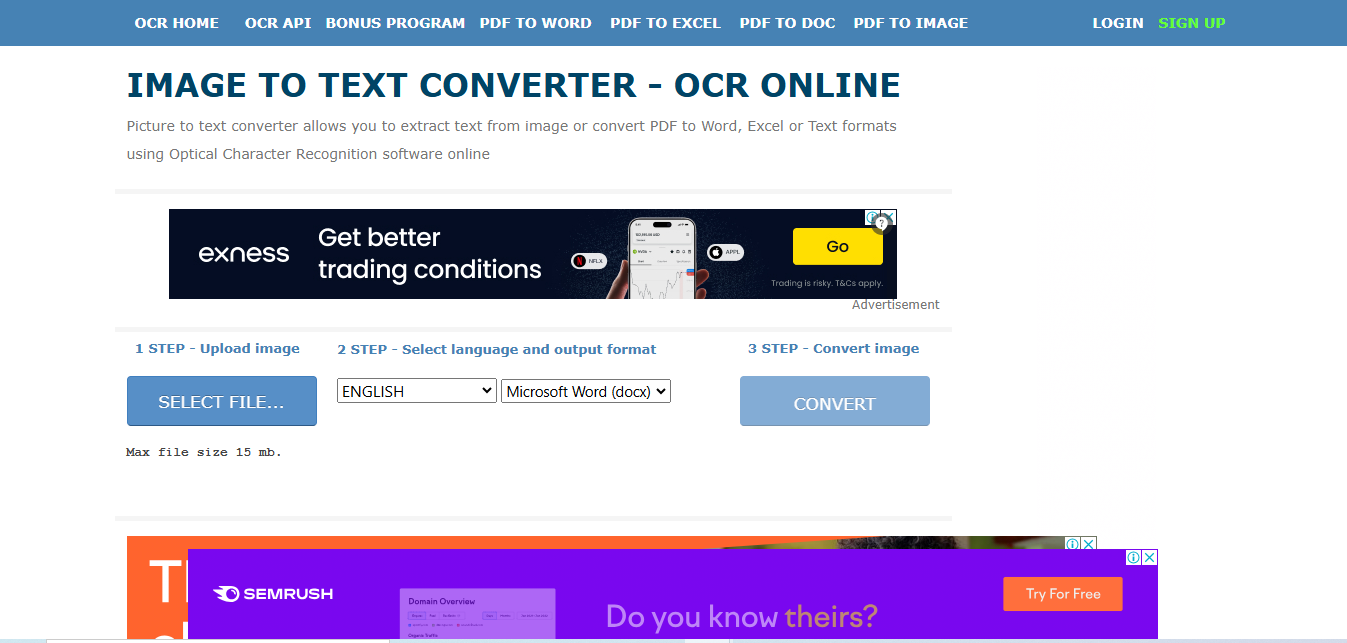
OnlineOCR.net is the tool most people land on first, and it earns that spot by being genuinely easy to use. Drop in a JPG, PNG, or PDF, pick a language from a list of more than 40, and the extracted text shows up in an editable box within seconds. No account is required for basic use.
The catch is a conversion cap on the free tier – heavy users will hit an hourly limit and need to either wait it out or register for a higher allowance. For occasional single-document conversions, though, it’s hard to beat for simplicity.
2. i2OCR – Unlimited and Layout-Aware
i2OCR doesn’t ask for sign-up and doesn’t cap how many conversions you run, which makes it the better choice for anyone processing a batch of images in one sitting. It supports a long list of languages and, unlike some competitors, does a solid job preserving the original layout – tables come out as tables, not as scrambled text.
The interface is dated compared to newer tools, but the actual OCR engine underneath performs well on both printed and moderately messy scanned text.
3. Prepostseo Image to Text Converter – Built for Rough Inputs
Prepostseo’s OCR tool is specifically good at handling images that aren’t perfectly clean – slightly blurry phone photos, low-contrast scans, or screenshots with compression artifacts. That makes it a reasonable pick for students working from library photocopies or anyone whose source material isn’t studio-quality.
It accepts both direct file uploads and image URLs, which is convenient if the source is already hosted somewhere online rather than sitting on your device.
4. NewOCR.com – No Conversion Caps, Strong Multi-Column Support
NewOCR.com stands out for handling complex page layouts – multi-column academic papers, tables with merged cells, and mixed image-and-text pages – better than most free alternatives. It also doesn’t impose a daily or hourly conversion limit, so it’s a solid choice for anyone digitizing a large batch of documents over several days.
Language support is broad, and the tool lets you download results directly as a Word document, which saves a copy-paste step.
5. Img2txt – Minimal Interface, Batch-Friendly
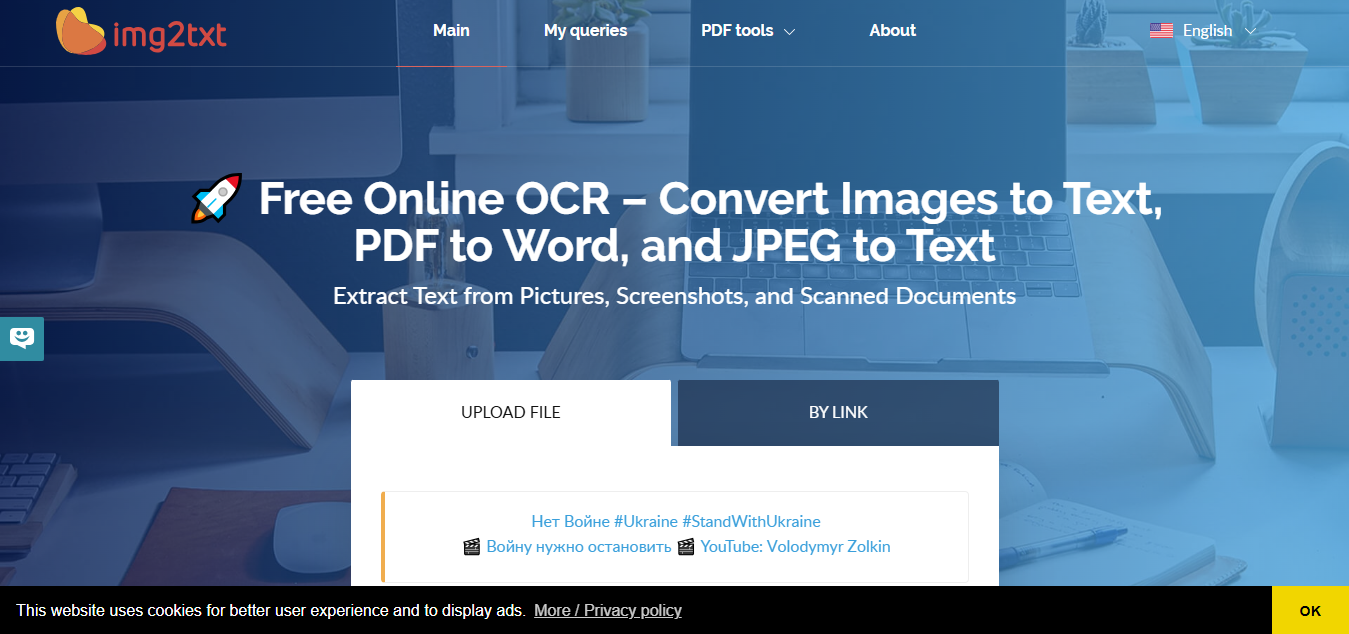
Img2txt strips away almost everything except the core function: upload an image, get text back. No registration wall, no upsell screens. Its one genuinely useful extra is the ability to queue several images at once instead of processing them one by one, which matters if you’re working through a folder of scanned pages.
Accuracy on clean, printed text is reliable. It’s less impressive on handwriting or heavily stylized fonts, so it’s best treated as a tool for straightforward documents rather than a universal solution.
6. Convertio OCR – Best for Bigger Jobs
Convertio’s free tier covers basic conversions, but where it separates itself is the paid plan: batch processing across dozens of files, direct integration with cloud storage like Google Drive and Dropbox, and noticeably higher accuracy on difficult inputs. It supports well over 100 languages, which is more than most competitors on this list offer.
For a business processing a steady stream of scanned invoices or forms, the subscription cost is usually worth it. For a one-off conversion, the free tier is more than sufficient.
7. EasyOCR – For Developers Who Want to Build It In
EasyOCR is open-source, which sets it apart from every other tool on this list. It’s less of a polished consumer web app and more of a library developers drop into their own applications, with API access and support for handwritten text recognition – a feature most hosted OCR tools still handle poorly.
This one isn’t for someone who just wants to paste in a screenshot and get text back in ten seconds. It’s for teams building OCR into a product or internal workflow who want control over the pipeline instead of relying on a third-party web form.
8. Soda PDF OCR – Best When the Source Is Already a PDF
Soda PDF folds OCR into a broader PDF editing suite, which makes it a natural pick when the source documents are already PDFs rather than loose image files. Scanned contracts, forms, and reports go in, and searchable, editable PDFs come out – with the ability to edit the recognized text directly in the same interface, skipping the export-to-Word step other tools require.
Businesses handling a steady flow of scanned paperwork tend to get the most value here, since the PDF editing and OCR live in one place instead of being split across two separate tools.
9. ABBYY FineReader Online – The Accuracy Benchmark
ABBYY FineReader has been a reference point for OCR accuracy for years, and the online version carries that reputation over, particularly on dense or structurally complex documents like academic papers, legal filings, and books with footnotes and multi-column layouts. The free tier is limited, and the real value sits behind a paid plan.
For anyone whose job depends on getting a difficult document converted correctly the first time – rather than accepting a few OCR errors and fixing them by hand – FineReader is usually worth the cost.
10. Google Drive OCR – Free and Already in Your Pocket
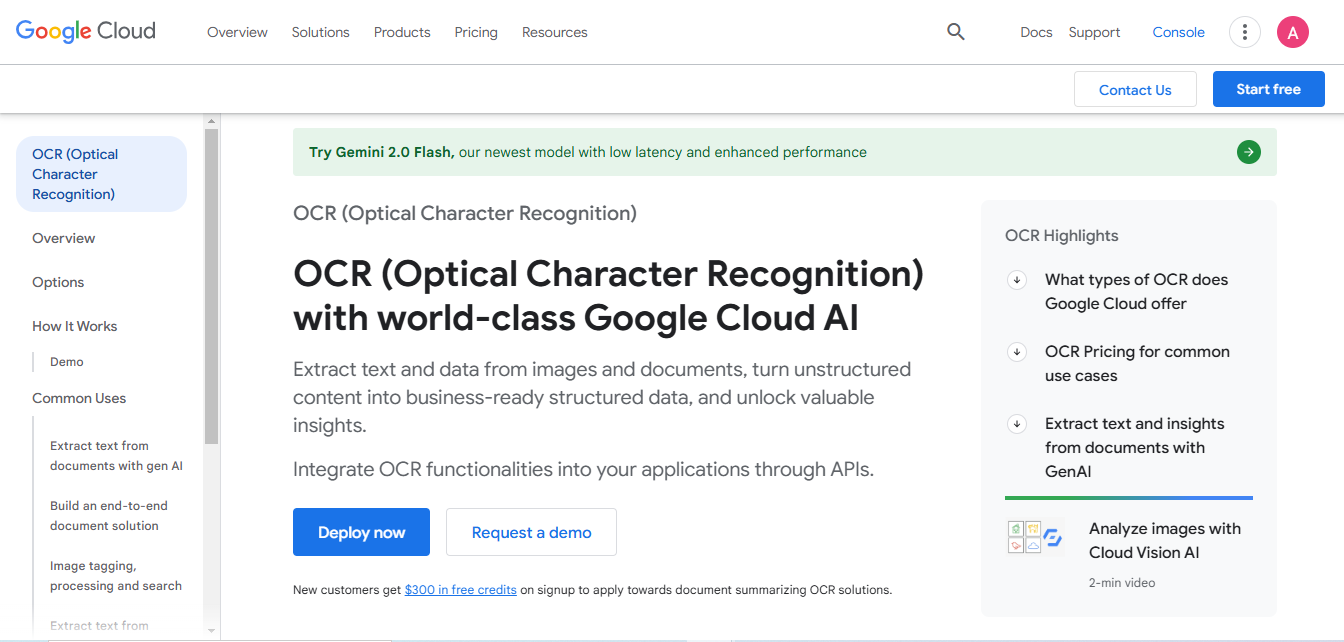
Most people already have this one available and don’t realize it. Upload a scanned image or PDF to Google Drive, right-click, and open it with Google Docs – the file opens with the original image at the top and the recognized text below it, ready to copy or edit.
It’s not going to outperform a dedicated OCR engine on a genuinely difficult document, but for anyone who already lives in Google’s ecosystem, it removes the need for a separate tool entirely for everyday conversions.
Quick Comparison
| Tool | Best For | Cost | Standout Feature |
|---|---|---|---|
| OnlineOCR.net | Quick single conversions | Free, hourly cap | 40+ languages, no install |
| i2OCR | Batch work, no sign-up | Free, unlimited | Layout preservation |
| Prepostseo | Blurry or low-quality scans | Free | URL-based uploads |
| NewOCR.com | Multi-column documents | Free, unlimited | Word export |
| Img2txt | Simple bulk conversions | Free | Multi-image queue |
| Convertio OCR | Business-scale batches | Free tier + paid plans | Cloud storage integration |
| EasyOCR | Developers building OCR in | Free, open-source | API access, handwriting support |
| Soda PDF OCR | PDF-heavy workflows | Free tier + paid plans | In-place PDF editing |
| ABBYY FineReader | Maximum accuracy | Limited free, paid plans | Complex document handling |
| Google Drive OCR | Occasional everyday use | Free | Already built into Drive |
Frequently Asked Questions
Is online OCR accurate enough for legal or medical documents?
For clean, typed originals, most of the tools above get very close to 100% accuracy. Handwriting, poor scan quality, and dense legal formatting all increase error rates, so a manual review pass is still worth doing before treating extracted text as final for anything sensitive.
Can these tools read handwriting?
Most can’t, or do it poorly. EasyOCR and some premium engines handle basic handwriting recognition, but printed text remains the strong suit across almost every tool on this list.
Are free OCR tools safe to use with confidential documents?
It depends on the tool’s stated retention policy, which varies. For sensitive material, check whether the service deletes uploaded files after processing, and avoid tools that don’t disclose their policy at all.
Do these tools work on scanned PDFs, or only images?
Most support PDF uploads directly, but a few – like Img2txt – are built primarily for image files and may need the PDF converted to an image first.
Why does the extracted text sometimes come out with random line breaks?
This usually happens when the engine misreads the page layout, treating a wrapped line as a paragraph break. It’s more common on justified text and multi-column pages, and it’s one of the easier issues to fix manually once you know to look for it.
Is there a difference between OCR built into a scanner app and a dedicated web tool?
Phone scanner apps generally use a lighter, faster OCR engine tuned for speed over accuracy, since they’re processing on-device. A dedicated web tool usually runs a heavier model on a server, which tends to produce fewer errors on difficult text at the cost of an upload step.
Picking the Right One
For a single quick conversion, OnlineOCR.net or i2OCR will cover it without any setup. If you’re working through a stack of scanned academic papers or reports with multiple columns, NewOCR.com handles that layout better than most. Businesses processing a steady flow of scanned paperwork get more mileage out of Soda PDF or Convertio, since both fold OCR into a broader document workflow instead of treating it as a one-off task. And if accuracy on a genuinely difficult document matters more than cost, ABBYY FineReader remains the benchmark the others get compared against.
If you’re managing scanned documents as part of a larger content or knowledge base – WordPress-based or otherwise – pairing OCR with a proper document management system keeps converted files organized instead of scattered across a downloads folder. And for anything that needs a signature after conversion, an electronic signature tool finishes the workflow without printing a single page.

Interesting Reads:
Best AI Fanfic Generators in 2025
Figgs AI: What Happened and the Best Alternatives for AI Chatbots in 2025