10 Best WordPress Cache Plugin


Page speed shapes both user satisfaction and search rankings, and a properly configured caching plugin is still one of the highest-leverage changes you can make to a slow WordPress site. Caching stores a pre-built version of your pages so the server doesn’t have to rebuild them from scratch on every single visit, which cuts load times and reduces server strain at the same time. Below are ten caching plugins worth knowing in 2026, along with an honest look at one entry that used to make every list like this but shouldn’t anymore.

What Does a WordPress Cache Plugin Actually Do?
A caching plugin creates a temporary, pre-rendered copy of your site’s pages so visitors get served a static file instead of triggering a fresh round of PHP execution and database queries on every request. That distinction matters more than it sounds: WordPress dynamically builds each page by pulling content from the database and running it through PHP, which is comparatively slow and gets slower under traffic. A cached page skips almost all of that work, which is why caching remains one of the single biggest speed wins available on a typical WordPress install.
Why It’s Worth Getting This Right
A slow site loses visitors before they even see the content, and that drop-off compounds with search rankings, since page speed is a documented ranking factor. A properly configured caching plugin delivers faster load times, lighter server load, and a smoother experience for anyone browsing on a weaker connection or an older device, three outcomes that reinforce each other rather than trading off against one another.
Key Features to Look for in a Cache Plugin
- Ease of Use: Good defaults matter more than a wall of settings most users will never touch.
- Layered Caching Options: Browser caching, object caching, and page caching each solve a different bottleneck.
- CDN Compatibility: Pairing cache with a CDN meaningfully improves performance for visitors far from your server’s physical location.
- Active Maintenance: Check the “last updated” date on the plugin’s WordPress.org listing before installing anything, an abandoned caching plugin is a real liability, not just a missed-features problem.
- Customization: The ability to exclude specific pages or cookies from caching prevents broken checkout flows and stale logged-in views.
10 WordPress Cache Plugins Worth Considering
1. WP Rocket
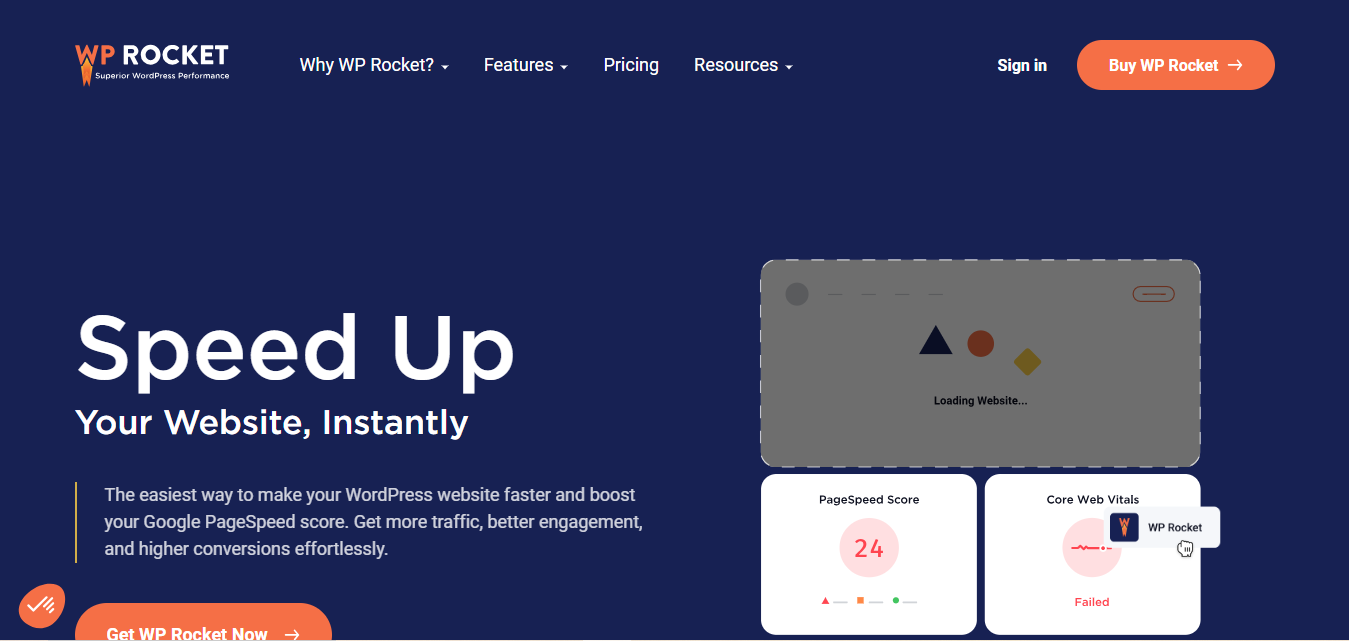
WP Rocket remains the most consistently recommended premium caching plugin, largely because it works well out of the box without demanding a technical setup process.
Key Features
- Automatic page caching activated immediately on install.
- Database cleanup and optimization tools built in.
- Lazy loading for images and embedded video.
- Broad compatibility with popular themes and page builders.
Pros
- Genuinely easy to use, even without technical experience.
- Handles WooCommerce and EDD stores well.
- Frequent updates and responsive support.
Cons
- No free tier, this is a paid-only product.
Also Read: 10 Best Software for iPhone Tutorial Screen Recording
2. W3 Total Cache
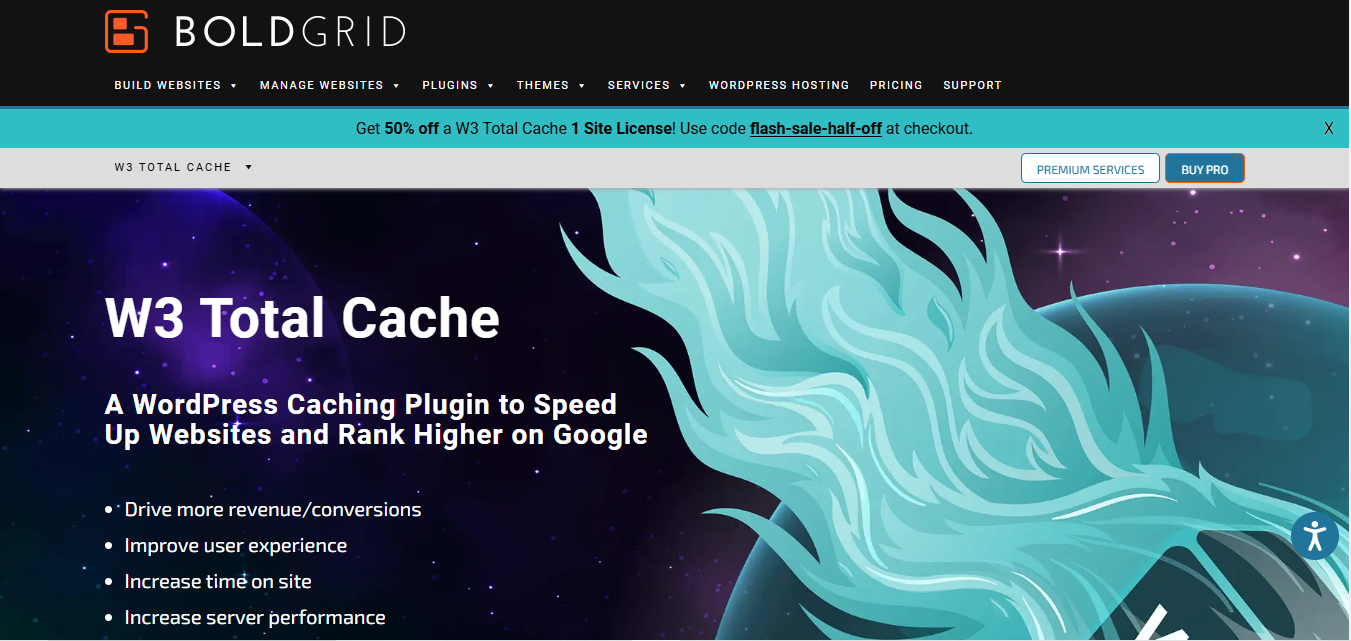
W3 Total Cache, now developed by BoldGrid, remains one of the deepest, most configurable free caching options available, aimed squarely at developers and technically comfortable site owners.
Key Features
- Minification and compression of HTML, CSS, and JavaScript.
- CDN integration for global performance gains.
- Database and object caching support layered on top of page caching.
Pros
- Extremely customizable for advanced use cases.
- Works across nearly any hosting environment.
Cons
- The depth of settings creates a real learning curve for beginners, and misconfiguration can cause more harm than a simpler plugin would.
3. WP Super Cache
WP Super Cache, maintained by Automattic (the company behind WordPress.com), stays popular for a simple reason: it does one job well without overwhelming the user with settings.
Key Features
- Static HTML file generation for fast page loads.
- Simple and advanced configuration modes depending on comfort level.
- Built-in garbage collection to clear outdated cache files automatically.
Pros
- Straightforward setup and ongoing management.
- Backed by Automattic, which means steady long-term maintenance.
Cons
- Fewer advanced options than W3 Total Cache or WP Rocket.
4. LiteSpeed Cache
LiteSpeed Cache is built specifically for sites hosted on LiteSpeed web servers, though a subset of its features work on other hosting environments too.
Advanced server-level caching handles far more of the work than a typical PHP-based plugin can, since it operates closer to the server itself.
Built-in image optimization and ESI (Edge Side Includes) support for caching dynamic content round out the feature set.
Pros
Exceptional performance specifically on LiteSpeed servers, and it’s free with an extensive feature set even on that free tier.
Cons
Its strongest features are locked to LiteSpeed hosting, so the value proposition shrinks considerably on other server stacks.
5. WP Fastest Cache
A note before this entry: earlier versions of this list included Comet Cache here. It’s worth flagging clearly that Comet Cache has been effectively abandoned since around 2017, its WordPress.org listing is still technically live, but user reviews on the plugin page describe it outright as a “zombie plugin” with no real development in nearly a decade. Running an unmaintained caching plugin on a current WordPress install is a genuine risk, not just a missed-features issue, so it’s been swapped out here for an actively maintained alternative.
WP Fastest Cache is that replacement, and it earns the spot on its own merits: over a million active installations, updates as recent as within the past few weeks at any given check, and a straightforward interface that doesn’t require deep technical knowledge to configure sensibly.
Key Features
- One-click page caching with sensible defaults.
- Built-in minification and combination of CSS and JS files.
- Browser caching and GZIP compression handled automatically.
Pros
- Genuinely beginner-friendly without sacrificing real performance gains.
- Free version covers most small-to-mid-size site needs; premium tier adds image optimization and additional CDN support.
Cons
- Some advanced tuning options are premium-only.
Also Read: 10 Best WordPress Plugins for Adding Code
6. Swift Performance
Swift Performance goes well beyond basic page caching into a broader optimization suite, aimed at users comfortable tuning more advanced settings for maximum gain.
Key Features
- Database optimization tools alongside standard caching.
- Script merging and minification.
- Built-in image optimization.
Pros
- Covers more ground than caching alone, reducing the need for separate optimization plugins.
Cons
- Getting the best results out of it takes more configuration effort than a simpler plugin.
7. Hummingbird by WPMU DEV
Hummingbird pairs caching with detailed, plain-language performance reporting, which makes it a solid pick for site owners who want to understand what’s slow and why, not just flip a switch and hope for the best.
Key Features
- Performance reports with specific, actionable recommendations.
- Asset optimization for CSS and JavaScript.
- GZIP compression and lazy loading built in.
Pros
- Strong fit for site owners actively working on Core Web Vitals scores.
Cons
- Deeper features sit behind a subscription.
8. Cache Enabler by KeyCDN
Cache Enabler stays deliberately minimal, and that’s the entire appeal for site owners who want caching without a settings maze. It remains actively maintained, with recent updates and a six-figure install base as of this writing.
Key Features
- Static HTML file generation.
- Automated cache clearing when content updates.
- Native WebP image format support.
Pros
- Lightweight and fast, with minimal setup friction.
Cons
- Limited advanced options compared to W3 Total Cache or Swift Performance.
9. Breeze by Cloudways
Breeze is purpose-built for Cloudways-hosted sites, and it shows in how tightly it integrates with that specific hosting stack.
Key Features
- Full-page caching tuned for Cloudways infrastructure.
- Database optimization and cleanup tools.
- Native Cloudways CDN support.
Pros
- Deep, effortless integration if you’re already on Cloudways.
Cons
- Considerably less useful outside the Cloudways hosting environment.
Also Read: Should I Remove Polyfill from WordPress?
10. Hyper Cache
Hyper Cache is a lightweight, resource-conscious plugin that works across nearly any hosting environment, still actively maintained with a real, if smaller, install base.
Key Features
- Mobile-aware caching for responsive designs.
- CDN compatibility for global performance improvements.
- Low resource footprint, well suited to modest shared hosting plans.
Pros
- Runs comfortably on low-resource hosting environments.
- Simple, low-friction setup.
Cons
- Missing some of the premium-level features found in paid alternatives.
Comparison Table
| Name of Tool | Best For | Standout Feature | Pricing |
|---|---|---|---|
| WP Rocket | User-friendly caching with strong performance out of the box | Automatic setup and database optimization | Premium |
| W3 Total Cache | Advanced users wanting deep customization | CDN integration and Core Web Vitals tuning | Free & Premium |
| WP Super Cache | Simplicity and reliability for all skill levels | Static HTML generation, Automattic-backed | Free |
| LiteSpeed Cache | Sites hosted on LiteSpeed servers | Server-level caching with image optimization | Free |
| WP Fastest Cache | Beginners wanting quick, reliable setup | One-click caching with over a million active installs | Free & Premium |
| Swift Performance | Advanced users wanting all-in-one optimization | Database and script optimization tools | Free & Premium |
| Hummingbird by WPMU DEV | Improving Core Web Vitals and SEO metrics | Performance reports with GZIP compression | Free & Subscription |
| Cache Enabler by KeyCDN | Lightweight caching for smaller sites | Static HTML generation with WebP support | Free |
| Breeze by Cloudways | Cloudways hosting users | Native Cloudways CDN support | Free |
| Hyper Cache | Low-resource hosting environments | Mobile-aware caching with CDN compatibility | Free |

Page Caching vs. Object Caching vs. Server-Level Caching
“Caching” gets used as one blanket term for several genuinely different things happening at different layers of a site, and mixing them up leads to disappointing results even after installing a well-reviewed plugin. Page caching, what every plugin on this list primarily does, stores a fully rendered HTML version of a page so WordPress doesn’t have to rebuild it from the database on every visit. This is the biggest, most immediate speed win for most sites, especially content-heavy ones without a lot of personalized, per-user content.
Object caching works at a lower level, storing the results of expensive database queries in memory (typically via Redis or Memcached) so repeated queries, the kind that happen constantly on dynamic sites like membership platforms, forums, or stores, don’t have to hit the database fresh every time. Object caching matters far more on sites with heavy logged-in user activity, where page caching alone provides less benefit since logged-in views are frequently excluded from page caching by default. Several hosts, Cloudways and Kinsta among them, provide Redis object caching at the server level, which pairs well with a lighter plugin like Breeze or Cache Enabler rather than needing every optimization feature bundled into one plugin.
Server-level or edge caching, the kind LiteSpeed Cache taps into on LiteSpeed servers, or what a CDN provides at its edge nodes, happens before a request even reaches WordPress’s PHP layer. This is the fastest possible caching tier because it skips WordPress entirely for cached content, but it’s only available if your hosting stack actually supports it. Knowing which layer a specific plugin is optimizing prevents a common frustration: installing a plugin expecting server-level speed gains it was never built to deliver.
Caching Alone Isn’t a Complete Performance Strategy
A cache plugin solves one specific bottleneck, rebuilding pages on every request, but it doesn’t fix a bloated theme, unoptimized images, or a slow database on its own. Pairing a caching plugin with a CDN closes a real gap that caching alone can’t: even a perfectly cached page still has to physically travel from your server’s location to the visitor’s browser, and a CDN cuts that distance dramatically for visitors far from your host’s data center. Our guide to the best WordPress CDN plugins for images covers pairing caching with proper image delivery, and our roundup of Cloudflare alternatives and CDN security options is worth a look if Cloudflare’s specific setup isn’t fitting your needs.
For a broader view beyond just caching, our list of must-have WordPress plugins for a high-performance website rounds out the rest of the performance stack, image optimization, database cleanup, and asset delivery, that a caching plugin alone doesn’t cover.
Caching Considerations Specific to Digital Product Stores
Running a store built on Easy Digital Downloads adds a few caching wrinkles that a static blog doesn’t have to think about. Download confirmation pages, customer account dashboards, and cart contents are all inherently personal and must never be served from a shared cache, doing so risks one customer seeing another customer’s order details or download links, a genuinely serious privacy failure rather than a minor bug. Every plugin on this list provides a way to exclude specific pages or query strings from caching; on an EDD store, confirm the checkout page, the purchase confirmation page, and any account or download-history page are explicitly excluded before considering the setup finished.
License key validation and download link generation also need special handling. EDD generates unique, time-limited download URLs per purchase, and an aggressive caching configuration can occasionally interfere with that dynamic generation if it’s not properly excluded. Testing an actual purchase flow end to end after enabling or reconfiguring a caching plugin, not just checking that the homepage loads fast, catches this class of problem before a real customer runs into it.
Frequently Asked Questions
Can I run two caching plugins at the same time?
No, running two page-caching plugins simultaneously almost always causes conflicts, duplicate cache files, broken pages, or one plugin silently overriding the other’s settings. Pick one page-caching plugin and, if needed, layer a separate object-caching or CDN tool on top rather than stacking two full caching plugins.
Why does my site look broken after enabling caching?
This usually means dynamic content, a shopping cart, a login form, personalized recommendations, got cached along with the static page content. Most caching plugins let you exclude specific pages, cookies, or URL patterns from caching; checkout and account pages on an EDD or WooCommerce store almost always need to be excluded.
Is a free caching plugin good enough, or do I need to pay for WP Rocket?
Free options like WP Super Cache, LiteSpeed Cache, or WP Fastest Cache’s free tier cover the core caching fundamentals well for most small to mid-size sites. WP Rocket’s value proposition is less about raw caching power and more about the setup experience and bundled extras, worth the cost mainly for site owners who’d rather not spend time on manual configuration.
How do I know if my caching plugin is actually working?
Check page load times before and after activation using a tool like Google PageSpeed Insights or GTmetrix, and view your page source for HTML comments many caching plugins insert confirming the page was served from cache. If load times haven’t meaningfully improved, double-check that the plugin is actually enabled for the pages you’re testing rather than assuming activation alone means it’s working correctly.
How often should the cache be cleared?
Most modern plugins clear relevant cached pages automatically whenever you publish or update content, so manual clearing is mostly needed after a theme change, a plugin update, or a CSS/JS tweak that the automatic detection might miss. Clearing the entire cache far more often than that, out of habit rather than necessity, undercuts the whole point of caching by forcing repeated full page rebuilds.
Which WordPress Cache Plugin Is Right for You?
The right choice depends on technical comfort, hosting environment, and how much hands-on configuration you’re willing to do. WP Rocket and LiteSpeed Cache suit users who want strong results with minimal fuss, W3 Total Cache and Swift Performance reward users willing to dig into advanced settings, and WP Super Cache or WP Fastest Cache offer a dependable middle ground for everyone else. Whichever you pick, confirm it’s actively maintained before installing, a caching plugin that hasn’t been updated in years is a liability sitting at the core of your site’s delivery, not a shortcut worth taking.
Run a real before-and-after speed test once it’s configured, not just a visual check that pages feel snappier. Perceived speed and measured speed don’t always agree, and a proper benchmark is the only way to confirm the plugin is actually doing its job rather than sitting there half-configured while you assume it’s handling everything.
Interesting Reads
How to Set Up a Venmo Button on WordPress