Customizing the EDD Checkout Page Without Breaking Updates
How to customize the Easy Digital Downloads checkout safely: what settings cover, when to use a hook or a template override, and how to survive updates.

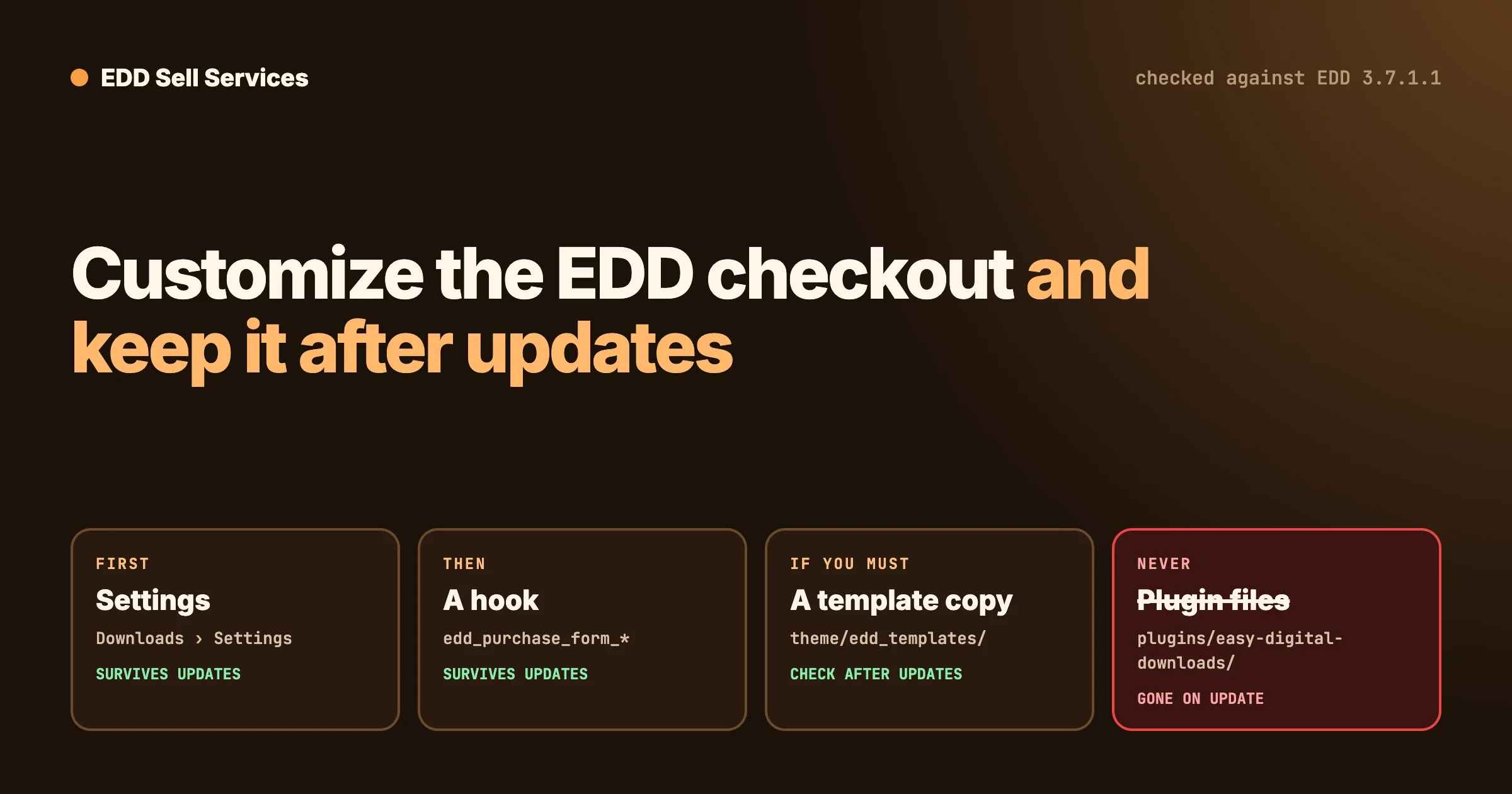
You can change most of the Easy Digital Downloads checkout from its settings screens, with no code. For anything beyond that, add your change through a hook in a small plugin of your own, or copy one template file into your theme. Never edit the files inside the Easy Digital Downloads plugin folder, because every update replaces them and your change disappears without a warning. This guide shows which method fits which change, and how to check your checkout still works after each update.
It is written for a store owner, with the code parts marked so you can hand them to a developer. A word on how we checked it: setting names, hook names and file paths were read from the source code of Easy Digital Downloads 3.7.1.1, the current version on 12 October 2026. The two code examples were checked for errors but were not run on a live checkout for this article, so test them on a copy of your site first.
In this guide:
- First, which checkout do you have?
- What you can change from settings
- The three safe ways to go further
- Adding something with a hook
- Changing the cart table with a template override
- Styling with CSS
- What breaks on update, and how to tell
- A ten-minute check after every update
- Questions people ask
Which checkout do you have: the block or the shortcode?
Easy Digital Downloads has two checkouts, and they are built differently. Which one you have decides which customisations will work.
- The checkout block. A block called EDD Checkout, described in the plugin as the “full checkout block for Easy Digital Downloads”. Newer stores usually have this.
- The checkout shortcode. The text
[download_checkout]on the page. Older stores usually have this.
How to check
- In your WordPress admin, go to Downloads, then Settings, and find the setting called Primary Checkout Page. It names the page.
- Open that page in the editor.
- If you see a block named EDD Checkout, you are on the block checkout. If you see
[download_checkout]in a shortcode or paragraph block, you are on the shortcode checkout.
Why it matters
The two checkouts draw the cart from different files. The shortcode checkout uses a template named checkout_cart.php. The block checkout uses its own view files inside the plugin’s blocks folder, and it switches off a few of the default pieces the older checkout adds. A tutorial written for one can do nothing at all on the other. Before you follow any guide, including this one, know which checkout you are changing.
What can you change from settings, with no code?
Start here. A change made in settings survives every update, because it is stored in your database and not in a file. These setting names are from version 3.7.1.1. The screens are under Downloads, then Settings, and their exact tab can move between versions, so use the names to find them.
What you want | Setting to look for |
|---|---|
Different words on the buy button | Complete Purchase Text, and Complete Free Purchase Text for free orders |
Button colour | Default Button Color |
Ask for a billing address, or not | Checkout Address Fields |
Let people buy without an account, or require one | Customer Registration |
Show a register or login form on the checkout | Show Register / Login Form |
Let returning customers log in by email link | Enable One-Time Login Link |
A terms checkbox with your own wording | Agreement, with its label and text fields |
A privacy policy checkbox | The privacy settings on the Privacy tab |
Which payment methods appear, and in what order | The Payments settings |
Which page is the checkout | Primary Checkout Page |
What else needs no code
- Text above or below the checkout. The checkout is a normal page. Add a paragraph, a list of what happens next, or a short FAQ around the block in the editor.
- Block options. Select the EDD Checkout block and look at its settings in the editor sidebar.
- Trust signals. A line about refunds, a support email, a secure payment note. These are content, not customisation.
For a store that sells services, the most useful change is often plain words above the form: what the buyer will be asked for after paying, and how soon work starts. That removes more hesitation than any design change.
What are the three safe ways to go further?
Method | Good for | Where it lives | Risk on update |
|---|---|---|---|
A hook | Adding text, a field or a notice at a set point in the form | A small plugin of your own, or a code snippets plugin | Low. Hooks are meant for this and rarely change |
A template override | Changing the layout of the cart table on the shortcode checkout | A folder named | Medium. Your copy does not get the plugin’s later improvements |
CSS | Colours, spacing, fonts, hiding a label | Additional CSS in the Customizer or Site Editor, or your child theme | Low to medium. Breaks only if class names change |
And the one unsafe way
Editing a file inside wp-content/plugins/easy-digital-downloads/. It works until the next update, which replaces the whole folder. The symptom is a customisation that “vanished overnight”. The fix is to redo it with one of the three methods above. To prevent it, make it a rule for anyone who works on the site: nothing inside the plugin folder is ever edited.
Where to put code
Not in your theme’s functions.php if you can avoid it, because a theme change would take your checkout changes with it. Use a small plugin of your own, as in the example below, or a code snippets plugin. If you do use the theme, use a child theme so a theme update does not erase it.
How do you add something with a hook?
A hook is a named point in the plugin’s code where it stops and asks “does anyone want to add something here?”. You answer with a small function. The plugin’s own files stay untouched, which is why this survives updates.
These hook names are in the 3.7.1.1 source for the checkout form. They run from the top of the form to the bottom.
Hook | Where it fires |
|---|---|
| Just before the form starts |
| At the top, inside the form |
| Before the email field |
| Inside the personal details, after the standard fields |
| After the personal details |
| Before the card fields |
| After the card fields |
| Just above the buy button |
| Just below the buy button |
| After the form ends |
Example: a line above the buy button
This adds one sentence above the button, and makes the product image in the cart larger. Save it as a file named mystore-checkout.php inside a new folder wp-content/plugins/mystore-checkout/, then activate “My Store Checkout Tweaks” on the Plugins screen.
<?php
/**
 * Plugin Name: My Store Checkout Tweaks
 * Description: Small changes to the Easy Digital Downloads checkout.
 */

add_action( 'edd_purchase_form_before_submit', 'mystore_checkout_note' );
function mystore_checkout_note() {
	echo '<p class="mystore-checkout-note">';
	echo esc_html__( 'We start work within two working days of your order.', 'mystore' );
	echo '</p>';
}

add_filter( 'edd_checkout_image_size', 'mystore_checkout_image_size' );
function mystore_checkout_image_size( $size ) {
	return array( 60, 60 );
}
How to check it worked: add a product to the cart, open the checkout in a private browser window, and look for the sentence above the button. If it is not there, confirm the plugin is active, then check which checkout you have. The block checkout switches off some default pieces on these hooks, so confirm on your own page that the hook you chose fires.
Rules that keep hook code safe
- Print text through an escaping function. The example uses
esc_html__(). Never print a visitor’s input straight onto the page. - Add, do not remove. Adding a note is low risk. Removing the plugin’s own fields can break payment methods that expect them.
- Required fields are a special case. There is a filter named
edd_purchase_form_required_fieldsthat controls which fields must be filled in. Changing it can stop orders completing, and some payment methods need a name or an address. Leave it to a developer, and test a real payment afterwards. - One change per function. When something breaks, you can switch off one piece without losing the rest.
How do you change the cart table with a template override?
This applies to the shortcode checkout. The cart table at the top of the checkout comes from a file named checkout_cart.php in the plugin’s templates folder. Easy Digital Downloads looks for templates in three places, in this order:
- A folder named
edd_templatesin your child theme. - A folder named
edd_templatesin your parent theme. - The plugin’s own
templatesfolder.
It uses the first copy it finds. So to change the cart table, you copy the file and edit your copy.
- Create a folder named
edd_templatesinside your child theme. - Copy
wp-content/plugins/easy-digital-downloads/templates/checkout_cart.phpinto it. - Edit your copy. Leave the original alone.
- Reload the checkout and confirm your change shows.
The cost of an override
Your copy is now frozen at the version you copied. When Easy Digital Downloads improves or fixes that template, your site keeps using your older copy. The symptom is odd: a fix mentioned in the release notes that does not seem to reach your store.
How to check: after each update, compare the plugin’s checkout_cart.php with your copy. If the plugin’s file changed, bring those changes into yours.
How to prevent trouble: put a comment at the top of your copy with the plugin version you copied it from and the date. Keep the override as small as you can. If a hook can do the job, use the hook. The cart template has its own hooks, such as edd_cart_items_before and edd_checkout_cart_item_title_after, and those two fire on both checkouts in 3.7.1.1.
On the block checkout
Overriding checkout_cart.php does not change the block checkout’s cart, because the block draws it from its own view files. For the block checkout, use the block’s settings, hooks and CSS.
How far can CSS take you?
Further than most people expect, and it is the easiest change to undo. Colours, spacing, font sizes, borders and hiding a label you do not need are all CSS.
/* Give the checkout form room to breathe and make the button full width */
#edd_purchase_form {
  max-width: 640px;
  margin-inline: auto;
}
#edd_purchase_form .mystore-checkout-note {
  font-size: 0.95rem;
  margin-block: 1rem;
}
#edd-purchase-button {
  width: 100%;
}
The form’s edd_purchase_form id is used by both checkouts in 3.7.1.1. Confirm the button’s id on your own page with your browser’s Inspect tool before you rely on it, because your theme or a payment method can change the button.
Rules for checkout CSS
- Do not hide fields with CSS. A hidden required field still has to be filled in, and the buyer cannot see why the form refuses to submit. Remove fields through settings.
- Check on a phone. Most checkout problems caused by CSS show up at phone width first.
- Keep it short. Twenty lines you understand are safer than two hundred pasted from elsewhere.
What breaks on update, and how do you tell?
What you see after an update | Likely cause | Check | Fix |
|---|---|---|---|
Your change has gone completely | It was made inside the plugin folder | Search your own plugin and child theme for the change. If it is in neither, it was in the plugin | Redo it with a hook, an override or CSS |
The added text is gone, the rest is fine | The hook moved, or you switched checkout type | Confirm block or shortcode, then look for the hook name in the new version | Attach your function to the nearest current hook |
The cart looks old or misses a new feature | A template override frozen at an old version | Compare your copy with the plugin’s file | Copy the new file and re-apply your edits |
Styling is off | A class name or the page structure changed | Inspect the element in your browser | Update the selector |
The buy button does nothing | A script error, often from custom code or another plugin | Open the browser console on the checkout and read the first red line | Switch off your custom plugin. If the button works, the fault is in your code |
Orders fail at payment | A required field was removed or hidden | Place a test order and read the error shown | Restore the field. Then make the change through settings |
Because your changes live in one small plugin and one folder, finding the cause is quick. Deactivate your custom plugin and reload. If the problem goes, it is your code. If it stays, look at the template override, then at other plugins. We wrote about a real update problem and how to handle it calmly in Receipt Links Not Opening After an Easy Digital Downloads Update.
What should you check after every update?
Ten minutes, in this order. Do it on a staging copy before you update the live store if you can, and on the live store straight after.
- Add a product to the cart and open the checkout in a private window.
- Look for each of your changes: the note, the layout, the styling.
- Place a test order with your payment provider’s test mode, or a 100 percent discount code.
- Confirm the confirmation page appears and the receipt email arrives.
- Repeat steps 1 and 2 on a phone.
- If you sell services, confirm that the buyer is asked for their requirements after paying.
- Open the browser console on the checkout and check there are no red errors.
- Compare your template override with the plugin’s file, if you have one.
Write your changes down in one place: what you changed, by which method, and why. A list of five lines saves an hour the next time something looks wrong.
Questions people ask
Can you add a custom field to the checkout?
Yes, with a hook such as edd_purchase_form_user_info_fields. Showing the field is the easy half. You also need code to check it, save it with the order and show it to you in the admin. That is developer work. For a service store, consider whether the question belongs on the checkout at all. Questions asked after payment do not slow the sale down.
Should a service brief be collected on the checkout?
Usually not. Every extra field before payment costs you some buyers. EDD Sell Services asks the buyer your requirement questions after payment, on the order itself, so the checkout stays short. Our start-to-finish guide shows that flow.
Is the block checkout or the shortcode checkout better?
The block is the newer one and is where new work in the plugin tends to go. If your shortcode checkout works and has customisations, there is no rush to switch. If you do switch, list your customisations first and test each one, because template overrides for the cart will not carry over.
Will a child theme protect template overrides?
From theme updates, yes. From becoming outdated, no. A child theme keeps your copy safe, and you still have to compare it with the plugin’s file after updates.
Can a page builder be used for the checkout?
You can design the page around the checkout with a builder. The pricing page for Easy Digital Downloads lists an Elementor integration. The form itself still comes from the plugin, so the same rules apply to changing what is inside it.
How do you undo a customisation quickly?
Deactivate your custom plugin, rename the edd_templates folder, or remove the CSS. Each takes under a minute, which is the point of keeping changes in those three places.
When is it time to ask a developer?
When the change touches required fields, payment methods, tax, or what is saved with the order. Those are the parts where a small mistake stops sales.
If you would like the checkout changed for you, with the changes kept in a companion plugin and never in the plugin’s own files, see our Easy Digital Downloads customization services. And if you are still working out what the plugin itself costs, read Is Easy Digital Downloads Free? What You Pay For and When.
Related Posts
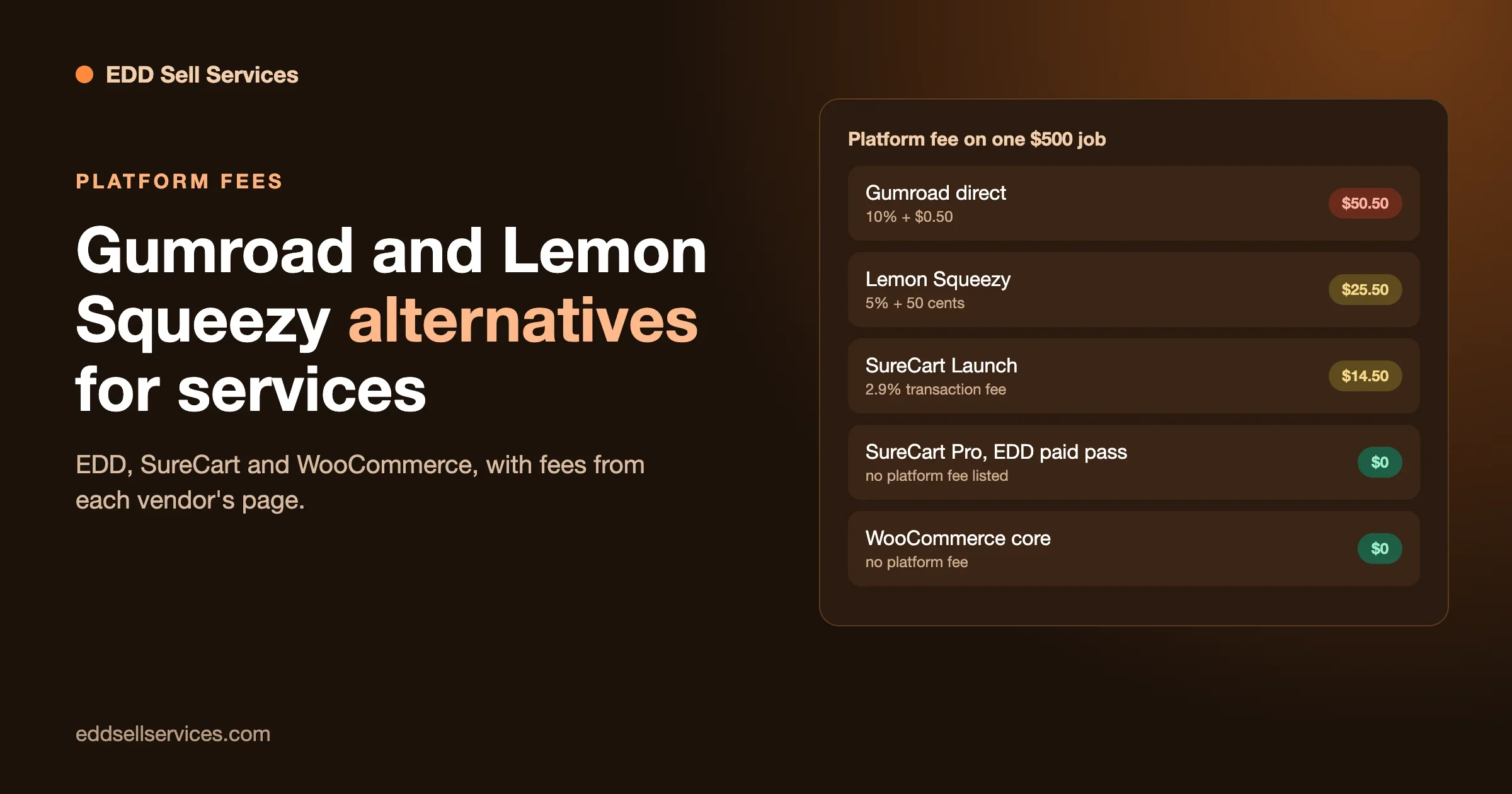
Gumroad and Lemon Squeezy Alternatives for Selling Services From WordPress: EDD, SureCart and WooCommerce
Delivering Custom Work in Easy Digital Downloads: Custom Deliverables, Upload File or a Full Service Workflow