10 Best WordPress Plugins

A default WordPress install does very little on its own. Plugins are what turn a bare CMS into a site that ranks, sells, loads fast, and doesn’t get taken down by a spam bot on day two. The catch is that the plugin directory holds well over fifty thousand entries, most of them abandoned, half-finished, or duplicating something better already on this list. Picking the wrong one wastes an afternoon; picking the wrong security or backup plugin can cost you the whole site.
This list sticks to plugins that have earned their reputation over years of real use, not just marketing copy: proven track records, active development, and genuine gaps they fill rather than features you’ll never touch. Here’s a close look at ten that consistently show up on serious WordPress builds.
One thing worth saying up front: “best” doesn’t mean “install all ten immediately.” A brochure site with no store and no forms doesn’t need WooCommerce sitting dormant in its plugin list. Read each entry with your actual site in mind, not as a checklist to complete.

What Actually Makes a Plugin Worth Installing?
A plugin worth keeping on your site does one job well instead of ten jobs poorly. That sounds obvious, but it’s the number one reason sites slow to a crawl: five different plugins all trying to handle caching, image optimization, and minification at once, stepping on each other’s toes the whole way. Before adding anything new, check whether an existing plugin already covers that ground.
It’s also worth distinguishing between plugins that add a feature and plugins that fix a problem. A page builder adds something your site couldn’t do before. A security plugin, by contrast, exists to prevent a problem you may never notice until it happens: a hacked login page, a defaced homepage, a site quietly mining cryptocurrency in the background while search engines de-index it for malware. Both categories matter, but they get evaluated differently. You judge a feature plugin by what it lets you build. You judge a protective plugin by how reliably it stays out of the way until the day it actually saves you.
What to Check Before You Install
- Compatibility with your current theme and WordPress core version, checked against the plugin’s own compatibility notes, not assumed.
- An update history that’s actually recent. A plugin last updated three years ago is a security liability waiting to happen, regardless of how good the reviews once were.
- Support responsiveness in the plugin’s own forum. A developer who answers questions within a few days is a good sign; radio silence for months is not.
- A realistic read of user ratings, weighted toward recent reviews rather than the total star average, since old five-star reviews can hide recent problems.
The 10 Best WordPress Plugins
1. Yoast SEO

Yoast SEO walks you through on-page optimization one field at a time: title tags, meta descriptions, keyword usage, internal linking, all scored with a traffic-light system that tells you what to fix first. It’s the plugin most WordPress SEO guides assume you already have installed, and that reputation is earned rather than inherited.
Key features: real-time SEO and readability scoring, automatic XML sitemap generation, and schema markup handled without touching code.
Pros: approachable for total beginners, and the free version alone covers most of what a small site actually needs.
Cons: deeper features like redirect management and internal linking suggestions sit behind the premium tier.
Bottom line: if your site has zero SEO plugin right now, this is the one to start with.
Also Read: 10 Best AI for Writing Essays
2. Elementor
Elementor replaced a lot of freelance page-builder work with a drag-and-drop canvas that shows exactly what visitors will see as you build it. Instead of previewing changes after saving, you watch the page update live, which cuts the back-and-forth that used to eat hours on a typical design pass.
Key features: live visual editing, a template library running past 300 designs, and tight integration with most popular WordPress themes.
Pros: zero coding required, and the customization ceiling is high enough for genuinely professional results.
Cons: the more advanced widgets and theme-building tools require the Pro upgrade.
Bottom line: the strongest option for anyone building or redesigning pages without hiring a developer.
3. WooCommerce
WooCommerce turns a standard WordPress install into a fully functioning storefront, and it’s the plugin behind a meaningful share of every WordPress-powered online store you’ve ever bought something from. It’s free to install, though a real store usually ends up paying for a payment gateway extension or two once volume grows.
Key features: full product catalog management, built-in support for major payment gateways, and an extension marketplace that covers nearly any e-commerce need you can name.
Pros: the base plugin costs nothing, and it scales from a five-product side hustle up to a full catalog with variants and subscriptions.
Cons: the initial setup, tax rules, shipping zones, payment configuration, has a real learning curve for a first-time store owner.
Bottom line: the default choice for selling physical or digital products directly from WordPress.
4. Akismet
Akismet runs quietly in the background, checking every incoming comment and contact form submission against a spam database that’s been trained on billions of real spam samples. Most site owners never think about it until they compare a site running Akismet against one that isn’t, at which point the difference in comment-section garbage becomes obvious fast.
Key features: automatic spam filtering, a comment history log for manual review, and clean integration with contact form plugins.
Pros: it saves real moderation time, and it catches malicious links before they ever reach a live comment thread.
Cons: activation requires an API key, an extra step that trips up some first-time users.
Bottom line: pair it with a proper security plugin, our roundup of the best WordPress security plugins covers the rest of that stack, and spam and intrusion attempts both get handled without daily manual effort.
5. WP Rocket
WP Rocket handles caching, database cleanup, and lazy loading in a single plugin, and it does it with almost no configuration required out of the box. For a lot of sites, installing it and leaving the defaults alone produces a measurable speed improvement within minutes.
Key features: page caching, automated database optimization, and lazy loading for images and embedded video.
Pros: the speed gains are noticeable rather than marginal, and there’s genuinely very little to configure.
Cons: there’s no free tier at all, which rules it out for anyone on a strict zero-budget setup.
Bottom line: worth the cost if page speed is actually hurting your rankings or conversions, which you can check with a real speed test rather than guessing.
Also Read: Best WordPress Plugins for Your Service Based Business
6. Contact Form 7
Contact Form 7 has stayed the most-installed form plugin in the WordPress directory for years, mostly because it does one thing and does it reliably: build a form with a shortcode, drop it anywhere, done. It’s not flashy, and that’s exactly the point for anyone who just needs a working contact form without extra bloat.
Key features: shortcode-based form building, native CAPTCHA and Akismet support, and multilingual form handling for international sites.
Pros: completely free, and it plays well with nearly every theme without conflicts.
Cons: styling and advanced logic (conditional fields, multi-page forms) require add-ons or custom CSS.
Bottom line: the right pick when you want a form that just works, not a form builder with a learning curve.
7. UpdraftPlus
UpdraftPlus automates the one task every site owner knows they should do and most put off until something breaks: regular backups. It pushes copies to cloud storage on a schedule you set, and restoring from a backup is a genuinely one-click process rather than a manual database import at 2 a.m.
Key features: scheduled automatic backups to cloud services, one-click restore, and incremental backup support to avoid re-uploading everything each time.
Pros: straightforward setup, and the free version already covers the basics most sites need.
Cons: multiple backup destinations and advanced scheduling sit behind the premium plan.
Bottom line: non-negotiable for any site that would actually hurt to lose. For more backup-specific options, see our roundup of the best WordPress backup plugins.
8. MonsterInsights
MonsterInsights connects Google Analytics to your WordPress dashboard so you’re not jumping between two separate interfaces to check how your site is performing. Traffic sources, top content, and e-commerce conversions all surface right where you’re already working.
Key features: guided Google Analytics setup, real-time visitor stats inside wp-admin, and dedicated e-commerce tracking reports.
Pros: genuinely approachable for non-technical users, and the reporting is more digestible than raw Google Analytics for a quick daily check.
Cons: advanced segmentation and custom event tracking require the Pro version.
Bottom line: useful for anyone who wants analytics data without learning Google Analytics’ full interface.
9. Smush
Smush compresses images on upload without a visible drop in quality, which matters because unoptimized images are still one of the most common causes of a slow WordPress site. It also flags oversized images already sitting in your media library, not just new uploads going forward.
Key features: bulk compression for existing images, lazy loading, and automatic detection of oversized files.
Pros: the free version is genuinely capable, and the performance improvement is easy to measure with a before-and-after speed test.
Cons: the highest compression settings and WebP conversion sit behind the paid tier.
Bottom line: pair this with WP Rocket above and most sites will see a real, measurable load-time improvement.
Also Read: Top Vouchers or Discounts Plugins for EDD
10. All in One SEO
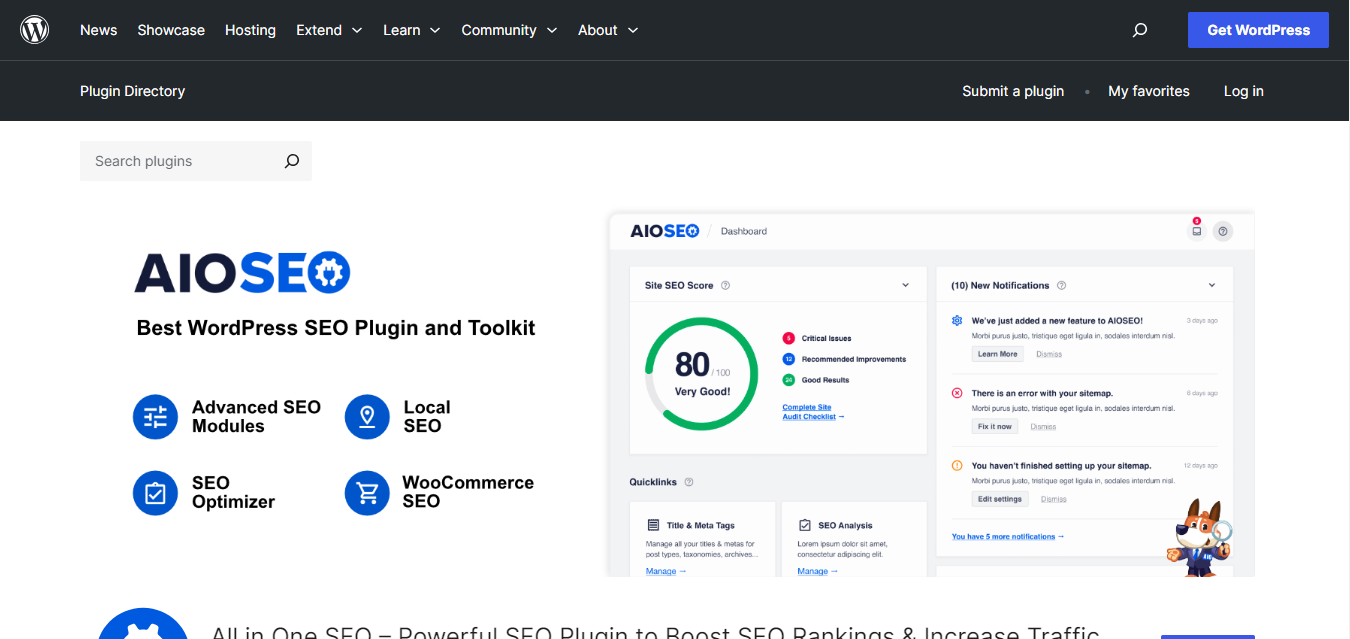
All in One SEO covers the same core ground as Yoast, on-page optimization, sitemaps, schema, but leans a bit more toward e-commerce and social sharing out of the box. Most sites only need one SEO plugin, not both, so this is really an alternative to Yoast rather than an addition to it.
Key features: XML sitemap generation, built-in e-commerce SEO support, and social media preview and optimization tools.
Pros: a genuinely simple setup wizard, and it works well for both beginners and more advanced users who want granular control.
Cons: the free version’s feature set is noticeably lighter than the paid tiers.
Bottom line: worth comparing directly against Yoast before committing since the two overlap heavily; pick whichever interface you find easier to work in.
Quick Comparison
| Plugin | Best For | Standout Feature | Pricing |
|---|---|---|---|
| Yoast SEO | SEO | Real-time SEO and readability scoring | Free, Premium available |
| Elementor | Page design | Live drag-and-drop editing | Free, Pro available |
| WooCommerce | E-commerce | Integrated payment gateways | Free, paid extensions |
| Akismet | Spam protection | Automatic comment spam filtering | Free for personal use, paid for business |
| WP Rocket | Speed optimization | Zero-config page caching | Premium only |
| Contact Form 7 | Forms | Shortcode-based form creation | Free |
| UpdraftPlus | Backups | Scheduled cloud backups | Free, Premium available |
| MonsterInsights | Analytics | Google Analytics inside wp-admin | Free, Pro available |
| Smush | Image optimization | Bulk image compression | Free, Premium available |
| All in One SEO | SEO (Yoast alternative) | Built-in social and e-commerce SEO | Free, Pro available |

How Many Plugins Is Too Many?
There’s no fixed number, sites with forty well-coded plugins can outperform sites with eight badly-coded ones, but the practical ceiling for most WordPress installs sits somewhere around fifteen to twenty-five before performance starts suffering noticeably. What actually matters is plugin quality and overlap, not the raw count. Running two SEO plugins, two caching plugins, or two form builders at once is almost always a mistake: they conflict, duplicate database queries, and slow the site down for no added benefit.
A reasonable audit routine: once a quarter, open your plugins list and ask honestly whether each one is still doing something you need. Deactivate anything you can’t immediately justify, then delete it after a week if nothing breaks. Keep a written note of what you deactivated and why, since “I’ll remember” rarely survives more than a month, and a plugin sitting deactivated but not deleted still carries some risk if a vulnerability is discovered in it later.
Theme choice matters here too, more than most people expect. A bloated, poorly coded theme with fifty built-in options you never touch can drag a site down worse than any single plugin on this list. If you’re picking a theme alongside these plugins, favor one built specifically for the type of site you’re running rather than an all-purpose theme padded with every feature imaginable.
If you’re running a service-based site rather than a store, our list of WordPress plugins for service-based businesses narrows this same list down to what actually matters for that use case, and if you need to add custom code snippets without editing theme files directly, see our guide to the best WordPress plugins for adding code.
Common Questions About Choosing WordPress Plugins
Should I install both Yoast and All in One SEO?
No. Running two SEO plugins side by side causes duplicate meta tags, conflicting sitemaps, and generally worse SEO than running either one alone. Pick one, set it up properly, and leave the other uninstalled.
Do free versions of these plugins actually work, or are they just teasers for the paid tier?
For most of the plugins here, the free version is genuinely usable on its own. Contact Form 7, Akismet, and the free tiers of Yoast, UpdraftPlus, and Smush all cover real functionality rather than existing purely to upsell you. WP Rocket is the exception on this list, it has no free tier at all.
Will adding all ten of these plugins slow my site down?
Not necessarily, but it’s worth being deliberate about it. These ten don’t overlap in function (each targets a different job: SEO, design, backups, and so on), so running all of them together is reasonable. The real risk comes from stacking multiple plugins that do the same job, not from running a well-chosen set that each serve a distinct purpose.
How do I know if a plugin is actually safe to install?
Check three things before activating anything new: the last update date (recent is good, anything past a year is worth questioning), the number of active installs (a wide install base means more eyes have caught obvious problems), and the support forum’s recent activity. A plugin with thousands of installs, a recent update, and an actively answered support forum is about as safe a bet as you’ll find in a public directory. One with a handful of installs and no updates since a WordPress version two majors behind current is a real risk, however good its single feature sounds.
Choosing the Right Plugins for Your Site
None of these ten plugins are mandatory for every site. A simple blog might only need Yoast and Akismet. A store needs WooCommerce plus a payment extension. Match the list to what your site actually does rather than installing everything just because it made a top-ten roundup, and you’ll end up with a faster, easier-to-maintain WordPress install than most sites running twice as many plugins with half the purpose.
A practical way to start: install one plugin, use it for a week on a real task, then decide if it’s earning its place before adding the next. That pace feels slow compared to installing all ten in an afternoon, but it means every plugin on your site is there because you tested it against your actual workflow, not because a roundup told you it belonged there. Sites built that way tend to stay fast and manageable for years, while sites built by installing everything at once tend to accumulate cruft that nobody remembers adding, let alone why.
Interesting Reads